# Integrating Snowflake with Azure AD via OAuth

The following steps will walk you through the process of integrating Azure Active Directory (Azure AD) with Snowflake for authentication using OAuth.

### **1. Setting Up a Snowflake OAuth Resource in Azure AD**

Sign in to the[ Microsoft Azure Portal](https://portal.azure.com/)&#x20;

#### **1.1. App registration for Snowflake OAuth resource**

* Navigate to **Azure Active Directory**.
* Choose **App registrations** and then select **New registration**.
* Enter a suitable name. For example, *Tellius Snowflake OAuth Resource*.
* Under **Supported account types**, choose **Accounts in this organizational directory only (Tellius only - Single Tenant).**

<figure><img src="https://content.gitbook.com/content/s16h5onryWtbaHwBa10b/blobs/9QLTvDil1cRlshhyE6gh/image.png" alt="" width="563"><figcaption><p>Setting up Snowflake OAuth resource in Azure AD</p></figcaption></figure>

#### **1.2 Modifying the API**

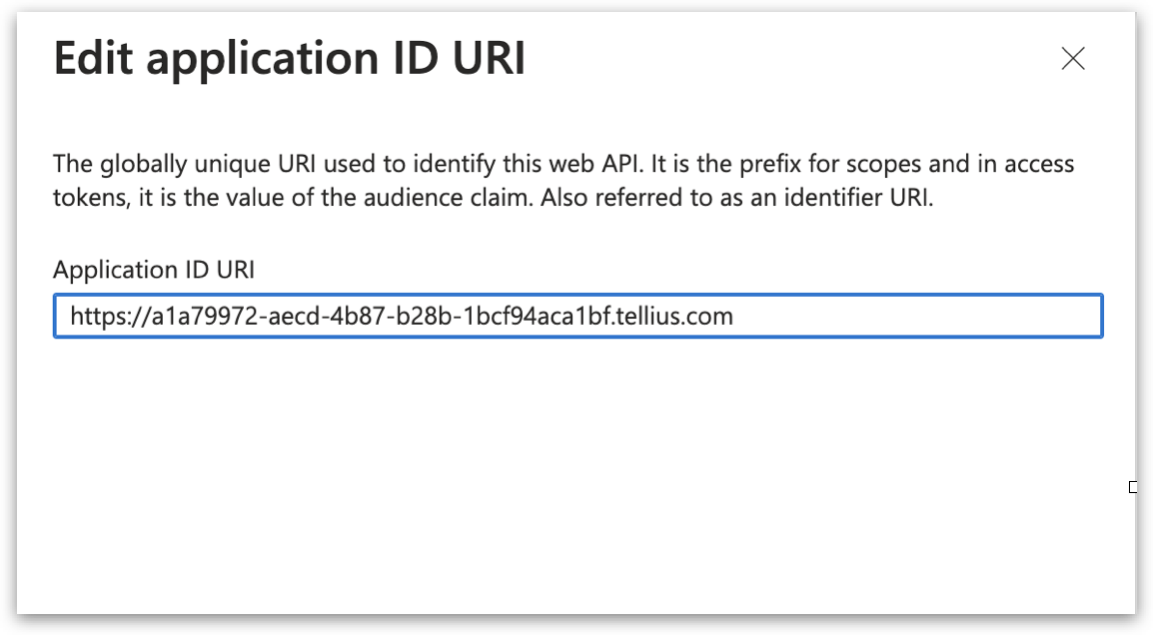
* Once registered, select **Expose an API** from the left-hand pane.
* Next to **Application ID URI**, click on **Set**. Change the default value *(api://\<alphanumeric value>)* to one of the following and click on Save.
  * *https\://\<alphanumeric value>.yourcompany.com* (or)
  * *<https://yourcompany.com/\\><alphanumeric value>*
* For example: *<https://a1a79972-aecd-4b87-b28b-1bcf94aca1bf.xyz.com>*\
  Please make sure your domain name is verified in Azure AD.
* Remember to note down this URI as it will be used in future steps and is referred to as *\<SNOWFLAKE\_APPLICATION\_ID\_URI>*.

<figure><img src="https://content.gitbook.com/content/s16h5onryWtbaHwBa10b/blobs/0ziZQ3DVFDeFlNKWa2Ee/image.png" alt="" width="563"><figcaption><p>Editing application ID</p></figcaption></figure>

#### **1.3 Adding a new scope**

* Click on **Add a scope**.
* Under **Scope name**, type **session:role-any**. This allows Snowflake users to use any role they are granted.
* Opt for both **Admin and Users** to give consent.

<figure><img src="https://content.gitbook.com/content/s16h5onryWtbaHwBa10b/blobs/vHUJOCkP6hsrO9HKgV4W/image.png" alt="" width="563"><figcaption><p>Adding a scope</p></figcaption></figure>

### **2. Creating a Snowflake OAuth Client App in Azure AD**

#### **2.1 App registration for Snowflake OAuth Client**

* Again, navigate to **Azure Active Directory**.
* Choose **App Registrations** and then **New registration**.
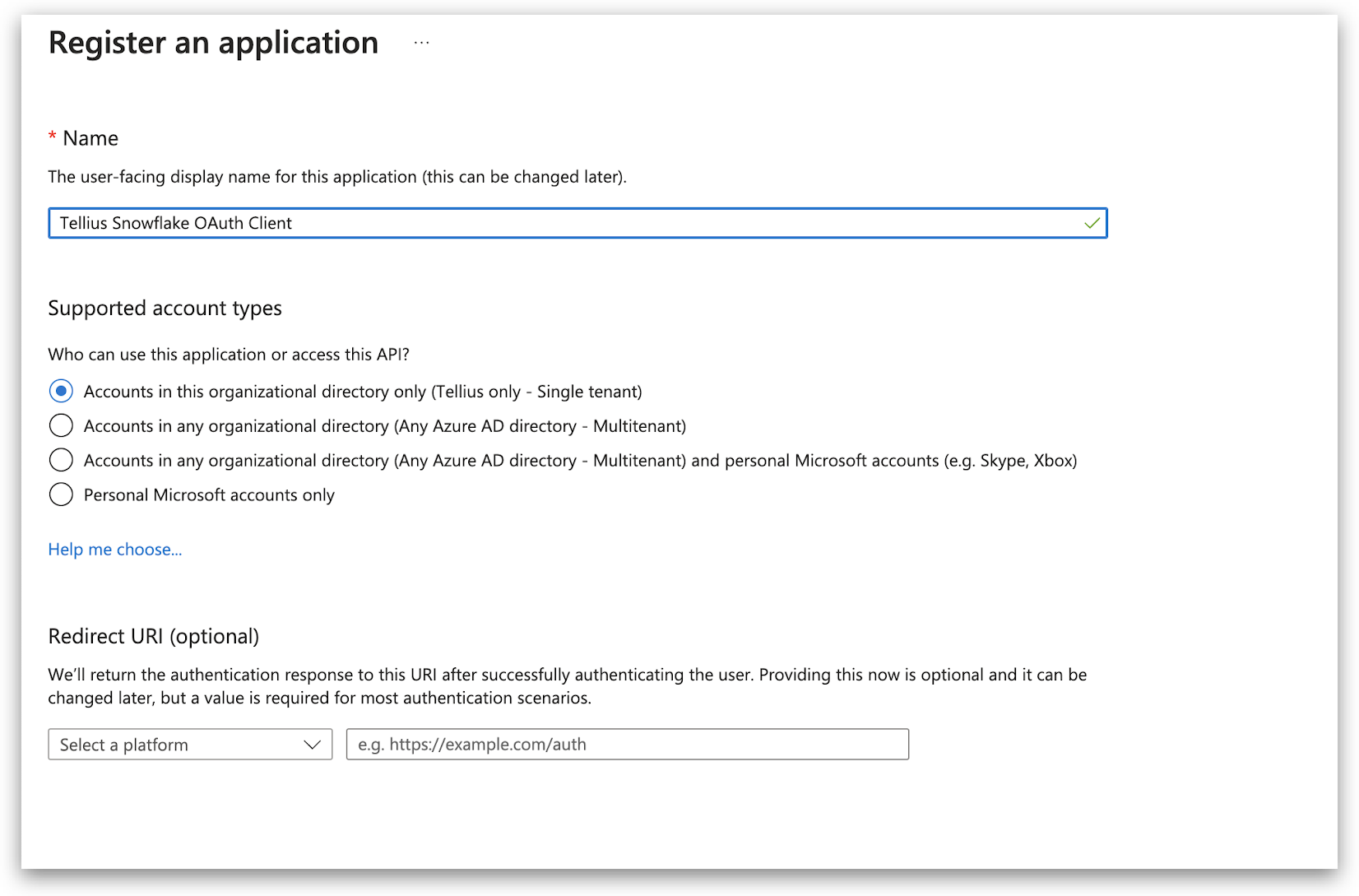
* Provide a suitable name (for example: Tellius Snowflake OAuth Client) and under **Supported account types**, choose **Accounts in this organizational directory only (Tellius only - Single Tenant).**

<figure><img src="https://content.gitbook.com/content/s16h5onryWtbaHwBa10b/blobs/LNq6RMyoq3kBfays8k6J/image.png" alt="" width="563"><figcaption><p>Registring for Snowflake OAuth Client</p></figcaption></figure>

* Once registered, click on **Overview**.
* Find the **Application (client) ID** field and copy the ID. It's denoted as *\<OAUTH\_CLIENT\_ID>* for future steps.

#### **2.2 Setting up Authentication**

* Go to **Authentication**. Under the **Web** section, provide the redirect URI in this format: *https\://\<Tellius URL>/dataset/wizard/snowflake.*

#### **2.3 Generating Client Secret**

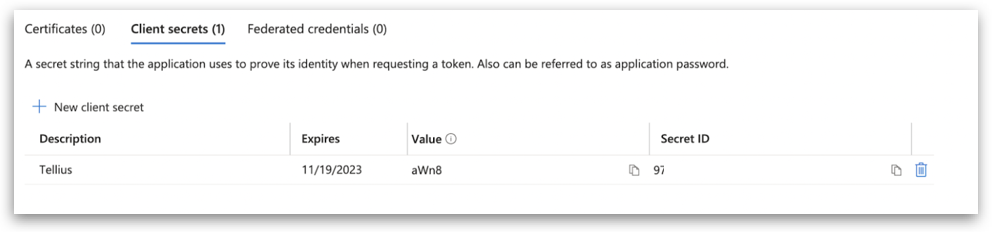
* Navigate to **Certificates & secrets**.

<figure><img src="https://content.gitbook.com/content/s16h5onryWtbaHwBa10b/blobs/Ncd8YTUy3qCpnZn78yko/image.png" alt="" width="563"><figcaption><p>Clent secrets</p></figcaption></figure>

* Click on **New client secret** and choose a suitable expiry time.
* Copy the secret's value. It will be referred to as *\<OAUTH\_CLIENT\_SECRET>* in upcoming steps.

#### **2.4 Defining API permissions**

* Go to **API permissions** and select **Add a permission**.
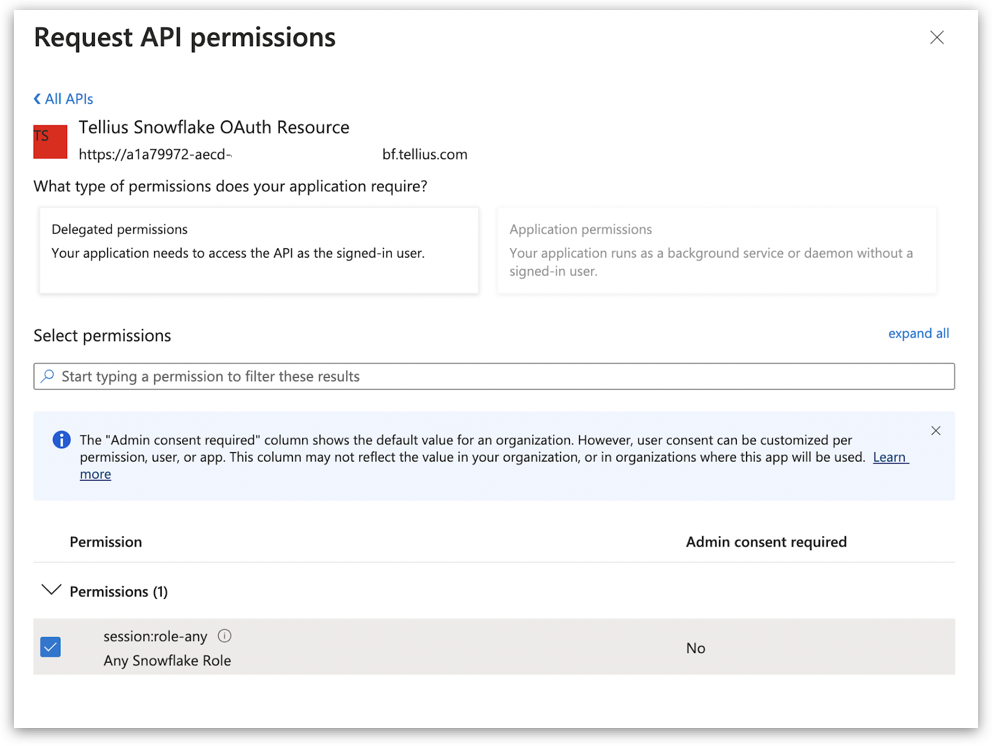
* Pick **My APIs** and choose the Snowflake OAuth Resource you set up earlier.
* On the **Request API permissions** page, check the **Delegated permissions** box. Then, select the permission related to the scope defined in the application from the list.

<figure><img src="https://content.gitbook.com/content/s16h5onryWtbaHwBa10b/blobs/LC5oandAt6rTSEZZc2rn/image.png" alt="" width="563"><figcaption><p>Requesting API permissions</p></figcaption></figure>

* Click on **Add permissions**.

<figure><img src="https://content.gitbook.com/content/s16h5onryWtbaHwBa10b/blobs/FuVLEnMrxPXEAxQWYV01/image.png" alt="" width="563"><figcaption><p>Requesting API permissions</p></figcaption></figure>

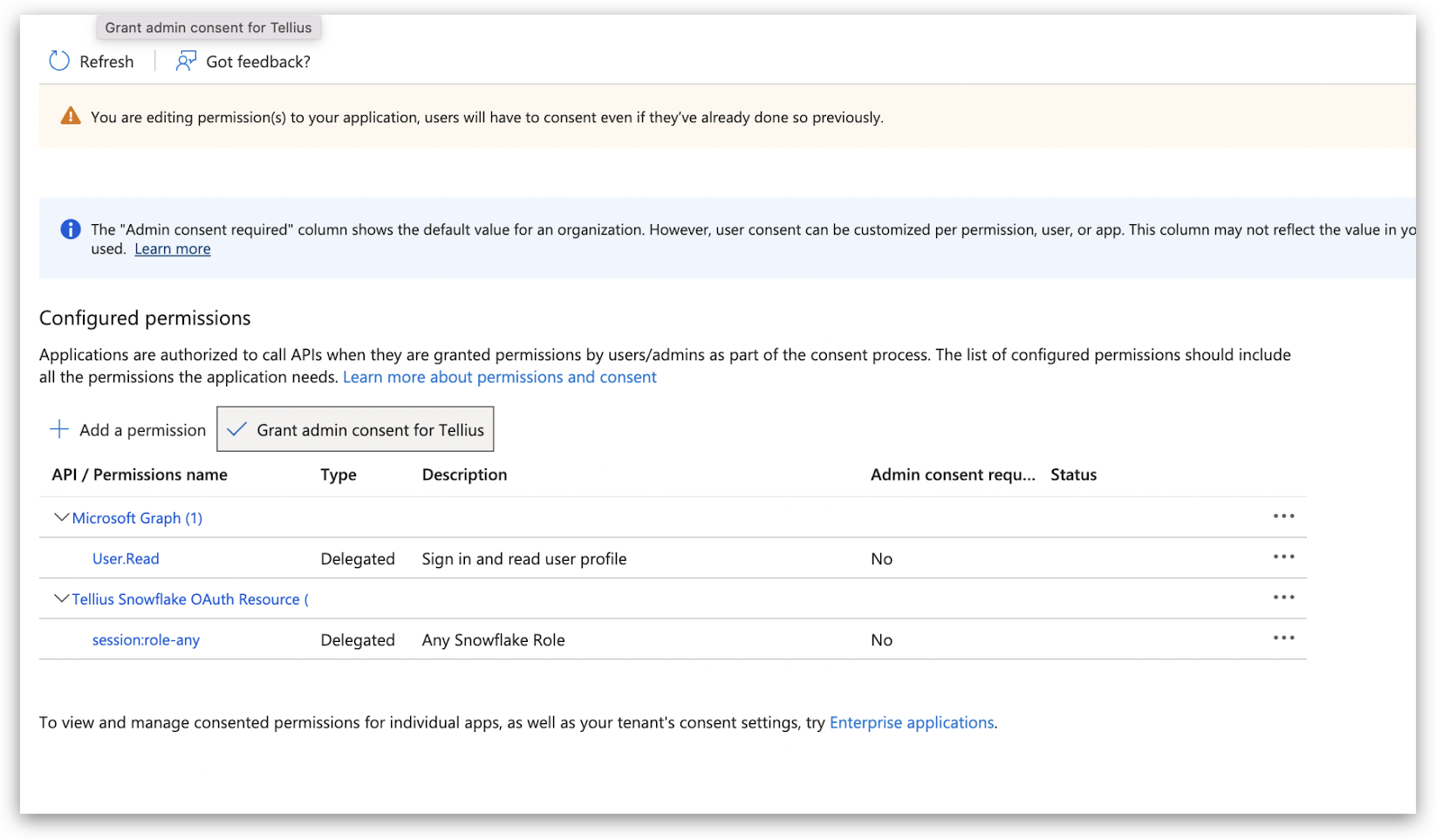
* Under **Configured permissions**, select **Grant admin consent for Default Directory** and click **Yes** on the confirmation message.

<figure><img src="https://content.gitbook.com/content/s16h5onryWtbaHwBa10b/blobs/pHuVB0t1tL4ft9Ij239V/image.png" alt="" width="563"><figcaption><p>Configured permissions</p></figcaption></figure>

### **3. Collecting Azure AD OAuth Information**

#### **3.1 Accessing OAuth Details**

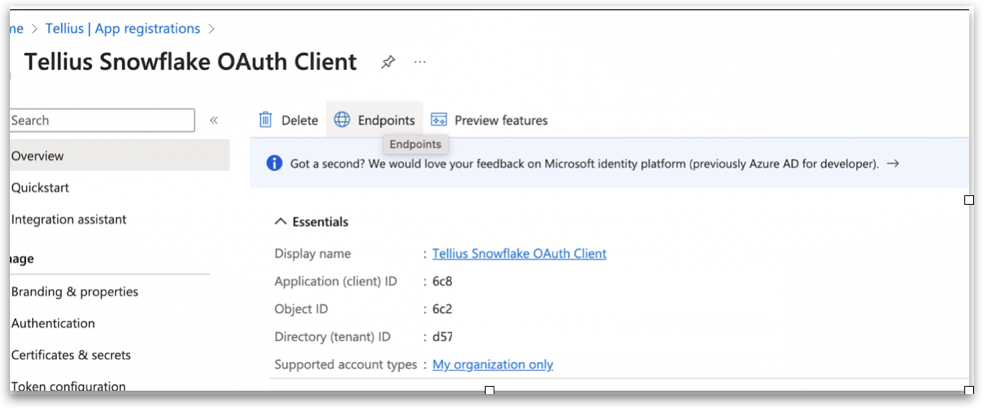
* Navigate back to the Snowflake OAuth Resource App.
* In the **Overview** section, select **Endpoints**.
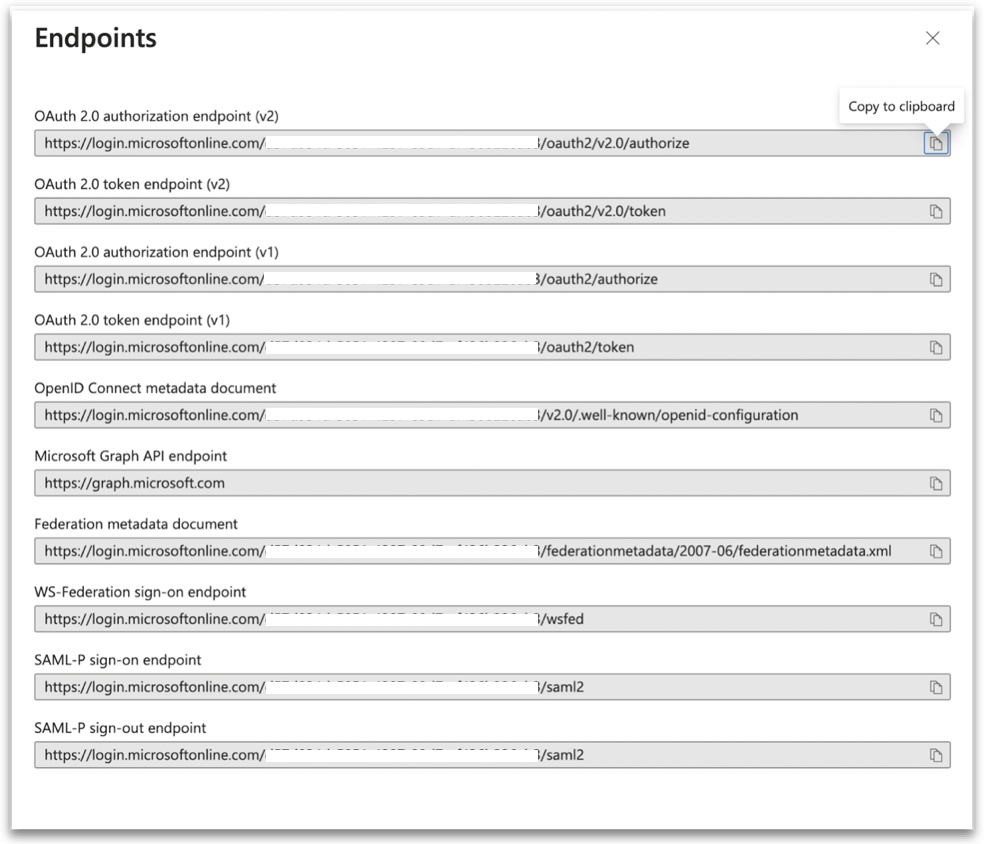
* On the displayed panel, copy the **OAuth 2.0 token endpoint (v2)** for OpenID Connect metadata and Federation Connect metadata. This will be referred to as *\<AZURE\_AD\_OAUTH\_TOKEN\_ENDPOINT>* in subsequent steps.
* The endpoint should be similar to *<https://login.microsoftonline.com/\\>\<tenant\_id>/oauth2/v2.0/token/*.

<figure><img src="https://content.gitbook.com/content/s16h5onryWtbaHwBa10b/blobs/fETW6hTKFHuahR6r2aLO/image.png" alt="" width="563"><figcaption><p>Accessing OAuth</p></figcaption></figure>

#### **3.2. Gathering OpenID Connect Metadata**

* Open the URL for **OpenID Connect metadata** in a new browser tab.
* Find and copy the value of the "jwks\_uri" parameter, which will be referred as *\<AZURE\_AD\_JWS\_KEY\_ENDPOINT>* in the subsequent steps.
* The endpoint should be similar to <https://login.microsoftonline.com/\\>\<tenant\_id>/discovery/v2.0/keys.

<figure><img src="https://content.gitbook.com/content/s16h5onryWtbaHwBa10b/blobs/yRuHhJADDhID9l0g5QWI/image.png" alt="" width="563"><figcaption><p>Endpoints tab</p></figcaption></figure>

#### **3.3. Fetching Federation Metadata**

* Launch the URL for the **Federation metadata document** in a new browser tab.
* In the displayed XML, locate the "entityID" parameter in the XML Root Element and copy its value. This will be referred to as **\<AZURE\_AD\_ISSUER>** in the subsequent steps.
* The entityID value should be similar to <https://sts.windows.net/>\<tenant\_id>/.

The OAuth 2.0 authorization endpoint (v2) should be similar to <https://login.microsoftonline.com/>\<tenant\_id>/oauth2/v2.0/authorize which will be referred as \<AZURE\_AD\_OAUTH\_AUTH\_ENDPOINT>

### **4. Configuring the OAuth Authorization server on Snowflake**

1. The following are the required values for configuring Snowflake to create a security integration and connect to Azure AD:

* AZURE\_AD\_ISSUER - Refer [this section](https://tellius-angularapp.slack.com/archives/C040FCB1VK5/p1695357261588569)
* AZURE\_AD\_JWS\_KEY\_ENDPOINT - Refer [this section](https://help.tellius.com/article/4v2bmd1b63-integrating-snowflake-with-azure-ad-via-oauth#3_collecting_azure_ad_o_auth_information)
* SNOWFLAKE\_APPLICATION\_ID\_URI - Refer [this section](https://help.tellius.com/article/4v2bmd1b63-integrating-snowflake-with-azure-ad-via-oauth#1_setting_up_a_snowflake_o_auth_resource_in_azure_ad)
* Mapping Attribute - 'EMAIL\_ADDRESS' or 'LOGIN\_NAME'
* Azure AD uses the email address as the username. If Snowflake has the same email set as the login name, any of these attributes can be used.

2. To allow Snowflake to utilize the OAuth tokens from Azure AD, execute the following command:

```sql
create security integration external_oauth_azure
    type = external_oauth
    enabled = true
    external_oauth_type = azure
    external_oauth_issuer = '<AZURE_AD_ISSUER>'
    external_oauth_jws_keys_url = '<AZURE_AD_JWS_KEY_ENDPOINT>'
    external_oauth_audience_list = ('<SNOWFLAKE_APPLICATION_ID_URI>')
    external_oauth_token_user_mapping_claim = 'upn'
    external_oauth_any_role_mode = 'ENABLE'
    external_oauth_snowflake_user_mapping_attribute = 'EMAIL_ADDRESS';
```

### **5. Configuring in Tellius**

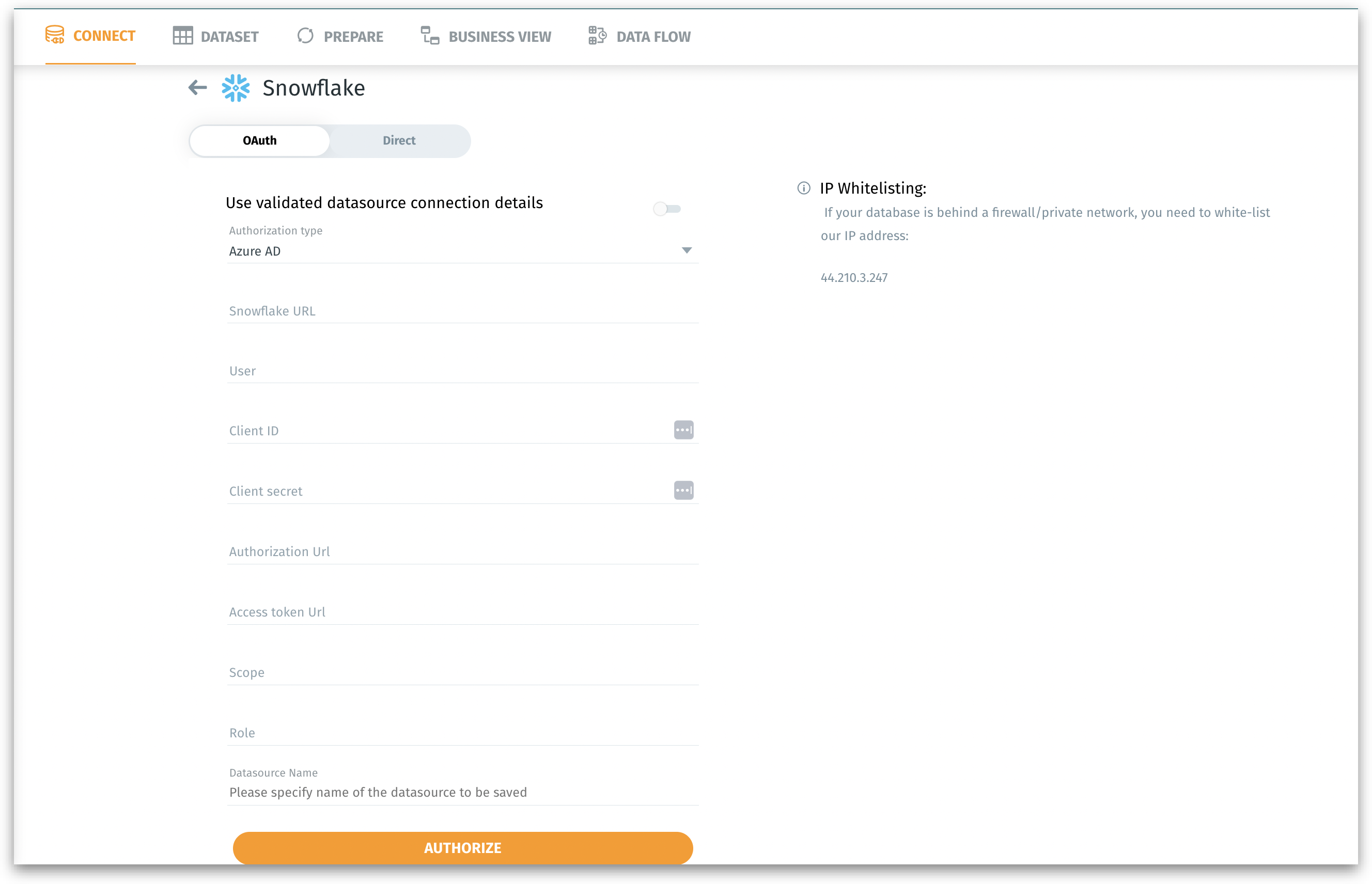
In Tellius, navigate to **Data --> Connect --> Snowflake --> OAuth**.

Under **Authentication type**, choose Azure AD from the dropdown.

**Snowflake URL -** URL of Snowflake account (without "https\://")

**User -** The username or service account, (For example, Snowflake user email)

**Client ID -** Copy and paste the *\<OAUTH\_CLIENT\_AD>* from [this section](https://help.tellius.com/article/4v2bmd1b63-integrating-snowflake-with-azure-ad-via-oauth#2_creating_a_snowflake_o_auth_client_app_in_azure_ad)

**Client secret -** Copy and paste the *\<OAUTH\_CLIENT\_SECRET>* from [this section](https://help.tellius.com/article/4v2bmd1b63-integrating-snowflake-with-azure-ad-via-oauth#2_creating_a_snowflake_o_auth_client_app_in_azure_ad)

**Authorization URL -** Copy and paste the *\<AZURE\_AD\_OAUTH\_AUTH\_ENDPOINT>* from [this section](https://help.tellius.com/article/4v2bmd1b63-integrating-snowflake-with-azure-ad-via-oauth#3_collecting_azure_ad_o_auth_information)

**Access token URL -** Copy and paste the *\<AZURE\_AD\_OAUTH\_TOKEN\_ENDPOINT>* from [this section](https://help.tellius.com/article/4v2bmd1b63-integrating-snowflake-with-azure-ad-via-oauth#3_collecting_azure_ad_o_auth_information)

**Scope -** The permissions being requested, (for example"user.read" or a custom scope related to Snowflake

**Role -** Enter the role to be used for accessing Snowflake

**Datasource Name** - Specify the name of the datasource

<figure><img src="https://content.gitbook.com/content/s16h5onryWtbaHwBa10b/blobs/qE6aCv8nM7pxYGVgFivX/image.png" alt="" width="563"><figcaption><p>Configuring in Tellius</p></figcaption></figure>