> For the complete documentation index, see [llms.txt](https://help.tellius.com/llms.txt). Markdown versions of documentation pages are available by appending `.md` to page URLs; this page is available as [Markdown](https://help.tellius.com/6.0/data/preparing-your-datasets/list-of-icons-and-their-actions/sql-transform.md).
# SQL Transform
Create, edit, and validate SQL transformations in Tellius to join, filter, aggregate, and cleanse datasets. Run code on your warehouse and apply changes instantly.
SQL is designed for operating on sets of rows at once—like advanced joins, subqueries, filters, window functions, or aggregates. If you’re connected to a robust warehouse (e.g., Snowflake, Postgres), SQL transformations can run directly on that engine, offloading heavy computations from Tellius. SQL is ideal for:
* Large-scale grouping, summations, or joining multiple tables.
* Quick “UPDATE” or “SELECT … GROUP BY” style transformations.
* Especially if your source DB is optimized, you can take advantage of indexes and parallel execution.
Tellius provides an SQL option, allowing you to:
* Cleanse your data, removing or correcting invalid, missing, or inaccurate values.
* Modify your dataset in alignment with your business objectives and analytical requirements.
* Enhance your dataset by integrating data from other sources as needed.
Here are some examples to guide you in using SQL with Tellius:
#### **Example 1: Filtering data**
To filter data based on specific conditions, you can use the SQL SELECT statement. For instance, if you want to view all records from the `cars_prices` table where the trim field starts with 'Sed', your SQL query would look like this:
```sql
SELECT * FROM cars_prices WHERE trim LIKE 'Sed%';
```
#### **Example 2: Selecting specific fields**
If you need to select specific fields from a dataset, you can specify these fields in your SQL query. For example, to select the `price`, `country`, `sales`, `person`, `product`, `segment`, `account`, and `gender` fields from the `retail` table, you can use the following query:
```sql
SELECT price, country, sales, person, product, segment, account, gender FROM retail;
```
Remember to replace the table and field names with those applicable to your database.
### Pick SQL if:
* You want to exploit the power and speed of your underlying database.
* Your transformation is mostly about joining tables, filtering, or grouping by columns.
* You prefer a declarative, set-based approach rather than iterative code.
### **Creating and applying SQL code**
1. Navigate **Data → Prepare → Data.**
2. Select the required dataset and click on **Edit.**
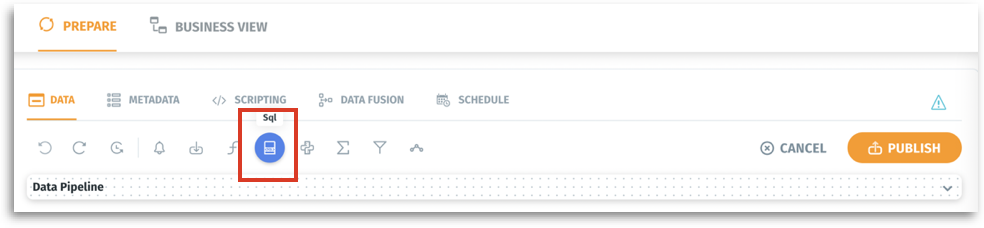
3. Above **Data Pipeline**, click on the **SQL** option.
Data → Prepare → Data → Edit
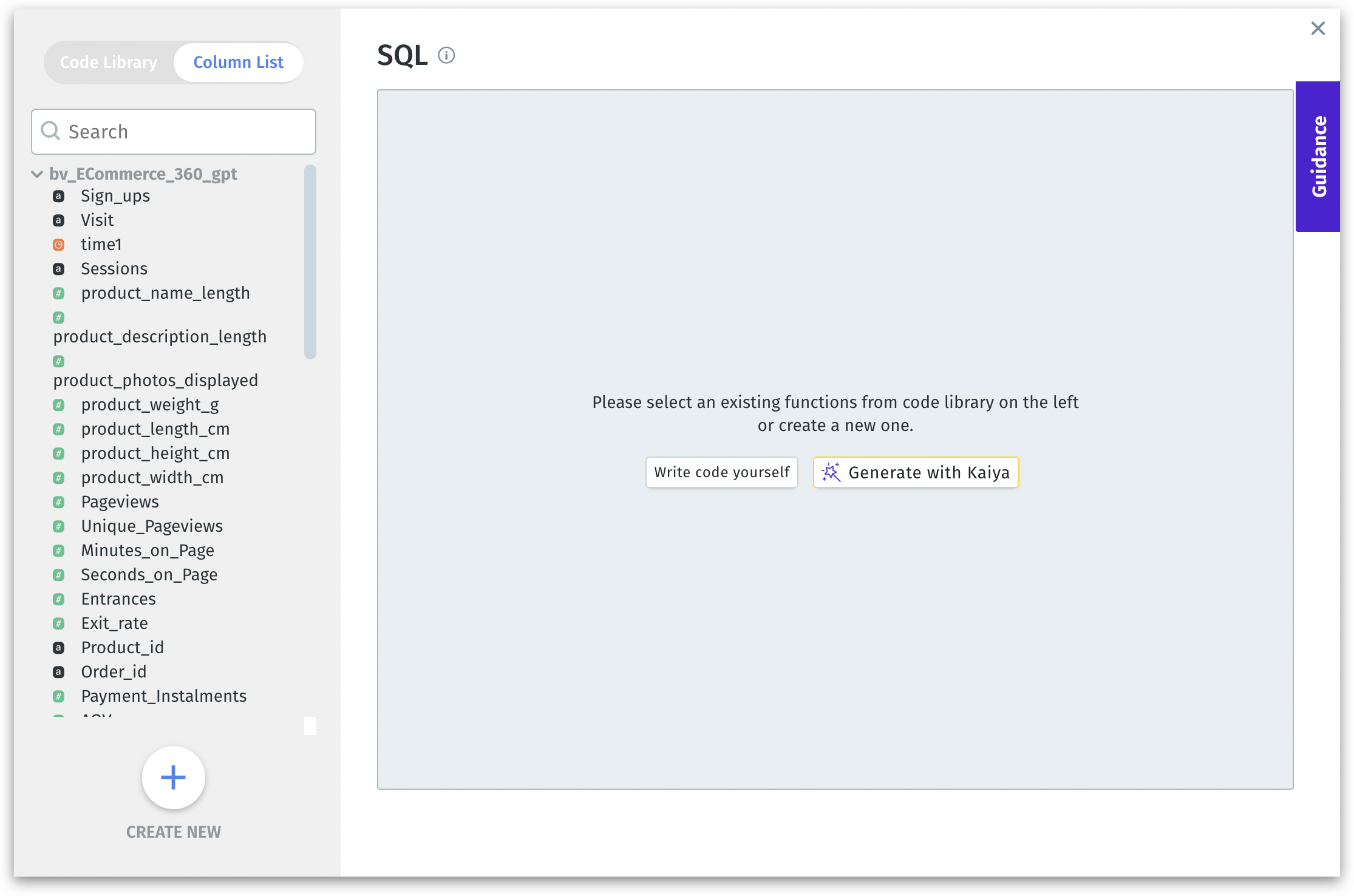
4. To view the list of columns available in the selected dataset, click on **Column List** tab.
SQL window
5. To create new code, click on **Create New** or **Write code yourself** button.
6. Alternatively, click on **Generate with Kaiya** button to make Tellius Kaiya generate the required for you.
7. Once the code is ready, click on **Run Validation** to validate the code. When the validation is in process, the **Running Validation** message is displayed.
8. Tellius validates the entered query, and if any errors are found, they will be displayed in the bottom section of the window.
9. If the code is correct, the validation result is shown with a **Successfully Validated** message at the top.
10. Tellius validates the entered query, and if any errors are found, they will be displayed in the bottom section of the window.
11. After clearing the errors, click on **Apply** to apply the code to the dataset or click on **Save in Library** to save to the code library in the left pane. Or, click on **Cancel** to discard the code window.
{% hint style="danger" %}
From v4.2, users can apply the code to the dataset without saving it to the code library first.
{% endhint %}
### **Editing SQL code**
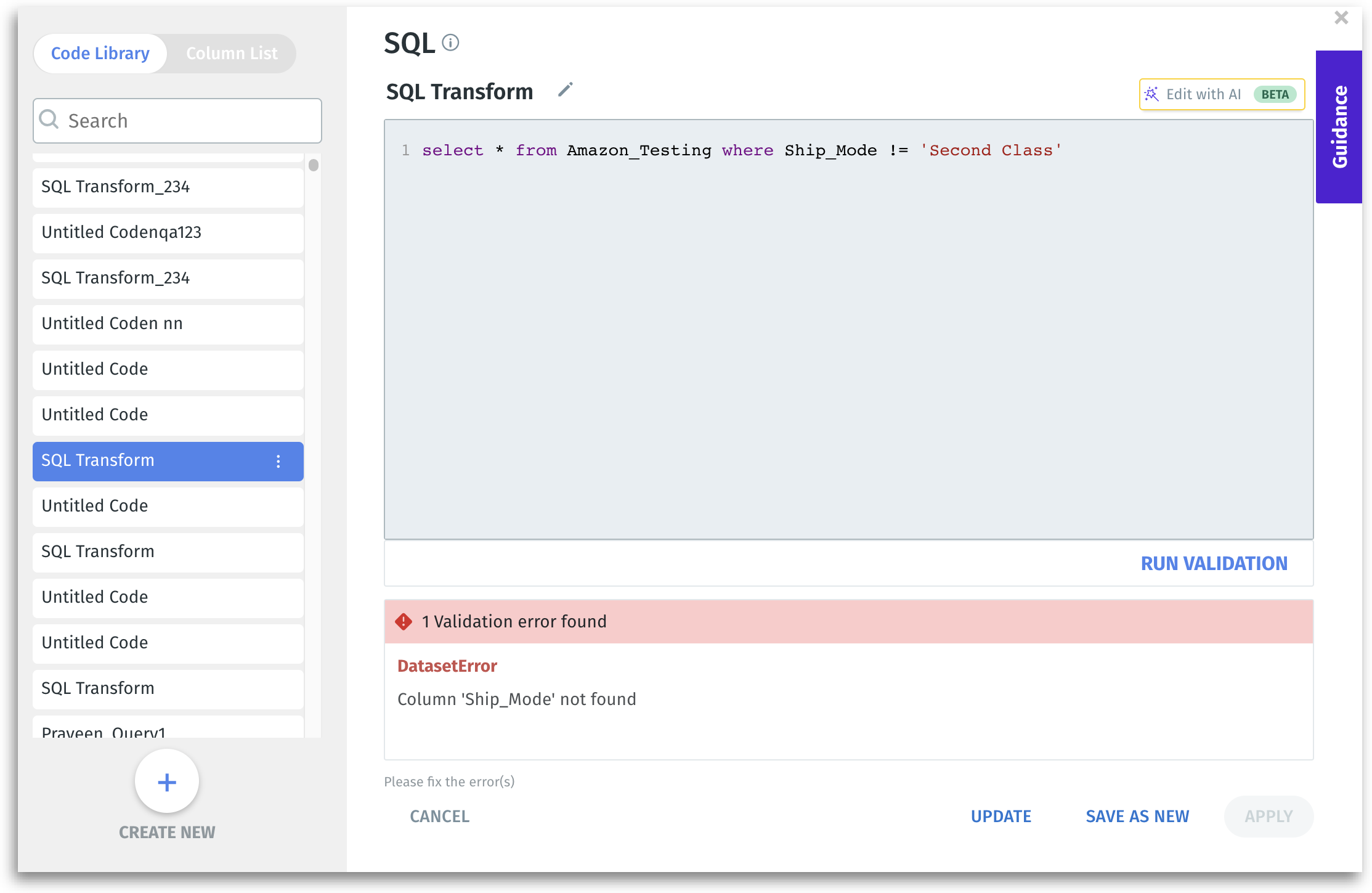
1. In the SQL code window, search and select the required code from the already existing **Code Library**.
2. Click on **Edit** to modify and validate the code.
Editing code from Code Library
3. Click on **Run Validation** to validate the code. When the validation is in process, the **Running Validation** message is displayed.
4. Tellius validates the entered query, and if any errors are found, they will be displayed in the bottom section of the window.
5. If the code is correct, the validation result is shown with a **Successfully Validated** message at the top.
6. Click on **Apply** button to apply the SQL query to the dataset.
7. Click on **Update** to update the code, and click on **Save as New.**
---
# Agent Instructions
This documentation is published with GitBook. GitBook is the documentation platform designed so that both humans and AI agents can read, navigate, and reason over technical content effectively. Learn more at gitbook.com.
## Querying This Documentation
If you need additional information that is not directly available in this page, you can query the documentation by asking a question.
Perform an HTTP GET request on the following URL with the `ask` and `goal` query parameters:
```
GET https://help.tellius.com/6.0/data/preparing-your-datasets/list-of-icons-and-their-actions/sql-transform.md?ask=&goal=
```
`ask` is the immediate question: it should be specific, self-contained, and written in natural language.
`goal` is what the user is ultimately trying to achieve, the reason they need the answer. Sharing it helps GitBook give you a better, more relevant answer. A goal is most helpful when it describes the outcome the user wants rather than restating the question. For example, with `ask=how do I create an API token`, a goal like `automate deployments from our CI pipeline` lets GitBook tailor the answer to that use case.
The response will contain a direct answer to the question and relevant excerpts and sources from the documentation.
Use this mechanism when the answer is not explicitly present in the current page, you need clarification or additional context, or you want to retrieve related documentation sections.