> For the complete documentation index, see [llms.txt](https://help.tellius.com/llms.txt). Markdown versions of documentation pages are available by appending `.md` to page URLs; this page is available as [Markdown](https://help.tellius.com/6.0/search/executing-a-search-query/typing-a-search-query.md).
# Typing a search query
Type natural language queries to explore data, get real-time visual results, and refine insights with interactive tokens, auto-suggestions, and voice input.
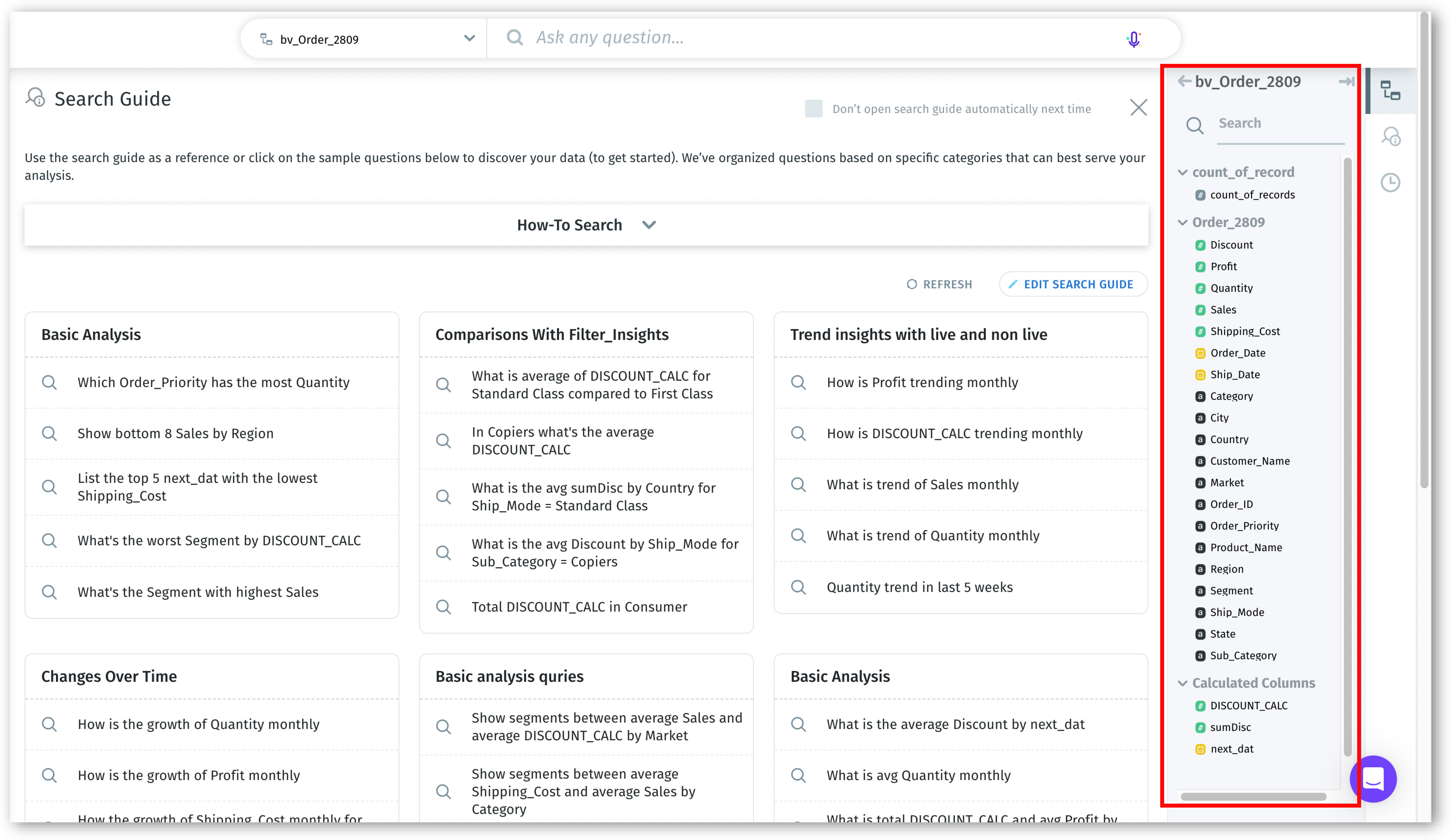
Once you select the Business View, the columns of the chosen Business View are displayed in the right pane. This visibility is crucial for formulating queries that are specific and relevant to your data.
Selected Business View
After selecting the Business View, type your query in natural language. Use keywords that closely match the columns and values in the selected Business View for accurate results.
{% hint style="success" %}
If you're finding it challenging to begin with a query, check out our [Search Guide](/6.0/search/search-guide.md). It offers a curated collection of ready-to-use queries, designed to get you started.
{% endhint %}
### What is a query?
In Tellius, a search query is a string of keywords in natural language, accompanied by interactive elements, which you can type or input via voice into the search bar to visualize real-time results. Tellius translates this query into an SQL command to retrieve the results from your dataset.
{% hint style="info" %}
Don’t worry about making typos; Tellius is designed to auto-correct and recognize the closest-resembling column or value.
For added convenience, you can provide your query through voice input. Tellius efficiently handles any pauses or breaks in your speech, adjusting the query as needed.
{% endhint %}
### Understanding query composition
Consider the query: "*Show me monthly profit by market*".
Highlighting tokens in query
* The keywords "monthly", "profit", and "market" are identified as tokens and highlighted in different colors for easy identification.
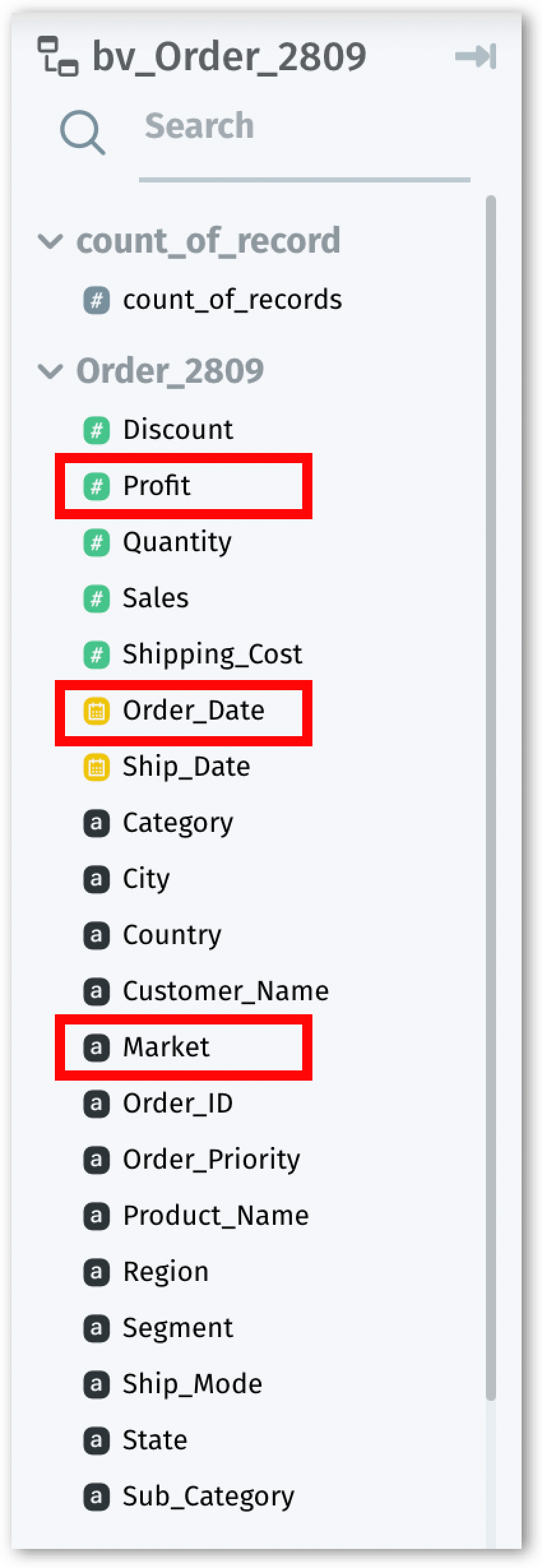
* "Profit" and "market" are columns within your Business View, as can be verified in the Business View panel.
* The "monthly" resolution is derived from the "Order\_date" column, indicating the time frame for your query.
The tokens identified in the Business View
### Interacting with tokens and query modifications
* When you hover over these highlighted tokens, you'll notice they are clickable, unlike other parts of the query (e.g., "S*how me*") which only display a text cursor.
* Each token has a small 'x' in its top right corner and clicking on this 'x' removes the token from your query.
* As you type the search query, get suggestions for the next word or phrase.
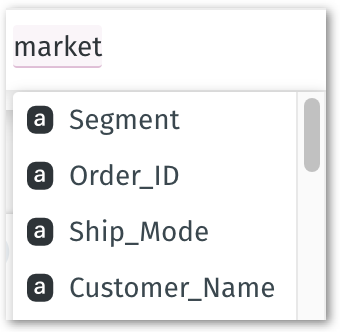
* Clicking on a token reveals a list of suggested alternatives. Selecting an alternative will immediately transform your query and update the results accordingly.
Suggested alternatives for keyword "market"
### **Get dynamic results and suggestions**
As you type, watch the results dynamically update on the canvas.
For example, start with "*Show me total profit*" and then extend to "*Show me total profit* *by city in 2022*" to see how results evolve with each word.
Once you have your results, you can easily clear the current search query by clicking the "x" icon near the microphone in the search bar. This allows you to start a new query.
Clearing a search query
---
# Agent Instructions
This documentation is published with GitBook. GitBook is the documentation platform designed so that both humans and AI agents can read, navigate, and reason over technical content effectively. Learn more at gitbook.com.
## Querying This Documentation
If you need additional information that is not directly available in this page, you can query the documentation by asking a question.
Perform an HTTP GET request on the following URL with the `ask` and `goal` query parameters:
```
GET https://help.tellius.com/6.0/search/executing-a-search-query/typing-a-search-query.md?ask=&goal=
```
`ask` is the immediate question: it should be specific, self-contained, and written in natural language.
`goal` is what the user is ultimately trying to achieve, the reason they need the answer. Sharing it helps GitBook give you a better, more relevant answer. A goal is most helpful when it describes the outcome the user wants rather than restating the question. For example, with `ask=how do I create an API token`, a goal like `automate deployments from our CI pipeline` lets GitBook tailor the answer to that use case.
The response will contain a direct answer to the question and relevant excerpts and sources from the documentation.
Use this mechanism when the answer is not explicitly present in the current page, you need clarification or additional context, or you want to retrieve related documentation sections.