> For the complete documentation index, see [llms.txt](https://help.tellius.com/llms.txt). Markdown versions of documentation pages are available by appending `.md` to page URLs; this page is available as [Markdown](https://help.tellius.com/6.0/settings/advanced/kaiya.md).
# Kaiya
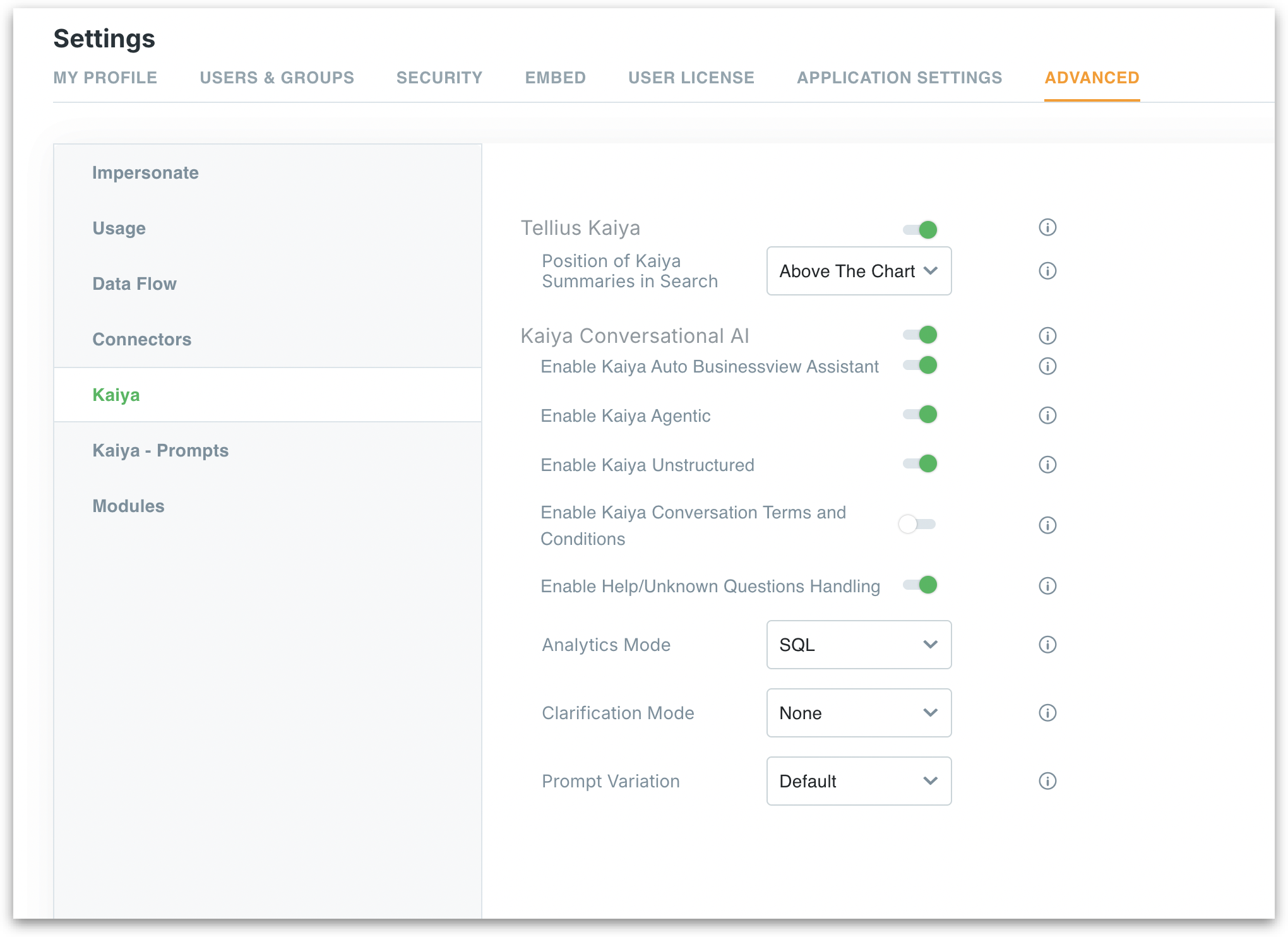
This section walks admins through the **Kaiya** settings. The place where you turn on conversational AI, agentic analysis, and control how Kaiya responds to users. From here you can enable Kaiya, allow it to assist on selecting the right Business Views, switch on **Agentic** mode and more. Use this page to decide what Kaiya can do and how smart/interactive you want it to be for your users.
#### Tellius Kaiya
This toggle turns Kaiya on across the platform. When it is on, users can see Kaiya summaries in Vizpads, Search, Feed, and Insights. When it is off, the Kaiya module and the option to display summaries will be hidden.
**“Position of Kaiya summaries”** decides where the customized Kaiya summary shows up in relation to the chart (above/below).
#### Kaiya Conversational AI
This group controls the Kaiya conversational experience (Kaiya module).
**Enable Kaiya Auto BusinessView Assistant**\
Turn this on if you want users to just ask a question without first picking a Business View (BV). Kaiya will pick the most relevant BV for the question. This is helpful for business users who may not know the exact dataset to use.
**Enable Kaiya Agentic**\
This enables **Agent Mode** and **Deep Insight**. When it is on, users will have access to **Agent Library** and the **Deep Insight** button in the Kaiya search bar. Both automatic plans and user-defined agentic workflows become available. If you turn it off, Kaiya still answers questions, but without using the agentic features.
**Enable Kaiya Unstructured**\
Use this only if you want Kaiya to work with non-tabular or unstructured inputs such as Drive files or Gong calls. If your deployment is focused on analytics only, you can disable this.
**Enable Kaiya Conversation Terms and Conditions**\
When this is enabled, the first time a user opens Kaiya they will be asked to accept the terms. This is useful for regulated or customer-facing environments.
**Enable Help / Unknown Questions Handling**\
When this is enabled, Kaiya will reply gracefully to off-topic or casual questions and guide the user back to data questions. When it is off, Kaiya will stay strict and handle only analytics/business queries.
#### Analytics Mode
This decides how Kaiya interprets user questions.
* **Auto** lets Kaiya choose the best method for each query. Good for mixed audiences and mixed data sources.
* **SQL** forces a Text-to-SQL style experience. Kaiya will generate warehouse-native SQL against your Business Views.
* **SRL:** Kaiya will break the sentence into intent, metric, dimension, filter, and time. Best when: you have **Query Learnings** with **intent** defined, you want Kaiya to understand your org’s phrasing (“top 5 accounts dropping”, “market share”, “customers due for refill”), or users are very conversational.
{% hint style="success" %}
Choose SQL when your data lives in supported warehouses and you want predictable, governed queries. Choose SRL when users talk in domain language and you have query learnings with intent. Choose Auto when your audience is mixed.
{% endhint %}
**When to use which?**
* **Use SQL** when you want *deterministic, governed, query-like answers* and your data source is supported.
* **Use SRL** when you want *high language tolerance, intent reuse, phrase learning, and smarter clarifications*.
* **Use Auto** when you don’t want to choose; Kaiya picks.
#### Clarification Mode
This controls *how often* Kaiya stops to ask the user something.
**None**: Kaiya runs with the context it has and does not ask follow-up. Good for demos and power users.\
**Low**: Kaiya asks *only* when the query truly can’t be executed (missing metric, no time field).\
**Medium:** Kaiya will ask if the ambiguity can change the answer, for example “growth” could mean % or absolute.\
**High:** Kaiya resolves *every* low-confidence part before answering. Best for C-level / regulated use cases where wrong ≫ slow.
{% hint style="warning" %}
The disambiguation is depth-based, not count-based. Higher levels improve accuracy but add one or two questions in the flow.
{% endhint %}
#### Prompt Variation
This tells Kaiya *which prompt pack to use* for a given LLM setup.
* **Default** – when there are no customizations.
* **GPT-5 / Sonnet** – use when your LLM configuration has model-specific prompts (for example, Bedrock vs Azure OpenAI) and you want phrasing, tool-calling style, or guardrails optimized for that model.
This dropdown ties directly to the **Kaiya → Prompts** page (next section): whatever you define there becomes selectable here.
---
# Agent Instructions
This documentation is published with GitBook. GitBook is the documentation platform designed so that both humans and AI agents can read, navigate, and reason over technical content effectively. Learn more at gitbook.com.
## Querying This Documentation
If you need additional information that is not directly available in this page, you can query the documentation by asking a question.
Perform an HTTP GET request on the following URL with the `ask` and `goal` query parameters:
```
GET https://help.tellius.com/6.0/settings/advanced/kaiya.md?ask=&goal=
```
`ask` is the immediate question: it should be specific, self-contained, and written in natural language.
`goal` is what the user is ultimately trying to achieve, the reason they need the answer. Sharing it helps GitBook give you a better, more relevant answer. A goal is most helpful when it describes the outcome the user wants rather than restating the question. For example, with `ask=how do I create an API token`, a goal like `automate deployments from our CI pipeline` lets GitBook tailor the answer to that use case.
The response will contain a direct answer to the question and relevant excerpts and sources from the documentation.
Use this mechanism when the answer is not explicitly present in the current page, you need clarification or additional context, or you want to retrieve related documentation sections.