> For the complete documentation index, see [llms.txt](https://help.tellius.com/llms.txt). Markdown versions of documentation pages are available by appending `.md` to page URLs; this page is available as [Markdown](https://help.tellius.com/6.0/settings/application-settings/setting-up-llm-for-kaiya.md).
# Setting up LLM for Kaiya
Configure LLMs for Kaiya to power natural language insights. Connect OpenAI, Gemini, Azure OpenAI, or Bedrock models with secure validation and setup.
From Tellius 5.4, admins can configure which LLM (Large Language Model) Kaiya uses to interpret questions, generate insights, and trigger workflows. This is managed under **Settings → Application Settings → Kaiya**.
Tellius supports three types of LLMs:
* OpenAI
* Gemini (Google)
* Azure OpenAI
Each option comes with a specific configuration panel and only one model setup is active at a time. Here's how to configure each one:
### OpenAI
When you choose **OpenAI** from the dropdown, you’re connecting Kaiya directly to OpenAI’s hosted models like GPT-4 or GPT-3.5.
* **Base URL**: Enter the API endpoint for OpenAI. Typically, this is `https://api.openai.com/v1`. It’s the base path where all API requests are sent.
* **Model Name**: This is where you specify the exact OpenAI model you want to use. Common options include `gpt-4`, `gpt-4o`, or `gpt-3.5-turbo`. The model name must match what your API key has access to.
* **Default Headers**: If you need to send any additional headers with each API request (like org-specific tokens), you can enter them here in JSON format. Most users can leave this as `{}`.
* **API Key**: Paste your OpenAI API key here. This authenticates your requests. Make sure the key has permission to use the model you specified above.
* **Validate**: Once all fields are filled, click on **"Validate"** to test the connection. Tellius will check whether it can reach OpenAI and confirm if your key and model are valid.
* **Save**: After a successful validation, you’ll be able to click on **“Save”** to store the configuration and activate this model in Kaiya.
OpenAI LLM
### Gemini
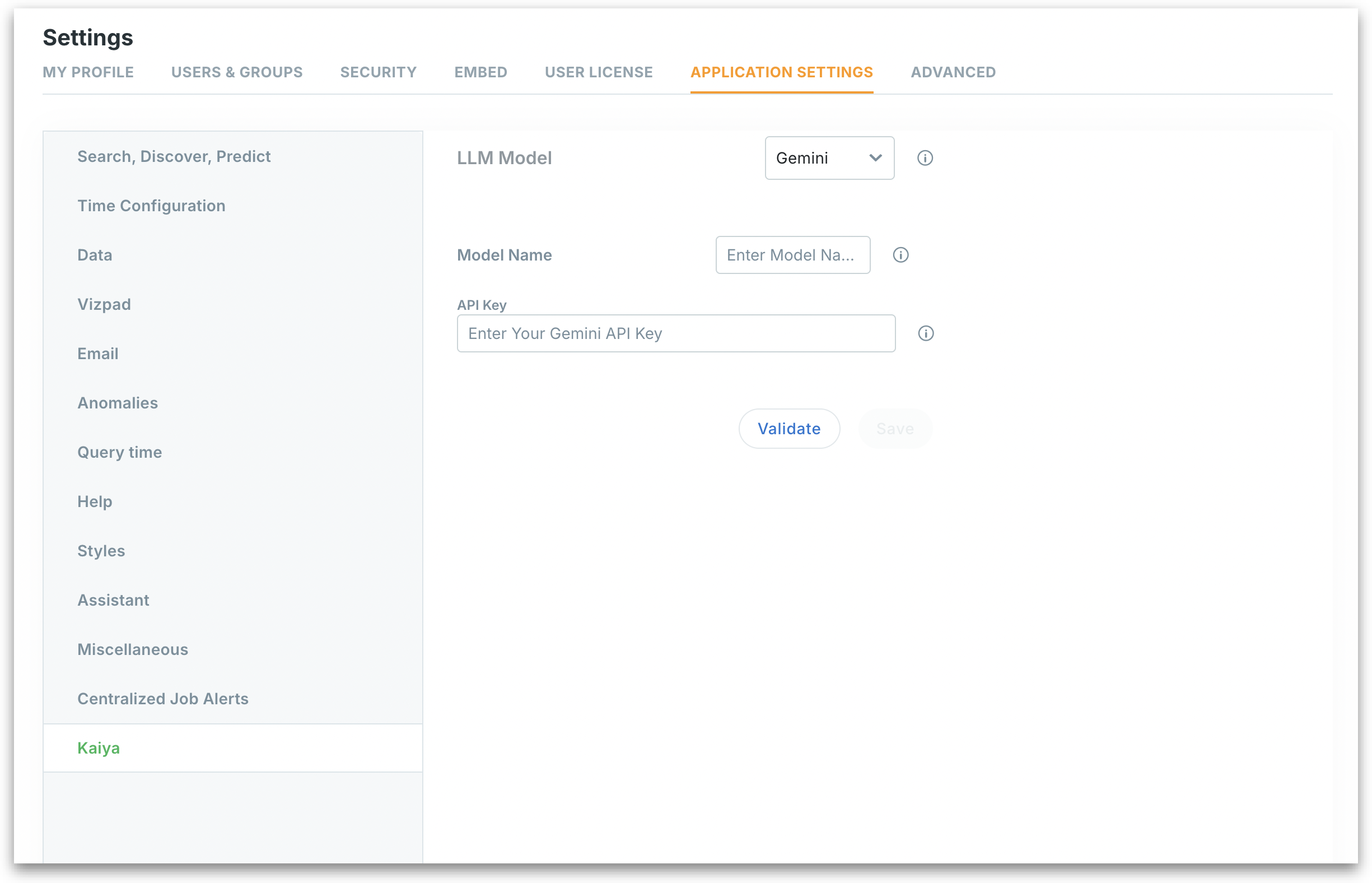
When using **Gemini**, you’re connecting to Google’s LLM (such as Gemini Pro) through its API.
* **Model Name**: Enter the name of the Gemini model or deployment. For example, `gemini-pro` or a custom name provisioned in your Vertex AI setup.
* **API Key**: Provide the key you obtained from Google Cloud. This authenticates access to Gemini models.
* **Validate**: Once all fields are filled, click on **"Validate"** to test the connection and API key combination.
* **Save Button**: Once validation passes, click on **“Save”** to finalize the setup.
{% hint style="info" %}
Gemini may have different rate limits or quota settings, depending on your Google Cloud setup.
{% endhint %}
Gemini LLM
### Azure OpenAI
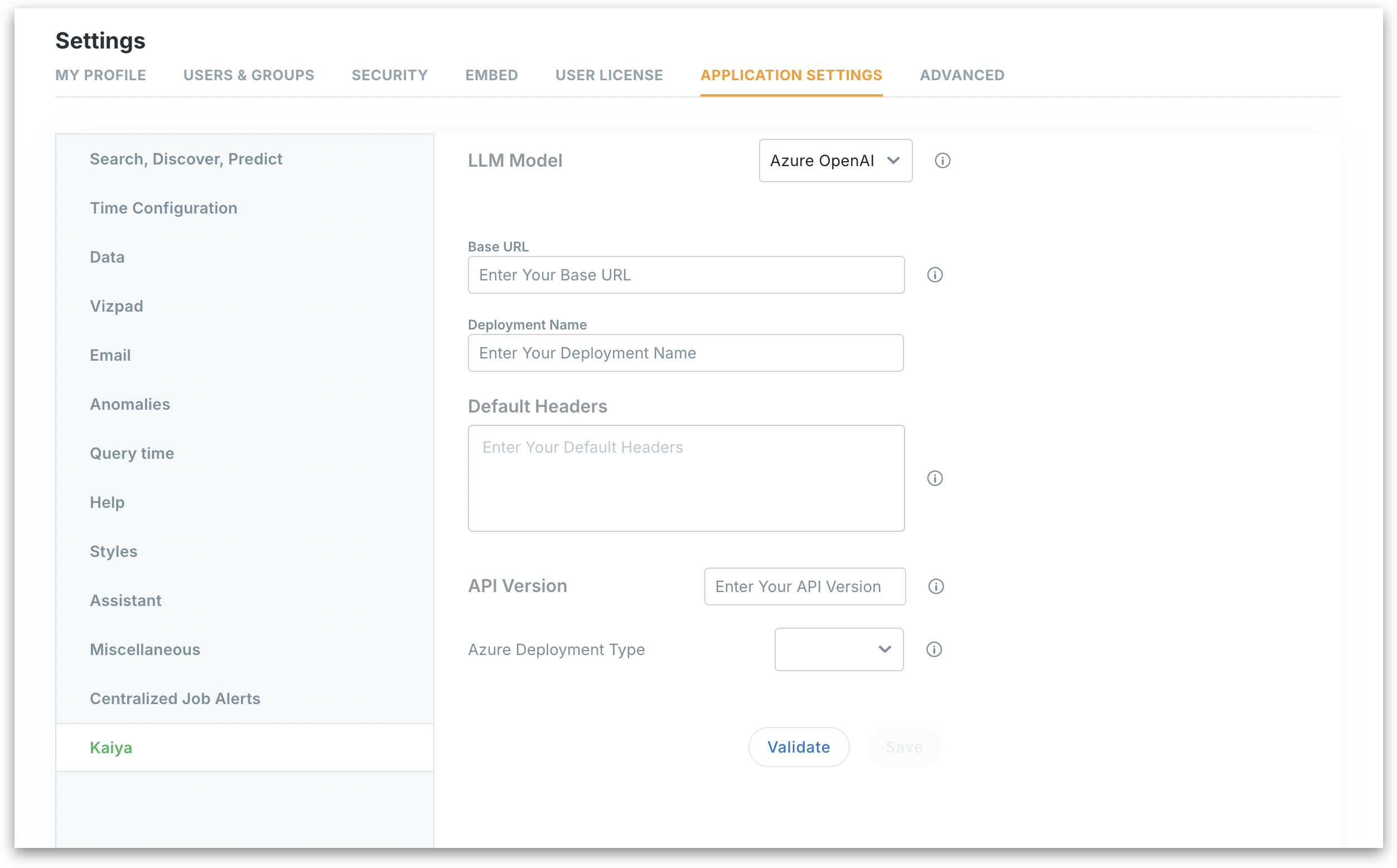
If your organization hosts OpenAI models on Azure, select **Azure OpenAI**.
{% hint style="warning" %}
Service Principal authentication may be available in certain deployments/versions. If you don’t see an **auth method** toggle or fields for **Tenant ID, Client ID, Client Secret**, your workspace is currently set up for **API key** auth only. Please contact your admin for further details.
{% endhint %}
* **Base URL**: Enter the full URL of your Azure OpenAI resource. Example: `https://.openai.azure.com/`.
* **Deployment Name**: This must match the exact deployment name configured in your Azure portal. This tells Tellius which model to use.
* **Default Headers**: Provide any headers you want to send with the API requests (optional).
* **API Version**: Specify the Azure OpenAI API version to use. For example, `2024-02-15-preview`. This ensures compatibility with new features or model updates.
* **Azure Deployment Type**: Choose the type of deployment (e.g., “Chat” or “Completions”) based on what you have set up in Azure.
* **Validate**: Once all fields are filled, click on **"Validate"** to test the connection. Tellius will check whether it can reach Azure OpenAI and confirm if your key and model are valid.
* **Save**: After a successful validation, you’ll be able to click on **“Save”** to store the configuration and activate this model in Kaiya.
Azure OpenAI LLM
{% hint style="info" %}
Please make sure you have your API keys/credentials ready before configuration to speed up validation.
{% endhint %}
#### Bedrock (from Tellius v6.0)
* **Reference Name:** A user-friendly label used in the “Assign the LLM Providers” dropdowns.
* **LLM Model (provider):** Select Bedrock.
* **Model Parameter:** JSON/text block with model settings (e.g., model/model\_id, temperature, max tokens, optional base URL/region if applicable). Used by Kaiya to call your chosen Bedrock model.
* **Default Header (Optional):** Any additional HTTP headers your environment requires (leave {} if not needed).
* **Bedrock Authentication Type:** Choose how Kaiya should authenticate:
* **Bedrock API Key:** Enter a Bedrock API key to authorize requests.
* **AWS Access/Secret Keys:** Provide Access Key ID and Secret Access Key to sign Bedrock requests via AWS credentials.
Click on **Validate** to verify the credentials and parameters before saving.
#### Assign which config powers each capability
In **Assign the LLM Providers**, pick a saved configuration for:
* **General Intelligence:** Everyday natural language tasks (SRL), summarization, straightforward prompts.
* **Code Intelligence:** Technical tasks (Text2SQL, Python, code reasoning).
* **Reasoning Intelligence:** Agentic workflows, multi-step planning, Deep Insights mode.
{% hint style="warning" %}
You can add as many LLM configurations as you need (for different models/regions/temperature profiles). There must be at least one saved configuration to assign.
{% endhint %}
---
# Agent Instructions
This documentation is published with GitBook. GitBook is the documentation platform designed so that both humans and AI agents can read, navigate, and reason over technical content effectively. Learn more at gitbook.com.
## Querying This Documentation
If you need additional information that is not directly available in this page, you can query the documentation by asking a question.
Perform an HTTP GET request on the following URL with the `ask` and `goal` query parameters:
```
GET https://help.tellius.com/6.0/settings/application-settings/setting-up-llm-for-kaiya.md?ask=&goal=
```
`ask` is the immediate question: it should be specific, self-contained, and written in natural language.
`goal` is what the user is ultimately trying to achieve, the reason they need the answer. Sharing it helps GitBook give you a better, more relevant answer. A goal is most helpful when it describes the outcome the user wants rather than restating the question. For example, with `ask=how do I create an API token`, a goal like `automate deployments from our CI pipeline` lets GitBook tailor the answer to that use case.
The response will contain a direct answer to the question and relevant excerpts and sources from the documentation.
Use this mechanism when the answer is not explicitly present in the current page, you need clarification or additional context, or you want to retrieve related documentation sections.