> For the complete documentation index, see [llms.txt](https://help.tellius.com/llms.txt). Markdown versions of documentation pages are available by appending `.md` to page URLs; this page is available as [Markdown](https://help.tellius.com/data/create-new-datasource/connecting-to-snowflake/key-pair-authentication-registering-the-tellius-public-key.md).
# Key-Pair Authentication: Registering the Tellius Public Key
Applies to Snowflake connections in Tellius where Authentication Type is set to Key Pair.
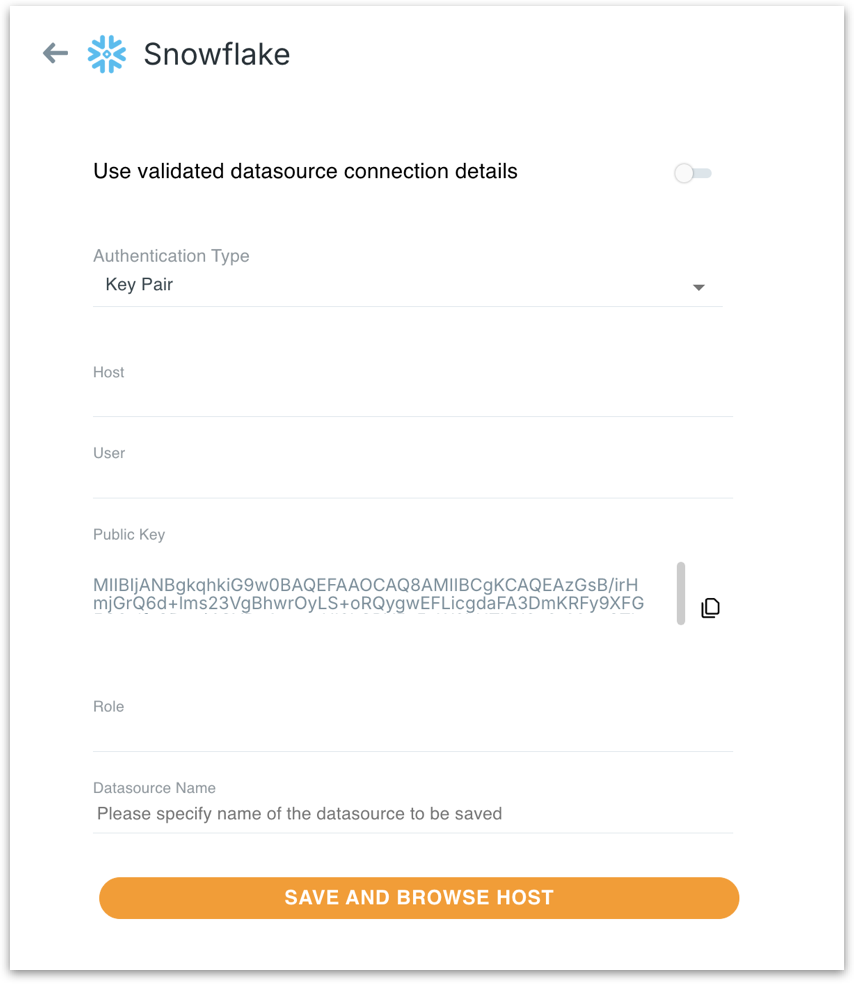
When you choose **Key Pair** as the **Authentication Type** on the Snowflake connection screen, Tellius shows a **Public Key** that is already filled in. The key belongs to Tellius. Tellius generates the key pair, keeps the private half, and shows you the public half.
To finish the setup, copy that public key and register it on the Snowflake user account that Tellius will connect with:
```sql
ALTER USER SET RSA_PUBLIC_KEY='';
```
The above command runs in Snowflake. It is a one-time step. Until it is run, Snowflake has no way to recognize Tellius, and the connection fails with a JWT validation error.
### What key-pair authentication is, and why we use it
Key-pair authentication replaces a password with a matched pair of cryptographic keys.
* **Private key:** held secretly by the system that wants to connect. It is used to sign a login token.
* **Public key:** registered on the Snowflake user account. Snowflake uses it to check the signature on that token.
A signature produced by a private key can only be verified by its matching public key. The public key cannot be used to produce a signature, which is why it is safe to copy, email, or paste into a SQL statement.
When Tellius connects to Snowflake, it builds a short-lived token called a **JWT** (JSON Web Token) and signs it with its private key. Snowflake looks up the public key registered on that user, checks the signature, and allows the session if the signature matches.
### Why this is worth doing
* **No shared password.** Nobody has to store, rotate, or send a Snowflake account password to a third party.
* **The secret never moves.** The private key stays on the Tellius side for the whole life of the connection. There is no step where a secret is copied between systems.
* **Rotation without downtime.** Snowflake lets a user hold two public keys at once, so a new key can be added and tested before the old one is removed.
* **Isolated to your deployment.** Each Tellius deployment has its own key pair. The private key that matches the public key you register exists only in your deployment, so no other customer's environment can sign a token that Snowflake will accept for your user.
* **Scoped to one account.** The key is registered on a single Snowflake user, so access can be revoked by clearing that one property.
### Before you begin
Keep the following details ready:
| What you need | Details |
| ----------------------------------------------------- | --------------------------------------------------------------------------------------------------------------------------------------------------------------------------------------------------------------------------------------------------------------- |
| A Snowflake user account for Tellius | Usually a dedicated service account created for the Tellius connection or POC. Confirm the exact name before running any commands. |
| A Snowflake role that can alter that user | `ACCOUNTADMIN`, or a role that holds `OWNERSHIP` on the user. Account administrator roles such as `SECURITYADMIN` or `USERADMIN` are commonly used for this. |
| The Snowflake account host | The value you will enter in the **Host** field, in the form `.snowflakecomputing.com`. |
| The role and warehouse the service account should use | Needed so the connection can run queries after it authenticates. |
| Network access from Tellius to Snowflake | If your Snowflake account uses a network policy, the Tellius IP address shown on the connection screen under **IP Whitelisting** must be allowed. Use the IP displayed on your own screen, since it depends on the Tellius environment you are connecting from. |
### How to register the public key
#### Step 1: Open the Snowflake connection in Tellius
* Go to the datasource creation screen and select **Snowflake**. In the **Authentication Type** dropdown, select **Key Pair**. The **Public Key** field appears with a value already in it.
* Click the copy icon to the right of the **Public Key** field. The value is a base64-encoded RSA public key.
{% hint style="info" %}
This key belongs to the Tellius deployment you are working in. Every Snowflake connection created in that deployment shows the same public key. A separate deployment has its own key pair and its own public key, which matters if you later move from a trial or POV environment to production.
{% endhint %}
#### Step 2: Register the key on your Snowflake user
* This step happens in Snowflake. It is normally run by whoever administers your Snowflake account.
* Sign in to Snowflake and open a worksheet in Snowsight, the Snowflake web interface. You can also use SnowSQL or any SQL client already connected to your Snowflake account. Any of these work, and the command is the same in all of them.
* First, switch to a role that can modify users. `ACCOUNTADMIN` works, as does any role holding `OWNERSHIP` on the user. Without this, you may be running as a default role that cannot alter users, which produces an access control error that looks like the key itself was rejected.
```sql
USE ROLE ACCOUNTADMIN;
```
* Then run:
```sql
ALTER USER SVC_PROD_TEST_REPORT
SET RSA_PUBLIC_KEY='';
```
* Replace `SVC_PROD_TEST_REPORT` with your own service account name. You only need to run this once for that user. Paste the key as one continuous line, with no line breaks inside the quotes.
#### Step 3: Confirm the key was accepted
Run:
```sql
DESCRIBE USER SVC_PROD_TEST_REPORT;
```
Look for the property **`RSA_PUBLIC_KEY_FP`** in the results. This is the fingerprint of the registered key, a short hash that Snowflake computes from the key you supplied. If it has a value, the key is registered. If it is empty, the `ALTER USER` did not apply to this user.
#### Step 4: Complete the connection in Tellius
Return to the Tellius connection screen and fill in the rest of the form:
| Field | What to enter |
| ------------------- | --------------------------------------------------------------------------------------------------- |
| **Host** | Your Snowflake account host. |
| **User** | The Snowflake user you just registered the key against. Enter it exactly as it exists in Snowflake. |
| **Public Key** | Leave as-is. This is generated by Tellius and is not editable. |
| **Role** | The Snowflake role the connection should use. |
| **Datasource Name** | A name for this connection inside Tellius. |
Click **Save and Browse Host**. Tellius signs a token with its private key, Snowflake verifies it against the public key you registered, and the databases available to that role are listed.
### Troubleshooting
| What you see | What it usually means | What to do |
| ----------------------------------------------------- | ------------------------------------------------------------------------------------------------------------------------------------------------------------- | ------------------------------------------------------------------------------------------------------------------------------------------ |
| `JWT token is invalid` or `JWT Ticket is invalid` | Snowflake could not verify the signature on the login token. In most cases the public key has not been registered yet, or was registered on a different user. | Run `DESCRIBE USER ;` and check that `RSA_PUBLIC_KEY_FP` has a value. Confirm the user name in Tellius matches the user you altered. |
| `User not found`, or authentication fails immediately | The **User** value in Tellius does not match a Snowflake user. | Check spelling. Confirm the account exists in the same Snowflake account you are pointing **Host** at. |
| `SQL access control error` when running `ALTER USER` | Your current Snowflake role cannot modify that user. | Switch to `ACCOUNTADMIN` or a role with `OWNERSHIP` on the user, then rerun. |
| Connection times out, or never reaches Snowflake | A network policy or firewall is blocking Tellius. | Add the IP address shown in the **IP Whitelisting** panel on the connection screen to your Snowflake network policy or firewall allowlist. |
| Key registers but connection still fails | The key may have been pasted with line breaks or with the `BEGIN`/`END` header lines. | Recopy the key using the copy icon and rerun the `ALTER USER` command. |
| Host is reached but no databases appear | The role has no privileges on any database, or no warehouse is available to it. | Grant the role usage on the target database and warehouse in Snowflake. |
### Rotating the key
The Tellius public key does not change on its own, so this is not routine maintenance. You only need this section if a new key is deliberately issued, or if your security policy requires periodic rotation.
Snowflake supports two public keys on a single user, `RSA_PUBLIC_KEY` and `RSA_PUBLIC_KEY_2`. This exists so a key can be replaced without breaking an active connection.
If a new key is issued from Tellius:
1. Register the new key in the second slot, leaving the current one in place.
```sql
ALTER USER SVC_PROD_TEST_REPORT
SET RSA_PUBLIC_KEY_2='';
```
2. Test the Tellius connection and confirm it succeeds.
3. Remove the old key.
```sql
ALTER USER SVC_PROD_TEST_REPORT UNSET RSA_PUBLIC_KEY;
```
To revoke Tellius access entirely, unset both properties.
### FAQs
1. **Do we need to send Tellius our private key or passphrase?**\
No. Tellius never requests or stores a customer private key, and the Tellius connection screen has no field for one. Tellius generates the key pair itself, so you cannot supply your own. The only value that moves is the public key, and it moves from Tellius to you.
2. **Do I need to register the key again for other connections?**\
Not for another connection using the same Snowflake user in the same Tellius deployment. The public key is the same across every Snowflake connection in a deployment, so one registration covers them all.\
\
You do need to run the command again in two cases: when a connection uses a different Snowflake user, and when you move to a different Tellius deployment. Each deployment has its own key pair, so a POV or trial environment and a production environment will show different public keys.
3. **Does the key ever change on its own?**\
No. It is not tied to an individual datasource and it does not change during upgrades. Deleting and recreating a Snowflake connection in Tellius leaves the registration on your Snowflake user valid.
---
# Agent Instructions
This documentation is published with GitBook. GitBook is the documentation platform designed so that both humans and AI agents can read, navigate, and reason over technical content effectively. Learn more at gitbook.com.
## Querying This Documentation
If you need additional information that is not directly available in this page, you can query the documentation by asking a question.
Perform an HTTP GET request on the following URL with the `ask` and `goal` query parameters:
```
GET https://help.tellius.com/data/create-new-datasource/connecting-to-snowflake/key-pair-authentication-registering-the-tellius-public-key.md?ask=&goal=
```
`ask` is the immediate question: it should be specific, self-contained, and written in natural language.
`goal` is what the user is ultimately trying to achieve, the reason they need the answer. Sharing it helps GitBook give you a better, more relevant answer. A goal is most helpful when it describes the outcome the user wants rather than restating the question. For example, with `ask=how do I create an API token`, a goal like `automate deployments from our CI pipeline` lets GitBook tailor the answer to that use case.
The response will contain a direct answer to the question and relevant excerpts and sources from the documentation.
Use this mechanism when the answer is not explicitly present in the current page, you need clarification or additional context, or you want to retrieve related documentation sections.