> For the complete documentation index, see [llms.txt](https://help.tellius.com/llms.txt). Markdown versions of documentation pages are available by appending `.md` to page URLs; this page is available as [Markdown](https://help.tellius.com/data/preparing-your-business-views/editing-a-business-view.md).
# Editing a Business View
Learn how to edit a Business View in Tellius—update metadata, manage datasets, and configure settings to improve query performance, search accuracy, and analytics.
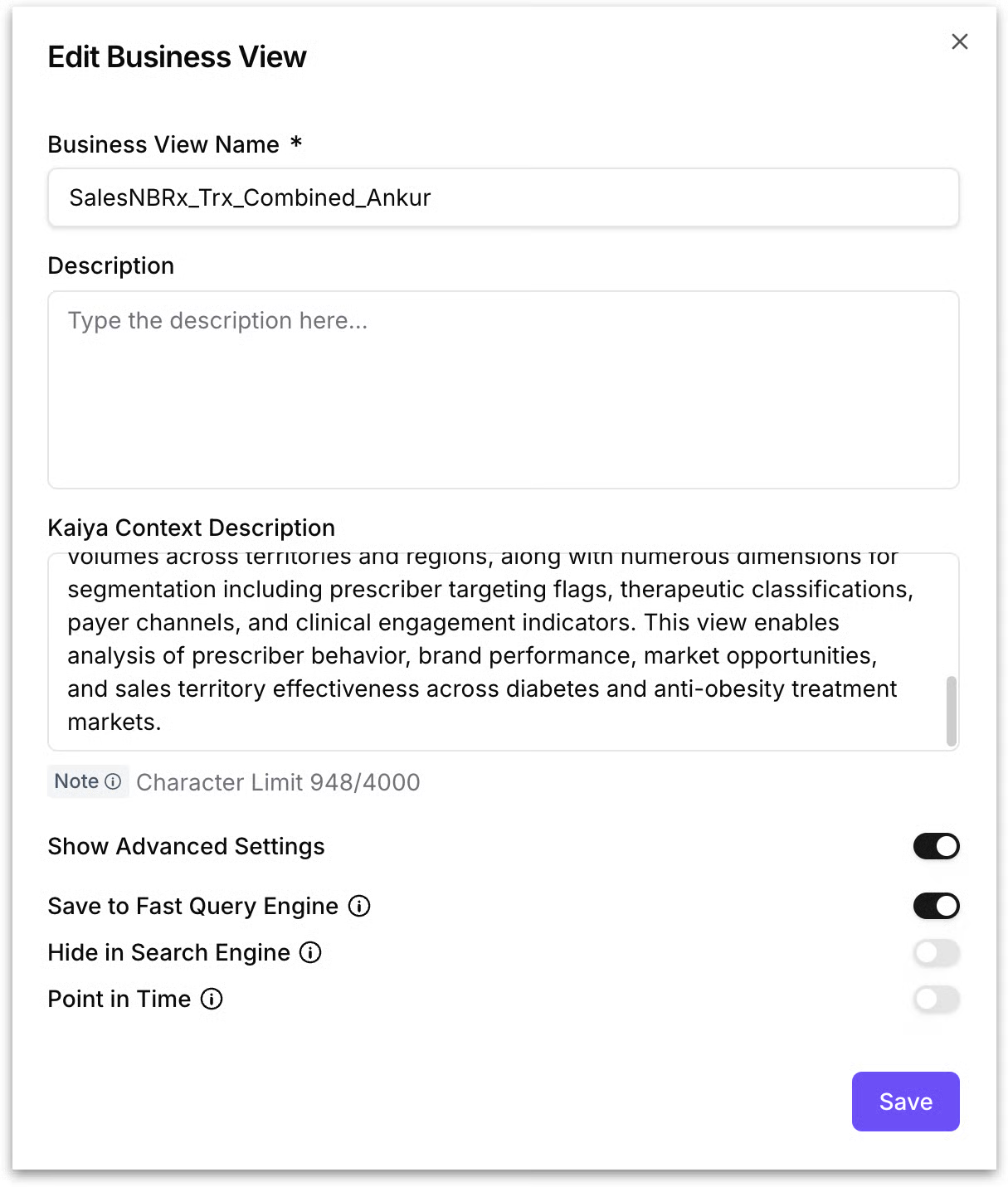
To edit a Business View, navigate to the **Data → Business View** tab, locate the Business View you want to modify, and select **Edit** from its options. This opens the **Edit Business View** dialog, which contains the following fields and settings.
**Business View Name:** The display name of the Business View. You can rename the Business View by editing this field.
**Description:** An optional free-text field where you can provide a human-readable description of the Business View.
**Kaiya Context Description:** A description auto-generated by Kaiya when **Auto BV** (wherein Kaiya auto-selects the relevant Business View) is enabled. Unlike the **Description** field above, the **Kaiya Context Description** directly influences how Kaiya interprets user questions, selects this Business View in auto-BV mode, and generates responses. This helps Kaiya when answering questions based on this Business View and deciding whether to auto-select it for a given question.
**Show Advanced Settings:** This toggle reveals additional configuration options as follows. When disabled, the advanced settings are hidden to keep the dialog simple.
* **Save to Fast Query Engine:** When enabled, the Business View's data is cached in Tellius's in-memory fast query engine for accelerated query performance. Queries against this Business View will execute faster because Tellius reads from the cached layer rather than querying the underlying data source directly each time. This is recommended for Business Views that are queried frequently or used in interactive analysis where response time matters. If your Business View is very large and rarely queried, you may choose to disable this.
* **Hide in Search Engine:** When enabled, this Business View is excluded from Kaiya's search results and will not appear as an option when users browse or search for Business Views in the Kaiya interface. The Business View still exists and can be accessed directly.
* **Point in Time:** When **Point in Time** is enabled, time-based analysis in Vizpads treats each time bucket as an end-of-period snapshot. For weekly, monthly, quarterly, or yearly groupings, Tellius uses the latest available data point inside that period instead of aggregating (summing or rolling up) everything that occurred during it.
This applies to time-based analysis types including Year-over-Year (YoY) and other time comparisons, Top/Bottom analysis, and Top/Bottom For Each analysis. It is supported across daily, weekly, monthly, quarterly, and yearly time resolutions.
**Why this matters:** Some metrics are not additive over time. Metrics like "Active Customers", "Inventory on Hand", "Account Balance", or "Headcount" represent a snapshot at a point in time. They should not be summed across days or weeks because that would produce a meaningless number. For these metrics, what you actually want is the latest value within each period, not the total of every daily reading.
**Example:** Suppose you track **Active Customers**, and the value updates daily.
* Without **Point in Time**, a monthly view would sum every daily **Active Customers** value in the month, producing an inflated and meaningless total.
* With **Point in Time** enabled, the monthly view shows the latest **Active Customers** value recorded in each month (effectively the end-of-month snapshot). A Year-over-Year comparison then compares true month-end snapshots against each other, giving you an accurate picture of growth or decline.
Click **Save** to apply your changes, or click the **X** button in the top-right corner to close the dialog without saving.
---
# Agent Instructions
This documentation is published with GitBook. GitBook is the documentation platform designed so that both humans and AI agents can read, navigate, and reason over technical content effectively. Learn more at gitbook.com.
## Querying This Documentation
If you need additional information that is not directly available in this page, you can query the documentation by asking a question.
Perform an HTTP GET request on the following URL with the `ask` and `goal` query parameters:
```
GET https://help.tellius.com/data/preparing-your-business-views/editing-a-business-view.md?ask=&goal=
```
`ask` is the immediate question: it should be specific, self-contained, and written in natural language.
`goal` is what the user is ultimately trying to achieve, the reason they need the answer. Sharing it helps GitBook give you a better, more relevant answer. A goal is most helpful when it describes the outcome the user wants rather than restating the question. For example, with `ask=how do I create an API token`, a goal like `automate deployments from our CI pipeline` lets GitBook tailor the answer to that use case.
The response will contain a direct answer to the question and relevant excerpts and sources from the documentation.
Use this mechanism when the answer is not explicitly present in the current page, you need clarification or additional context, or you want to retrieve related documentation sections.