> For the complete documentation index, see [llms.txt](https://help.tellius.com/llms.txt). Markdown versions of documentation pages are available by appending `.md` to page URLs; this page is available as [Markdown](https://help.tellius.com/kaiya/ask-across-your-documents-unstructured/how-to-connect-to-unstructured-data/connect-to-google-cloud-storage.md).
# Connect to Google Cloud Storage
Learn how to connect Tellius to Google Cloud Storage to access, ingest, and analyze data from cloud buckets for faster insights and scalable analytics.
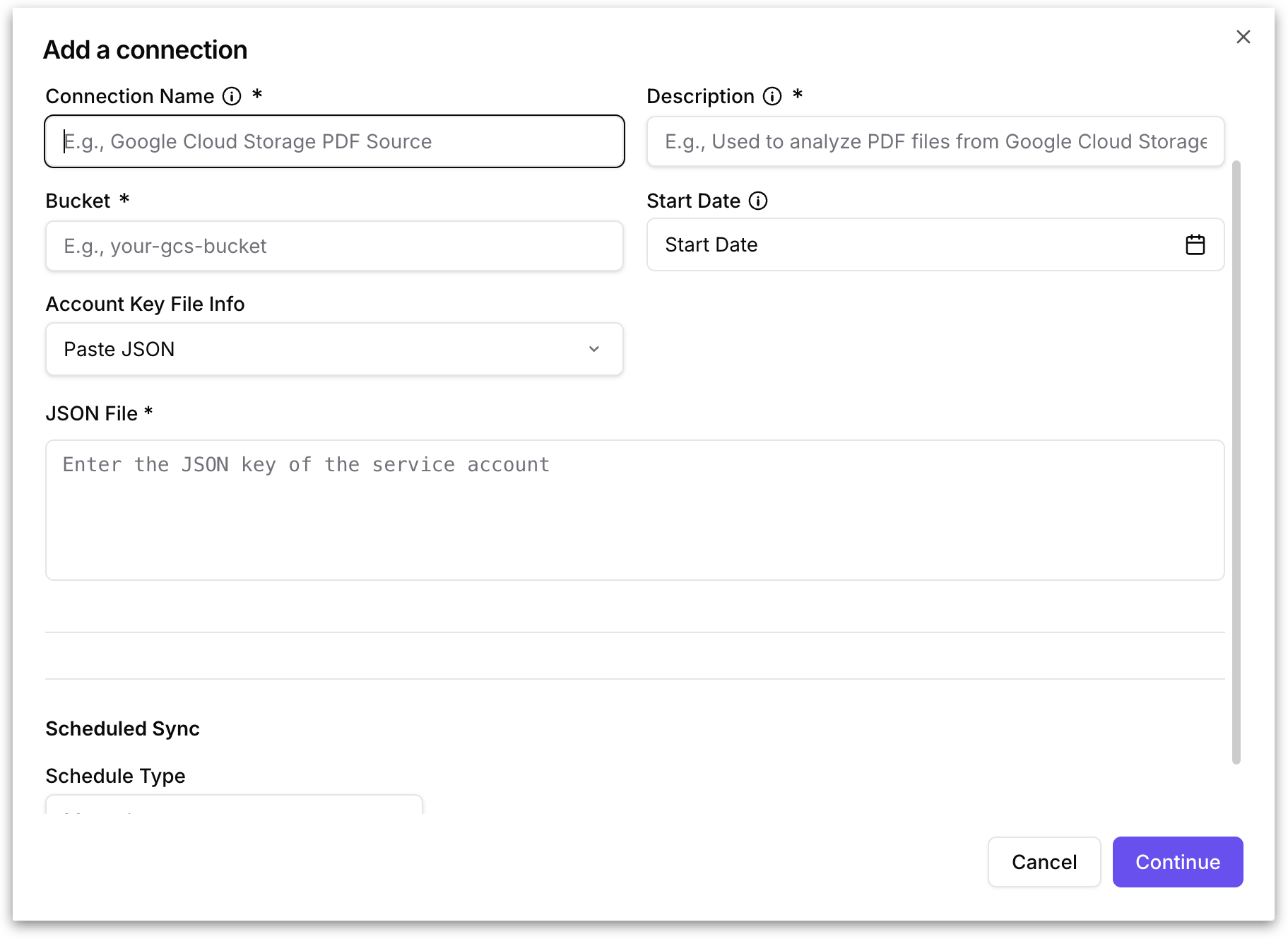
Clicking Google Cloud Storage opens the **"Add a connection"** dialog with the following fields.
**Connection Name:** A user-defined display name for this connection.
**Description:** A brief text description of what this connection is used for.
**Bucket:** The name of the Google Cloud Storage bucket you want Tellius to connect to. Enter only the bucket name (for example, "your-gcs-bucket"), not the full `gs://` URI or HTTPS URL. The service account credentials you provide must have read access to this bucket, specifically the `storage.objects.list` and `storage.objects.get` permissions.
**Start Date:** An optional date picker that specifies the earliest date from which Tellius should pull files. Only objects created or modified on or after this date will be synced.
**Account Key File Info:** A dropdown that specifies how the Google Cloud service account credentials are provided. Two options are available:
* **Paste JSON:** Opens a text area (the JSON File field below) where you paste the full contents of the service account JSON key file directly into the form.
* **Upload File:** Displays a file upload area where you can drag and drop or browse to select the service account JSON key file from your local machine. The upload zone accepts up to 1 file with a maximum total size of 40.00 MB.
**JSON File:** This field appears when **Paste JSON** is selected in Account Key File Info. Paste the full contents of the Google Cloud service account JSON key file here. This is the credential file you download from the Google Cloud Console when you create a service account key (IAM & Admin > Service Accounts > Keys > Add Key > Create new key > JSON). The JSON contains the project ID, private key, client email, and other authentication details that Tellius needs to access the GCS bucket on behalf of the service account.
**Scheduled Sync:** Configures how frequently Tellius automatically syncs files from this GCS bucket.
* **Manual** - Tellius will only sync when you explicitly trigger it using the **Synchronize** action from the three-dot menu on the connections table.
* **Schedule -** Set automatic recurring syncs so that new files added to GCS are automatically pulled into Tellius without manual intervention. A second dropdown appears: **Cron Schedule (UTC)**.
The **Cron Schedule** dropdown lets you define how frequently Tellius automatically syncs files from the connected source. All schedule times operate in UTC, so factor in your local timezone when choosing a schedule. The available options are:
* Hourly
* Every 6 hours
* Daily at midnight
* Daily at 2 AM
* Every 12 hours
{% hint style="info" %}
Choose a schedule frequency that matches how often new content arrives in your source. Over-frequent syncing on a source that rarely changes adds unnecessary processing load, while under-frequent syncing on an active source means Kaiya may not have access to the latest files.
{% endhint %}
Click **Continue** to proceed with creating the connection, or **Cancel** to discard the configuration.
---
# Agent Instructions
This documentation is published with GitBook. GitBook is the documentation platform designed so that both humans and AI agents can read, navigate, and reason over technical content effectively. Learn more at gitbook.com.
## Querying This Documentation
If you need additional information that is not directly available in this page, you can query the documentation by asking a question.
Perform an HTTP GET request on the following URL with the `ask` and `goal` query parameters:
```
GET https://help.tellius.com/kaiya/ask-across-your-documents-unstructured/how-to-connect-to-unstructured-data/connect-to-google-cloud-storage.md?ask=&goal=
```
`ask` is the immediate question: it should be specific, self-contained, and written in natural language.
`goal` is what the user is ultimately trying to achieve, the reason they need the answer. Sharing it helps GitBook give you a better, more relevant answer. A goal is most helpful when it describes the outcome the user wants rather than restating the question. For example, with `ask=how do I create an API token`, a goal like `automate deployments from our CI pipeline` lets GitBook tailor the answer to that use case.
The response will contain a direct answer to the question and relevant excerpts and sources from the documentation.
Use this mechanism when the answer is not explicitly present in the current page, you need clarification or additional context, or you want to retrieve related documentation sections.