> For the complete documentation index, see [llms.txt](https://help.tellius.com/llms.txt). Markdown versions of documentation pages are available by appending `.md` to page URLs; this page is available as [Markdown](https://help.tellius.com/kaiya/kaiya-apps.md).
# Kaiya Apps
Build interactive data applications from a conversation
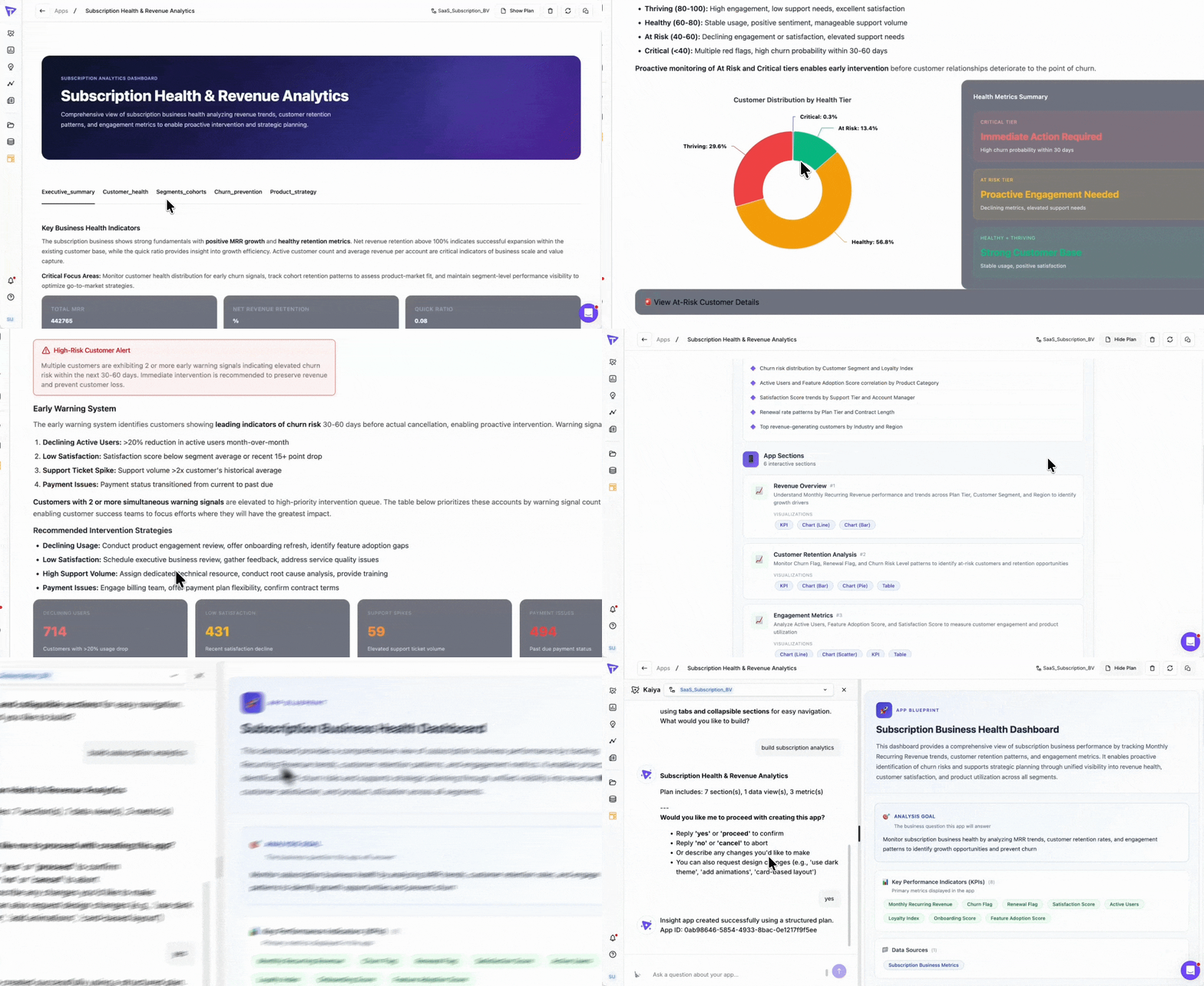
Kaiya Apps lets you generate fully interactive, persona-scoped data applications directly inside Tellius, using only natural language. You describe what you need in a conversation with Kaiya, it generates a complete application: layout, data bindings, filter logic, navigation tabs, KPI cards, charts, tables, and written insights.
The resulting app is a live, multi-section application tied to a Business View. Data can be refreshed on demand, the app can be shared with other users, and modifications are made conversationally rather than through a configuration panel.
#### How Kaiya Apps differ from Vizpad
Vizpad is a general-purpose analytics canvas where users manually select chart types, configure axes, drag in dimensions, and arrange layouts. Kaiya Apps operates differently. You provide a business question or describe a persona and their recurring analytical needs. Kaiya then generates the entire application structure, chooses the appropriate chart types, selects relevant metrics and dimensions from the Business View, writes contextual insights, and produces a finished multi-tab application.
The key architectural distinction: Vizpad is designed for open-ended exploration. Kaiya Apps is designed for recurring, role-specific analytical needs where the same set of questions is asked repeatedly, potentially by multiple people across the organization.
#### Data behavior
Apps query the underlying Business View at creation time and store a data snapshot. This snapshot powers the app immediately, so there is no delay from live queries each time the app loads. When data needs to be updated, admins and app owners can trigger a manual refresh. The refresh runs asynchronously in the background. While a refresh is in progress, the app remains fully usable, displaying data from the most recently completed refresh.
### How to access Kaiya Apps
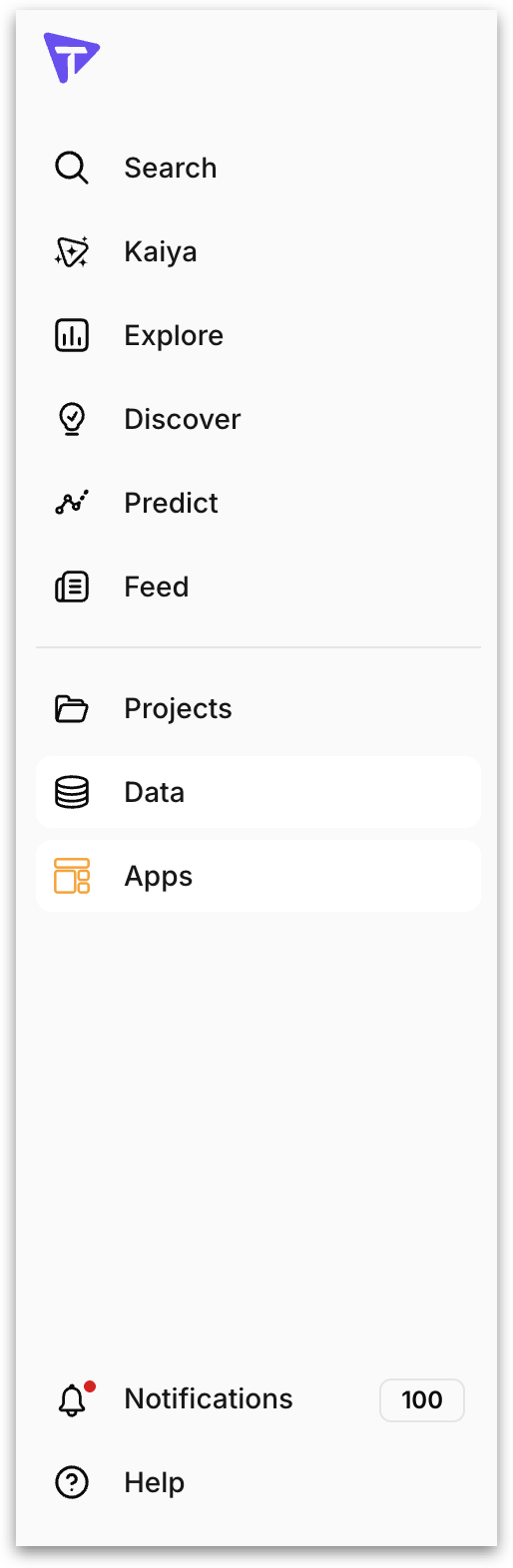
The **Apps** section is available as a dedicated item in the left navigation pane. It appears below the **Data** section in the sidebar.
Click **Apps** in the left navigation to open the Apps library.
### The Apps library
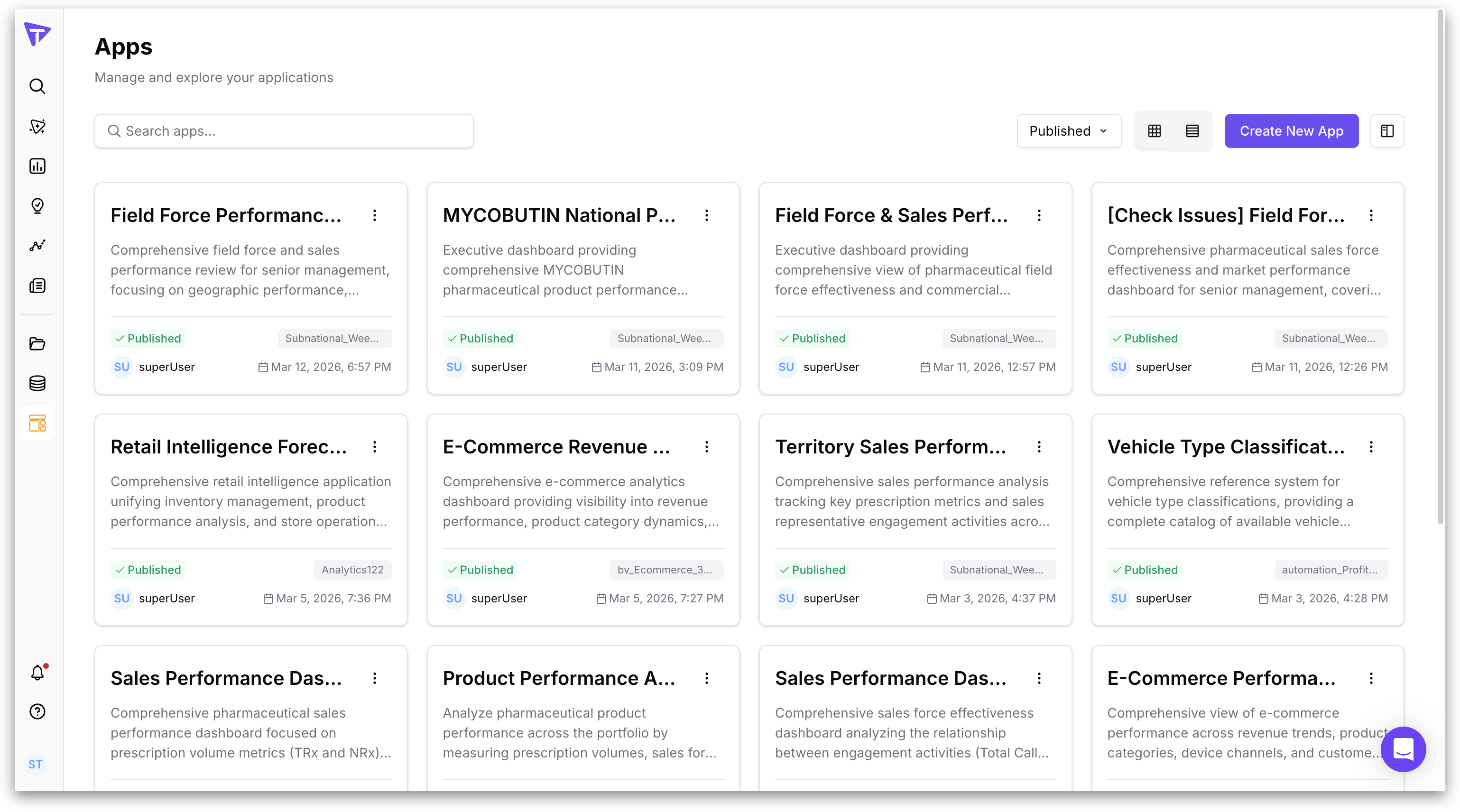
The Apps library is the central hub for managing all applications. When you open the Apps page, you see a grid view of all published apps. Each app card displays the app name, a brief description, its publication status, the Business View it is connected to, the author, and the date it was last modified.
At the top of the Apps library, you have the following controls:
* **Search** bar: Filter apps by name using the search field at the top left.
* **Status filter**: A dropdown at the top right lets you toggle between **Published** and **Archived** apps. By default, the library displays **Published** apps.
* **View** toggle: Switch between a grid layout (card view) and a list layout using the toggle icons next to the status filter.
* **Create New App**: This button at the top right opens the app creation interface.
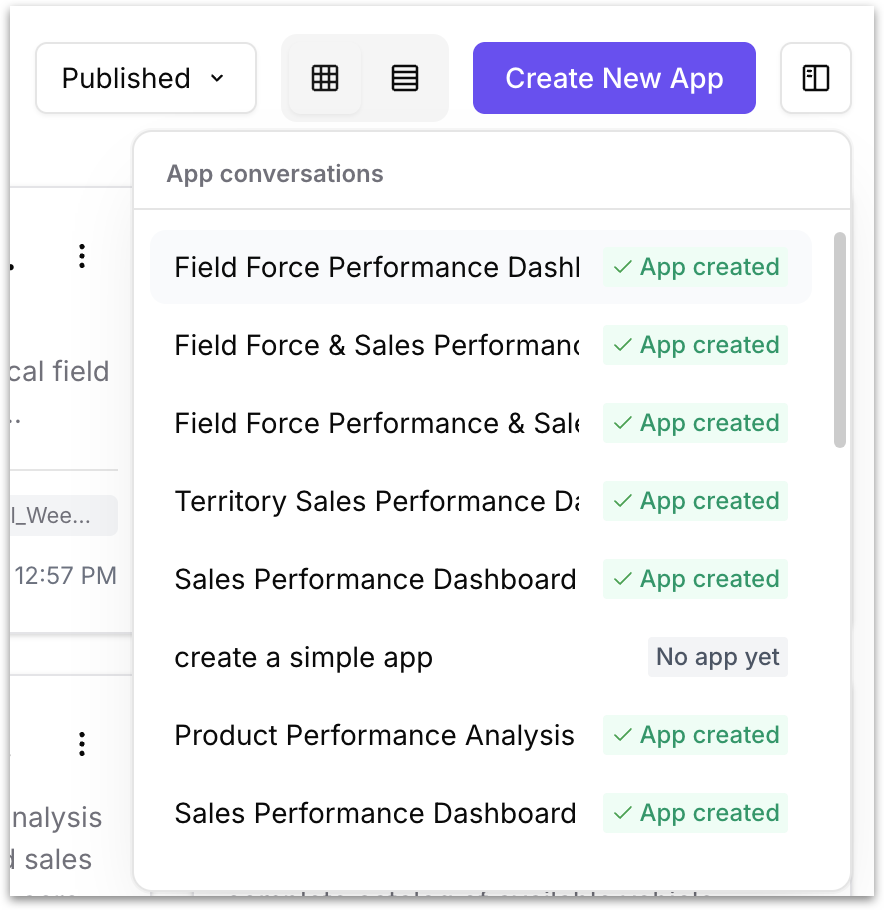
* **App Conversations**: Opens a side panel showing your previous app creation conversations. Each entry displays the conversation and its status of creation. Clicking an entry reopens that conversation so you can continue where you left off.
---
# Agent Instructions
This documentation is published with GitBook. GitBook is the documentation platform designed so that both humans and AI agents can read, navigate, and reason over technical content effectively. Learn more at gitbook.com.
## Querying This Documentation
If you need additional information that is not directly available in this page, you can query the documentation by asking a question.
Perform an HTTP GET request on the following URL with the `ask` and `goal` query parameters:
```
GET https://help.tellius.com/kaiya/kaiya-apps.md?ask=&goal=
```
`ask` is the immediate question: it should be specific, self-contained, and written in natural language.
`goal` is what the user is ultimately trying to achieve, the reason they need the answer. Sharing it helps GitBook give you a better, more relevant answer. A goal is most helpful when it describes the outcome the user wants rather than restating the question. For example, with `ask=how do I create an API token`, a goal like `automate deployments from our CI pipeline` lets GitBook tailor the answer to that use case.
The response will contain a direct answer to the question and relevant excerpts and sources from the documentation.
Use this mechanism when the answer is not explicitly present in the current page, you need clarification or additional context, or you want to retrieve related documentation sections.