> For the complete documentation index, see [llms.txt](https://help.tellius.com/llms.txt). Markdown versions of documentation pages are available by appending `.md` to page URLs; this page is available as [Markdown](https://help.tellius.com/kaiya/kaiya-apps/anatomy-of-a-completed-app.md).
# Anatomy of a completed app
Explore the anatomy of a completed app in Tellius—understand its structure, components, and configuration to build, review, and optimize analytics workflows.
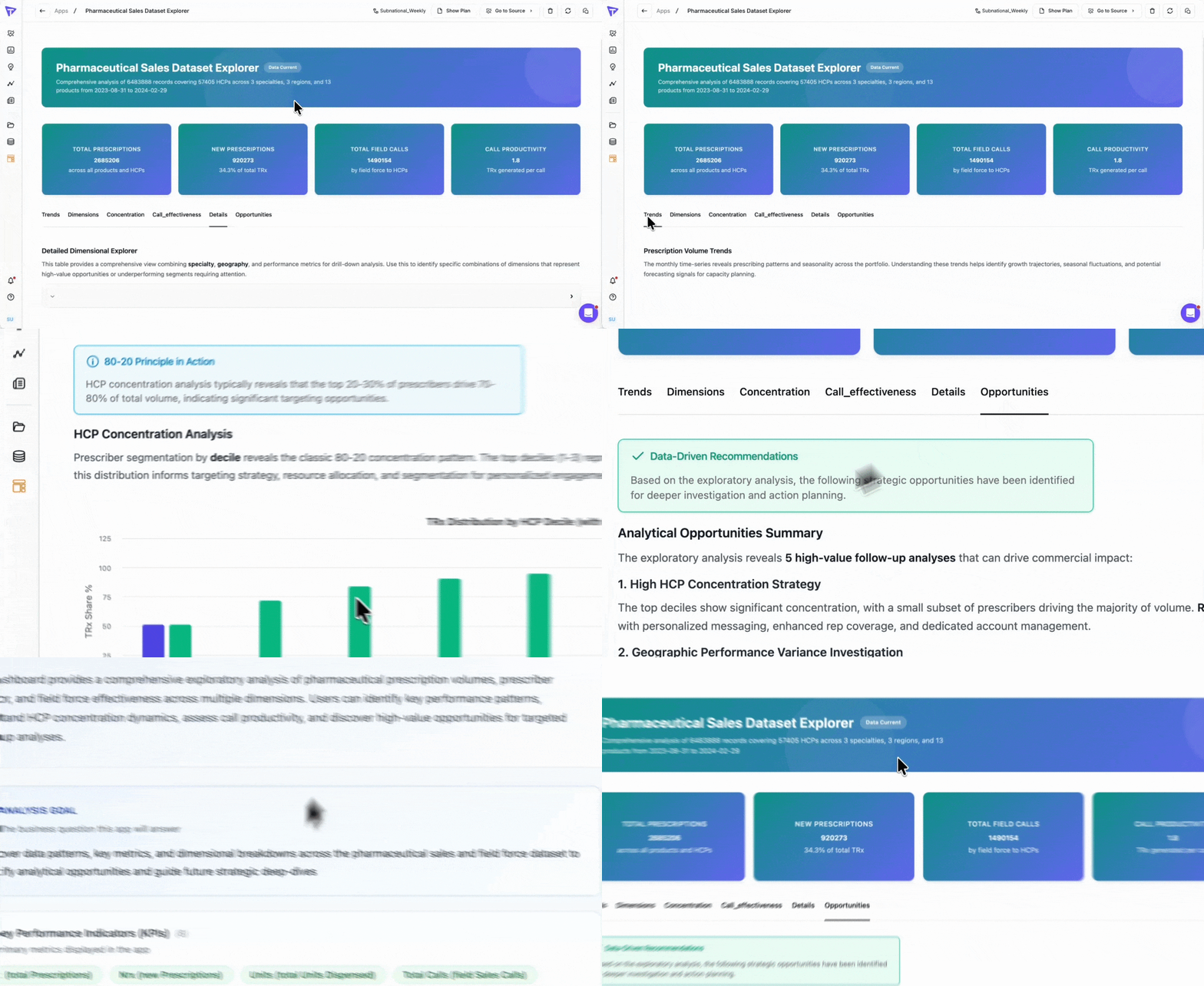
Once generated, a Kaiya App is a fully rendered, multi-section interactive application. The following elements are present in a completed app:
#### Header banner
Each app opens with a styled header banner that displays the app title, a description of what the app covers, and optionally, category or channel tags (for example, "B2B Channel" and "Retail Channel"). The banner provides immediate context about the scope of the application.
#### Navigation tabs
Apps are organized into multiple tabs, each corresponding to a section defined in the blueprint. Tabs appear below the header and allow users to navigate between different views of the data. For example, an app might have tabs labeled Overview, Drivers, Segments, Rankings, and Recommendations.
#### Section-level guidance
Each section within a tab can include a guidance callout at the top. This callout has a title and a brief explanation of what the section displays and how to use it. It orients the user before they engage with the metrics and charts below.
#### Insights and summaries
Kaiya generates contextual text within each section. It is analytical narrative that references the specific metrics and dimensions in the app, explains what the data shows, and highlights what the user should pay attention to. These summaries are generated based on the data at the time of creation and updates when the app data is refreshed.
#### KPI cards
Key metrics are displayed as prominent KPI cards at the top of relevant sections. Each card shows the metric name (for example, Total ACV, Quota Attainment, Accounts at Risk, Renewal Pipeline), the current value, and a contextual subtitle explaining the metric (such as "Active B2B Contracts ($M)" or "YTD Team Performance").
#### Charts and tables
Depending on the analysis types specified in the blueprint, each section contains a combination of visualizations: bar charts, line charts, tables etc. Chart types are selected by Kaiya based on what is most appropriate for the data and the analytical intent of the section.
#### Interactive filters
The app includes user-adjustable filters based on the dimensions defined in the blueprint. These filters let viewers slice the data by region, time period, segment, product, or any other available dimension without modifying the app itself.
### Actions on the App
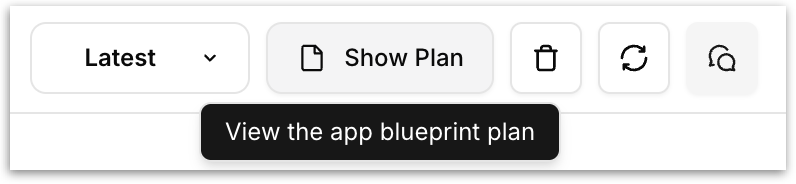
When viewing a completed app, a toolbar appears in the top-right corner of the screen. The toolbar contains the following controls:
* **Business View indicator:** Displays the name of the Business View the app is connected to.
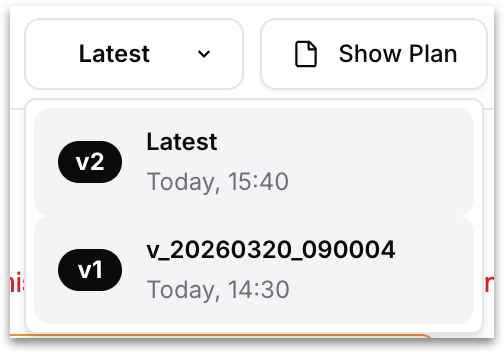
* **Version dropdown (Latest):** A dropdown labeled “Latest” that lets you switch between different versions of the app. Clicking the dropdown reveals a list of all saved versions, each displayed with a version badge (v1, v2, etc.), the version name (the most recent version is always labeled “Latest”, while earlier versions use a timestamped identifier), and the date and time the version was saved. Selecting an earlier version loads that version of the app in the main panel, allowing you to review previous states. This is how you access version history and roll back to an earlier version if needed.
* **Show Plan:** Opens the **App Blueprint** that was used to generate the app. This lets you review the original plan, including the analysis goal, sections, KPIs, and data sources at any time after creation.
* **Delete:** Removes the app. Available to admins and app owners only.
* **Refresh app data:** Triggers a manual data refresh against the underlying Business View. The app continues to display the most recently loaded data while the refresh runs in the background. Available to admins and app owners.
* **Customize:** Opens the Kaiya conversation panel for the app, allowing you to [modify the app](/kaiya/kaiya-apps/how-to-customize-a-kaiya-app.md) conversationally.
---
# Agent Instructions
This documentation is published with GitBook. GitBook is the documentation platform designed so that both humans and AI agents can read, navigate, and reason over technical content effectively. Learn more at gitbook.com.
## Querying This Documentation
If you need additional information that is not directly available in this page, you can query the documentation by asking a question.
Perform an HTTP GET request on the following URL with the `ask` and `goal` query parameters:
```
GET https://help.tellius.com/kaiya/kaiya-apps/anatomy-of-a-completed-app.md?ask=&goal=
```
`ask` is the immediate question: it should be specific, self-contained, and written in natural language.
`goal` is what the user is ultimately trying to achieve, the reason they need the answer. Sharing it helps GitBook give you a better, more relevant answer. A goal is most helpful when it describes the outcome the user wants rather than restating the question. For example, with `ask=how do I create an API token`, a goal like `automate deployments from our CI pipeline` lets GitBook tailor the answer to that use case.
The response will contain a direct answer to the question and relevant excerpts and sources from the documentation.
Use this mechanism when the answer is not explicitly present in the current page, you need clarification or additional context, or you want to retrieve related documentation sections.