How to create a Kaiya App
There are two ways to create a Kaiya App. The method you choose depends on whether you are starting from an existing analysis or building a new app from scratch.
From a Kaiya Deep Insights Conversation
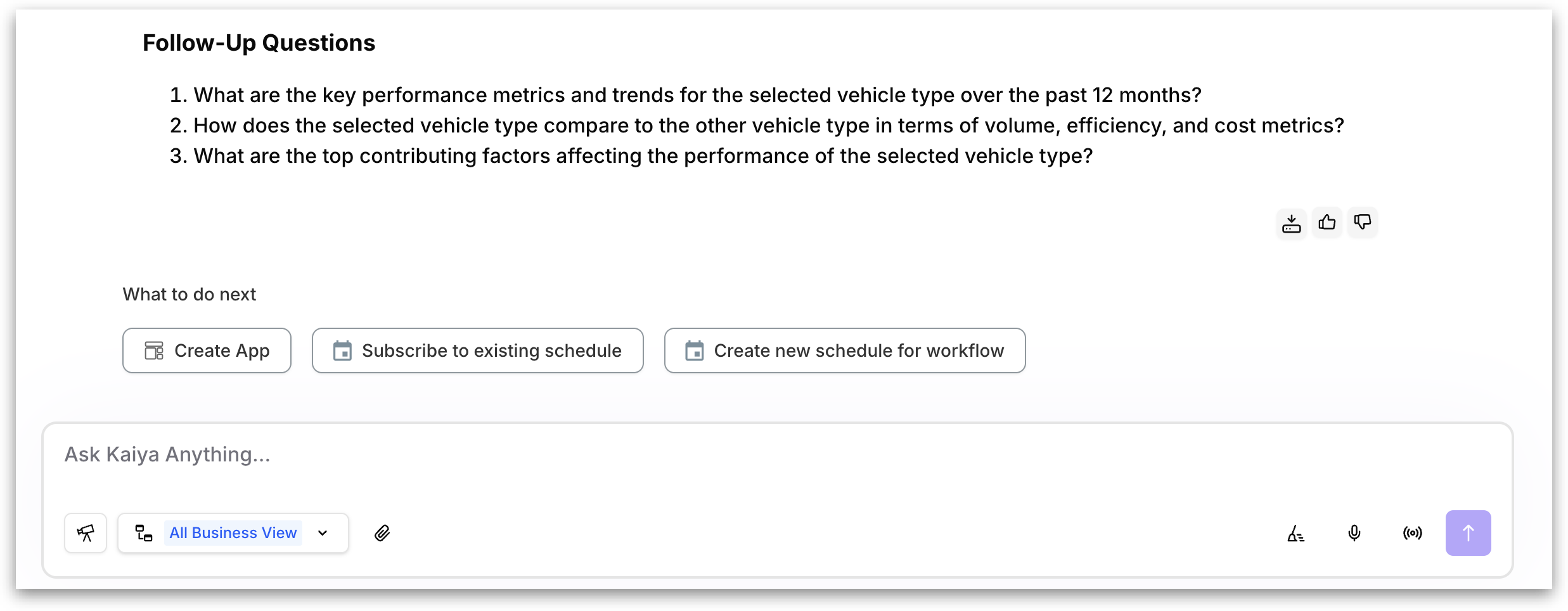
After Kaiya completes an agentic Deep Insights analysis, three action buttons appear at the bottom of the response:
Create App
Subscribe to existing schedule
Create new schedule for workflow

Click Create App to convert the analysis into an interactive application. The generated app inherits the analytical approach from the Deep Insight, including the analysis logic, metric relationships, and findings. It carries forward the specific analytical framework that produced the insight.
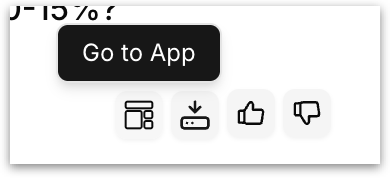
Once created, the source conversation and the resulting app are bidirectionally linked. A Go to App link appears in the original conversation, and a Go to Source link appears within the app. This lets you trace any app back to the analysis that produced it.

From the Apps page Directly
This path is for building a new app from scratch without an existing analysis.
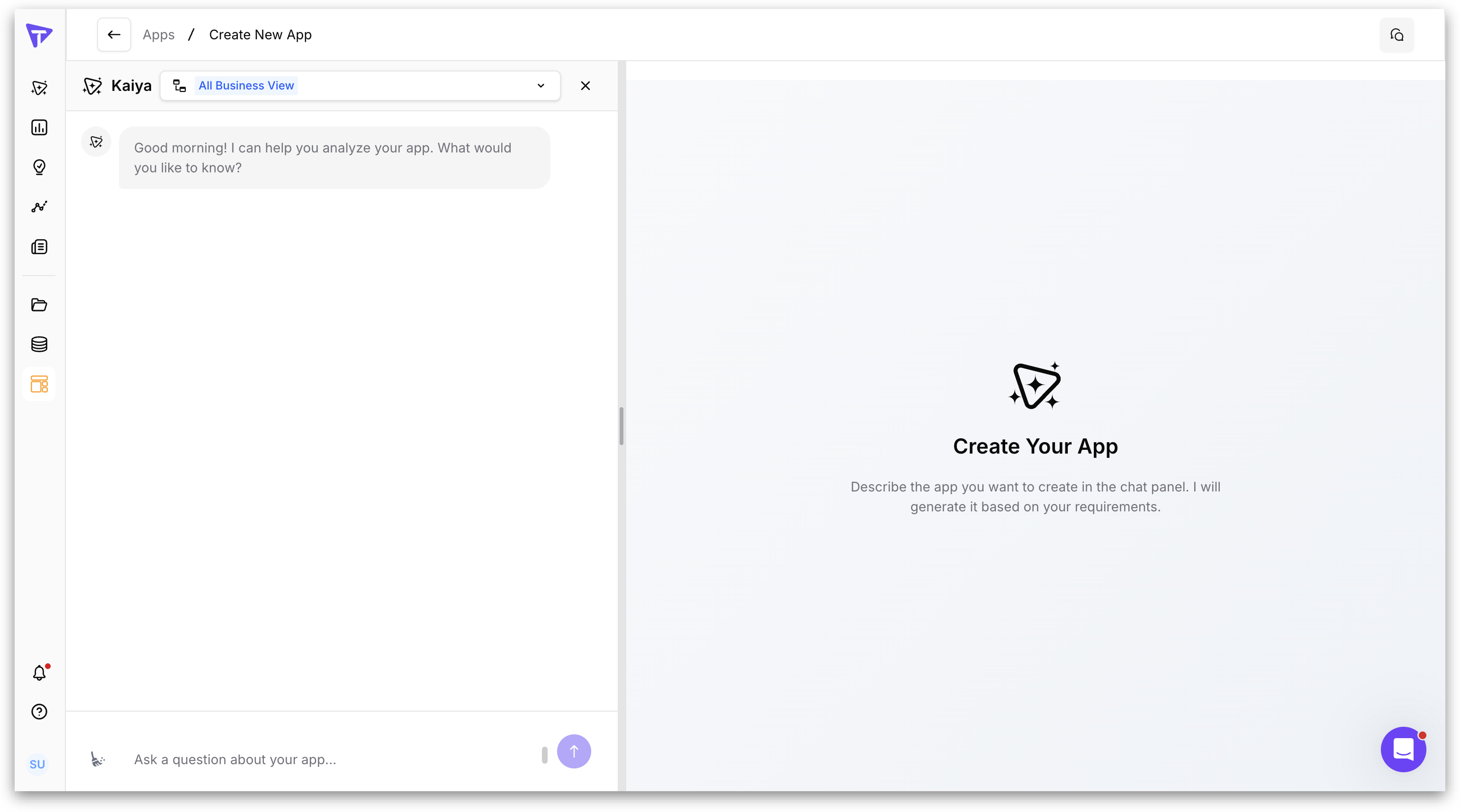
Navigate to the Apps page using the left navigation sidebar and click the Create New App button.
The app creation interface opens in a split-pane layout. The left panel contains the Kaiya conversation. The right panel displays the app and plan created.

At the top of the conversation panel, select the Business View that contains the data your app should use.
Type your app request in the chat input. Describe the persona who will use the app, the business questions it should answer, and the metrics or dimensions that matter. For example: "Build an app for Field Sales & Dealer Performance: B2B / National Retail Channel Intelligence."
Press Enter or click the send button to submit.
Kaiya interacts with you and asks clarification questions when required.
Kaiya then processes your request and generates an App Blueprint (the plan) for your review.
What is an App Blueprint (Plan)?
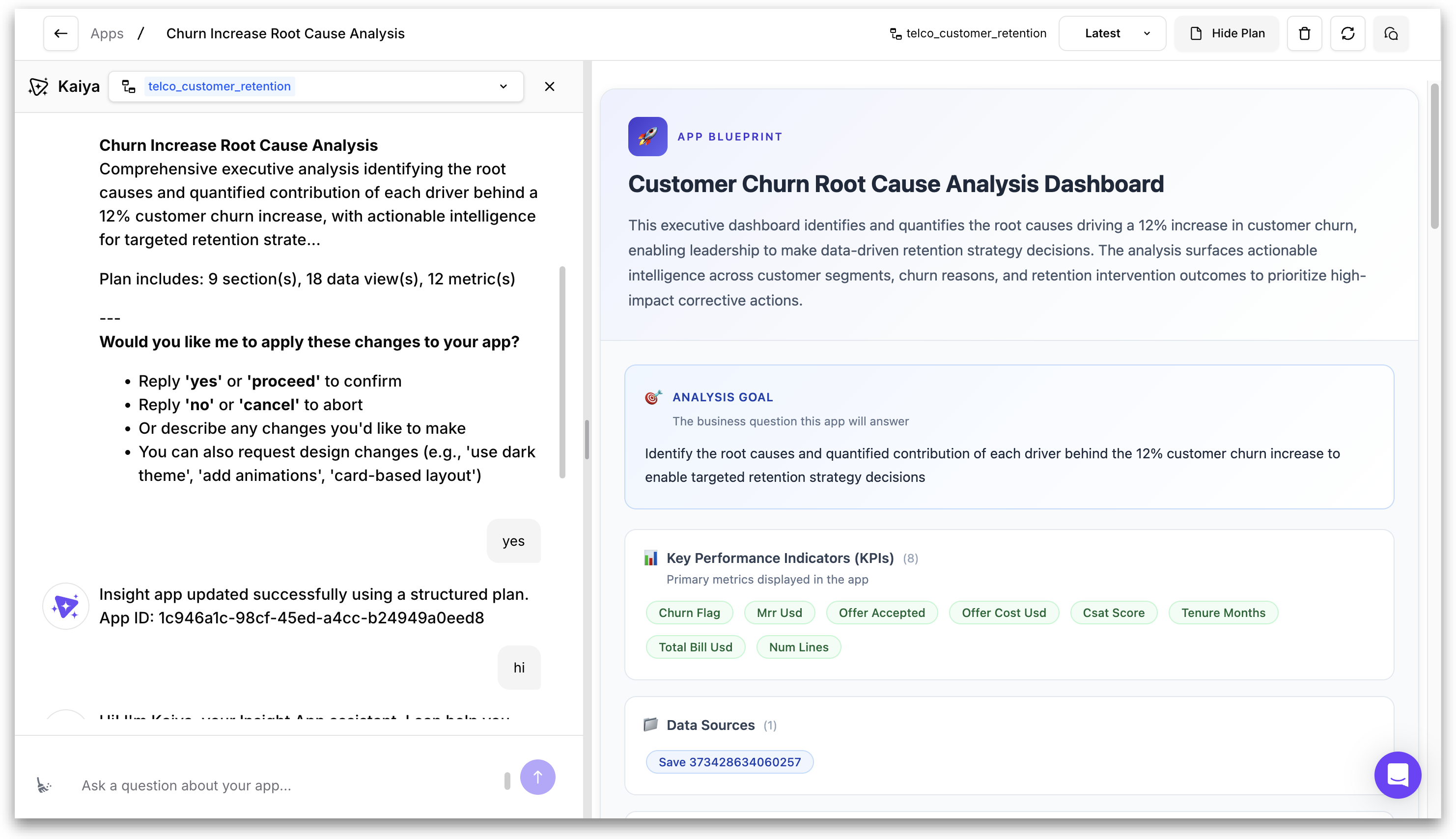
Before Kaiya creates the app, it generates a detailed blueprint and presents it for your review. The blueprint is displayed in the right panel while the conversation continues on the left. You can verify the proposed structure and request changes before any app is built.
The plan is a structured document titled App Blueprint and contains the following sections:
Analysis Goal
The core business question the app is designed to answer. This anchors the entire app structure.
Key Performance Indicators (KPIs)
The primary metrics displayed in the app. These are the quantitative measures that the app will track and visualize.
Data Sources
The specific tables from the selected Business View that will feed data into the app.
Analysis Dimensions
The categorical fields available for grouping, filtering, and slicing data within the app.
Key Insights
Pre-identified analytical findings that Kaiya plans to surface in the app, based on the data and the stated analysis goal.
App Sections
The individual tabs or pages of the app. Each section lists its purpose, the specific metrics and dimensions it uses, and the visualization types it will contain (KPI cards, bar charts, line charts, tables, filter controls, markdown summaries).
Interactive Controls
The user-adjustable filters that will be available in the app, enabling users to slice data by dimensions such as region, time period, segment, or product.
Reviewing and approving the blueprint
After Kaiya presents the blueprint, it summarizes the plan in the chat panel and asks for confirmation. The message includes a count of the proposed sections, data views, and metrics, followed by options:
Describe any changes you want. For example: "Add a section for monthly activation trends" or "Remove the Rankings tab and use a dark theme."
You can also request design changes at this stage, such as "use dark theme", "add a bar chart", or "card-based layout".
Once you approve, Kaiya creates the app. A confirmation message appears in the chat: "Insight app created successfully using a structured plan", followed by the App ID. The completed app renders in the right panel immediately.
After creating the app, you can navigate to the plan by clicking on the "Show Plan". The plan will be displayed in the place of the app. You can go back to the app by clicking again on "Hide Plan".

What types of analysis are supported?
Kaiya Apps can generate applications built around several analysis types. All analytical capabilities available in the Kaiya Deep Insights are supported here. The analysis type determines the structure of the insights, the chart types used, and the nature of the findings presented in the app. Some of the types are as follows:
Analysis Type
What It Does
Example Use Case
Forecasting
Projects future values of a metric based on historical patterns
TRx forecast by territory for the next 8 weeks
Variance / Driver Analysis
Identifies the factors driving differences between actual results and a comparison baseline
Revenue variance by SKU compared to the prior period
Root Cause
Traces underperformance or anomalies back to their underlying drivers
Identifying why a specific territory is underperforming its target
Segmentation / Cohort
Groups entities into meaningful clusters based on shared characteristics
HCP prescriber segments organized by prescription decile
Anomaly Detection
Flags data points or entities that fall outside expected thresholds
Territories where call frequency dropped below a defined threshold
What-If / Scenario
Models outcomes under hypothetical conditions
Projected promotional lift under different spending levels
Correlation / Dependency
Measures the strength and direction of relationships between two variables
Call frequency versus NRx growth, analyzed by sales representative
You do not need to specify analysis types manually. When you describe what you want the app to do, Kaiya automatically selects the appropriate analysis types based on your description. For example, asking for "performance vs target" will trigger variance analysis, while asking for "forecast next quarter" will trigger forecasting.
Last updated
Was this helpful?