> For the complete documentation index, see [llms.txt](https://help.tellius.com/llms.txt). Markdown versions of documentation pages are available by appending `.md` to page URLs; this page is available as [Markdown](https://help.tellius.com/kaiya/kaiya-browser-extension.md).
# Kaiya Browser Extension
The Kaiya browser extension brings Kaiya into your Chrome browser as a side panel, so you can ask questions about your data without leaving the page you are working on. You type a question in natural language, optionally capture what is on screen, and Kaiya answers against your Business Views. The same conversational experience you get inside Tellius, available in a panel on top of any tab.
### What you can do with Tellius browser extension
The side panel supports Kaiya's standard conversational analytics:
* **Ask Kaiya in natural language.** Type a question and get an answer against your data, the same way Kaiya behaves inside Tellius.
* **Scope to a Business View.** Choose **All Business Views** or pick a specific Business View for the conversation.
* **Auto-select a Business View from a screenshot.** When you capture the screen and send it, Kaiya selects the most relevant Business View based on the image you send.
* **Capture screen.** Send a screenshot of the current page as visual context. You can capture a particular area, or send the entire page.
* **Dictation and Voice mode.** Provide your input by voice instead of typing. You can dictate your responses, and Kaiya will respond in audio if **Voice mode** is enabled.
* **Clear context.** Reset the current conversation context.
* **Chat history.** Browse and reopen your earlier extension conversations.
{% hint style="warning" %}
The extension's conversations are stored separately from your main Tellius/Kaiya conversations. Conversations you have inside the Tellius do not appear in the extension, and extension conversations do not appear in the product. The extension's history is tied to the signed-in user in the extension.
{% endhint %}
### Install and run the extension
The extension named "Tellius Browser Extension" is available on the Chrome Web Store.
Once loaded, the extension is available in your browser. Open the side panel from the Chrome toolbar (via the extensions menu / puzzle-piece icon, where you can also pin it for quick access).
### A tour of the side panel
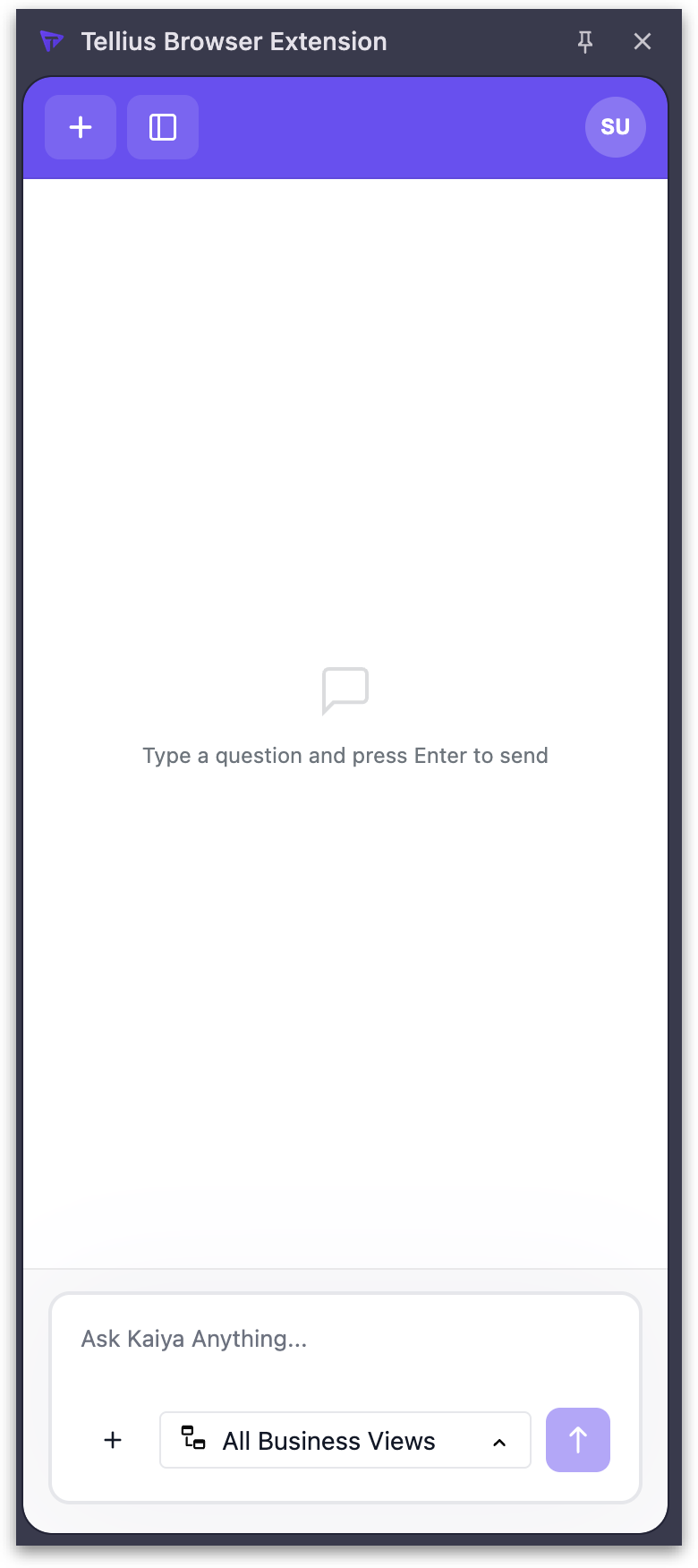
When the panel opens with no conversation yet, it shows an empty state in the middle of the conversation area.
The dark bar at the very top of the panel contains:
* **Pin icon:** pins the panel so it stays in place while you work.
* **Close (✕):** closes the side panel.
Below the header is the purple toolbar:
* **New chat (+)** starts a new conversation.
* **Chat history toggle:** the panel icon next to **New chat** opens the history of Kaiya conversations made in the extension.
{% hint style="warning" %}
This history holds only the conversations you have had **in the extension**, for the signed-in user. It does not show conversations from the main Tellius product.
{% endhint %}
#### Conversation area
The box at the bottom of the panel is where you type. Its placeholder reads **"Ask Kaiya Anything…"** The input box has three controls:
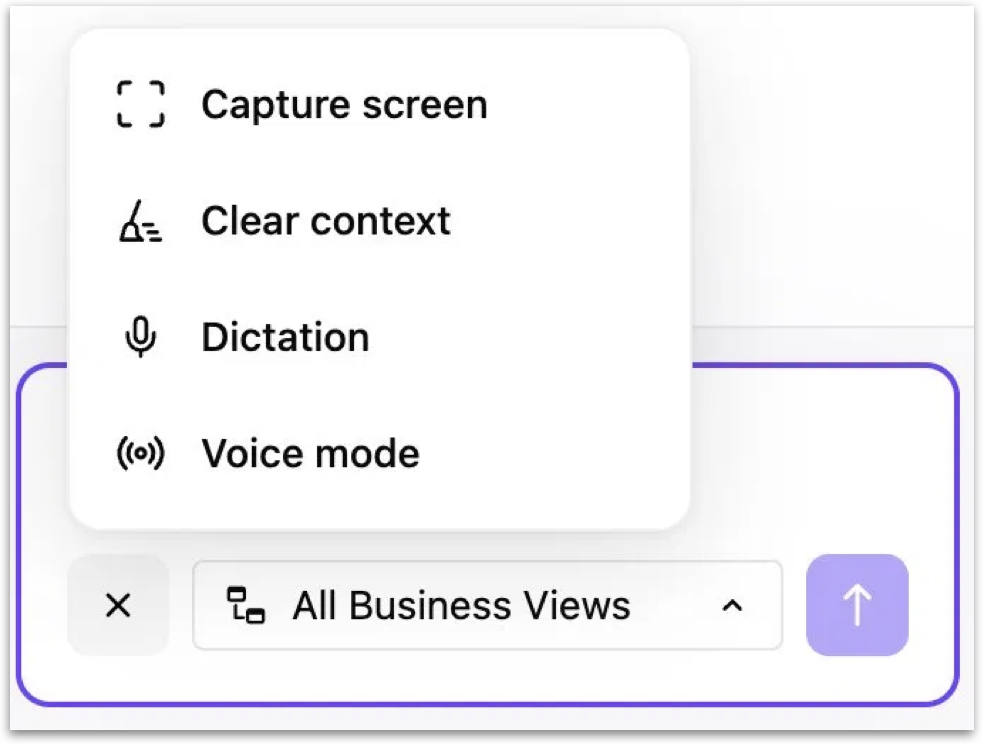
* **+ (menu button)** opens the actions menu: **Capture screen**, **Clear context**, **Dictation**, and **Voice mode** (see **The + menu**, below).
* **Business View selector** shows the current scope, **All Business Views** by default, with a chevron to open the selector (see **Choosing a Business View**, below).
* **Send (↑)** sends your question. You can also press **Enter** to send.
{% hint style="danger" %}
The extension reads the page (screenshot + DOM) and answers using your governed Tellius data. It works when Tellius has access to the data behind what's on screen (for example, a Tellius Vizpad, or a third-party dashboard whose underlying data is also modeled in Tellius). If Tellius doesn't have that data, the extension will tell you and ask you to pick a Business View,
{% endhint %}
### Asking Kaiya a question
1. Click into the **Ask Kaiya Anything…** box.
2. Type your question in natural language (for example, *"Show me revenue for New York"*).
3. Select the **Business View** scope using the selector, or let Kaiya auto-pick the Business View for you.
4. Press **Enter**, or click the **Send (↑)** button.
5. Kaiya answers in the conversation area, and the exchange becomes part of your extension chat history.
### The + menu
Click the **+** button inside the **Ask Kaiya Anything…** box to open the actions menu. The menu has four options:
* **Capture screen:** captures what is on the current page and passes it into the conversation as visual context. You can capture a particular visualization on the page, or, if you do not narrow the capture, the entire page is sent. Kaiya can then reason about what is on screen and can also auto-select the relevant Business View from the captured image.
* **Clear context:** clears the current conversation context, so your next question starts fresh.
* **Dictation:** lets you speak your question instead of typing it (speech-to-text into the input box).
* **Voice mode:** lets you interact with Kaiya by voice.
---
# Agent Instructions
This documentation is published with GitBook. GitBook is the documentation platform designed so that both humans and AI agents can read, navigate, and reason over technical content effectively. Learn more at gitbook.com.
## Querying This Documentation
If you need additional information that is not directly available in this page, you can query the documentation by asking a question.
Perform an HTTP GET request on the following URL with the `ask` and `goal` query parameters:
```
GET https://help.tellius.com/kaiya/kaiya-browser-extension.md?ask=&goal=
```
`ask` is the immediate question: it should be specific, self-contained, and written in natural language.
`goal` is what the user is ultimately trying to achieve, the reason they need the answer. Sharing it helps GitBook give you a better, more relevant answer. A goal is most helpful when it describes the outcome the user wants rather than restating the question. For example, with `ask=how do I create an API token`, a goal like `automate deployments from our CI pipeline` lets GitBook tailor the answer to that use case.
The response will contain a direct answer to the question and relevant excerpts and sources from the documentation.
Use this mechanism when the answer is not explicitly present in the current page, you need clarification or additional context, or you want to retrieve related documentation sections.