> For the complete documentation index, see [llms.txt](https://help.tellius.com/llms.txt). Markdown versions of documentation pages are available by appending `.md` to page URLs; this page is available as [Markdown](https://help.tellius.com/kaiya/kaiya-conversational-ai/exporting-kaiya-conversations.md).
# Exporting Kaiya conversations
Learn about Exporting Kaiya Conversations in Tellius and discover how AI-powered analytics and conversational intelligence improve enterprise decision-making.
Kaiya can export conversations as professionally formatted PowerPoint (PPTX) or PDF presentations. Rather than simply dumping charts and tables into slides, Kaiya generates a storyline (a narrative arc that organizes insights into a logical sequence) and builds the presentation around it. You can review the storyline, refine it in natural language, and preview each slide before exporting.
#### How to export the Kaiya conversation
There are two entry points for triggering an export.
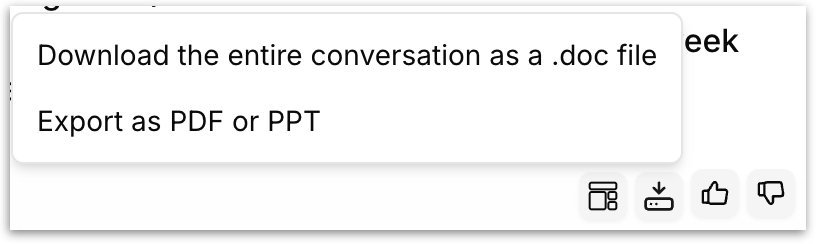
**From the download icon in a conversation:** After a completed Kaiya response, click the download icon that appears alongside the thumbs up/down feedback icons at the bottom. The following dropdown appears:
* **Download the entire conversation as a .doc file:** Exports the conversation as a .doc file immediately
* **Export as PDF or PPT:** Select this option to begin the export flow.
**From within a conversation:** You can also express presentation intent directly in Kaiya. For example, type "build me a deck on Q3 territory performance," and Kaiya generates the storyline and builds the deck within the conversation.
#### Setting up the export
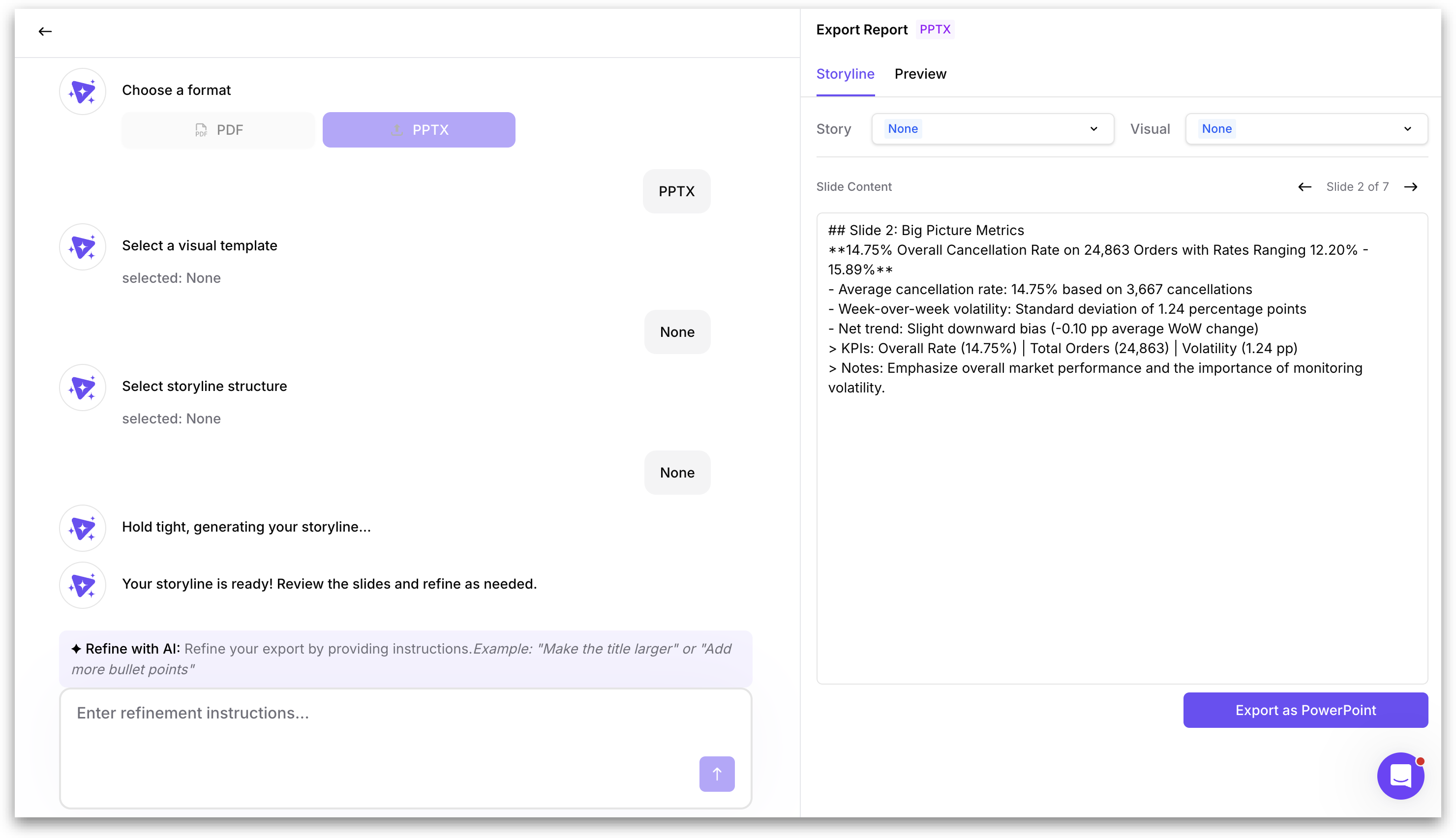
The export opens in a split-pane interface. The left panel walks you through the configuration steps as a guided conversation. The right panel displays the export preview.
**Step 1: Choose a format**
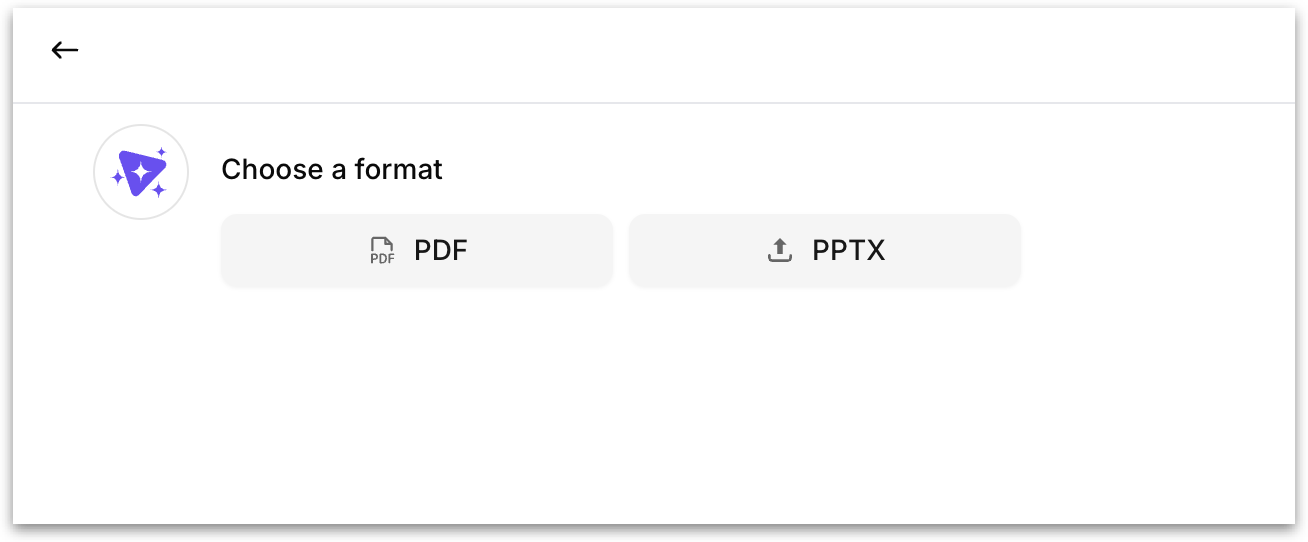
Kaiya presents two format buttons: **PDF** and **PPTX**. Click your preferred format.
**Step 2: Select a visual template**
Kaiya asks you to select a visual template. If your admin has uploaded a corporate PowerPoint template, it appears in the available list. Select a template to apply your organization's branding. The visual template controls the slide design, color palette, typography, logo placement, and chart styling.
**Step 3: Select storyline structure**
Kaiya asks you to select a storyline structure from the available list. Storyline structures define the narrative arc of the presentation: how findings are organized and sequenced across slides.
**Step 4: Kaiya generates the storyline**
After you confirm both selections, Kaiya generates the storyline which you can r**eview and refine as needed.**
#### Review and refine the files
Once the storyline is generated, the right panel displays the **Export Report** with two tabs: **Storyline** and **Preview**.
**Storyline tab**
* The Storyline tab shows the raw content for each slide in markdown format.
* At the top, two dropdowns labeled **Story** and **Visual** allow you to switch the storyline structure or visual template after generation without starting over.
* Below the dropdowns, a **Slide/Sections Content** area displays the text content of each slide/section.
* Navigation arrows and a slide/section counter (for example, "Slide 2 of 7") let you move between slides/sections.
* Each slide/section includes title, headline text, bullet points with data findings, KPI callouts, and speaker notes.
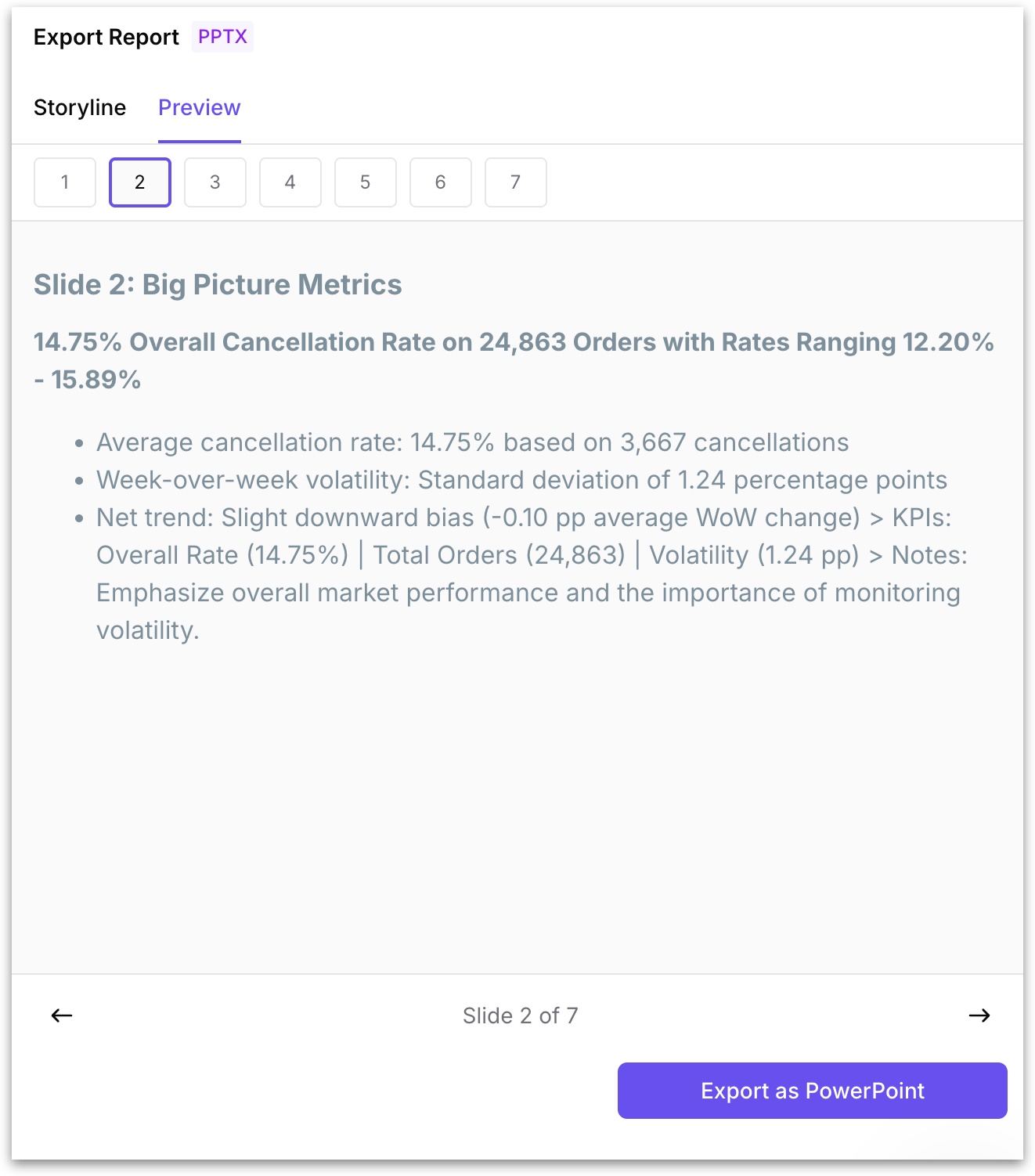
**Preview tab**
* The Preview tab shows a rendered visual preview of each slide/section as it will appear in the final export.
* Numbered slide/section buttons at the top let you jump to any slide/section.
* The preview displays the formatted output with headings, styled text, bullet points, and layout as they will appear in the downloaded file.
#### Refining the storyline with Kaiya
Below the storyline generation confirmation, a **"Refine with Kaiya"** section appears, where you can type natural language modifications.
For example, you can type "make it shorter," "focus more on the executive summary," "reorder the findings to lead with the churn analysis," or "add a recommendations slide." Submit the instruction, and Kaiya regenerates the modified slides/sections while preserving the rest of the storyline.
#### Exporting the final file
Once you are satisfied with the storyline and preview, click the **"Export as PowerPoint"** button to download the PPTX file. If you selected PDF as the format, the button reads **"Export as PDF"** instead.
#### Template support for admins
Under **Settings → Application Settings → Styles → PPT Templates**, admins can upload a corporate PowerPoint template (PPTX file) per environment.
* Kaiya extracts a brand style specification from the template, including color palette, typography, slide layouts, logo placement, chart styling, and visual elements.
* All subsequent exports by any user in that environment are rendered on-brand, matching the uploaded template's visual language.
* When no template is uploaded, Kaiya's default template is used automatically.
#### What gets exported
The exported presentation includes all findings from the Kaiya analysis, organized by the storyline structure. Charts from the analysis are embedded as high-resolution images to guarantee visual fidelity. Where possible, native PowerPoint charts are used so that recipients can edit them after export. Tables are rendered with template-consistent formatting. All numeric values in the exported deck match the source data exactly.
---
# Agent Instructions
This documentation is published with GitBook. GitBook is the documentation platform designed so that both humans and AI agents can read, navigate, and reason over technical content effectively. Learn more at gitbook.com.
## Querying This Documentation
If you need additional information that is not directly available in this page, you can query the documentation by asking a question.
Perform an HTTP GET request on the following URL with the `ask` and `goal` query parameters:
```
GET https://help.tellius.com/kaiya/kaiya-conversational-ai/exporting-kaiya-conversations.md?ask=&goal=
```
`ask` is the immediate question: it should be specific, self-contained, and written in natural language.
`goal` is what the user is ultimately trying to achieve, the reason they need the answer. Sharing it helps GitBook give you a better, more relevant answer. A goal is most helpful when it describes the outcome the user wants rather than restating the question. For example, with `ask=how do I create an API token`, a goal like `automate deployments from our CI pipeline` lets GitBook tailor the answer to that use case.
The response will contain a direct answer to the question and relevant excerpts and sources from the documentation.
Use this mechanism when the answer is not explicitly present in the current page, you need clarification or additional context, or you want to retrieve related documentation sections.