> For the complete documentation index, see [llms.txt](https://help.tellius.com/llms.txt). Markdown versions of documentation pages are available by appending `.md` to page URLs; this page is available as [Markdown](https://help.tellius.com/kaiya/kaiya-conversational-ai/working-with-kaiya.md).
# Working with Kaiya
### Non auto-BV mode
1. Under **Settings → Advanced → Kaiya → Kaiya Conversation**, make sure the toggle **"Auto-select Business View"** is disabled for non auto-BV mode.
2. Choose the required Business View from the dropdown and start typing your query. Alternatively, you can choose from the initial set of queries provided below the search box.
3. Kaiya will work its magic. Depending on the input question, you will find the step-by-step process getting loaded. Most often, you can find these four steps:
1. Identifying the intent and relevant data
2. Enhancing context for deeper understanding
3. Interpreting with AI
4. Processing data to deliver analytical results
4. After the process gets completed, the results will be displayed.
5. The analysis of the resulting chart can be found in the **Search Inspector**. If you have multiple charts in a conversation, select the required chart to view the respective analysis.
6. Under **Business View**, you can find all the columns in the selected BV.
{% hint style="danger" %}
In the non auto-BV mode, the Business View selected at the start of a conversation remains locked for the entire session. Every follow-up question is answered against that same BV.
{% endhint %}
### Auto-BV mode (dynamic)
If you're unsure which Business View (BV) to select, Kaiya can automatically identify and select the most relevant one for you. Simply start typing your query, and Kaiya will ensure the appropriate BV is applied. To enable the auto-Business View mode,
1. Under **Settings → Advanced → Kaiya → Kaiya Conversation**, enable the toggle **"Auto-select Business View".**
2. Navigate back to **Kaiya** tab and start typing your query without having to select the Business View first.
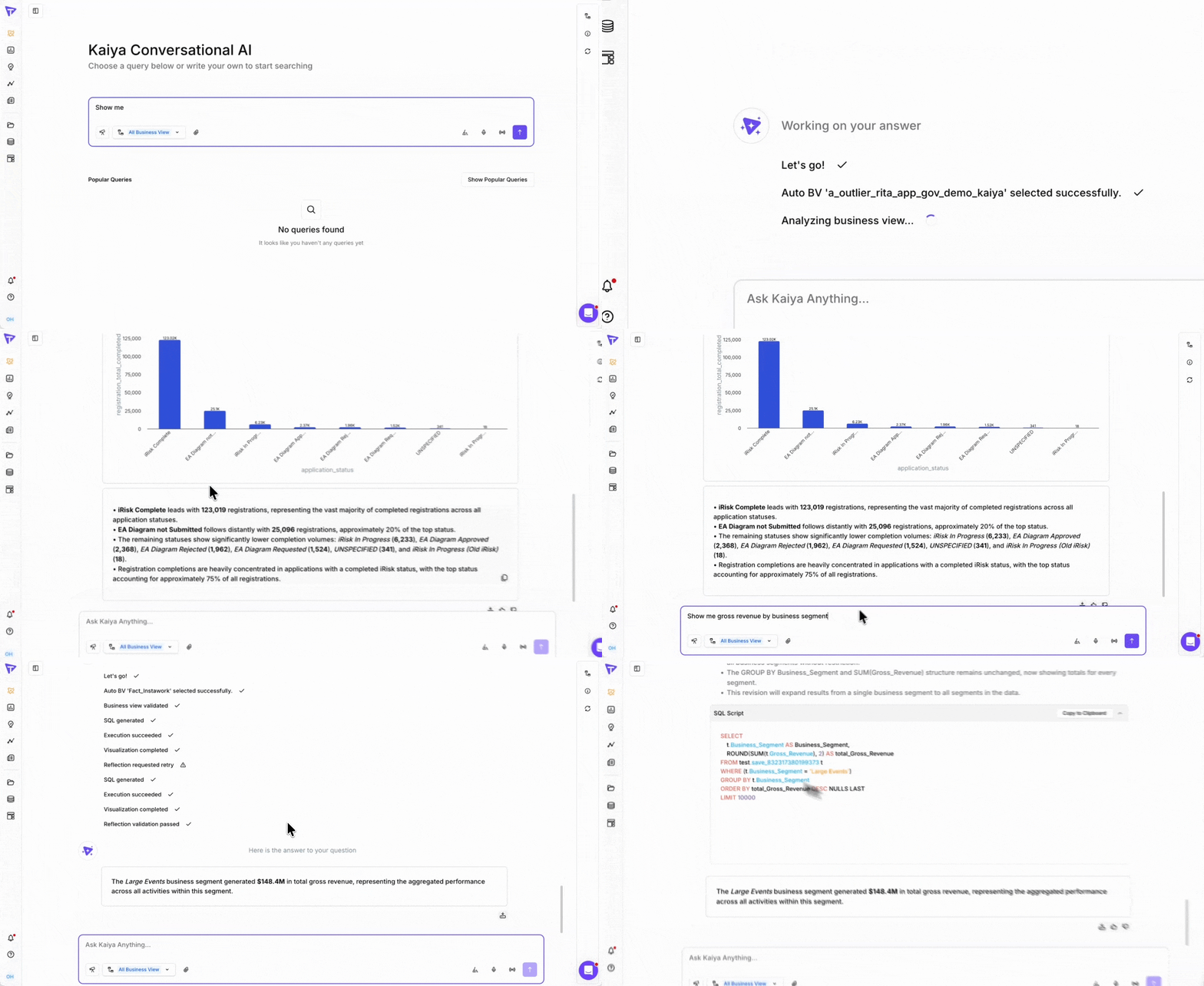
3. The following step will be displayed as one of the execution steps.
Kaiya auto-selecting the BV
4. Kaiya will go through your query and auto-select the relevant Business View for you.
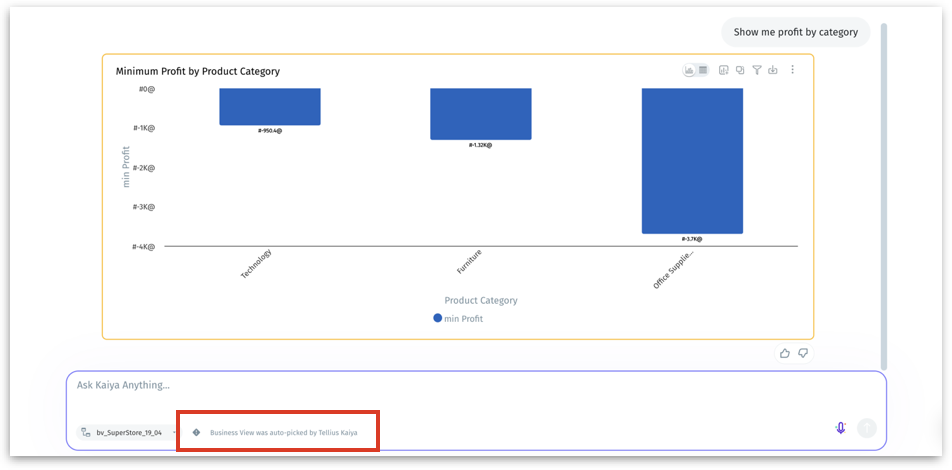
5. The results will be displayed. You can find **"Business View was auto-picked by Tellius Kaiya"** near the selected BV.
Auto-select BV by Kaiya
#### Dynamic selection of Business View
In the fully dynamic auto BV mode, Kaiya evaluates the most relevant Business View for each question independently, at query time. If you start by asking about promotional lift (which routes to a *Promotions BV*) and then ask about inventory availability (which lives in a *Supply Chain BV*), Kaiya switches automatically. You do not need to start a new conversation or manually reselect.
**How BV selection works at query time**
* When you submit a question, Kaiya's Planner agent reads a structured summary of all available Business Views across the instance, including their domains, key metrics, and example questions.
* It narrows the candidates and selects the optimal one to generate the analysis plan.
* Kaiya is aware whenever a BV or workspace is created or updated, so newly published Business Views become available for auto-selection immediately.
**Context carryover across BV switches**
When you switch to a different Business View mid-conversation, the following context elements carry forward from prior turns:
* Active dimension filters (for example, region = Southeast, product = Laundry)
* Time period selections
* Metric references established in earlier questions
* Entity clarifications (for example, how "market" was defined earlier in the conversation)
Kaiya maps these elements to the schema of the new BV. Where a dimension or metric has a direct equivalent in the new BV, it is applied automatically. Where there is no match, Kaiya surfaces the gap and asks for clarification.
{% hint style="warning" %}
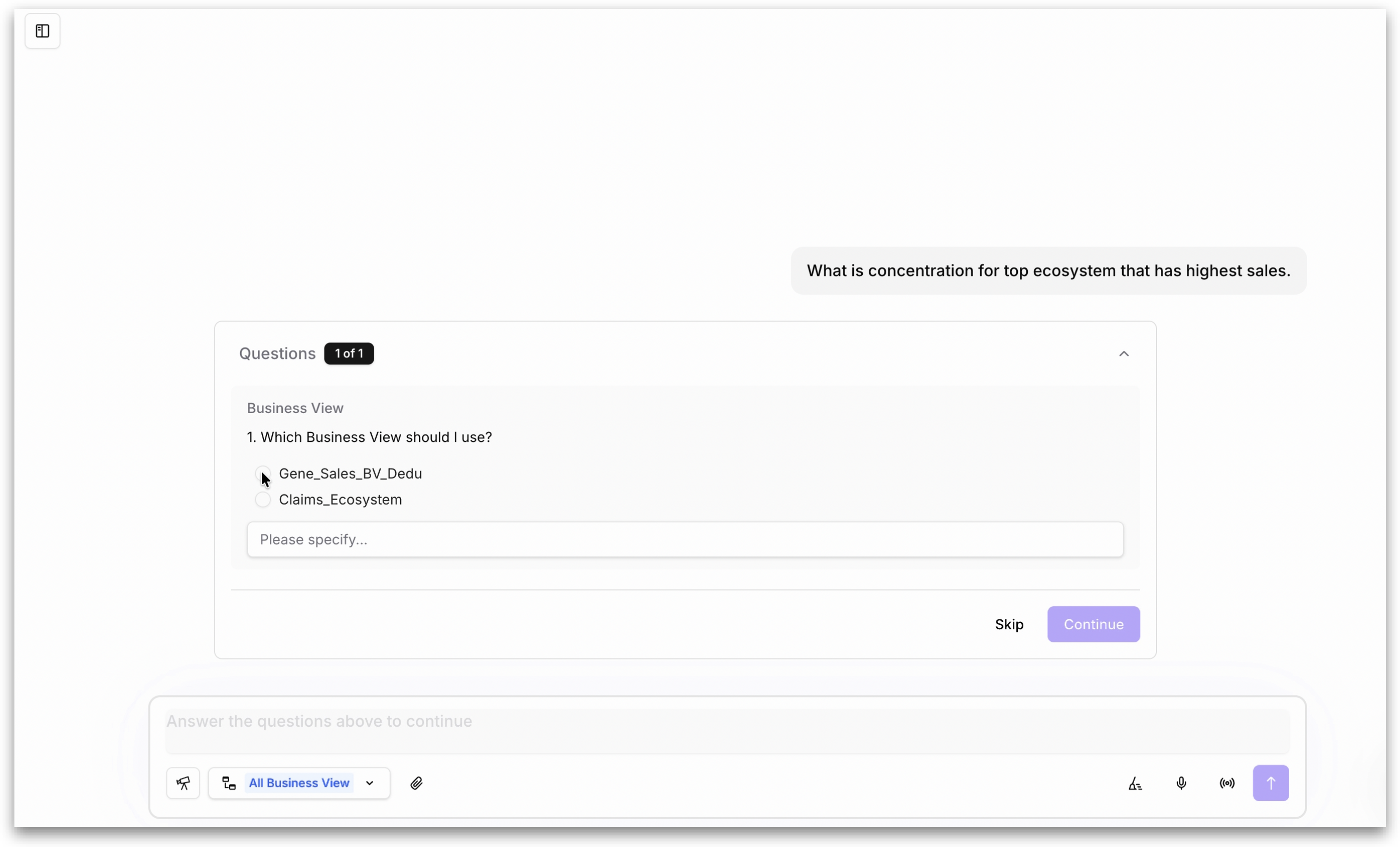
When two or three Business Views are equally strong candidates for a given question, Kaiya presents a multiple-choice question listing the matching BVs and asks which one you want to use. You select your preferred BV from the options, and Kaiya proceeds with that selection. This only occurs when there is genuine ambiguity between contenders; if one BV is clearly the strongest match, Kaiya picks it on its own.
{% endhint %}
### Ask Kaiya about your Business View
Kaiya answers natural language questions about metadata—such as measures, dimensions, calculated columns, and date fields—so that you can quickly uncover key details about your Business View (BV) without technical expertise. Whether you're a business user trying to understand data relevance before diving into analysis or an analyst seeking granular technical details, Kaiya bridges the gap between technical metadata and business context.
Metadata queries accelerate data discovery, empowers non-technical users, and reduces the back-and-forth between teams. You can ask questions about the structure and content of your dataset (BV) to:
* Discover available columns (measures, dimensions, date fields, and calculated columns).
* Understand calculated column formulas and their purpose.
* Identify fields related to a specific concept or KPI.
* Bridge the gap between technical metadata (e.g., field definitions) and business relevance.
#### **What type of questions you can ask Kaiya about your Business View**
Navigate to the Kaiya conversational search bar in the Tellius interface. Select or activate the Business View (BV) you want to explore. Use natural language to ask Kaiya questions about the metadata.
**1. Different types of available columns**
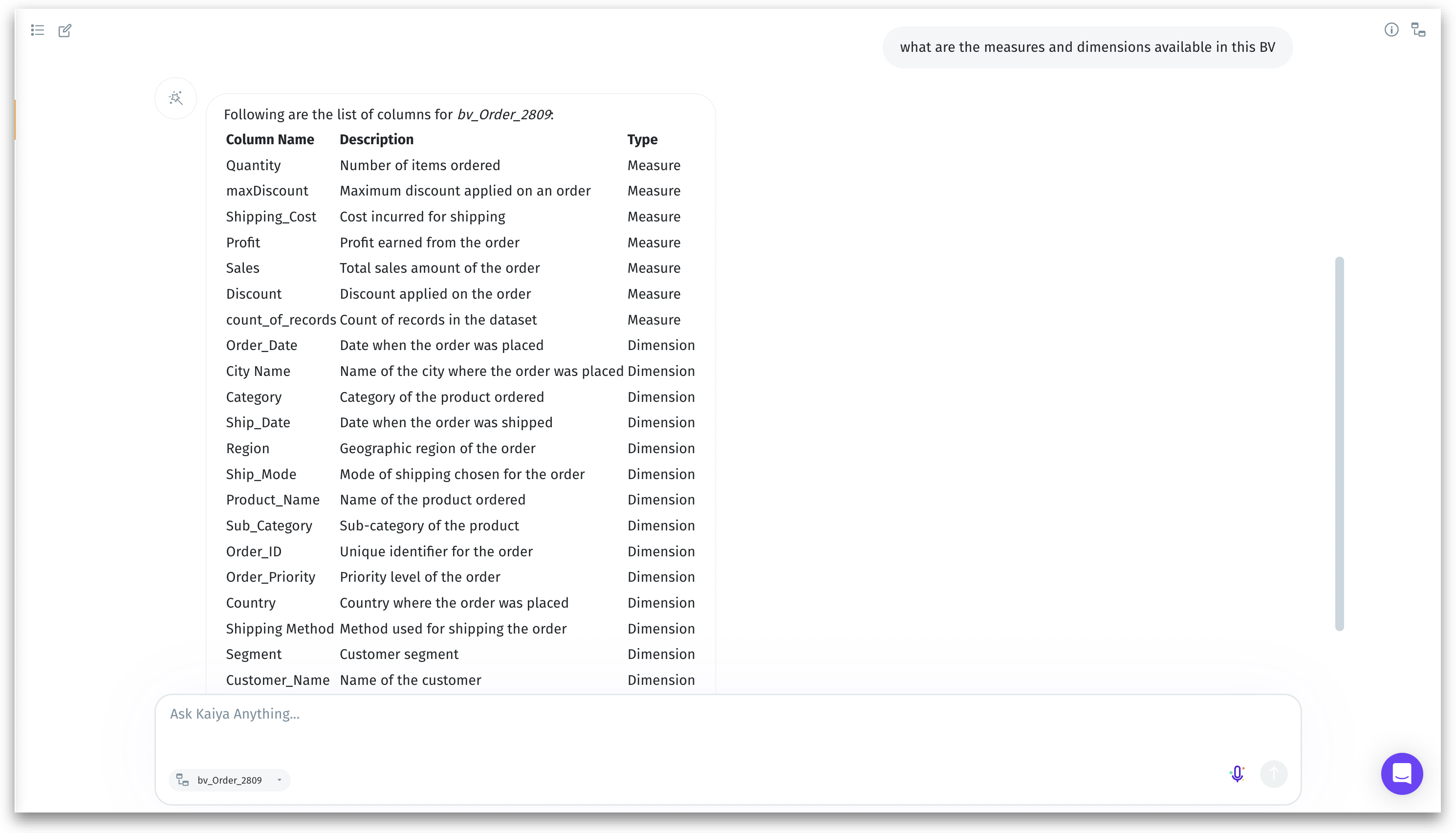
***"What are the measures and dimensions available in this BV?"***
Kaiya provides a structured table listing the columns in the BV, categorized as measures and dimensions.
Displaying columns in the BV
***"What date fields are available in this BV?"***
Kaiya displays a table listing all calculated columns along with their descriptions.
Displaying date fields
***"What are the calculated columns available in this BV?"***
Kaiya displays a table listing all calculated columns along with their descriptions and types (e.g., Measure or Dimension).
Displaying calculated columns
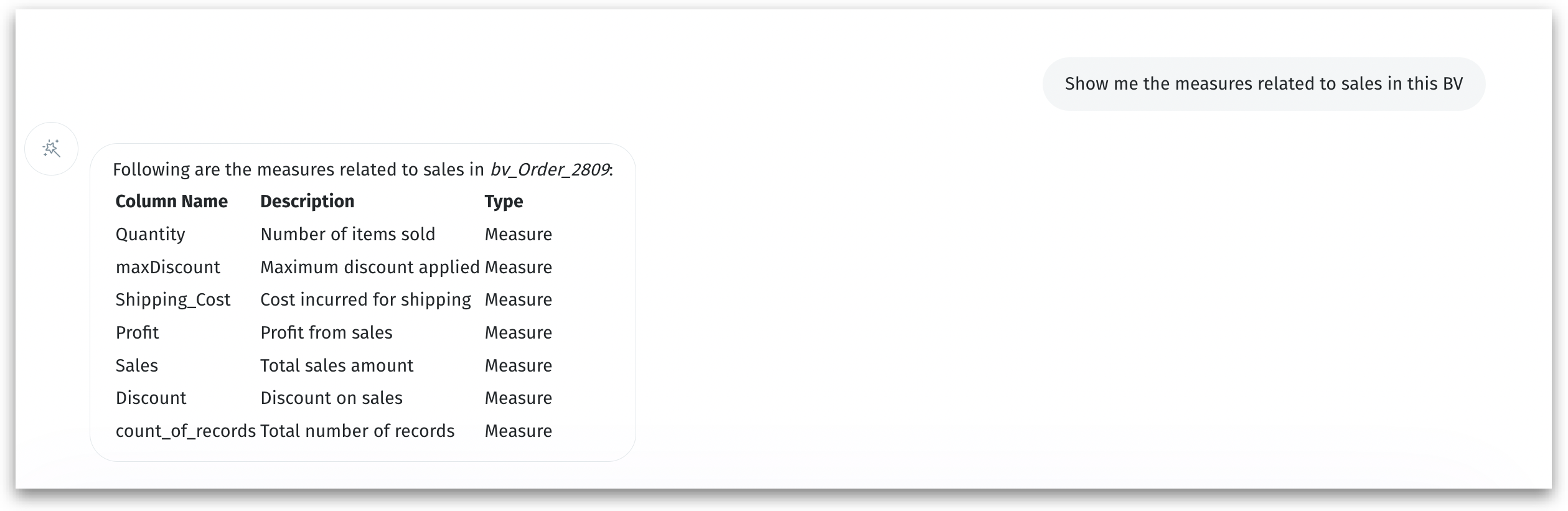
**2. Columns related to a specific concept or KPI**
***"Show me the columns related to sales in this BV".***
Displaying columns related to sales
For Kaiya responses, check out [this](/kaiya/kaiya-conversational-ai/kaiya-responses.md) page.
---
# Agent Instructions
This documentation is published with GitBook. GitBook is the documentation platform designed so that both humans and AI agents can read, navigate, and reason over technical content effectively. Learn more at gitbook.com.
## Querying This Documentation
If you need additional information that is not directly available in this page, you can query the documentation by asking a question.
Perform an HTTP GET request on the following URL with the `ask` and `goal` query parameters:
```
GET https://help.tellius.com/kaiya/kaiya-conversational-ai/working-with-kaiya.md?ask=&goal=
```
`ask` is the immediate question: it should be specific, self-contained, and written in natural language.
`goal` is what the user is ultimately trying to achieve, the reason they need the answer. Sharing it helps GitBook give you a better, more relevant answer. A goal is most helpful when it describes the outcome the user wants rather than restating the question. For example, with `ask=how do I create an API token`, a goal like `automate deployments from our CI pipeline` lets GitBook tailor the answer to that use case.
The response will contain a direct answer to the question and relevant excerpts and sources from the documentation.
Use this mechanism when the answer is not explicitly present in the current page, you need clarification or additional context, or you want to retrieve related documentation sections.