
Kaiya Missions
Create Kaiya Missions to set up analytical steps, trigger them with natural-language phrases, and deliver consistent, governed outputs.
What is a Mission?
A Kaiya Mission is a named, reusable analytical workflow. A user authors it once through conversation with Kaiya: describing the analysis they want, refining Kaiya's proposed plan, and publishing it. Once published, the Mission can be run on demand by anyone with access, or set up to run automatically on a recurring schedule. The same analytical methodology applies on every run, regardless of who triggers it or when.
You can also schedule a Mission to run on a recurring cadence instead of waiting for someone to trigger it conversationally. Each scheduled run's briefing goes to the people and places you choose: email, Slack or Microsoft Teams. A Mission can also include export steps, so a run can deliver files such as a PDF report, a PowerPoint deck, a Word document, an Excel workbook or CSV files.
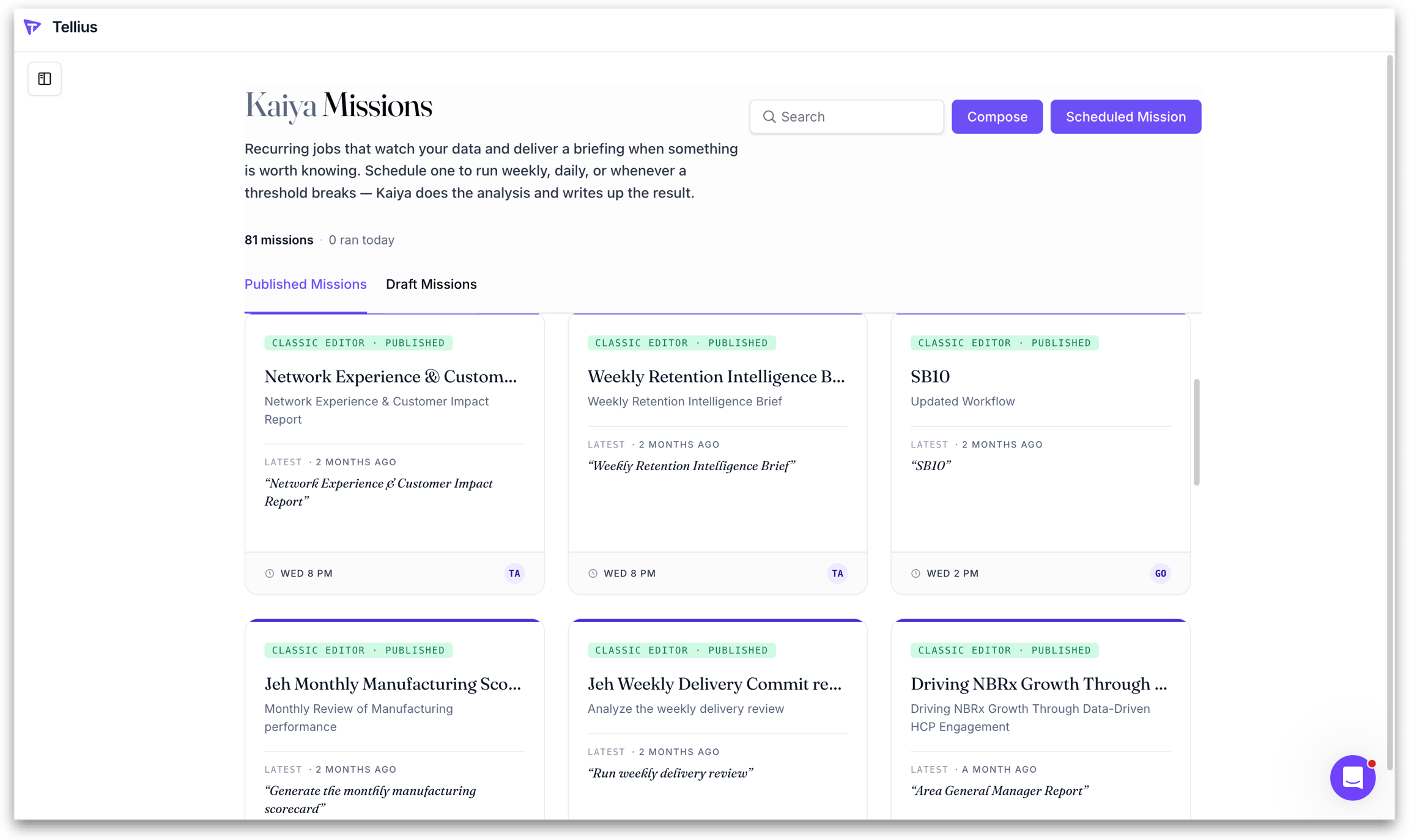
All Missions can be found in the Mission Library. Select Missions in the left navigation, then use the Published Missions and Draft Missions tabs.

What are the ways to interact with a Mission?
Authoring is a one-time setup. The author describes the workflow, refines Kaiya's proposed plan, tests it, and publishes. As part of authoring, the author also decides whether the Mission runs only on demand, or runs on a recurring schedule with output delivered automatically to a list of recipients.
Running happens on demand by anyone with access to the published Mission. The runner triggers the Mission, and provides any inputs Kaiya asks for at runtime (region, quarter, segment, etc.), and receives the output.
Receiving on a schedule is a third interaction mode for recipients who don't actively run the Mission themselves. Once an author sets up a schedule, each scheduled run's briefing goes to the email recipients, Slack or Microsoft Teams that the schedule names. When the Mission has export steps, a run can also produce files: a PDF report, a PowerPoint deck, a Word document, an Excel workbook or a CSV file. Recipients get a finished result without opening Tellius.
Remixing lets someone a Mission is shared with, whose role can create Missions, make their own editable draft copy with Remix. They can then publish the copy, run it and schedule it, while the owner's Mission stays as it is. See Remix a Mission shared with you.
How to build a Mission?
In Tellius 6.4, you build a Mission by describing it to Kaiya in a conversation. Kaiya drafts the steps, asks clarifying questions when it needs to, and refines the plan with you in the same thread. The Mission sits beside the conversation across four tabs: Steps, Preview, Triggers and Schedule. You can also change the name, description, triggers and schedule by asking Kaiya. See How to create a Kaiya Mission.
New Missions end with a Rich Summary step by default. It builds a visual summary page, and the run's reply in the conversation gives a short summary with a card that opens the full page.
Missions built before Tellius 6.4
Missions built in a Kaiya conversation before Tellius 6.4 keep working without being rebuilt. Their steps, run history and schedules carry over. To change one, open it and select Configure. The Mission opens in the Unified Chat with its earlier conversation, and your changes go into a draft while the published version keeps running. See Missions built before Tellius 6.4.
How to schedule Missions?
While building the Mission, the author chooses whether the Mission runs only on demand or on a recurring cadence.
In the Mission conversation: open the Schedule tab, set the start date, start time and frequency, choose where each briefing goes, and select Create Schedule. You can also ask Kaiya, for example "Schedule it to run every Monday at 8 AM."
From a Mission's page: open the three-dot menu and select Create Schedule. Scheduled Missions opens, filtered to that Mission, with the schedules it already has. Select Schedule to add one.
From the Mission Library: select View Schedules, then Schedule, and pick the Mission in the form.
See Schedule tab and Scheduled Missions.
Two ways to consume a Mission
When a Mission runs on demand, the result appears as a briefing on the Mission's page. The briefing shows how Kaiya got the result, the Mission steps that ran, a short summary and, when the Mission has a Rich Summary step, the visual summary page. The runner scrolls the narrative, drills into citations on any numeric result, and selects Continue this conversation in Kaiya to ask follow-up questions without restarting the Mission. Briefings appear for manual runs as well as scheduled ones.
When a Mission is assigned a schedule, it runs automatically on every scheduled run, and the briefing goes to the configured email recipients, Slack or Microsoft Teams. Files from the Mission's export steps go with it. The same Mission can drive both modes simultaneously: interactive runs for analysts who want to investigate, and scheduled deliveries for executives who want the finished briefing.
Where Missions live in Tellius
Missions are organized in the Mission Library, accessed via Missions in the left navigation. The library has two tabs and a schedules page:
Published Missions: Missions that are live and available for users to run. Each card shows the Mission name and description, its latest run, its owner and when it was last updated.
Draft Missions: Missions an author has saved but not yet published.
Scheduled Missions: Select View Schedules to open a page listing every Mission schedule, with columns for Mission name, schedule name, frequency, next run, last run, and creator. From here, authors can create new schedules, edit existing ones, and review run cadence across the workspace. See The Mission Library.
Was this helpful?