
Mission Editor
The briefing (formerly Last Briefing)
A Mission's page shows the briefing of the selected run. The label above it shows when the run happened. Beside the label is Report, the briefing itself, and, when the run produced files, Artifacts.
How Kaiya got this and Mission steps. How Kaiya got this shows the work behind the run and how long it took. Mission steps lists each step that ran, with its type and description and a check mark once it completed. In releases before Tellius 6.4, this part of the briefing was a single Thought Process panel, with the steps grouped by iteration, such as Iteration 1.
Rendered output. Below the steps, a short summary appears. When the Mission has a Rich Summary step, the visual summary page follows it. Briefings from earlier runs keep the layout they were made with, such as a longer summary with tables and charts. Citation numbers beside figures link each figure to the step that produced it. Select Continue this conversation in Kaiya to ask a follow-up question without starting a new Mission.
To schedule the Mission, open the three-dot menu at the top right and select Create Schedule. Scheduled Missions opens, filtered to this Mission. Select Schedule to add a schedule.
Configure (formerly Configuration)
Select Configure on a Mission's page. Kaiya usually opens the Mission's conversation at the message that built the Mission, with the Mission beside it across four tabs:
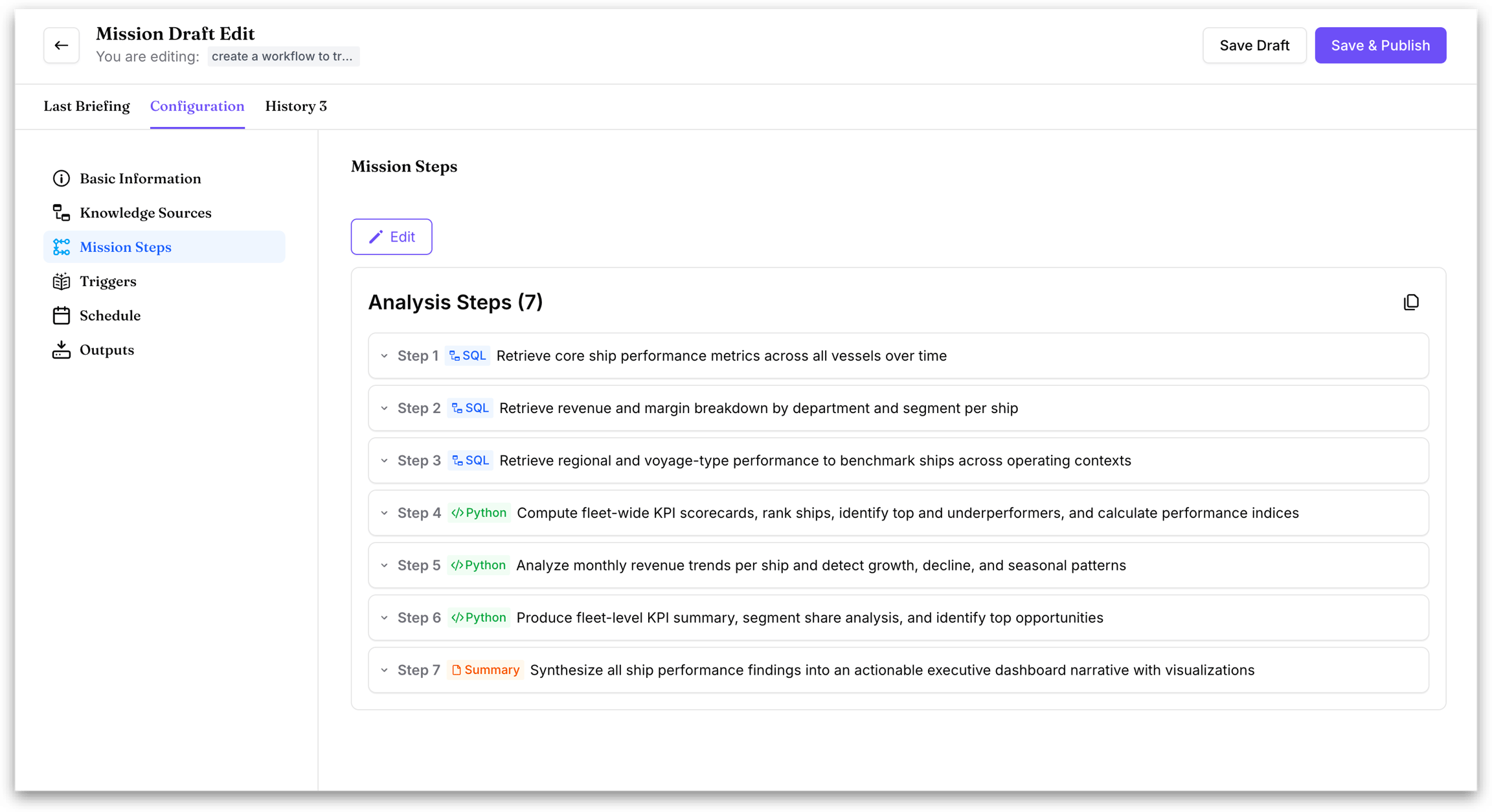
Steps: the plan as ordered SQL, Python and summary steps, in an Outline view and a Diagram view.
Preview: runs the plan and shows what each step returned before you publish.
Triggers: the natural-language phrases that invoke the Mission in conversation.
Schedule: the recurring cadence and where each briefing is delivered.
The Mission's name and description, and any of these settings, can also be changed by asking Kaiya in the conversation. Files come from export steps, which you add by asking, so there is no separate Outputs section.
Run history (formerly History)
Open the run selector in a Mission's page header to see RUN HISTORY. The top of the list shows three numbers:
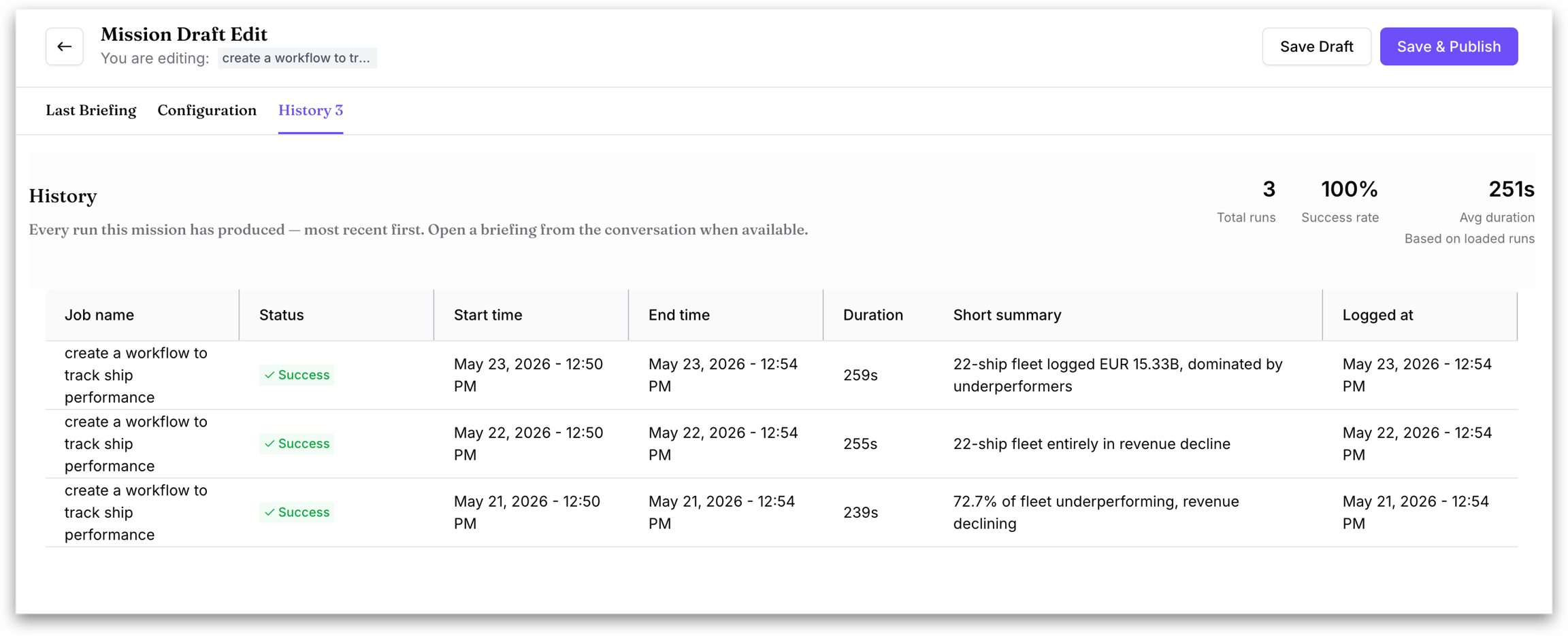
RUNS: how many times the Mission has run.
SUCCESS: the share of runs that completed.
AVG: the average time a run takes.
Each run in the list shows the Mission name, the date and time it ran, how long it took, how it was started (such as Run manually, Scheduled or From Kaiya Chat) and its status. Select a run to open its briefing.
Was this helpful?