
🗝️Triggering a Kaiya Mission
Learn how Kaiya triggers a Mission—from matching user queries to triggers, orchestrating AI agents, executing steps, and delivering structured insights.
This page breaks down the entire agentic Mission — from the moment a user invokes a published Mission to when results are returned — and explains what the user sees and controls at each stage. It applies to all Missions regardless of use case (revenue analysis, product discontinuation, churn prediction, and so on).
There are two ways a Mission runs:
On demand, when a user invokes it in a Kaiya conversation. Either by typing a query that matches one of the Mission's trigger phrases, by asking for the Mission by name, or by selecting Run. Run opens a new conversation with the Mission details and runs the published Mission straight away. While it runs, the conversation shows Working… with live progress.
On a schedule, when the Mission runs automatically on a recurring cadence and delivers its briefing by email, Slack or Microsoft Teams.
This page covers the on-demand flow. The stages below describe what happens end to end.
1. User initiates query
When the user interacts with Kaiya by entering a natural language query in the chat interface, it is evaluated in real time against a list of triggers configured for published agentic flows.
Each Kaiya Mission contains one or more trigger phrases, set on the Mission's Triggers tab or by asking Kaiya while you build the Mission. Trigger phrases resolve against Missions built in the current editor. These triggers allow Kaiya to intelligently map user input to the correct Mission, even if the phrasing is not exact. Trigger variations are supported, meaning you can ask a question in different ways, and Kaiya will still recognize the intent.
2. Kaiya maps query to a trigger
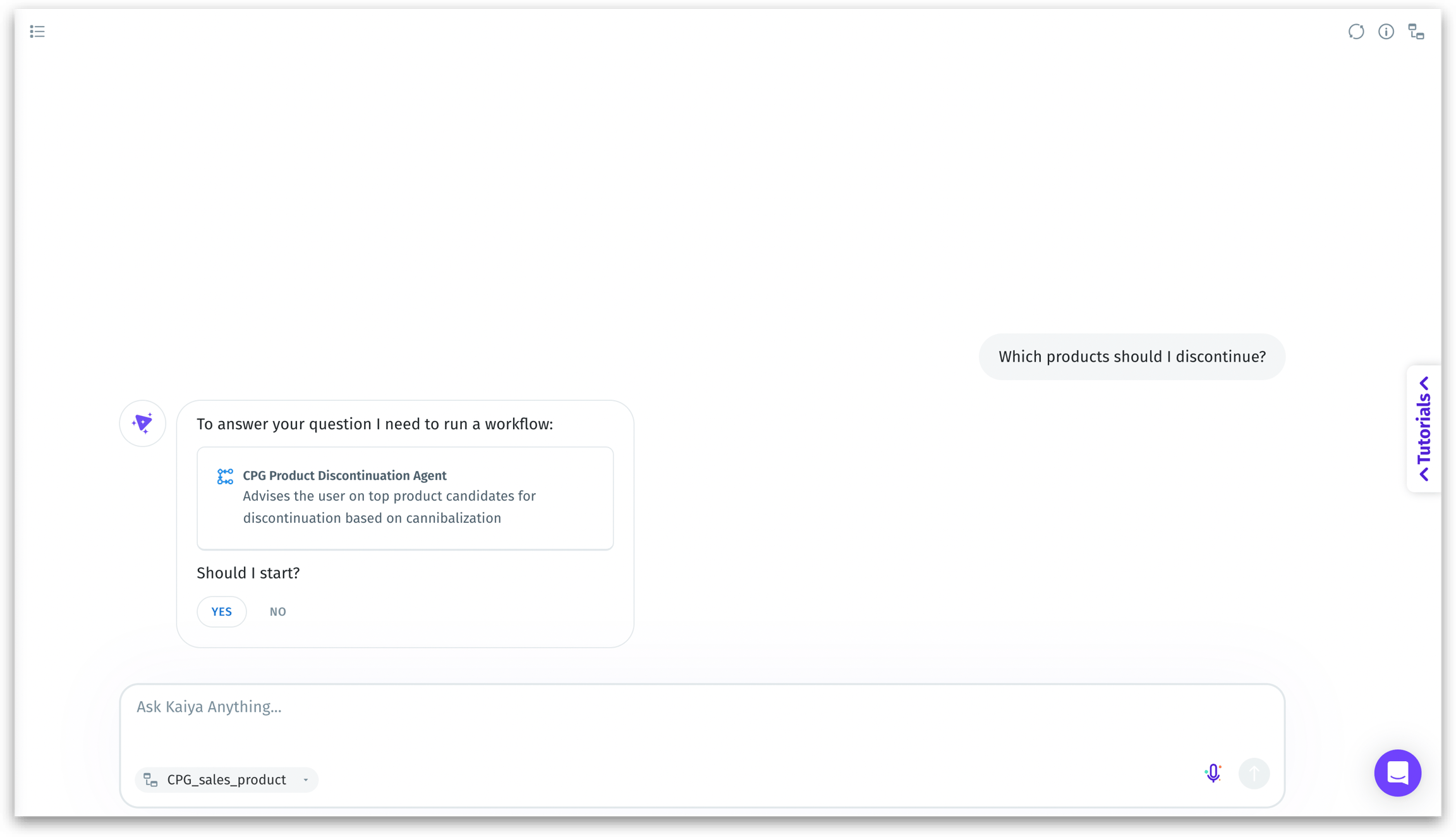
If a match is found, Kaiya shows a Run saved mission question. It names the matching Mission, describes what the Mission reports, and asks whether to run it now. Nothing runs until you answer, so you stay in control.

Select Yes to run the Mission now.
Select No to have Kaiya answer your question directly instead, the same way it answers any other question.
To reply in your own words, type in Or type your own…. The card also offers Skip.
You can press 1 or 2 to choose an option and Enter to confirm. Select Submit to send your choice.
After you answer, the question collapses to Answered · 1 question, followed by your choice, for example Run saved mission: No.

3. Mission initialization
Upon confirmation, Kaiya activates the Planner Agent. The Planner Agent's job is to:
Interpret the Mission's objective
Break it into logical, executable steps
Identify which agents need to be involved
Sequence these agents correctly
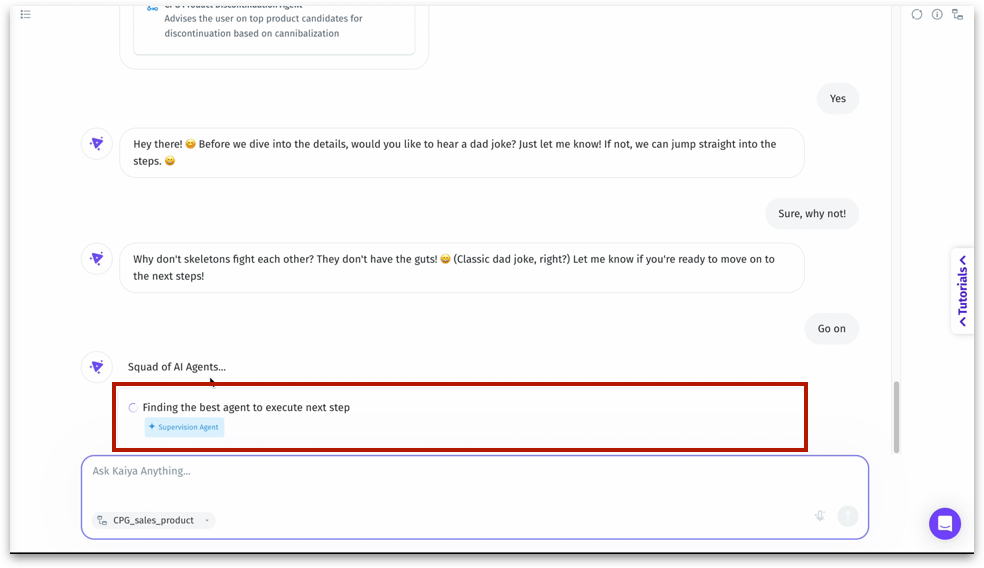
The Planner Agent acts as the orchestrator or mission control of the entire agentic flow. It ensures the right agents are activated at the right time in the right order.
4. Squad of AI Agents
A message appears as follows: “Squad of AI Agents... Finding the best agent to execute next step.” This indicates that Kaiya is identifying and activating the most suitable agent for the task at hand. The agents activated depend entirely on the Mission's steps. Agents begin executing each Mission step, using the logic defined in those steps. Commonly involved agents include:
Agent Name
Role
Validation Agent
Checks query structure, permissions, and data readiness
Planner Agent
Breaks down requests, assigns agent tasks, sequences execution
Data Prep Agent
Filters, joins, and loads relevant data from selected Business Views
Visualization Agent
Generates appropriate visuals (charts, tables, graphs)
Insights Agent
Performs root cause analysis, trend detection, and pattern mining
Summary Agent
Converts insights into plain-language narratives and summaries
Knowledge Graph Agent
Maps relationships, finds entity connections, powers recommendations
Each of these agents has a specific, modular purpose, and they are invoked only if required by the defined step logic.
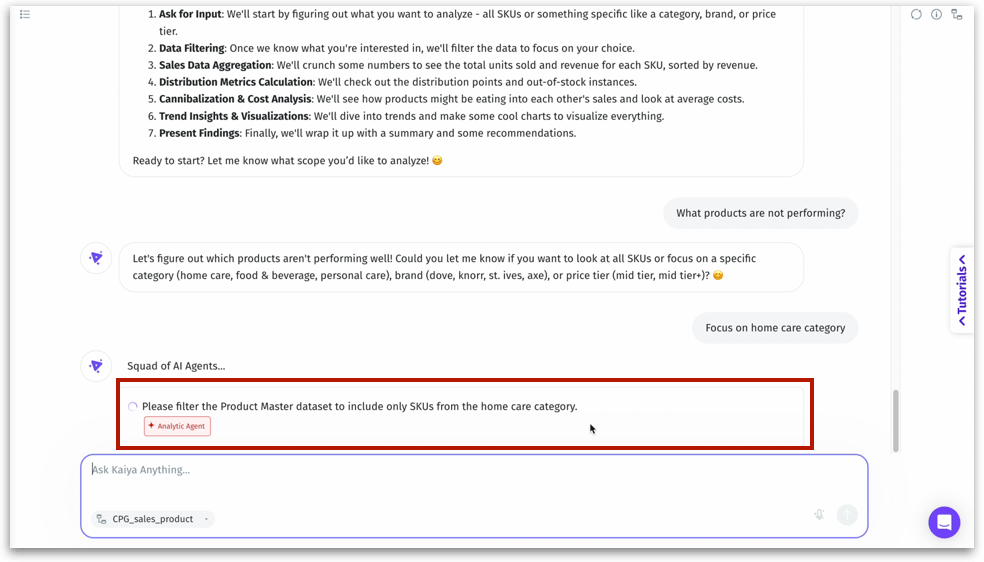
Conditional logic and dependencies between steps are respected. Prompts for additional user input (e.g., filters, time periods, dimensions) may be triggered dynamically. This modular structure enables Kaiya to adapt Missions based on data state, user interaction, or complexity of analysis.
5. Parameterized inputs and clarification
A Mission can require inputs that aren't known until run time: a region, a quarter, a metric choice, a date range. Kaiya handles these during execution in two ways:
Parameterized inputs. When a step needs an input the Mission expects, Kaiya asks for it at the point in execution where it's required (for example, "Which region?" or "Which quarter?") and uses the answer to drive the rest of the run. Kaiya offers the step's default value as the first option. Selecting Run also asks for these values. Scheduled runs use the value saved with the schedule, or the default.
Clarification when ambiguous. When something is ambiguous, Kaiya asks a clarifying question instead of guessing, often with a dropdown of suggested options. The user can pick from the dropdown or type an answer directly in the thread.
6. Variable passing across steps
Steps in a Mission are connected. The output of one step becomes the input of the next. Each step that produces data names its result (for example, a SQL step that aggregates profit by state produces a named output such as state_profit), and the following step consumes that named output. This is why a Mission runs as a coherent workflow rather than a set of disconnected queries — a value derived early is available to every later step automatically, with no manual wiring.
7. Result generation
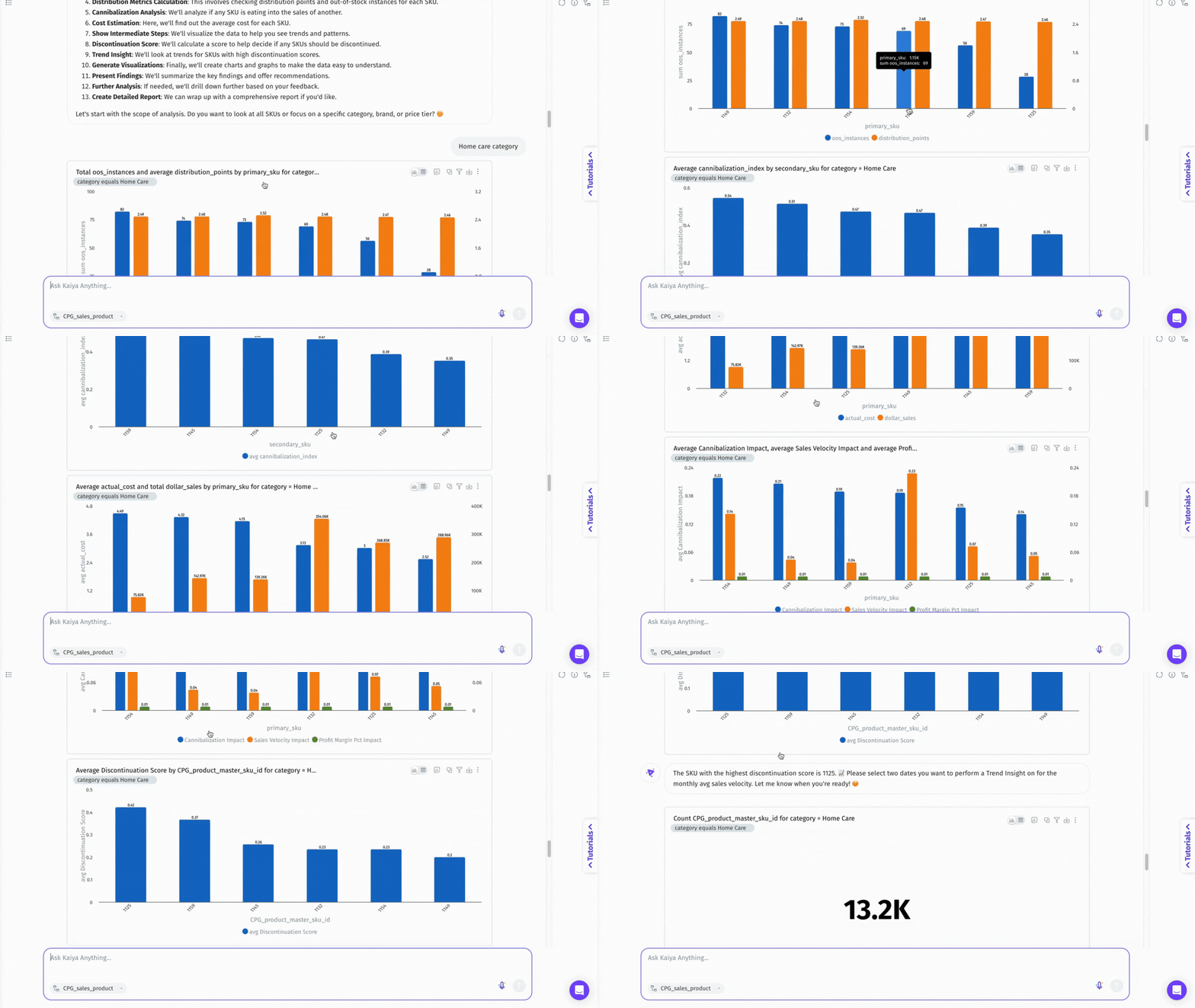
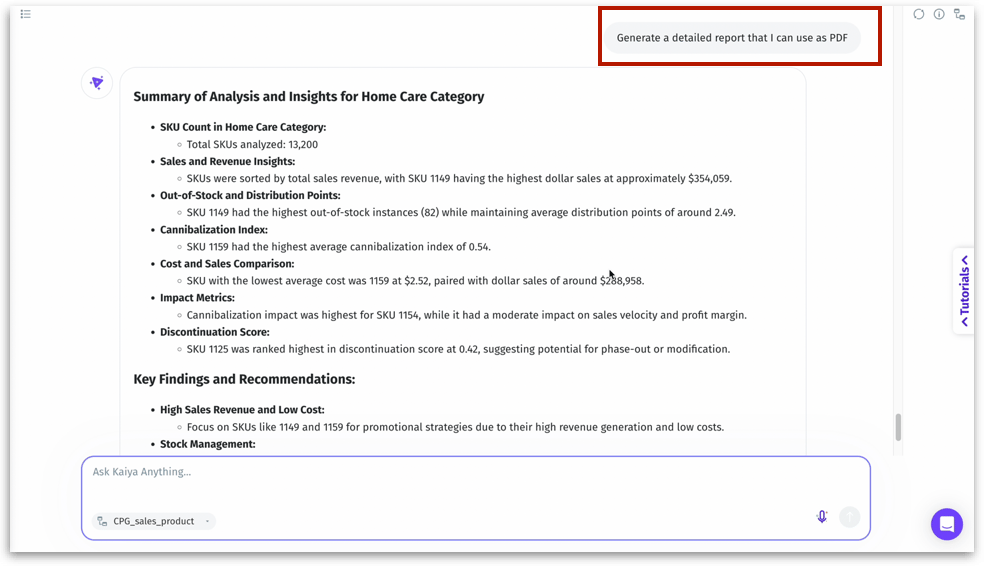
Once the Kaiya Mission completes execution, visuals, summaries, and insights are presented back to the user. Responses appear conversational but are powered by structured backend analysis. Each run, whether scheduled, started with Run or started from a Kaiya conversation, also produces a briefing, so a Mission's output history is complete however each run began.
Charts and graphs (auto-generated)
Tabular data
Root cause explanations
Text summaries with recommendations
Drill-down links or options
Where an answer came from. When a Kaiya answer came from a Mission, the answer names the Mission, the version that ran, and how it was started: Scheduled, Chat or Run manually. Select the Mission name or the arrow beside it to open that Mission.
Inline citations. Numeric results carry inline citation markers that trace each figure back to the step that produced it. Hovering over a cited result reveals the dataframe and the query behind the number, so any figure can be traced to its source.
8. Post-execution actions
Ask follow-up questions in the same thread to go deeper. Kaiya answers in the context of the completed run without restarting the Mission
Share results or trigger a different Mission
Request variations or filtered views of the current output
Was this helpful?