> For the complete documentation index, see [llms.txt](https://help.tellius.com/llms.txt). Markdown versions of documentation pages are available by appending `.md` to page URLs; this page is available as [Markdown](https://help.tellius.com/kaiya/understanding-ai-agents-and-agentic-flows/kaiya-missions.md).
# Kaiya Missions
Create Kaiya Missions to set up analytical steps, trigger them with natural-language phrases, and deliver consistent, governed outputs.
### **What is a Mission?**
A Kaiya Mission is a **named, reusable analytical workflow**. A user authors it once through conversation with Kaiya — describing the analysis they want, refining Kaiya's proposed plan, and publishing it. Once published, the Mission can be run on demand by anyone with access, or set up to run automatically on a recurring schedule. The same analytical methodology applies on every run, regardless of who triggers it or when.
You can also schedule a Mission to run on a recurring cadence instead of waiting for someone to trigger it conversationally. Pick the output format you want (PowerPoint or PDF) in the Mission's **Outputs** tab, and the finished report is emailed to the recipient list on every scheduled run.
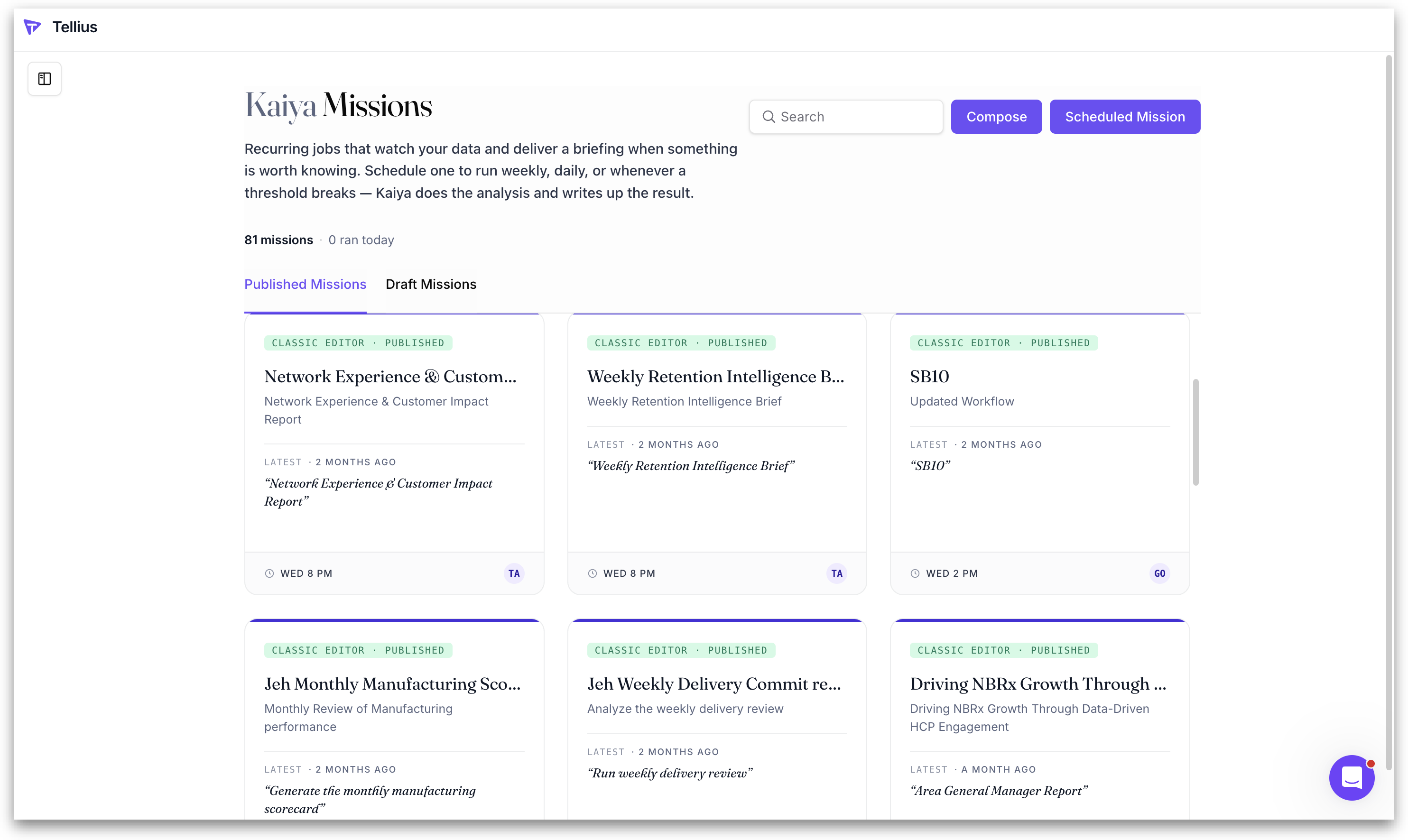
All Missions can be found under the **Published Missions** tab in **Kaiya → Missions.**
### **What are the ways to interact with a Mission?**
* **Authoring** is a one-time setup. The author describes the workflow, refines Kaiya's proposed plan, tests it, and publishes. As part of authoring, the author also decides whether the Mission runs only on demand, or runs on a recurring schedule with output delivered automatically to a list of recipients.
* **Running** happens on demand by anyone with access to the published Mission. The runner triggers the Mission, and provides any inputs Kaiya asks for at runtime (region, quarter, segment, etc.), and receives the output.
* **Receiving on a schedule** is a third interaction mode for recipients who don't actively run the Mission themselves. Once an author configures a schedule and recipient list, the Mission output is emailed to the recipients on every scheduled run. Recipients consume the result as a finished artifact (PPTX, PDF, or DOCX) without opening Tellius.
{% hint style="info" %}
User-defined Missions let you hard-code the exact analytical steps Kaiya should run (SQL pulls, Python methods, visualizations, and the final summary), instead of letting the planner assemble them on the fly. You describe the steps in natural language, optionally add required parameters, and map a trigger phrase to the Mission (for example, "*quarterly payer deep dive*").\
\
When a user's question contains that trigger, Kaiya executes your governed sequence in that order, applies your defaults, and asks only for missing inputs.
{% endhint %}
### **How to build a Mission?**
Tellius 6.3 introduces a new conversational interface for authoring Missions, alongside the existing form-based interface (now labeled **Classical Editor**). Both produce Missions stored in the same **Published Missions** library, both support scheduling, and both can be triggered conversationally.
* **Conversational interface.** Describe what the workflow should do in plain language. Kaiya drafts the step sequence, asks clarifying questions back when needed, and refines the plan with you in the same thread. Scheduling, triggering, and output configuration are available as inline tabs within the same conversation thread.
* **Classical Editor.** A form-based composer where you configure each section explicitly: Basic Information, Knowledge Sources, Mission Steps, Triggers, Schedule, and Outputs, and save the Mission. The **Schedule** section supports two options: subscribe to an existing schedule in the workspace, or create a new schedule just for this Mission.
{% hint style="info" %}
An admin-controlled global setting determines which interface users see by default. Both interfaces coexist during the rollout, and existing Missions remain available regardless of which interface a user is on.
{% endhint %}
### **How to schedule Missions?**
While building the Mission, the author chooses whether the Mission runs only on demand or on a recurring cadence. Two scheduling options are available:
* **Subscribe to an existing schedule:** Attach the Mission to a schedule already created in the workspace. Useful when several Missions should run on the same cadence.
* **Create a new schedule for this Mission:** Configure a fresh schedule specifically for this Mission, with its own start date, start time, cadence, optional runtime inputs, and email recipient list.
{% hint style="info" %}
A single Mission can be attached to more than one schedule. A single schedule can drive more than one Mission.
{% endhint %}
### **Two ways to consume a Mission**
* When a Mission runs on demand, the result appears in the **Mission Draft Editor**'s **Last Briefing** tab. The runner scrolls the narrative, drills into citations on any numeric result, and asks follow-up questions in the same thread to dig deeper without restarting the Mission.
* When a Mission is assigned a schedule, the output is generated automatically on every scheduled run as PPTX, PDF, or DOCX and emailed to the configured recipient list. Recipients receive a presentation-ready artifact in their inbox without opening Tellius. The same Mission can drive both modes simultaneously: interactive runs for analysts who want to investigate, and scheduled deliveries for executives who want the finished briefing.
{% hint style="info" %}
A Mission's output format is configured in the **Outputs** tab during authoring. Three formats are supported in 6.3: PowerPoint (PPTX), PDF, DOCX.
{% endhint %}
### **Where Missions live in Tellius**
Missions are organized in the **Mission Library**, accessed via **Kaiya → Missions**. The library has three views:
* **Published Missions:** Missions that are live and available for users to run. Each Mission shows its name, icon, description, author, and the number of schedules attached to it.
* **Draft Missions:** Missions an author has saved but not yet published.
* **Scheduled Missions:** A dedicated page listing every Mission schedule active in the workspace, with columns for Mission name, schedule name, frequency, next run, last run, and creator. From here, authors can create new schedules, edit existing ones, and review run cadence across the workspace.
---
# Agent Instructions
This documentation is published with GitBook. GitBook is the documentation platform designed so that both humans and AI agents can read, navigate, and reason over technical content effectively. Learn more at gitbook.com.
## Querying This Documentation
If you need additional information that is not directly available in this page, you can query the documentation by asking a question.
Perform an HTTP GET request on the following URL with the `ask` and `goal` query parameters:
```
GET https://help.tellius.com/kaiya/understanding-ai-agents-and-agentic-flows/kaiya-missions.md?ask=&goal=
```
`ask` is the immediate question: it should be specific, self-contained, and written in natural language.
`goal` is what the user is ultimately trying to achieve, the reason they need the answer. Sharing it helps GitBook give you a better, more relevant answer. A goal is most helpful when it describes the outcome the user wants rather than restating the question. For example, with `ask=how do I create an API token`, a goal like `automate deployments from our CI pipeline` lets GitBook tailor the answer to that use case.
The response will contain a direct answer to the question and relevant excerpts and sources from the documentation.
Use this mechanism when the answer is not explicitly present in the current page, you need clarification or additional context, or you want to retrieve related documentation sections.