> For the complete documentation index, see [llms.txt](https://help.tellius.com/llms.txt). Markdown versions of documentation pages are available by appending `.md` to page URLs; this page is available as [Markdown](https://help.tellius.com/kaiya/understanding-ai-agents-and-agentic-flows/kaiya-missions/mission-editor.md).
# Mission Editor
The editor has three tabs: **Last Briefing**, **Configuration**, and **History**.
#### Last Briefing
The Last Briefing tab shows the output of the most recent run. When a Mission executes, a status line appears at the top of the conversation (for example, *"Executing mission: \[Mission name]"*), followed by the run output.
**Step-by-step execution.** Each run is shown as a numbered iteration (Iteration 1, Iteration 2, and so on). Within an iteration, every step is listed with its type and a checkmark once complete. For example:
* **Step 1:** Input Collection. Collects the runtime inputs the Mission needs (such as cohort, role, and area selections).
* **Step 2:** SQL Query. Pulls the raw governed data for the analysis.
* **Step 3:** Python Analysis. Scores, ranks, weights, and pre-renders the analytical output.
* **Step 4:** Summary. Renders the final result.
Each step row can be expanded with its chevron to see more detail.
**Rendered output.** Below the steps, the full briefing renders inline — narrative text, data tables (such as ranked leaderboards), and the supporting explanation of how figures were calculated, including timing context and scoring methodology where relevant.
At the end of every briefing, Kaiya auto-generates a list of follow-up questions, giving the user a path to drill deeper without starting a new Mission.
You can also directly create App or create a schedule right from this page by clicking on **Create App** and **Create new schedule for Mission**.
#### Configuration
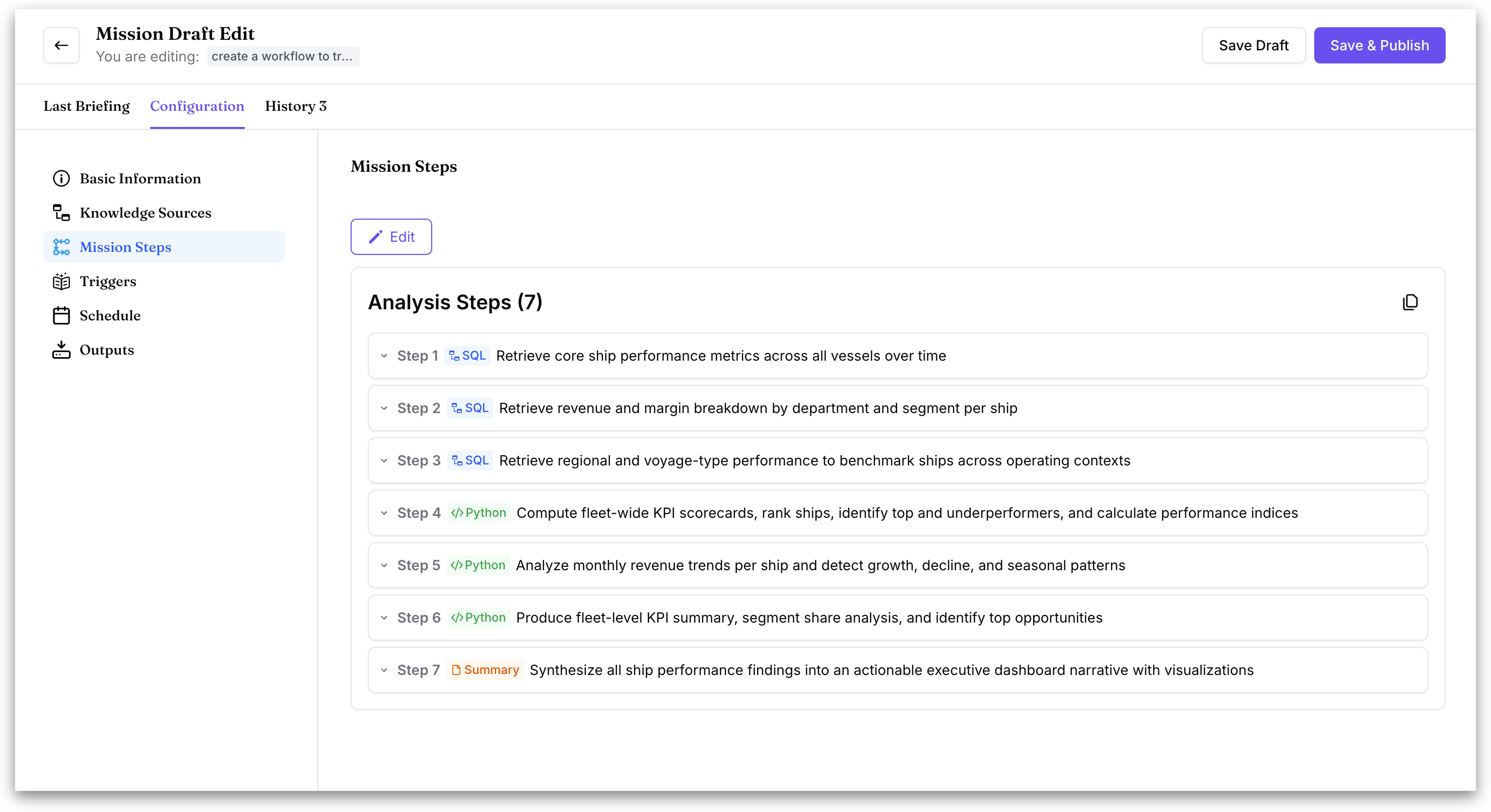
The Configuration tab is where you set up or adjust every part of the Mission. A left-hand navigation panel organizes the Mission into six sections:
* **Basic Information:** the Mission's identity. Set the **Mission Display Name**, choose an **Icon**, and write a **Mission Description** explaining what the Mission does.
* **Knowledge Sources:** the Business View(s) the Mission runs against.
* **Mission Steps:** the step sequence. Shown read-only here with an **Edit** button that opens the conversational builder. (See [Composer](/kaiya/understanding-ai-agents-and-agentic-flows/kaiya-missions/composer.md))
* **Triggers:** the natural-language phrases that invoke the Mission in conversation.
* **Schedule:** the recurring cadence and email delivery, if the Mission is scheduled.
* **Outputs:** the export format (PPTX, PDF, or DOCX) and report structure.
Each section opens in the main panel to the right of the navigation. The active section is highlighted in the left panel.
#### History
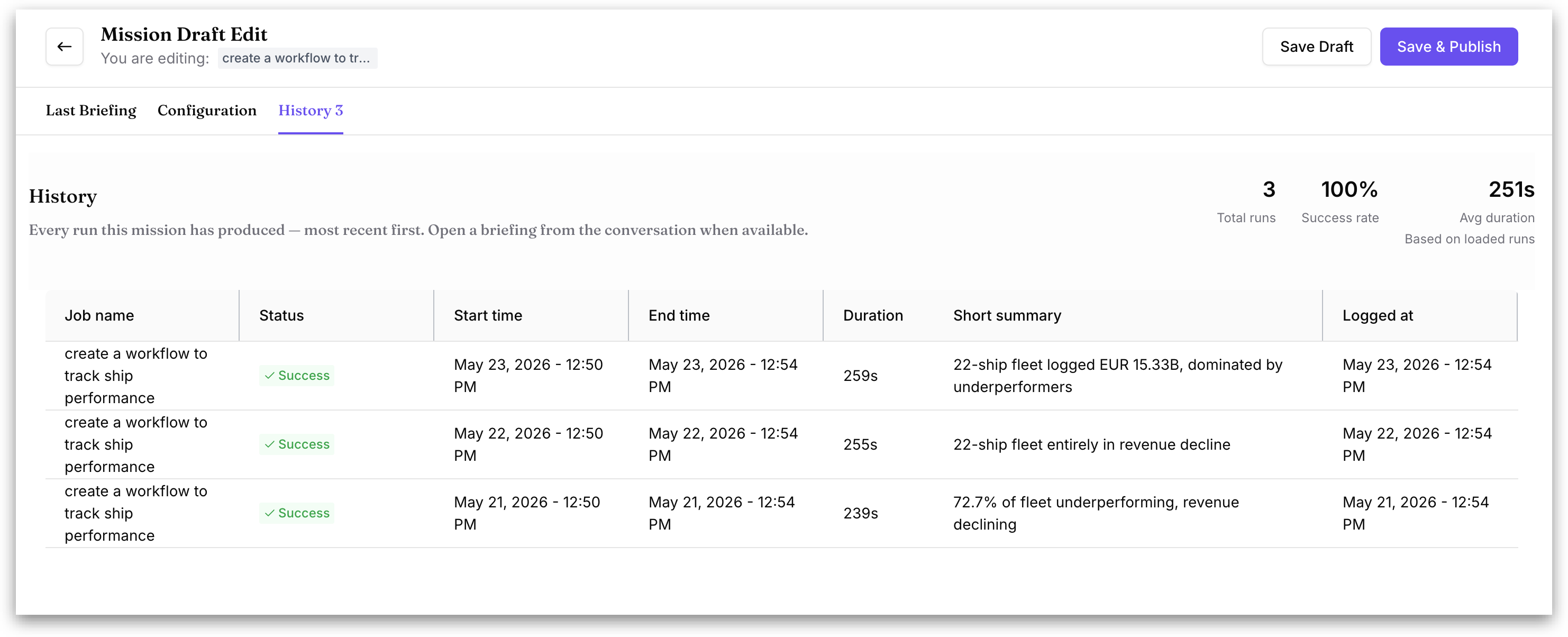
The History tab shows every run the Mission has produced, most recent first. The tab label includes the total run count.
Three headline metrics appear at the top, based on the loaded runs:
* **Total runs** — the number of times the Mission has executed.
* **Success rate** — the percentage of runs that completed successfully.
* **Avg duration** — the average run time.
Below the metrics, a table lists each run with the following columns:
* **Job name** — the name of the Mission run.
* **Status** — the outcome of the run (for example, Success).
* **Start time** — when the run began.
* **End time** — when the run finished.
* **Duration** — how long the run took, in seconds.
* **Short summary** — a one-line description of the run's result (for example, *"Specialty Pod ranks first with minimal share decline"*).
* **Logged at** — the timestamp the run was recorded.
A run's briefing can be opened from the conversation when available.
---
# Agent Instructions
This documentation is published with GitBook. GitBook is the documentation platform designed so that both humans and AI agents can read, navigate, and reason over technical content effectively. Learn more at gitbook.com.
## Querying This Documentation
If you need additional information that is not directly available in this page, you can query the documentation by asking a question.
Perform an HTTP GET request on the following URL with the `ask` and `goal` query parameters:
```
GET https://help.tellius.com/kaiya/understanding-ai-agents-and-agentic-flows/kaiya-missions/mission-editor.md?ask=&goal=
```
`ask` is the immediate question: it should be specific, self-contained, and written in natural language.
`goal` is what the user is ultimately trying to achieve, the reason they need the answer. Sharing it helps GitBook give you a better, more relevant answer. A goal is most helpful when it describes the outcome the user wants rather than restating the question. For example, with `ask=how do I create an API token`, a goal like `automate deployments from our CI pipeline` lets GitBook tailor the answer to that use case.
The response will contain a direct answer to the question and relevant excerpts and sources from the documentation.
Use this mechanism when the answer is not explicitly present in the current page, you need clarification or additional context, or you want to retrieve related documentation sections.