> For the complete documentation index, see [llms.txt](https://help.tellius.com/llms.txt). Markdown versions of documentation pages are available by appending `.md` to page URLs; this page is available as [Markdown](https://help.tellius.com/kaiya/understanding-ai-agents-and-agentic-flows/kaiya-missions/triggering-a-kaiya-mission.md).
# Triggering a Kaiya Mission
Learn how Kaiya triggers a Mission—from matching user queries to triggers, orchestrating AI agents, executing steps, and delivering structured insights.
This page breaks down the entire agentic Mission — from the moment a user invokes a published Mission to when results are returned — and explains what the user sees and controls at each stage. It applies to all Missions regardless of use case (revenue analysis, product discontinuation, churn prediction, and so on).
{% hint style="danger" %}
To trigger a user-defined Mission or let Kaiya plan and automate the analysis step by step, click the **Deep Insight** button.
{% endhint %}
There are two ways a Mission runs:
* **On demand**, when a user invokes it in a Kaiya conversation. Either by typing a query that matches one of the Mission's trigger phrases, or by running it directly from the Mission Library.
* **On a schedule**, when the Mission runs automatically on a recurring cadence and delivers its output by email.
This page covers the on-demand flow. The stages below describe what happens end to end.
### 1. User initiates query
When the user interacts with Kaiya by entering a natural language query in the chat interface, it is evaluated in real time against a list of triggers configured for published agentic flows.
Each Kaiya Mission contains one or more trigger phrases defined during Mission creation in Composer. These triggers allow Kaiya to intelligently map user input to the correct Mission, even if the phrasing is not exact. Trigger variations are supported, meaning you can ask a question in different ways, and Kaiya will still recognize the intent.
### 2. Kaiya maps query to a trigger
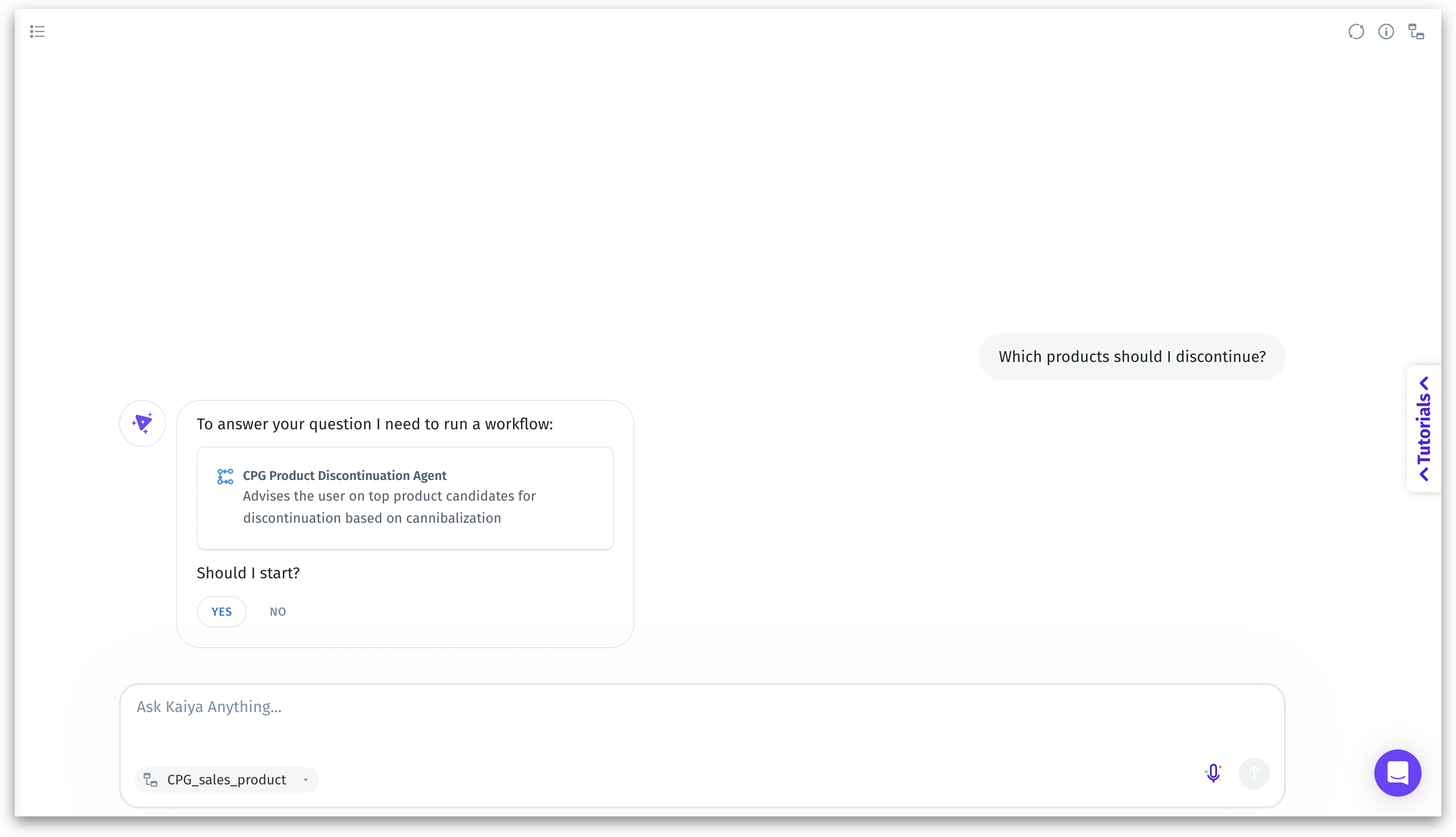
If a match is found, Kaiya responds with the name and description of the matching agentic Mission, and prompts user confirmation to initiate the Mission execution. This user confirmation ensures control and transparency before any backend processing begins.
Choose “**Yes**” to continue, else select “No” to abort the Mission exection.
Matching the trigger with the Mission
### 3. Mission initialization
Upon confirmation, Kaiya activates the Planner Agent. The Planner Agent's job is to:
* Interpret the Mission's objective
* Break it into logical, executable steps
* Identify which agents need to be involved
* Sequence these agents correctly
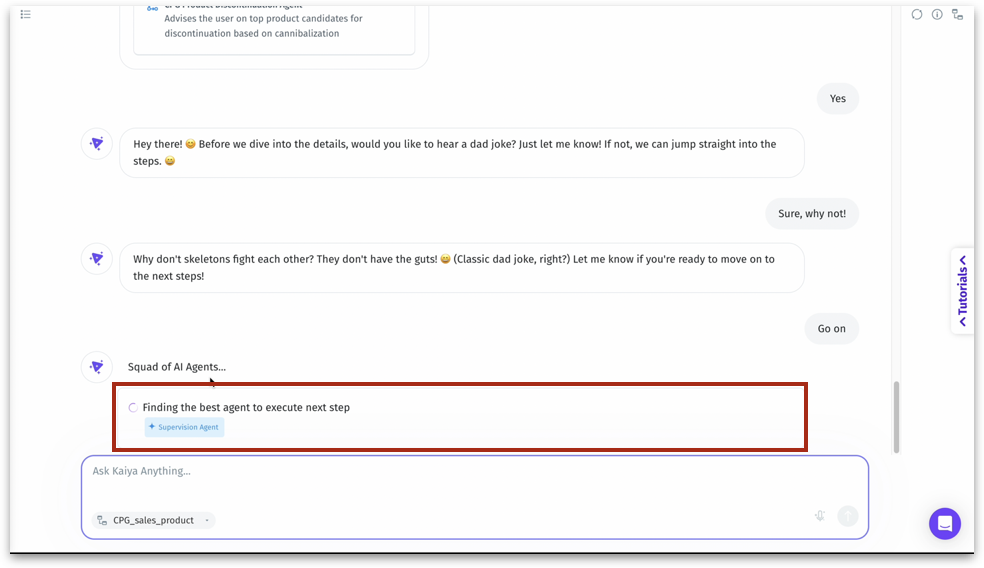
Supervision Agent working behind the scenes
The Planner Agent acts as the orchestrator or mission control of the entire agentic flow. It ensures the right agents are activated at the right time in the right order.
### 4. Squad of AI Agents
A message appears as follows: “*Squad of AI Agents... Finding the best agent to execute next step.*” This indicates that Kaiya is identifying and activating the most suitable agent for the task at hand. The agents activated depend entirely on the Mission steps defined in **Composer**. Agents begin executing each Mission step , using the logic defined in **Composer**. Commonly involved agents include:
| **Agent Name** | **Role** |
| ----------------------------------------------- | -------------------------------------------------------------------- |
| Validation Agent | Checks query structure, permissions, and data readiness |
| Planner Agent | Breaks down requests, assigns agent tasks, sequences execution |
| Data Prep Agent | Filters, joins, and loads relevant data from selected Business Views |
| Visualization Agent | Generates appropriate visuals (charts, tables, graphs) |
| Insights Agent | Performs root cause analysis, trend detection, and pattern mining |
| Summary Agent | Converts insights into plain-language narratives and summaries |
| Knowledge Graph Agent | Maps relationships, finds entity connections, powers recommendations |
Each of these agents has a specific, modular purpose, and they are invoked only if required by the defined step logic.
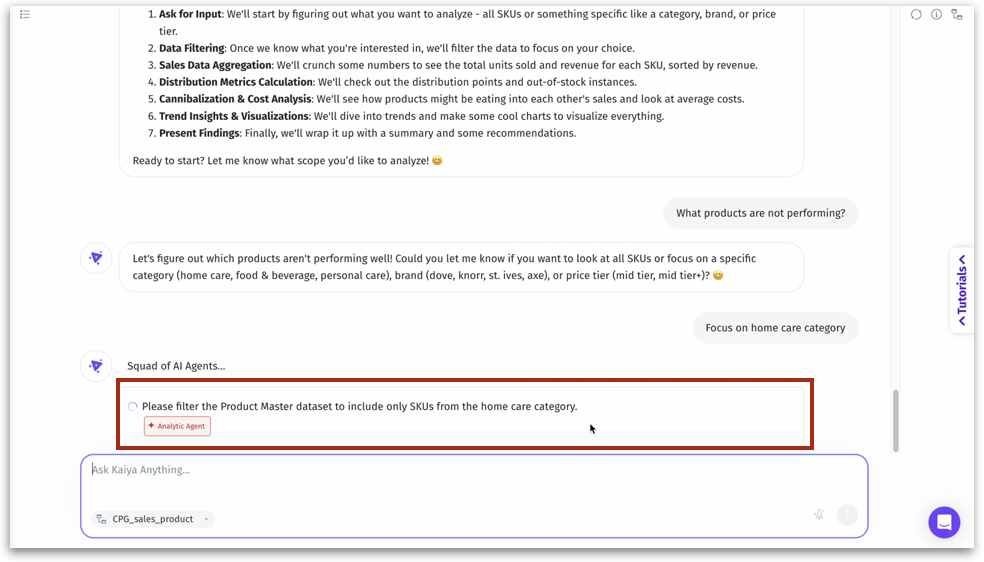
Analytic Agent working behind the scenes
Conditional logic and dependencies between steps are respected. Prompts for additional user input (e.g., filters, time periods, dimensions) may be triggered dynamically. This modular structure enables Kaiya to adapt Missions based on data state, user interaction, or complexity of analysis.
### **5. Parameterized inputs and clarification**
A Mission can require inputs that aren't known until run time: a region, a quarter, a metric choice, a date range. Kaiya handles these during execution in two ways:
* **Parameterized inputs.** When a step needs an input the Mission expects, Kaiya asks for it at the point in execution where it's required (for example, *"Which region?"* or *"Which quarter?"*) and uses the answer to drive the rest of the run.
* **Clarification when ambiguous.** When something is ambiguous, Kaiya asks a clarifying question instead of guessing, often with a dropdown of suggested options. The user can pick from the dropdown or type an answer directly in the thread.
### **6. Variable passing across steps**
Steps in a Mission are connected. The output of one step becomes the input of the next. Each step that produces data names its result (for example, a SQL step that aggregates profit by state produces a named output such as `state_profit`), and the following step consumes that named output. This is why a Mission runs as a coherent workflow rather than a set of disconnected queries — a value derived early is available to every later step automatically, with no manual wiring.
### 7. Result generation
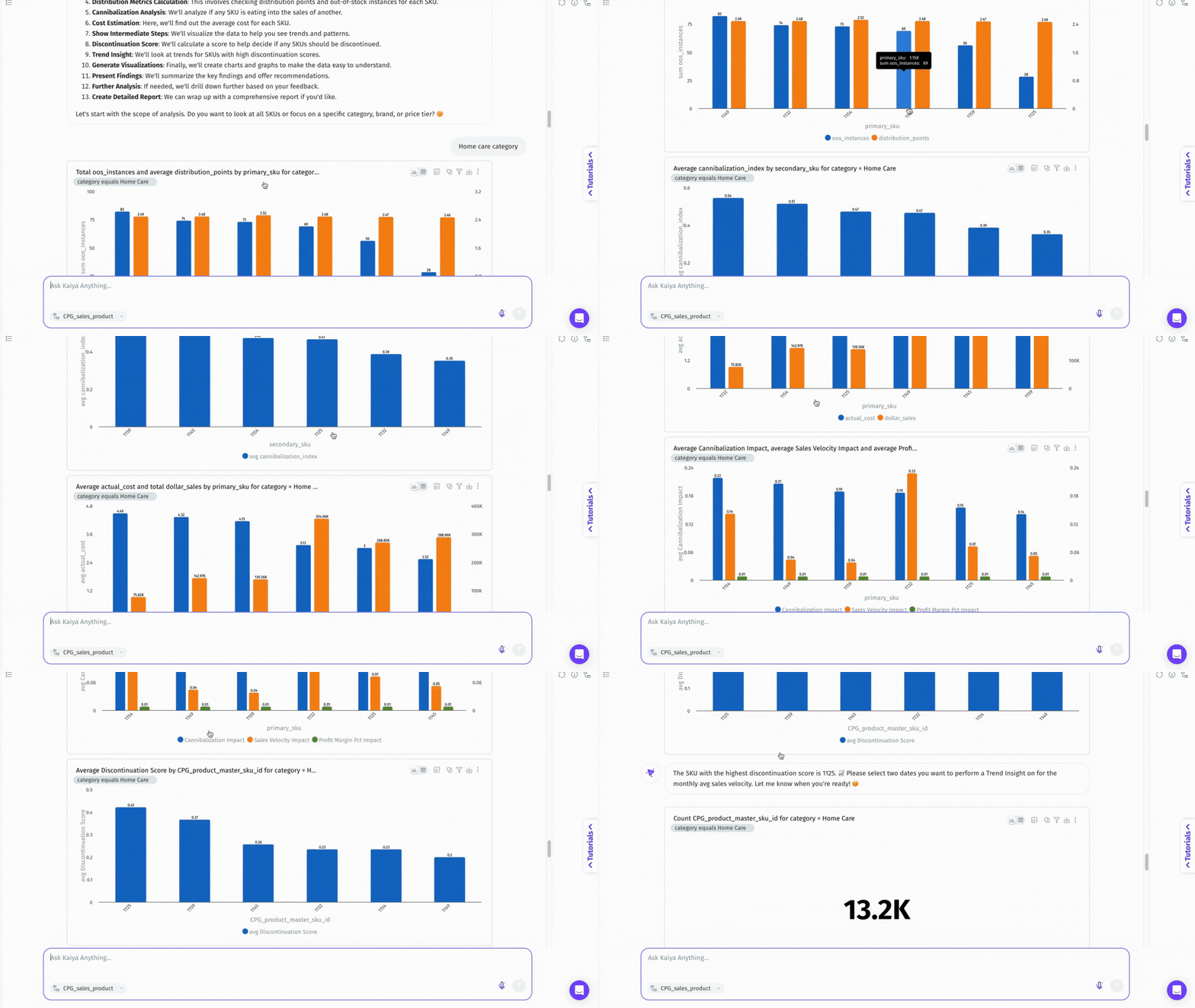
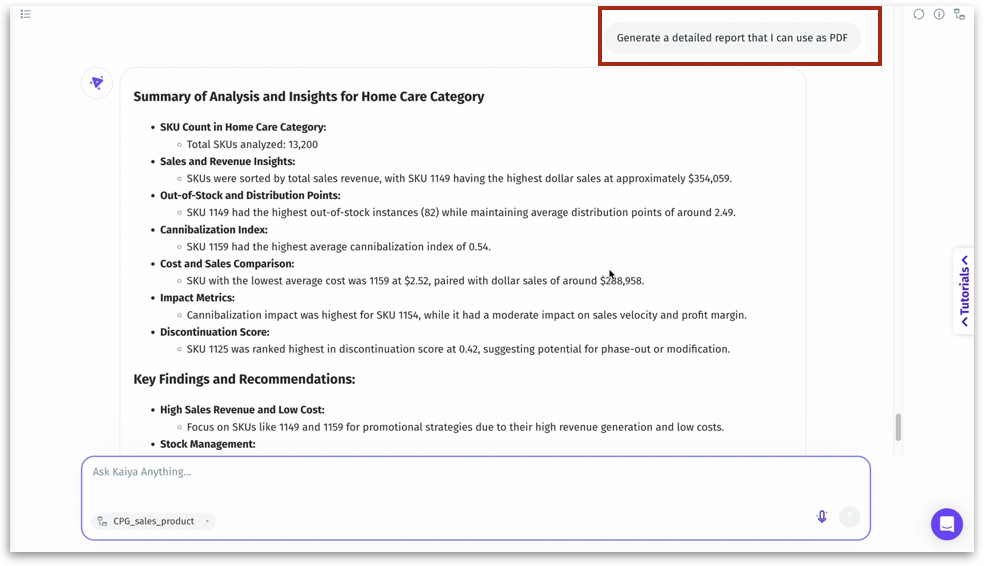
Once the Kaiya Mission completes execution, visuals, summaries, and insights are presented back to the user. Responses appear conversational but are powered by structured backend analysis.
* Charts and graphs (auto-generated)
* Tabular data
* Root cause explanations
* Text summaries with recommendations
* Drill-down links or options
Result generation
**Inline citations.** Numeric results carry inline citation markers that trace each figure back to the step that produced it. Hovering over a cited result reveals the dataframe and the query behind the number, so any figure can be traced to its source.
### 8. Post-execution actions
* Ask follow-up questions in the same thread to go deeper. Kaiya answers in the context of the completed run without restarting the Mission
* Share results or trigger a different Mission
* Request variations or filtered views of the current output
Post-execution actions
---
# Agent Instructions
This documentation is published with GitBook. GitBook is the documentation platform designed so that both humans and AI agents can read, navigate, and reason over technical content effectively. Learn more at gitbook.com.
## Querying This Documentation
If you need additional information that is not directly available in this page, you can query the documentation by asking a question.
Perform an HTTP GET request on the following URL with the `ask` and `goal` query parameters:
```
GET https://help.tellius.com/kaiya/understanding-ai-agents-and-agentic-flows/kaiya-missions/triggering-a-kaiya-mission.md?ask=&goal=
```
`ask` is the immediate question: it should be specific, self-contained, and written in natural language.
`goal` is what the user is ultimately trying to achieve, the reason they need the answer. Sharing it helps GitBook give you a better, more relevant answer. A goal is most helpful when it describes the outcome the user wants rather than restating the question. For example, with `ask=how do I create an API token`, a goal like `automate deployments from our CI pipeline` lets GitBook tailor the answer to that use case.
The response will contain a direct answer to the question and relevant excerpts and sources from the documentation.
Use this mechanism when the answer is not explicitly present in the current page, you need clarification or additional context, or you want to retrieve related documentation sections.