
Impersonate
Sign in as another user to see Tellius exactly as they do: check their access, reproduce a problem they reported and confirm what their role and groups allow.
Under Settings → System → Administration → Impersonate, super users can sign in as another user without that person's password. You then see Tellius exactly as that user does, with the content, data and actions their role and groups give them. Use it to reproduce a problem someone reported, to check what a new role really allows, or to confirm that row-level security shows each person the right data.

Impersonate a user
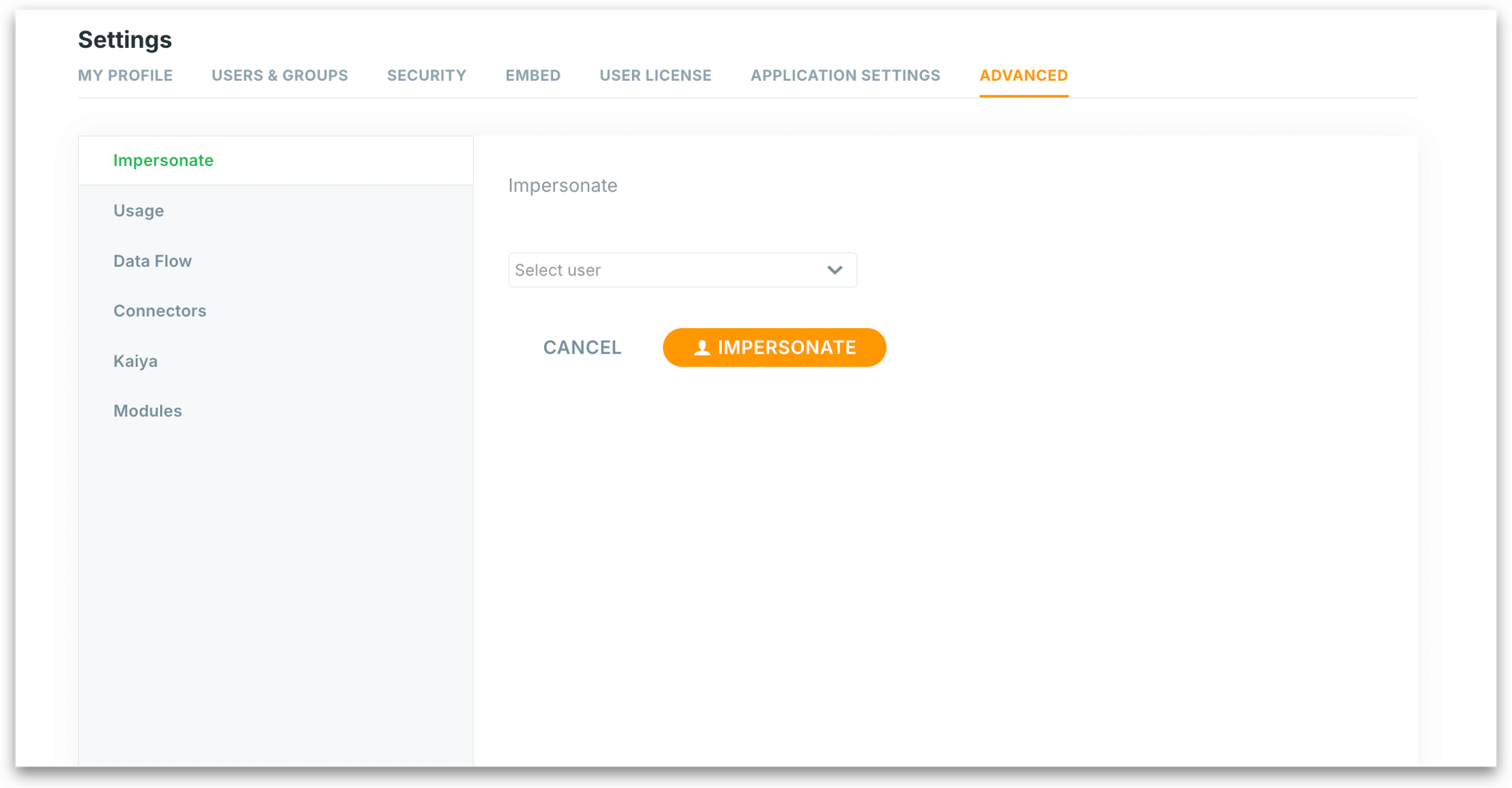
Open the Select user list.
Find the user. The list shows the first users straight away. Type part of a name in the search box at the top of the list to find someone else.
Select the user. Each row shows the person's initials, name and email, and a tag for every role in effect for them, including the roles that come from their groups.
Select Impersonate.
Tellius signs you in as that user and opens Tellius in their session. From then on, everything you do is done as that user, with their access.
Cancel clears the user you selected. Impersonate stays unavailable until you select a user.
If Tellius can't impersonate the user you chose, it shows a message and keeps you signed in as yourself.
Who can see this page
Only super users see Impersonate in Settings. A custom role reaches it with Manage system under Administration. See Custom roles.
In releases before Tellius 6.4
Impersonate was under Settings → Advanced → Impersonate, where you chose the user from a dropdown.
Was this helpful?