> For the complete documentation index, see [llms.txt](https://help.tellius.com/llms.txt). Markdown versions of documentation pages are available by appending `.md` to page URLs; this page is available as [Markdown](https://help.tellius.com/settings/administration/slack-integration.md).
# Slack Integration
Connect your Slack workspace to Tellius so your team can ask data questions and get AI-powered answers (charts, summaries, document-based insights, and deep analytical workflows) directly inside Slack.
### What you can do with the Slack integration
Once the Tellius bot is set up in your Slack workspace, your team can:
* Ask Kaiya questions in a direct message with the bot, or by mentioning @Tellius in any channel where it has been added.
* Choose the data source for each question. Let Kaiya auto-select the most relevant Business View, manually pick one or more specific Business Views, or search across unstructured documents.
* Receive responses formatted natively in Slack, with chart images, text summaries, inline citations to source documents (for unstructured queries), and markdown formatting.
* Run **Deep Insight** workflows for complex analytical questions, with live step-by-step progress updates as Kaiya generates SQL, executes Python, and produces a structured analytical summary.
* Answer clarification questions when Kaiya needs more context, either by selecting from suggested options or by typing your own answer directly in the thread.
* Continue conversations naturally inside Slack threads. Kaiya remembers the data source you picked and the prior context across follow-up messages in the same thread.
* Submit 👍 or 👎 feedback on any response to help improve Kaiya's answers over time.
* Click **View in Tellius** on any answer to open the same conversation in the Tellius platform for deeper analysis, dashboard building, or sharing with your team.
{% hint style="warning" %}
To set up the Slack integration, you'll need Tellius admin access and Slack workspace admin permissions. Each Tellius instance connects to one Slack workspace. If you operate multiple Slack workspaces and want the Tellius bot in each, you'll need a separate Tellius instance per workspace.
{% endhint %}
### Admin setup in Tellius
The steps below mirror what you'll see in the product and add helpful context at each stage.
#### Step 1: Open the Integrations settings in Tellius
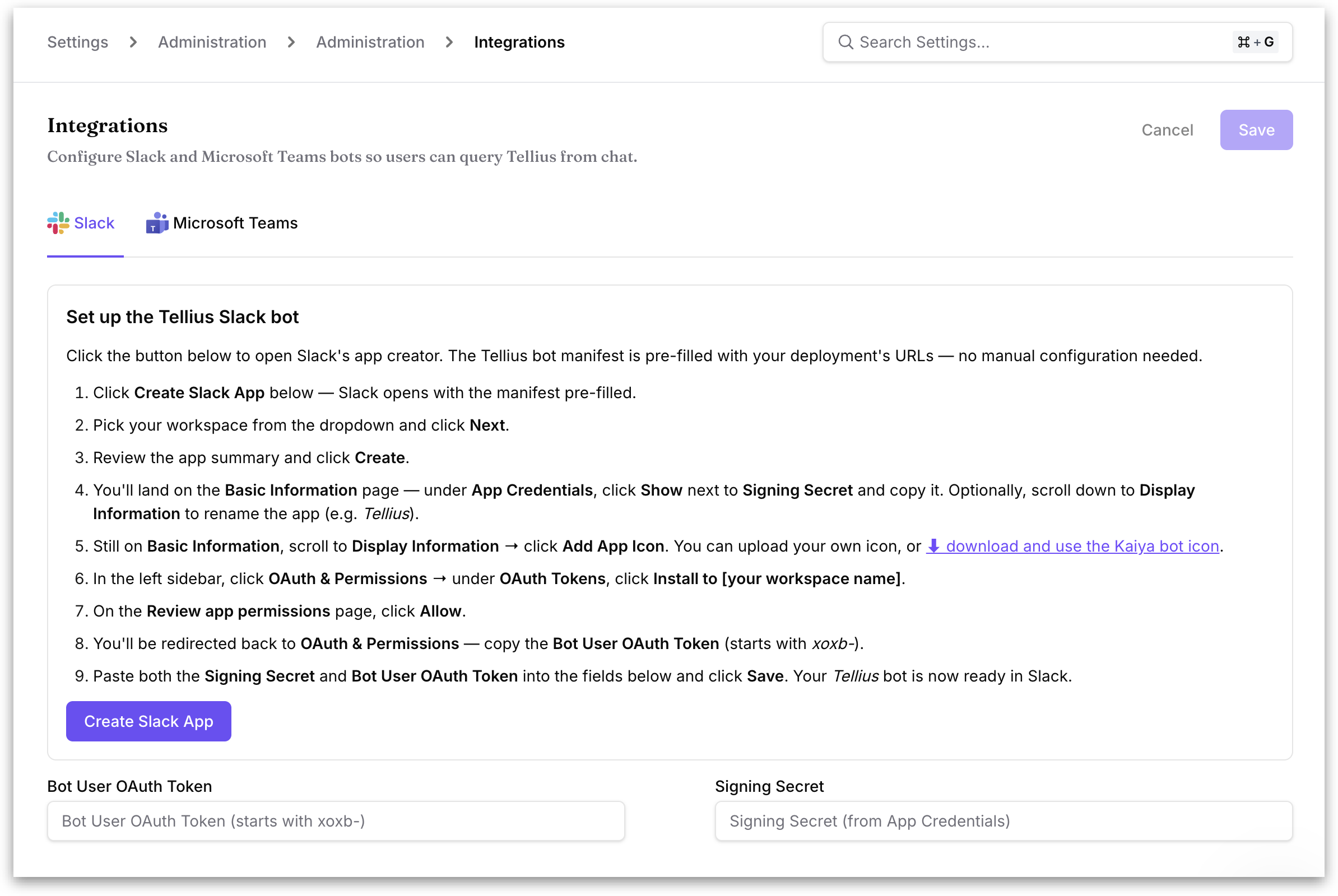
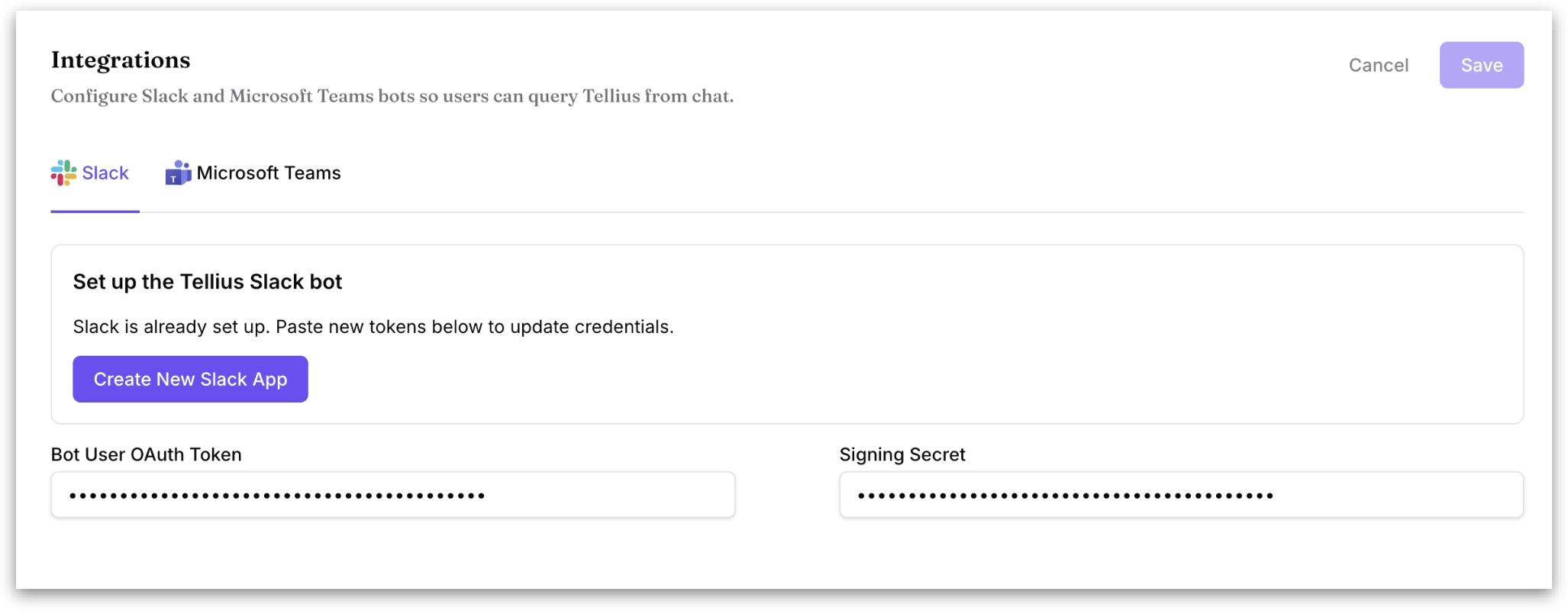
* Navigate to **Settings → Administration → Administration → Integrations**, then select the **Slack** tab at the top of the page.
* The panel **Set up the Tellius Slack bot** displays a complete numbered setup guide and walks you through the full setup. At the bottom of the page, you can see the credential fields where you'll paste the values from Slack: **Bot User OAuth Token** and **Signing Secret.**
#### Step 2: Pick your workspace and create the bot
* At the bottom of the setup guide, click the **Create Slack App** button. This opens Slack in a new browser tab with the Tellius bot manifest **pre-filled with your deployment's URLs**.
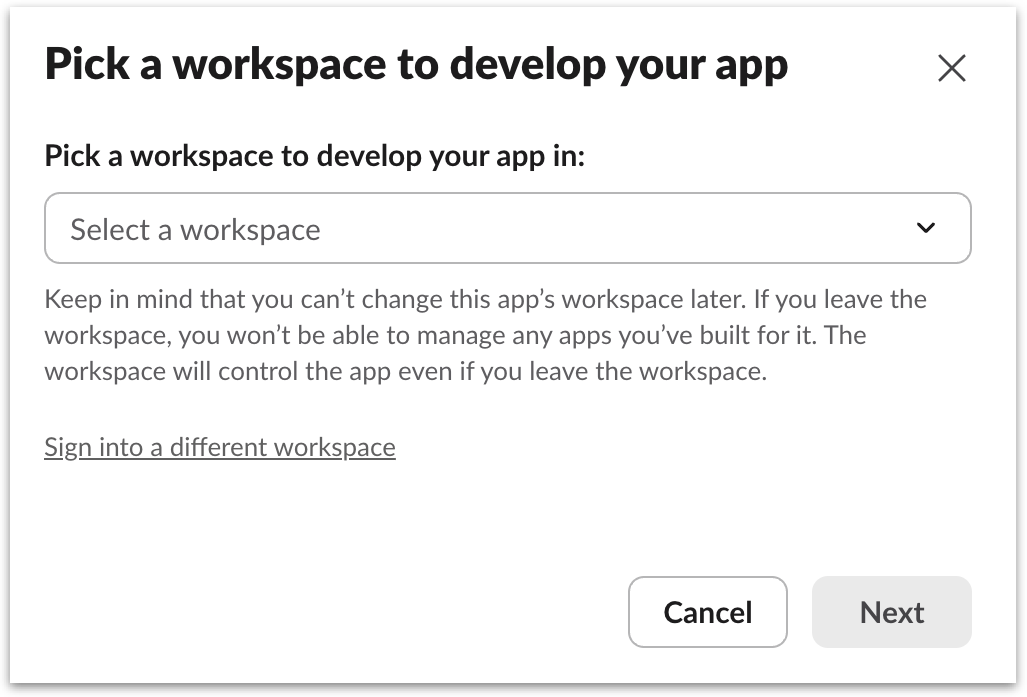
* Select your workspace from the dropdown and click **Next**.
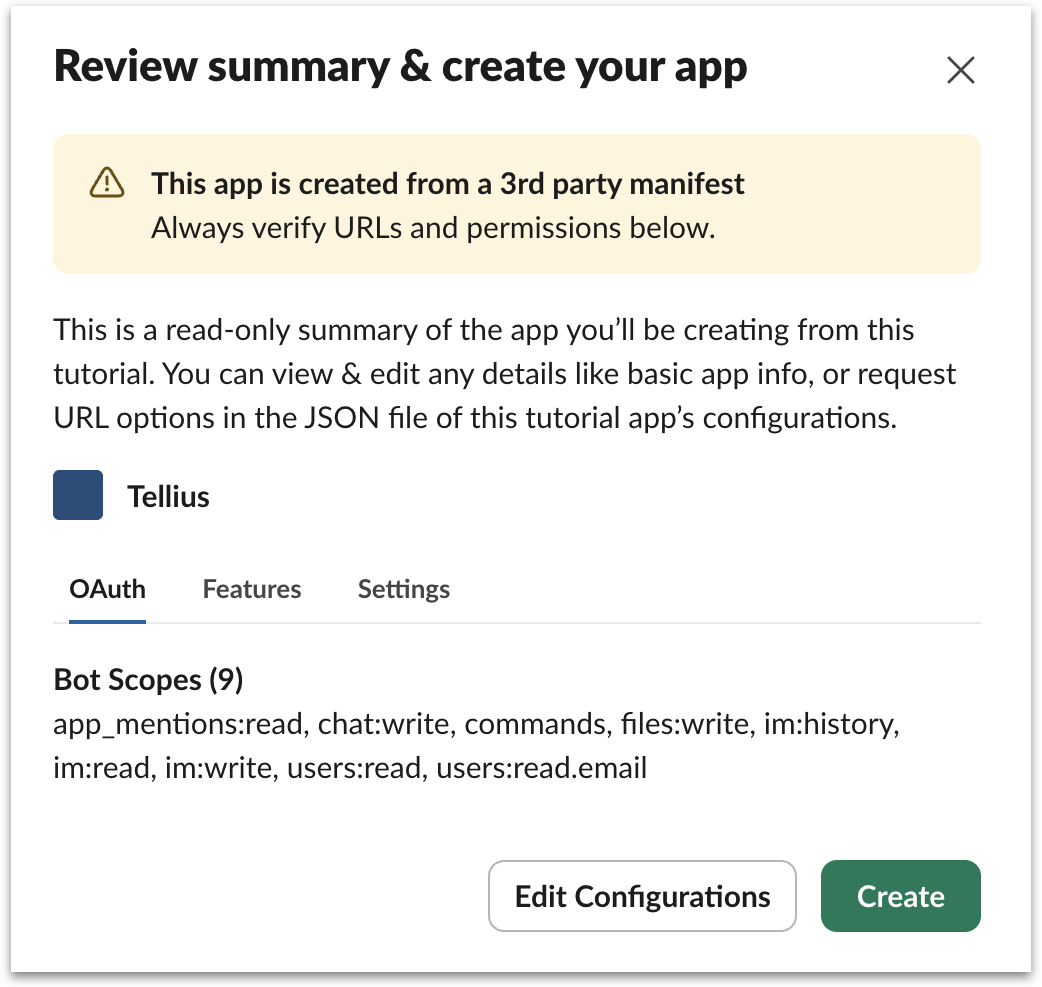
* Review the app summary that Slack displays and click **Create**. Slack will create the Tellius bot inside your workspace and redirect you to the app's **Basic Information** page.
#### Step 3: Copy the Signing Secret
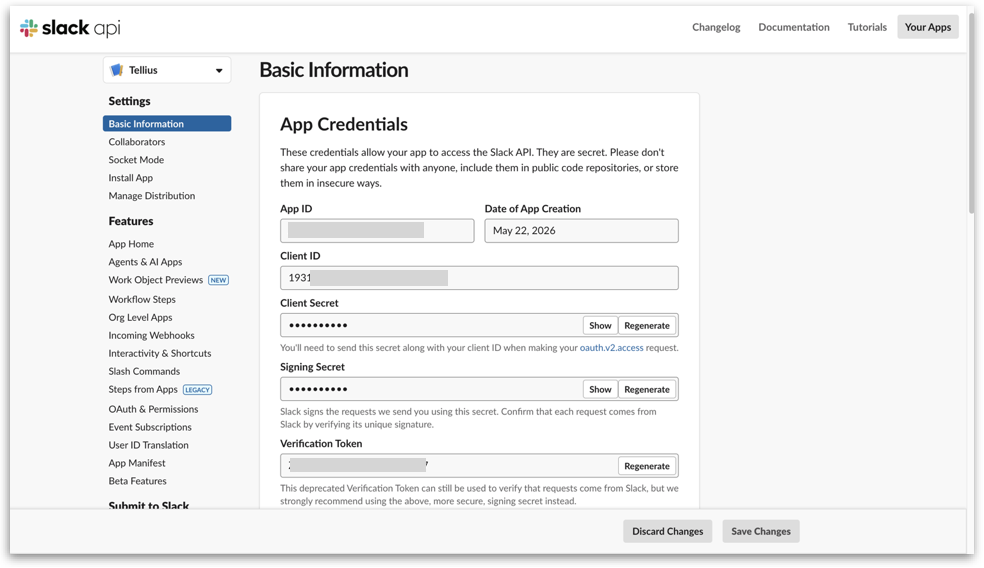
* You'll land on the **Basic Information** page in Slack. In the **App Credentials** section, find the **Signing Secret** field, and click **Show** to reveal the value. Copy and paste the Signing Secret into the **Signing Secret** field at the bottom of the Tellius page.
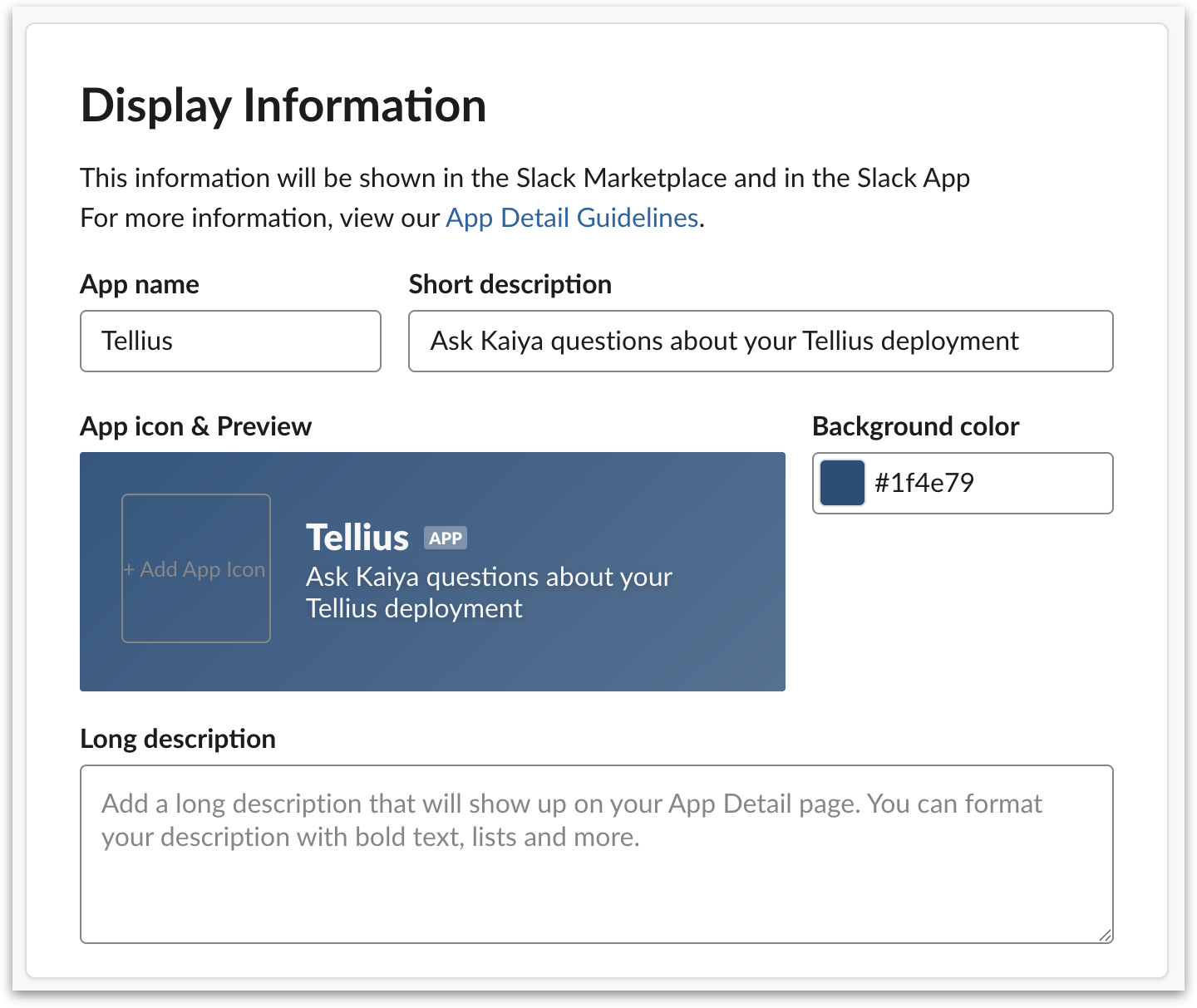
* While you're on this page, you can optionally scroll down to the **Display Information** section to rename the app to something user-friendly, if required. This is the name your end users will see in Slack.
* Under **App icon**, you can upload your own icon, or click the **⬇ download and use the Kaiya bot icon** link inside the Tellius setup guide to get the official Kaiya bot icon, which you can then upload to Slack. This icon is what appears next to bot messages in Slack — choosing a recognizable icon helps your users identify Tellius responses at a glance.
#### Step 4: Install the bot to your workspace
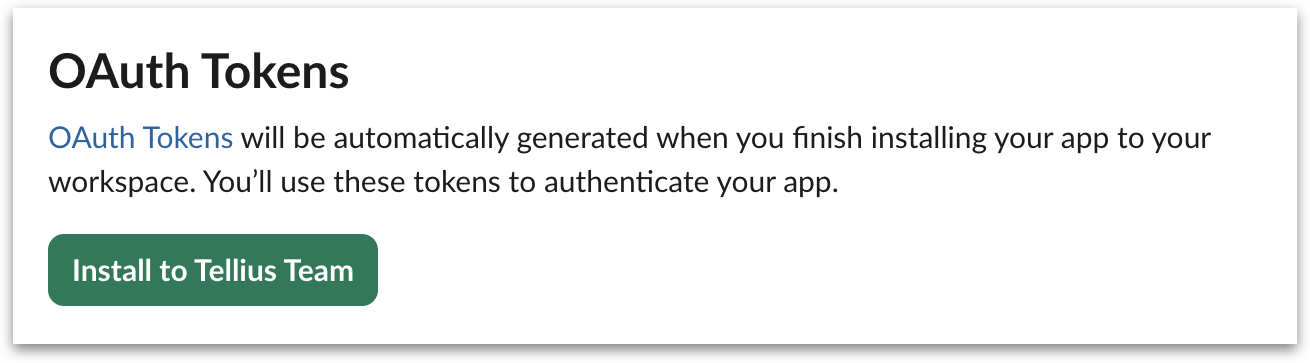
* In Slack's left sidebar, click **OAuth & Permissions**. Under the **OAuth Tokens** section, click **Install to \[your workspace name]**.
* Slack will redirect you to a **Review app permissions** page showing what the Tellius bot will be able to do in your workspace. Click **Allow** after reviewing.
* Slack will install the Tellius bot into your workspace and redirect you back to the **OAuth & Permissions** page.
#### Step 5: Copy the Bot User OAuth Token
* Back on the **OAuth & Permissions** page, you'll now see a **Bot User OAuth Token** under **OAuth Tokens**. It starts with `xoxb-`. Click **Copy** next to it. Paste it into the **Bot User OAuth Token** field at the bottom of the Tellius page.
* With both the **Signing Secret** and **Bot User OAuth Token** pasted into the Tellius Slack tab, click **Save** in the top right of the Integrations page. Your Tellius bot is now configured and ready to use in Slack.
### Replacing or removing the Slack app
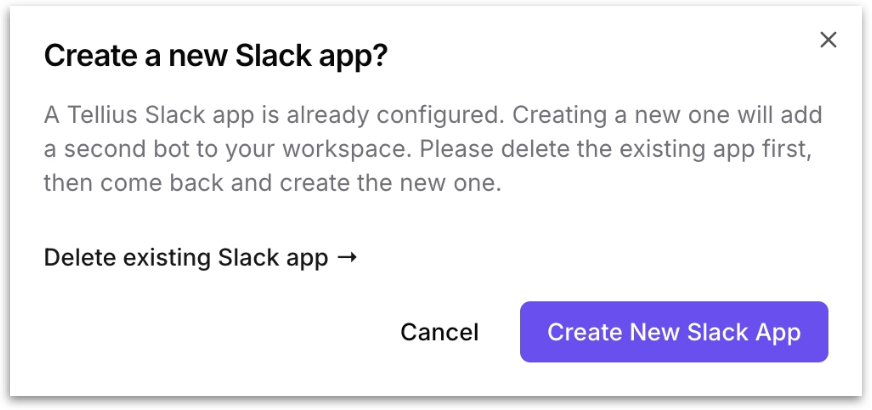
If you click **Create Slack App** when a Tellius Slack app is already configured, Tellius will show a confirmation dialog to prevent you from accidentally creating a duplicate bot in your workspace.
* **Delete existing Slack app →** This link takes you to the existing Slack app in Slack's app management interface, where you can delete it before creating a new one. This is the recommended path if you want to replace the integration cleanly.
* **Create New Slack App** Proceeds anyway and creates a second app in your workspace. Use this only if you specifically need two Tellius bots in the same workspace.
To disconnect the Tellius integration entirely, clear the credential fields and click **Save**, then delete the Slack app from Slack itself.
---
# Agent Instructions
This documentation is published with GitBook. GitBook is the documentation platform designed so that both humans and AI agents can read, navigate, and reason over technical content effectively. Learn more at gitbook.com.
## Querying This Documentation
If you need additional information that is not directly available in this page, you can query the documentation by asking a question.
Perform an HTTP GET request on the following URL with the `ask` and `goal` query parameters:
```
GET https://help.tellius.com/settings/administration/slack-integration.md?ask=&goal=
```
`ask` is the immediate question: it should be specific, self-contained, and written in natural language.
`goal` is what the user is ultimately trying to achieve, the reason they need the answer. Sharing it helps GitBook give you a better, more relevant answer. A goal is most helpful when it describes the outcome the user wants rather than restating the question. For example, with `ask=how do I create an API token`, a goal like `automate deployments from our CI pipeline` lets GitBook tailor the answer to that use case.
The response will contain a direct answer to the question and relevant excerpts and sources from the documentation.
Use this mechanism when the answer is not explicitly present in the current page, you need clarification or additional context, or you want to retrieve related documentation sections.