> For the complete documentation index, see [llms.txt](https://help.tellius.com/llms.txt). Markdown versions of documentation pages are available by appending `.md` to page URLs; this page is available as [Markdown](https://help.tellius.com/settings/administration/slack-integration/working-with-kaiya-in-slack.md).
# Working with Kaiya in Slack
### Start asking Kaiya in Slack
There are three places where your team can interact with the Tellius bot in Slack:
* **In a direct message with the bot.** Open a direct message with the Tellius bot from your Slack sidebar and start chatting. This is the most common usage pattern for individual analytical questions.
* **By @mentioning the bot in a channel.** Type `@Tellius` (or whatever name you gave the app) in any channel the bot has been added to, followed by your question. To add the bot to a channel that doesn't yet have it, type `/invite @Tellius` inside that channel.
* **In a group direct message.** Add the Tellius bot to any multi-person DM to let everyone in the conversation ask questions.
{% hint style="info" %}
Completed Kaiya Mission briefings can now be delivered to Slack in addition to email. They can be posted to a channel or sent as a direct message. The Kaiya bot must be added to the channel before it appears as a delivery target.
{% endhint %}
### Choosing a data source for your question
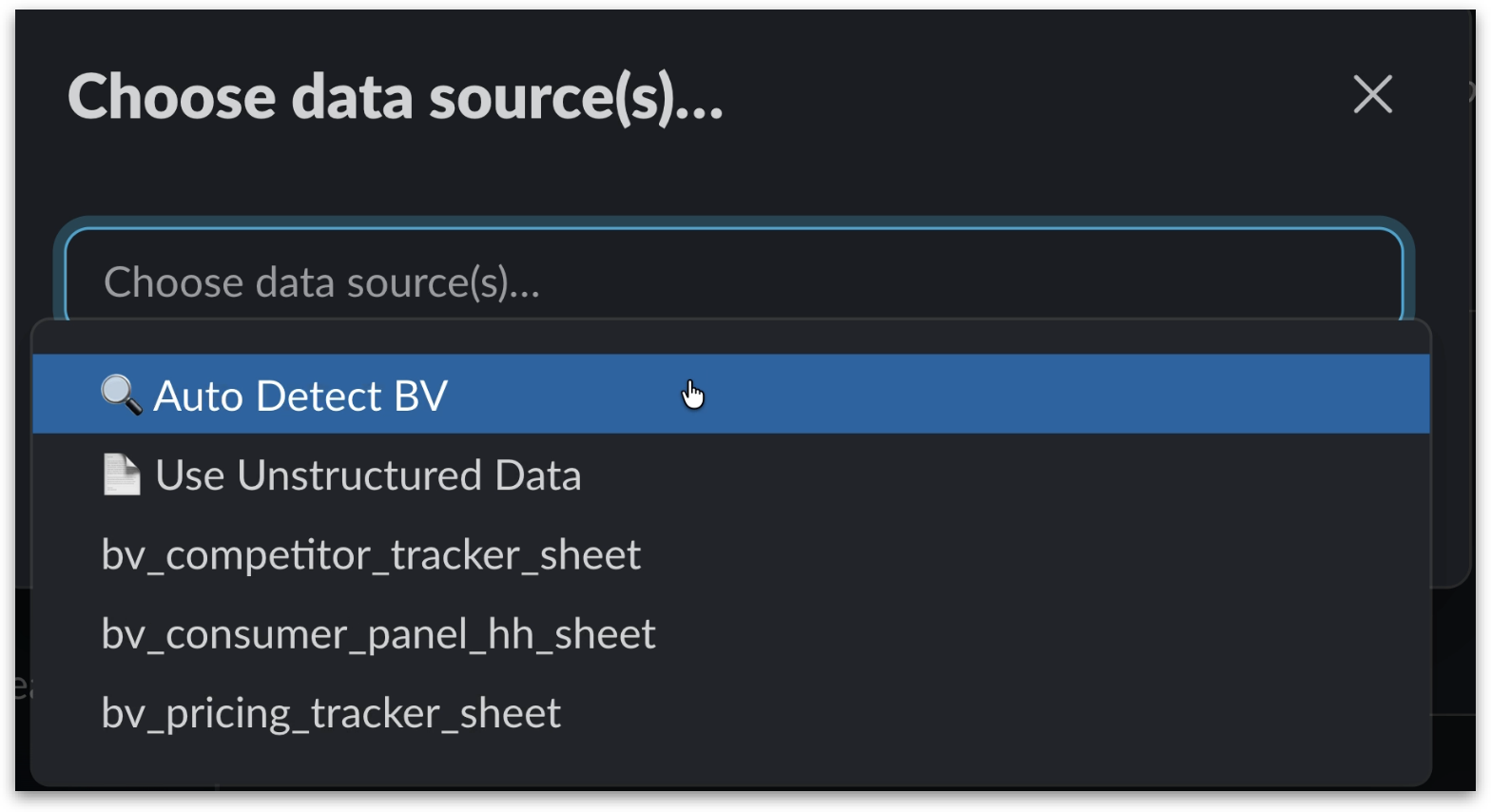
1. The first time you ask a question in a new conversation, Tellius asks you to **Choose data source(s)**, so it knows where to look for the answer.
2. Click on the button and the following dropdown is displayed with the list of Business Views you have access to. Once you've made your selection, click **Confirm**.
| Option | When to use it |
| --------------------------- | --------------------------------------------------------------------------------------------------------------------------------------------------------- |
| **Auto Detect BV** | Let Kaiya automatically select the most relevant Business View based on your question. This is the easiest option when you're not sure which BV to query. |
| **Use Unstructured Data** | Query across uploaded documents (PDFs, text files etc.) |
| **Specific Business Views** | Select one or more specific BVs from the list. |
{% hint style="info" %}
**Auto Detect BV** and **specific BVs** are mutually exclusive. You can either let Kaiya auto-detect a single BV, or you can manually pick one or more specific BVs, but you cannot do both at the same time. The Business Views shown in the picker are scoped to your user account, so you only see BVs that you have permission to access.
{% endhint %}
### Understanding the responses
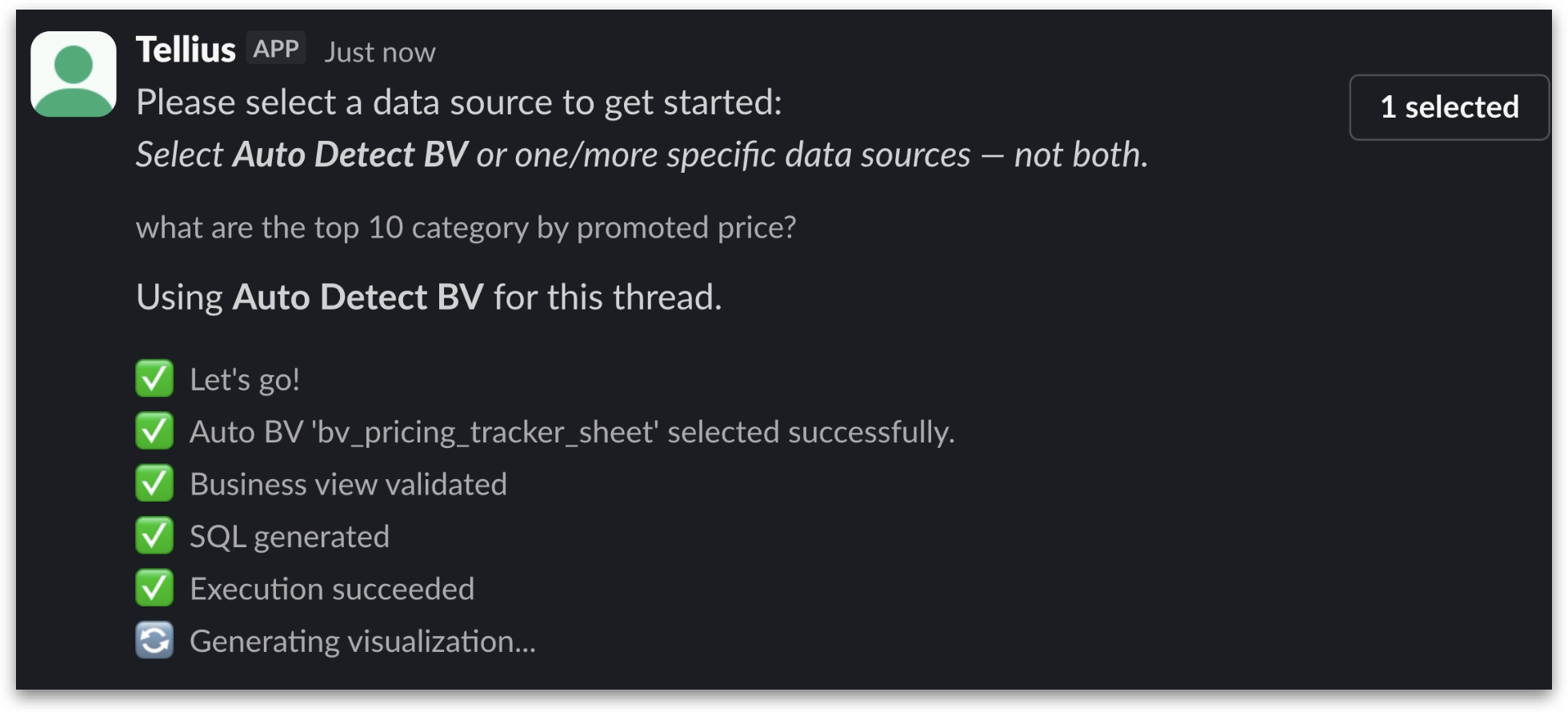
While Tellius processes your question, it posts a live status block in the thread showing each step as it completes. How Tellius formats its response depends on the type of question you asked.
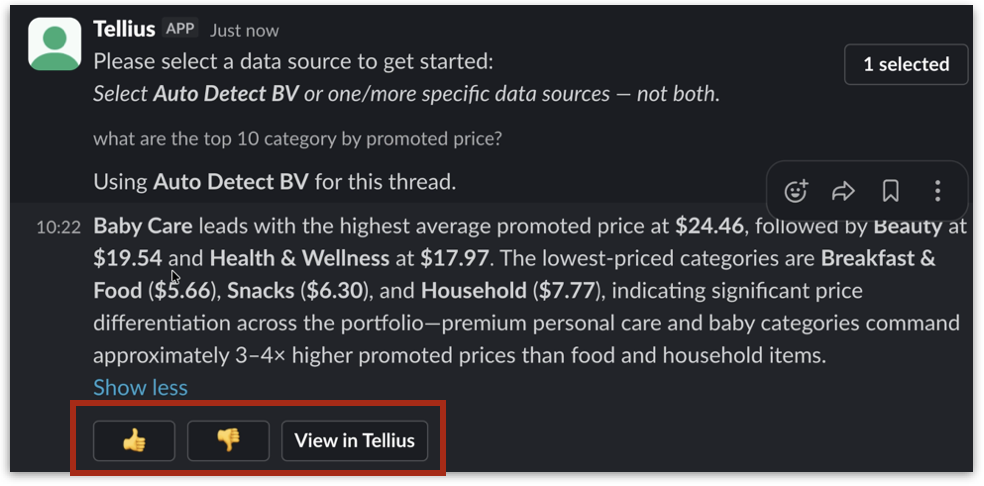
**For structured queries**, you get a chart image followed by a text summary. The chart visualizes the result of the underlying SQL query, and the summary explains the key takeaways in plain English.
**For unstructured queries**, you get a text summary with **inline citation pills** that reference the specific source documents Tellius drew the answer from.
**Markdown tables** in any response type appear as raw markdown pipes rather than as visually styled tables. This is a Slack limitation; Slack does not natively render markdown table syntax. For a properly formatted table view, click **View in Tellius** to see the response in the Tellius web app.
{% hint style="danger" %}
Slack imposes a hard limit of **3,000 characters per message**. To stay safely under that limit, Tellius truncates long responses to **2,900 characters**. When truncation happens, click **View in Tellius** to open the full conversation in Tellius.
{% endhint %}
Every response includes three action elements below it: a 👍 button, a 👎 button, and a **View in Tellius** button. Click either one to submit feedback on the response. After you submit, the feedback buttons are replaced with a *"✅ Feedback received"* indicator that confirms your input was captured.
{% hint style="info" %}
When Kaiya isn't sure exactly what you want, it asks a clarification question before answering. It offers a dropdown **Choose an opt…** with predefined options. You can either select one of the offered options from the dropdown, or just reply with your own answer as a regular Slack message in the thread. Kaiya will pick up your reply and continue the conversation.
{% endhint %}
#### Using Deep Insight for complex analytical questions
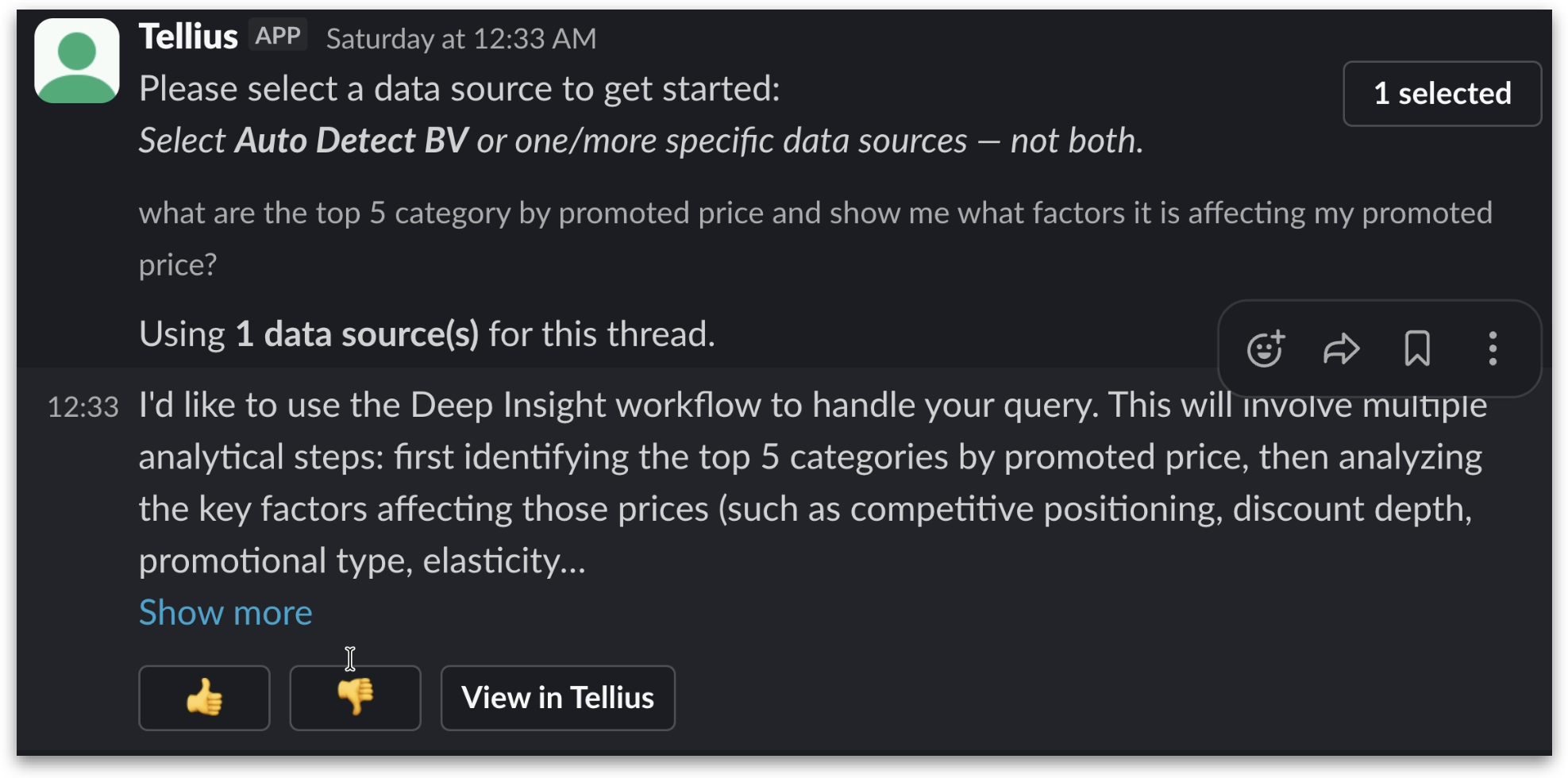
For certain analytical questions where a single SQL query isn't enough, Kaiya offers to switch into a multi-step analytical workflows **Deep Insight**. Type in *Yes* to continue.
The **Deep Insight** final response is a structured document with numbered sections that walk through the analysis methodically. Because Deep Insight responses tend to be long, Slack will typically truncate them. Use the **View in Tellius** button to read the full response.
#### Continuing a conversation in a thread
Kaiya uses Slack threads as the conversation boundary. Once you've asked a first question and Kaiya has responded inside a thread, all follow-up messages in that same thread continue the conversation. Kaiya remembers the data source you picked and the context of your prior questions, so you can ask follow-ups like *"now break that down by product"* without re-specifying the BV.
To start a fresh conversation with a different data source, send a new message outside the current thread (in the channel or DM main feed). Kaiya will treat this as a new conversation and show you the data source picker again.
{% hint style="info" %}
In Kaiya responses, markdown tables render as raw markdown pipes in Slack (Slack does not natively render markdown tables). For visually styled tables, use **View in Tellius**.
{% endhint %}
---
# Agent Instructions
This documentation is published with GitBook. GitBook is the documentation platform designed so that both humans and AI agents can read, navigate, and reason over technical content effectively. Learn more at gitbook.com.
## Querying This Documentation
If you need additional information that is not directly available in this page, you can query the documentation by asking a question.
Perform an HTTP GET request on the following URL with the `ask` and `goal` query parameters:
```
GET https://help.tellius.com/settings/administration/slack-integration/working-with-kaiya-in-slack.md?ask=&goal=
```
`ask` is the immediate question: it should be specific, self-contained, and written in natural language.
`goal` is what the user is ultimately trying to achieve, the reason they need the answer. Sharing it helps GitBook give you a better, more relevant answer. A goal is most helpful when it describes the outcome the user wants rather than restating the question. For example, with `ask=how do I create an API token`, a goal like `automate deployments from our CI pipeline` lets GitBook tailor the answer to that use case.
The response will contain a direct answer to the question and relevant excerpts and sources from the documentation.
Use this mechanism when the answer is not explicitly present in the current page, you need clarification or additional context, or you want to retrieve related documentation sections.