> For the complete documentation index, see [llms.txt](https://help.tellius.com/llms.txt). Markdown versions of documentation pages are available by appending `.md` to page URLs; this page is available as [Markdown](https://help.tellius.com/settings/administration/teams-integration.md).
# Teams Integration
Connect your Microsoft Teams tenant to Tellius so your team can ask data questions and get AI-powered answers (charts, summaries, document-based insights, and deep analytical workflows) directly inside Microsoft Teams, in personal chats, group chats, and channels.
### What you can do with the Teams integration
Once the Tellius bot is deployed to your Teams tenant, your team can:
* Ask Kaiya questions from a personal chat with the bot, from inside a group chat, or by @mentioning the bot in a Teams channel.
* Choose the data source for each question. Let Kaiya auto-select the most relevant Business View, manually pick one or more specific Business Views, or search across unstructured documents.
* Receive responses with chart images, text summaries, properly rendered markdown tables, and inline citations to source documents for unstructured queries.
* Run **Deep Insight** workflows for complex analytical questions, with live step-by-step progress updates as Tellius generates SQL, executes Python, and produces a structured analytical summary.
* Answer clarification questions when Tellius needs more context, either by selecting from suggested options or by typing your own answer in the chat.
* Switch data sources mid-conversation using the **Change Data Source** button when you want to ask questions against a different Business View.
* Submit 👍 or 👎 feedback on any response to help improve Tellius's answers over time.
* Click **View in Tellius** on any answer to open the same conversation in the full Tellius web application for deeper analysis, dashboard building, or sharing.
{% hint style="info" %}
To set up the Microsoft Teams integration, you'll need **Tellius admin access, access to the Microsoft Teams Developer Portal** at `dev.teams.microsoft.com`, and **Teams Administrator role in Microsoft 365** to deploy the Kaiya bot to all users via the Microsoft Teams Admin Center.
{% endhint %}
{% hint style="warning" %}
Each Tellius instance connects to **one Microsoft Teams tenant**. If you operate multiple tenants and want the Kaiya bot in each, you'll need a separate Tellius instance per tenant.
{% endhint %}
{% hint style="danger" %}
No Azure subscription required. The Tellius Teams bot is registered through the Microsoft Teams Developer Portal at `dev.teams.microsoft.com`, not through Azure Bot Service. The only step that touches `portal.azure.com` is copying your Azure AD Tenant ID, which is optional. Leave it blank if you want the bot to work across multiple tenants.
{% endhint %}
### Admin setup in Tellius
Setup happens in three stages: register the bot in the Microsoft Teams Developer Portal, save the credentials in Tellius, and deploy the bot to your users through the Microsoft Teams Admin Center.
#### Step 1: Open the Integrations settings in Tellius
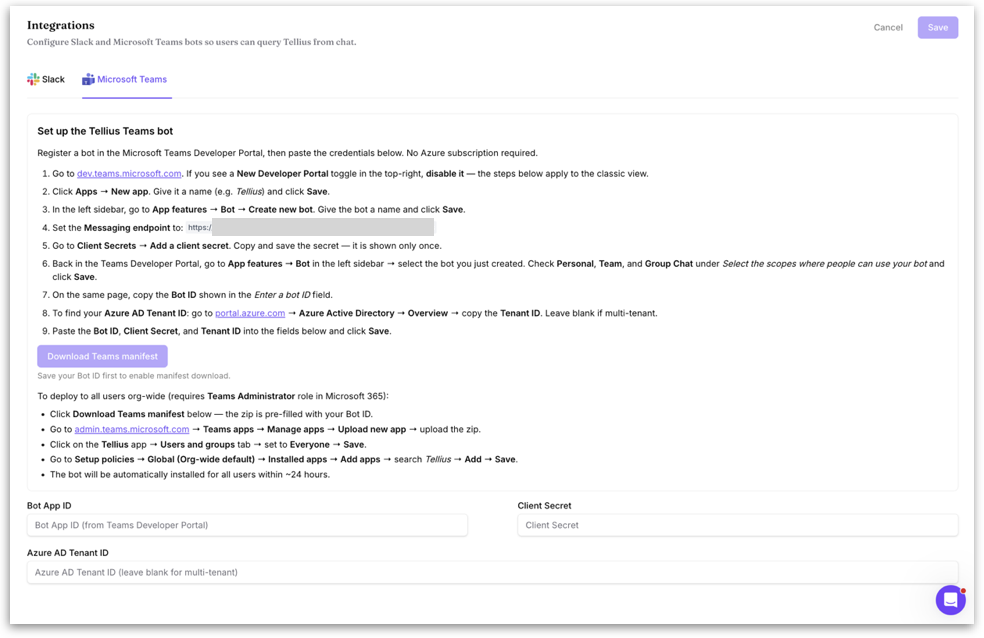
* Navigate to **Settings → Administration → Administration → Integrations**, then select the **Microsoft Teams** tab at the top of the page.
* You'll see a setup panel with detailed instructions. At the bottom of the page, you can find **Bot App ID**, **Client Secret**, and **Azure AD Tenant ID,** where you'll paste values from the Teams Developer Portal.
* Take note of the **messaging endpoint URL** shown in the setup guide. You'll paste this into the Teams Developer Portal in a later step. It is unique to your Tellius deployment.
#### Step 2: Open the Microsoft Teams Developer Portal
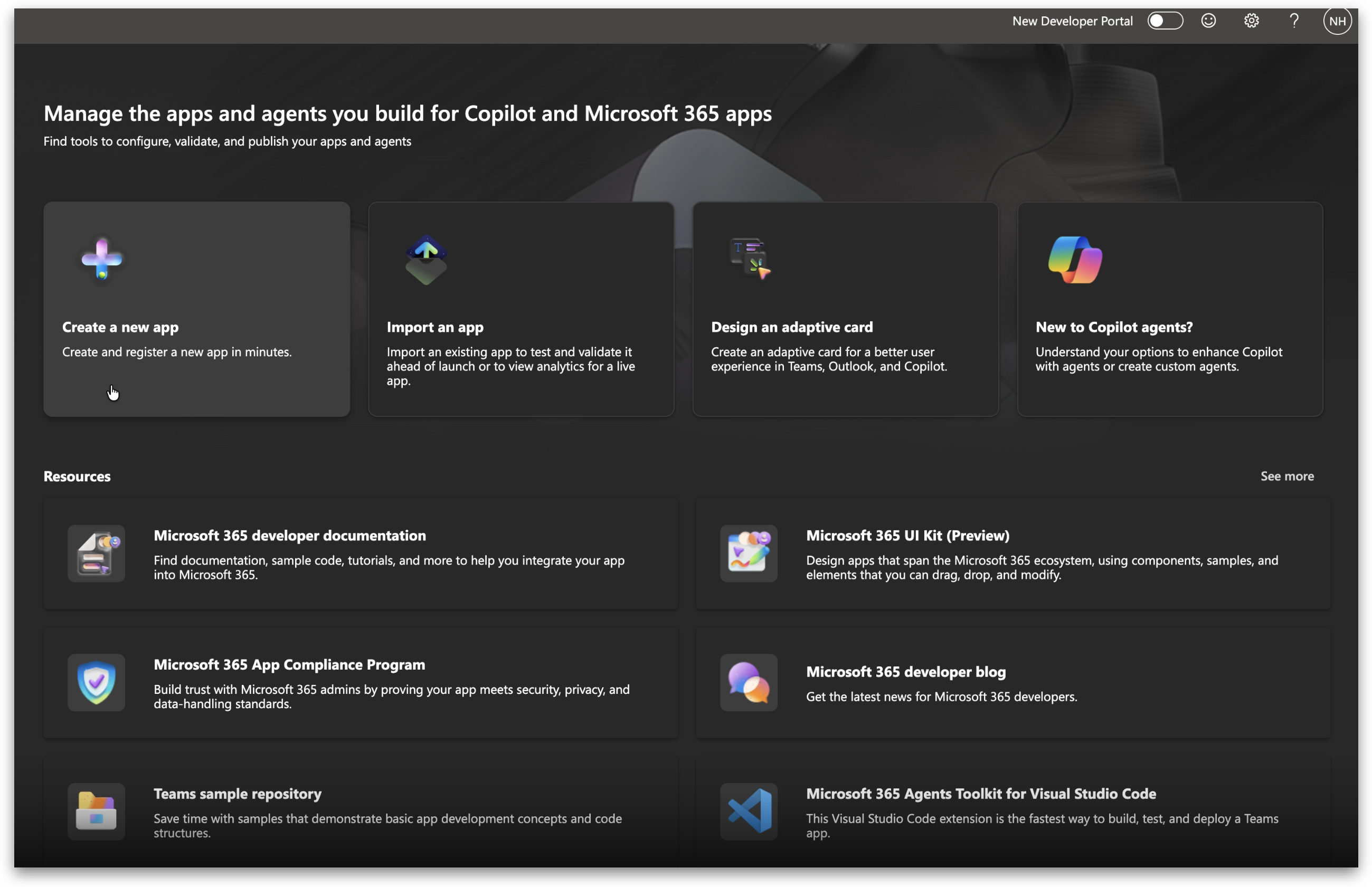
In a new browser tab, go to **dev.teams.microsoft.com** and sign in with your Microsoft 365 account.
If you see a **New Developer Portal** toggle in the top-right corner, switch it off. The instructions below follow the classic view of the Developer Portal.
#### Step 3: Create a new app in the Developer Portal
From the Developer Portal homepage, click **Apps** in the left sidebar, then click **Create a new app**. Give the app a recognizable name (for example, *Tellius or Kaiya*) and click **Save**. The Developer Portal will create the app and redirect you to the app's configuration page.
#### Step 4: Create the bot
In the left sidebar of your newly created app, expand **App features**, click **Bot**, and then click **Create new bot**. Give the bot a name (this is an internal Developer Portal label and doesn't have to match your app name) and click **Save**. The Developer Portal redirects you to the bot's configuration page.
#### Step 5: Set the messaging endpoint
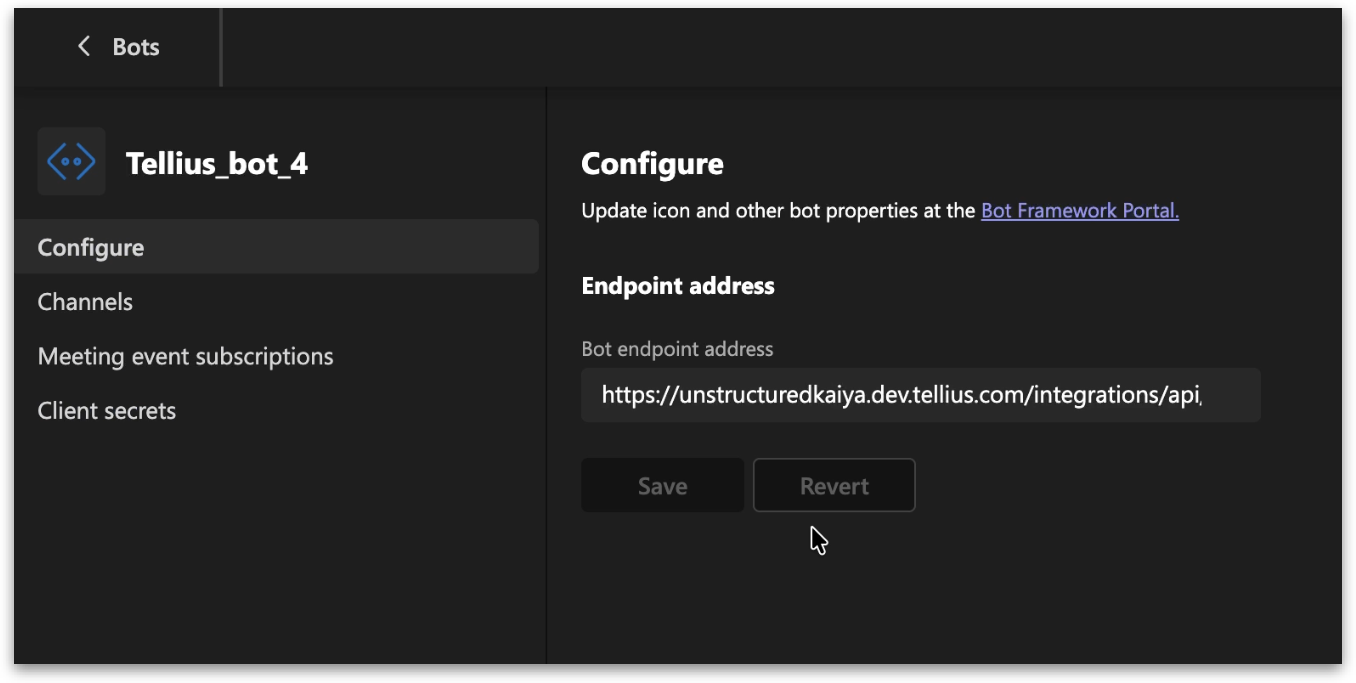
On the bot's **Configure** page, find the **Bot endpoint address** field under the **Endpoint address** section. Paste the messaging endpoint URL shown in the Tellius setup guide and click **Save**. This URL is unique to your Tellius deployment.
#### Step 6: Create a Client Secret
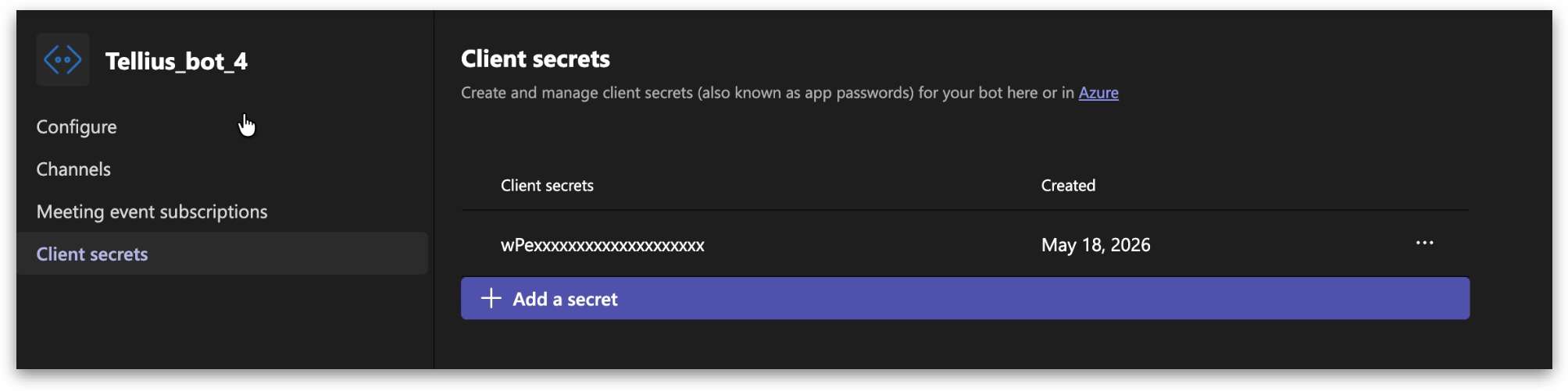
In the bot's left sidebar inside the Developer Portal, click **Client secrets**. Click **+ Add a secret** to generate a new client secret for the bot.
The Developer Portal displays the secret value only once. Copy it and you will paste it into Tellius in a later step. After you close or navigate away from this dialog, the secret cannot be retrieved again, and you will need to generate a new one if you didn't save it.
#### Step 7: Assign bot scopes
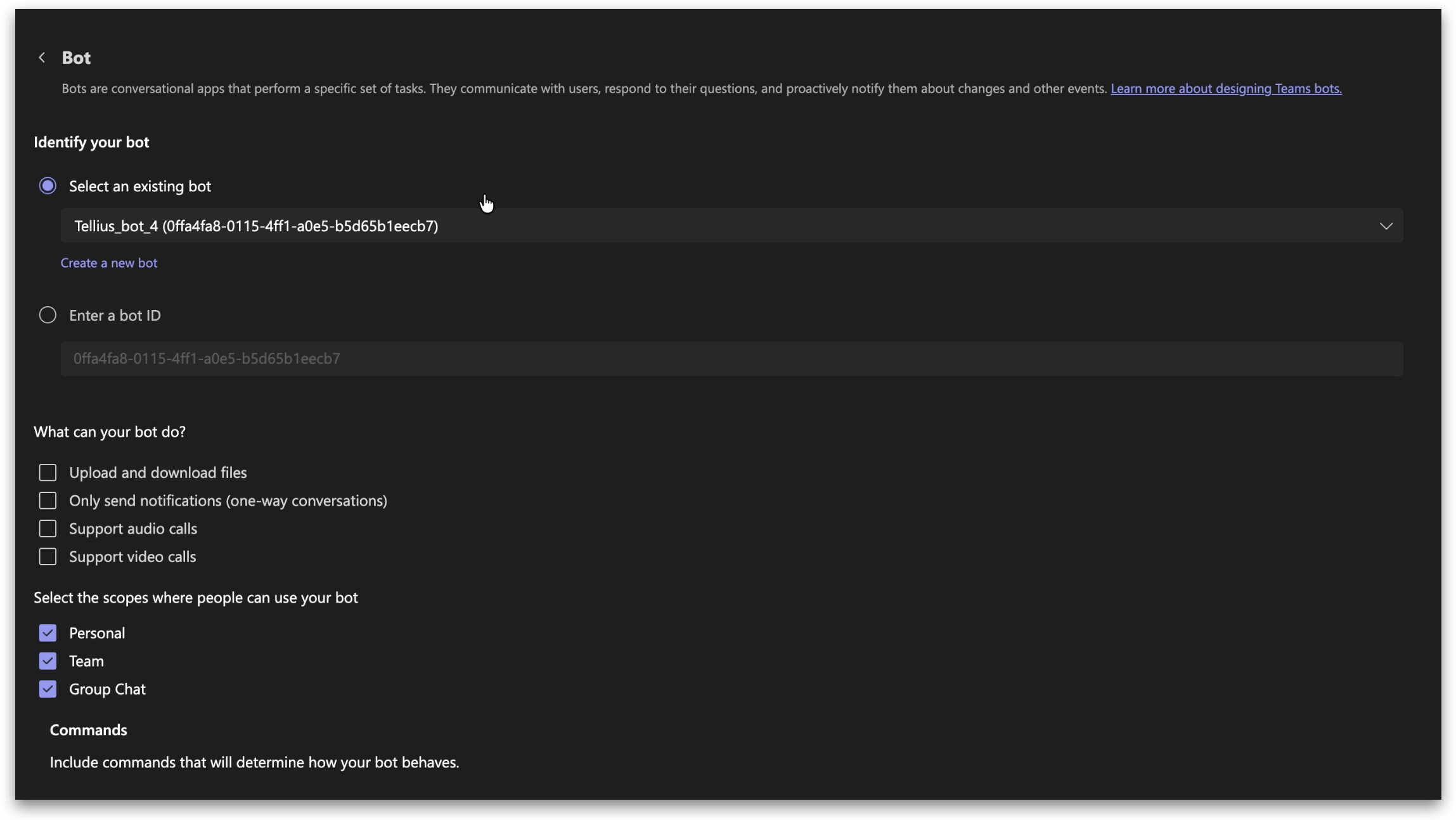
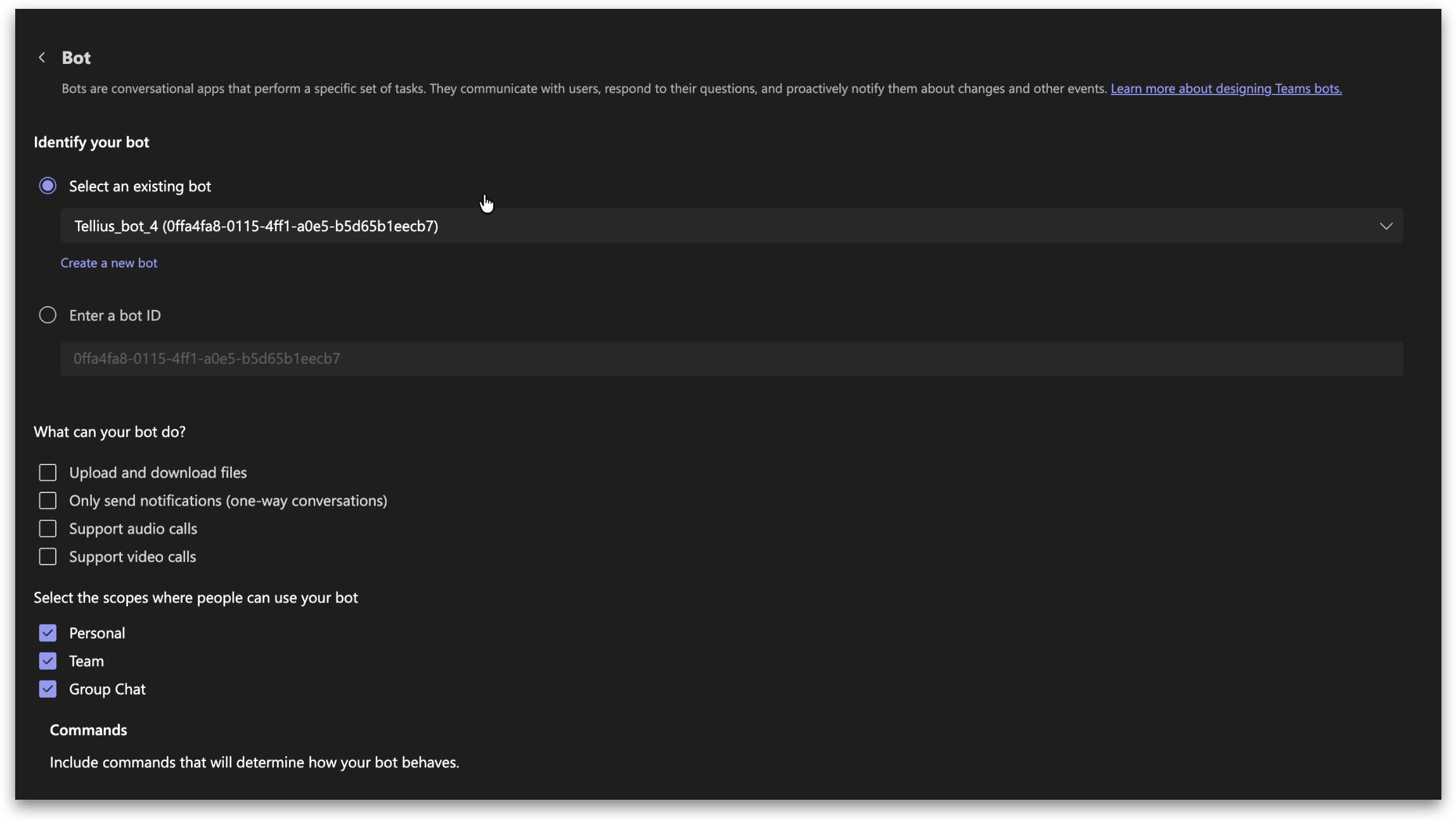
Go back to your app in the Developer Portal (you can use the breadcrumb navigation at the top, or click your app's name in the left sidebar). In the left sidebar, expand **App features** and click **Bot**.
Under **Identify your bot**, select **Select an existing bot** and choose the bot you just created from the dropdown.
Under **Select the scopes where people can use your bot**, check all three scopes:
* **Personal:** allows the bot to be used in one-on-one chats.
* **Team:** allows the bot to be @mentioned in Teams channels.
* **Group Chat:** allows the bot to participate in multi-person group chats.
Click **Save** at the bottom of the page.
#### Step 8: Copy the Bot ID
While still on the Bot configuration page (the same page where you just assigned scopes), find the **Enter a bot ID** field. This field shows the unique identifier of the bot you just created. Copy and paste into Tellius in a later step.
#### Step 9: (Optional) Get your Azure AD Tenant ID
If you want to restrict the Tellius bot to a single Microsoft 365 tenant, you'll need your Tenant ID. To find it:
1. Go to **portal.azure.com** in a new tab and sign in.
2. Navigate to **Azure Active Directory → Overview**.
3. Copy the **Tenant ID** value.
If you want the bot to work across multiple tenants (multi-tenant deployment), leave the Tenant ID field blank in Tellius when you save the credentials.
#### Step 10: Save the credentials in Tellius
Return to **Settings → Administration → Administration → Integrations → Microsoft Teams** tab in Tellius. Paste **Bot App ID, Client Secret,** and **Azure AD Tenant ID.** Click **Save** in the top right of the page.
#### Step 11: Download the Teams manifest
After you save the credentials, the **Download Teams manifest** button at the top of the setup panel becomes active. Click it to download a `manifest.zip` file. This zip is pre-filled with your Bot App ID and the required app icons.
{% hint style="warning" %}
The **Download Teams manifest** button is intentionally disabled until you save the Bot App ID, because the manifest contents are generated with that ID embedded.
{% endhint %}
#### Step 12: Upload the manifest to the Microsoft Teams Admin Center
To deploy the Tellius bot to your users, you need the **Teams Administrator role in Microsoft 365**.
1. In a new browser tab, go to **admin.teams.microsoft.com** and sign in.
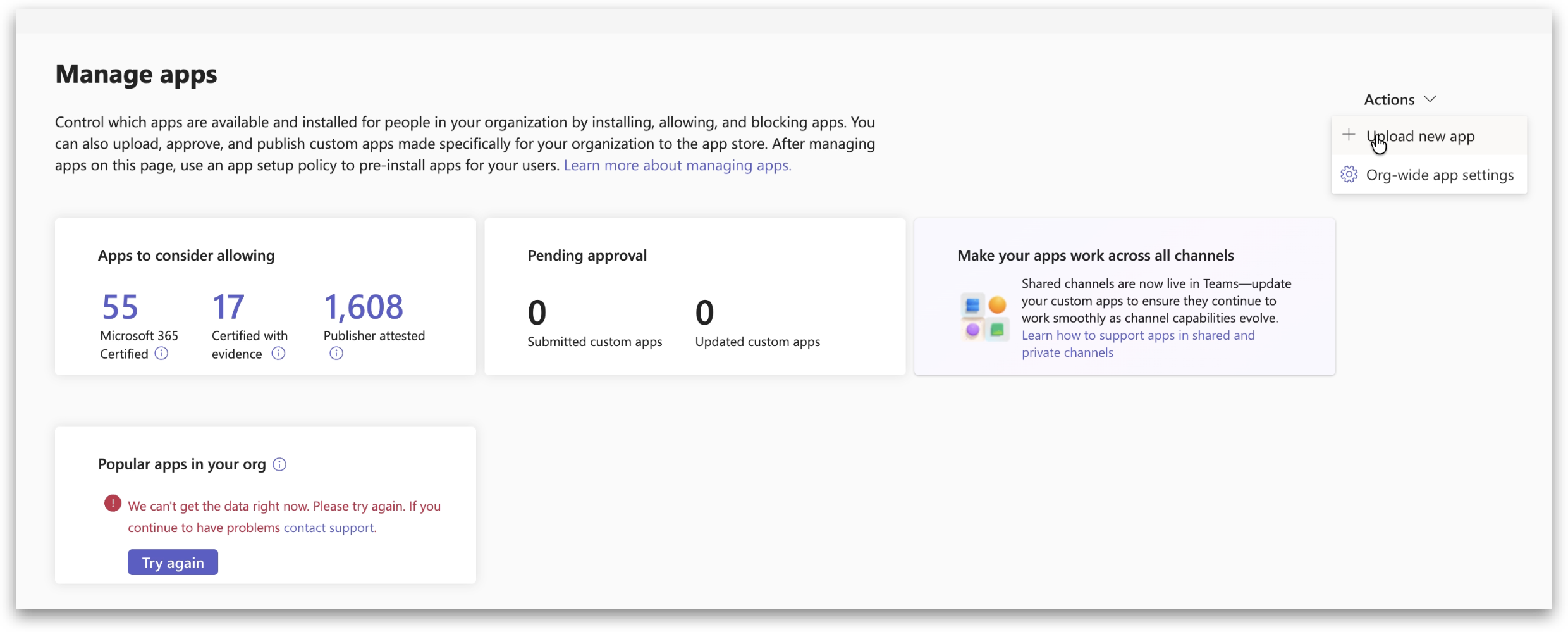
2. In the left navigation, go to **Teams apps → Manage apps**.
3. In the top-right of the Manage apps page, click the **Actions** dropdown and select **Upload new app**.
4. Upload the `manifest.zip` file you downloaded from Tellius.
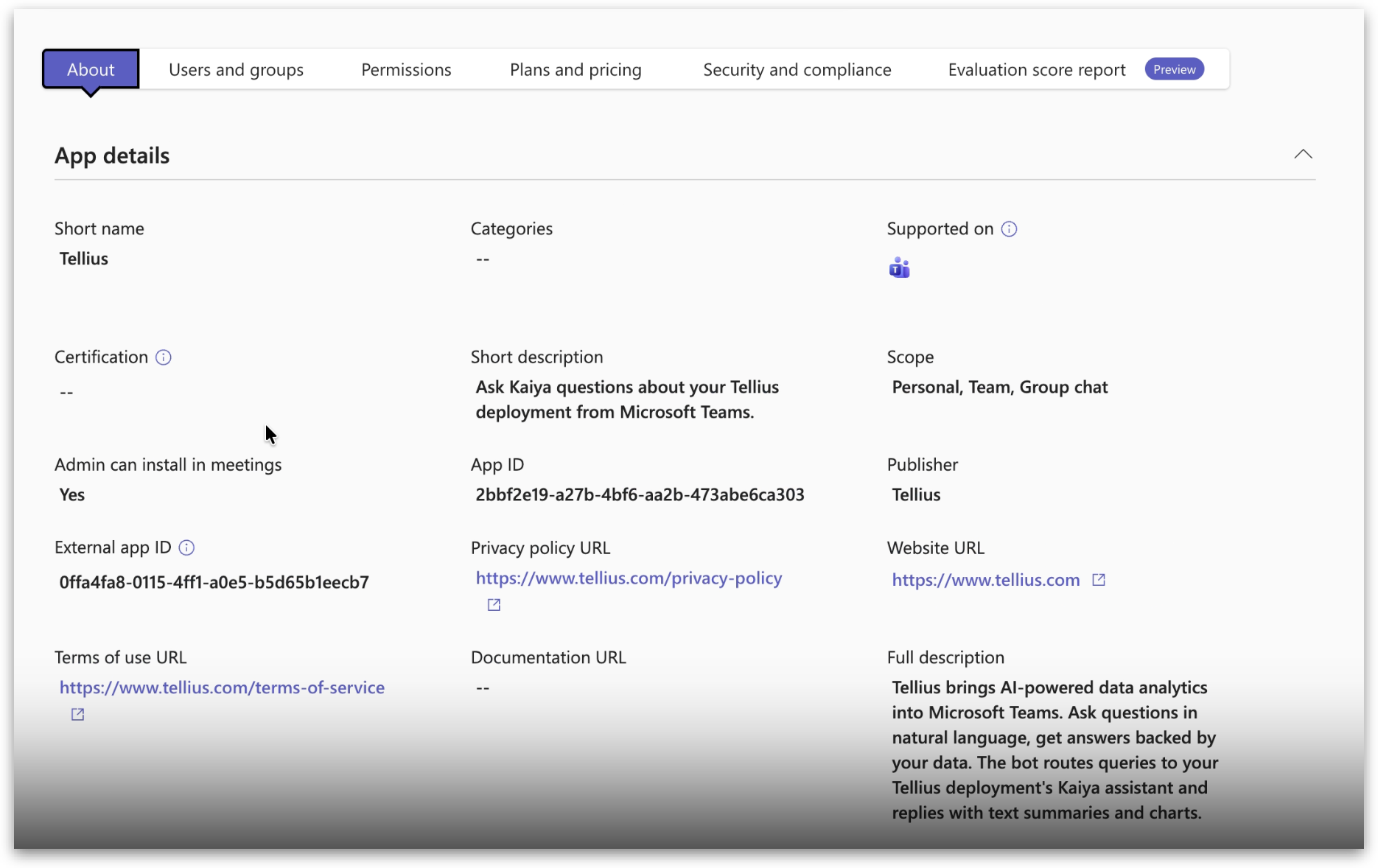
After the upload completes, find the **Tellius** app in the Manage apps list. Click on it to open its details page. You'll see the App ID, scope (Personal, Team, Group chat), description, and other metadata Tellius set in the manifest.
#### Step 13: Set who can install the app
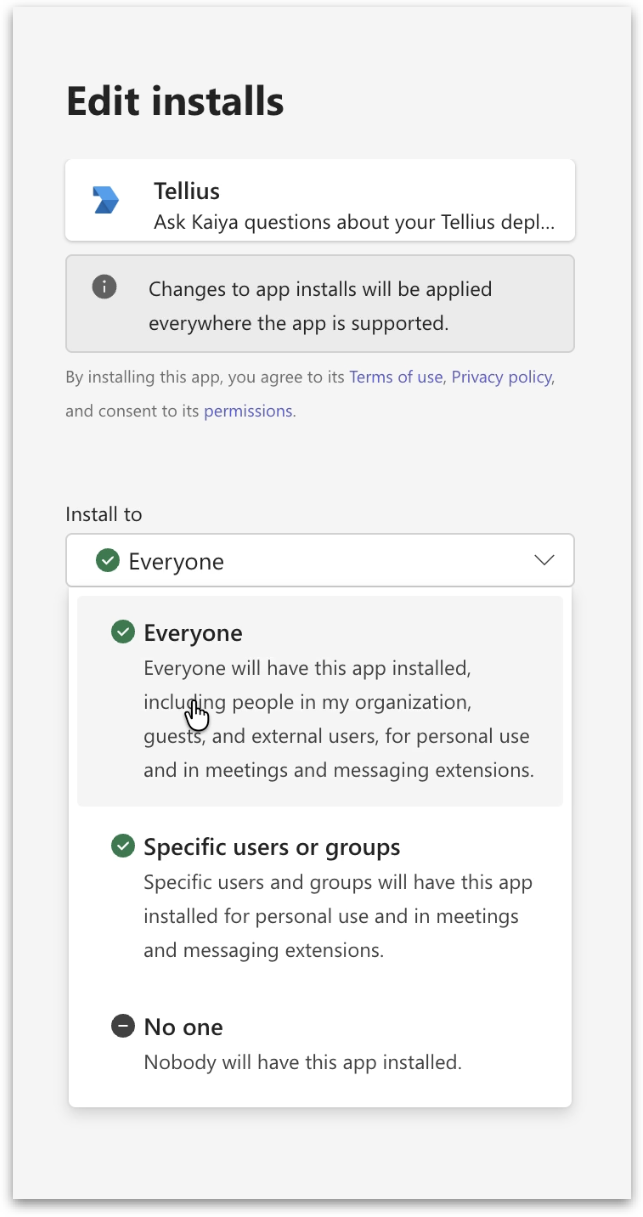
* In the Teams Admin Center, click the **Users and groups** tab, then click **Edit availability** (or **Edit installs**, depending on your tenant version of the Admin Center).
* Under **Install to**, choose **Everyone** to make the Tellius bot available to all users in your tenant.
* If you prefer a phased rollout, you can choose **Specific users or groups** and add only certain users.
#### Step 14: Add the app to the global setup policy
Adding the app to the global app setup policy ensures the Tellius bot is automatically installed for every user in your tenant.
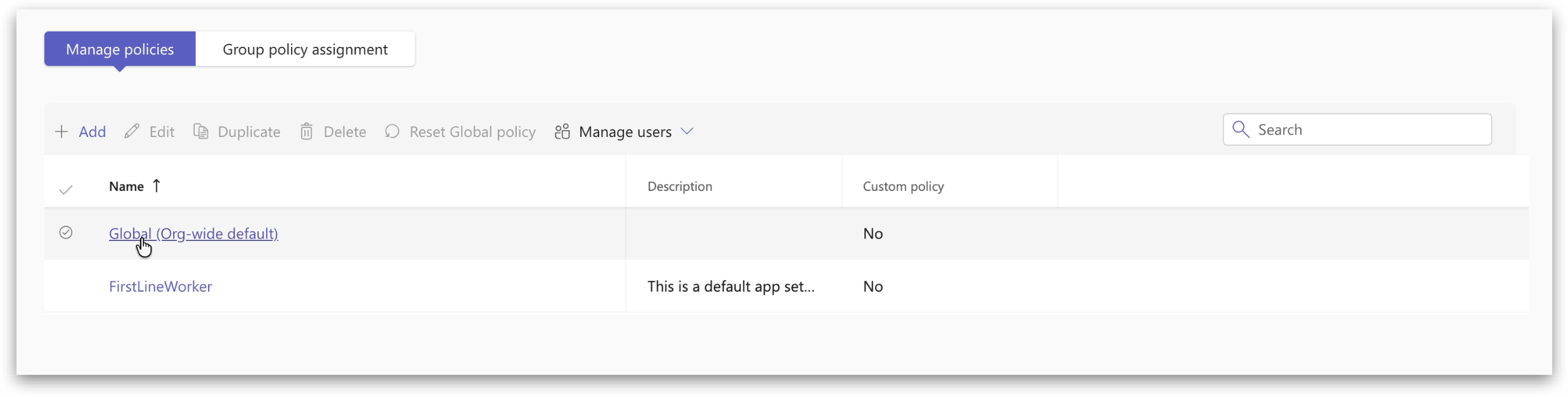
1. In the Teams Admin Center, go to **Teams apps → Setup policies**.
2. Click the **Global (Org-wide default)** policy.
3. Scroll to the **Installed apps** section and click **Add apps**.
4. In the search field, type *Tellius*, select it from the results, and click **Add**.
5. Click **Save** at the bottom of the policy page.
This makes Tellius available to all users in your tenant, but does not yet place it in their sidebar. You also need to pin it to the App bar in the next step.
#### Step 15: Pin Tellius to the Teams sidebar (App bar)
To make the bot visible and easy to access, you also need to pin it to the **App bar**.
1. Still in **Setup policies → Global (Org-wide default)**, scroll to the **App bar** section.
2. Click **Add apps** under App bar.
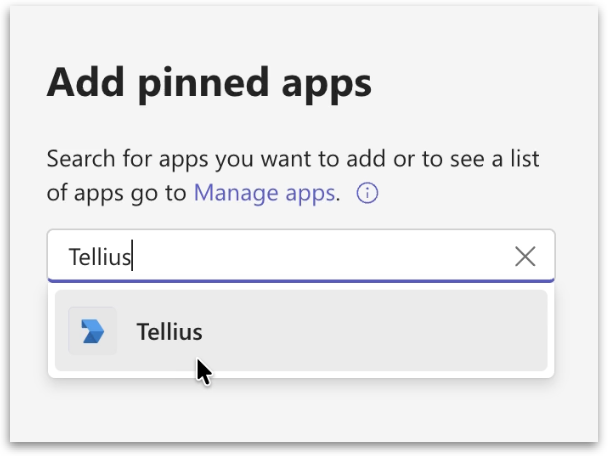
3. In the **Add pinned apps** dialog, type *Tellius* in the search field.
4. Select **Tellius** from the search results and click **Add**.
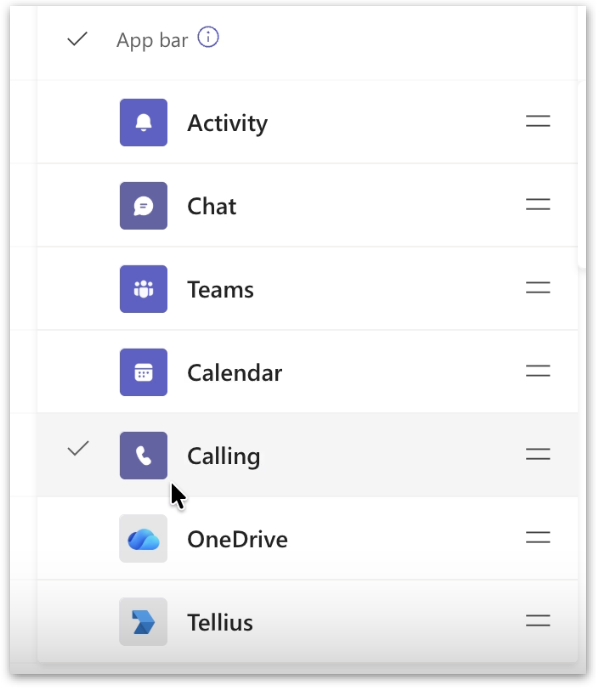
5. Drag Tellius to your preferred position in the App bar order. It will appear in the user's Teams sidebar in this position.
6. Click **Save** at the bottom of the policy page.
After Microsoft's policy propagation completes (up to 24 hours), the Tellius icon will appear in every user's Teams sidebar, ready for them to click and start asking questions.
### Replacing or updating an existing Teams integration
If Teams is already configured, then you can: update credentials or re-download the manifest. To remove the Teams integration entirely, clear the credential fields and click **Save**. Then go to the **Teams Admin Center**, find the Tellius app under **Manage apps**, and remove it. You should also remove it from any Setup policies and App bar pinning where it appears.
---
# Agent Instructions
This documentation is published with GitBook. GitBook is the documentation platform designed so that both humans and AI agents can read, navigate, and reason over technical content effectively. Learn more at gitbook.com.
## Querying This Documentation
If you need additional information that is not directly available in this page, you can query the documentation by asking a question.
Perform an HTTP GET request on the following URL with the `ask` and `goal` query parameters:
```
GET https://help.tellius.com/settings/administration/teams-integration.md?ask=&goal=
```
`ask` is the immediate question: it should be specific, self-contained, and written in natural language.
`goal` is what the user is ultimately trying to achieve, the reason they need the answer. Sharing it helps GitBook give you a better, more relevant answer. A goal is most helpful when it describes the outcome the user wants rather than restating the question. For example, with `ask=how do I create an API token`, a goal like `automate deployments from our CI pipeline` lets GitBook tailor the answer to that use case.
The response will contain a direct answer to the question and relevant excerpts and sources from the documentation.
Use this mechanism when the answer is not explicitly present in the current page, you need clarification or additional context, or you want to retrieve related documentation sections.