> For the complete documentation index, see [llms.txt](https://help.tellius.com/llms.txt). Markdown versions of documentation pages are available by appending `.md` to page URLs; this page is available as [Markdown](https://help.tellius.com/settings/administration/teams-integration/using-kaiya-in-teams.md).
# Using Kaiya in Teams
Tellius uses a one-time, per-user account-linking flow. Each user completes this once, the first time they use the bot.
#### Step 1: Open the Tellius app in Teams
After deployment, the Tellius app appears in the Teams app bar (sidebar) or in the app list. Click the Tellius icon to open the personal chat with the bot, and send any message/question to get started.
#### Step 2: Click "Link my Tellius account"
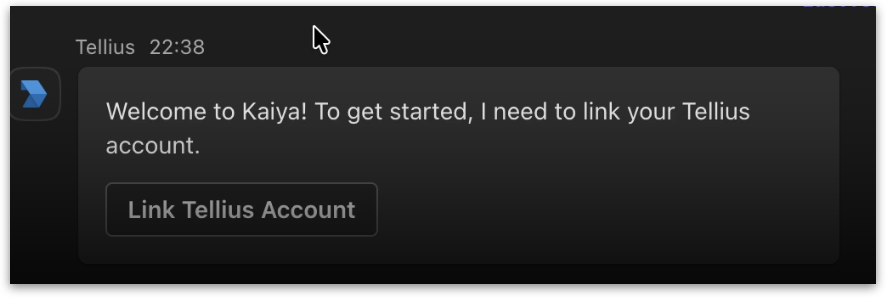
The Tellius bot responds with a welcome card containing the following message:
> *Welcome to Kaiya. To get started, I need to link your Tellius account.*
The card includes a button labeled **Link my Tellius account**. Click the button.
#### Step 3: Sign in to Tellius
A browser tab opens to the Tellius account-linking page.
* If you're already signed in to Tellius in that browser, the link completes immediately and you'll see a confirmation message.
* If you're not signed in, enter your Tellius credentials and click **Log in**. After sign-in, the link completes automatically and you'll see the same confirmation message.
Close the browser tab once you see the confirmation.
#### Step 4: Confirmation in Teams
Once you switch back to your Teams app, the bot will have posted a follow-up message confirming the link. You're ready to start asking questions.
### Using Tellius in Microsoft Teams
#### Where you can talk to the Tellius bot
There are three places where your team can interact with the Tellius bot in Microsoft Teams:
* **In a personal chat with the bot.** Click the Tellius icon in the app bar (or find it in your app list) to open a one-on-one chat with the bot. This is the most common usage pattern for individual analytical questions.
* **In a group chat.** Add the Tellius app to any group chat to let everyone in the conversation ask questions and see the answers.
* **In a Teams channel.** @mention the bot in any channel where it has been added, followed by your question.
#### Choosing a data source for your question
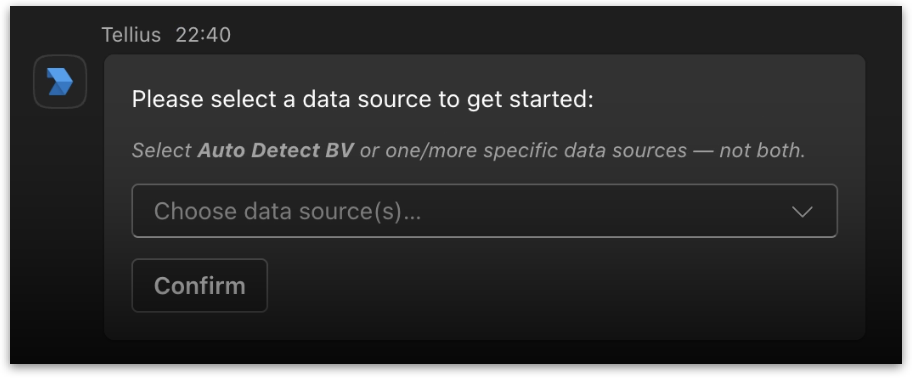
The first time you ask a question in a new conversation, Tellius asks you to **select a data source to get started** so it knows where to look for the answer.
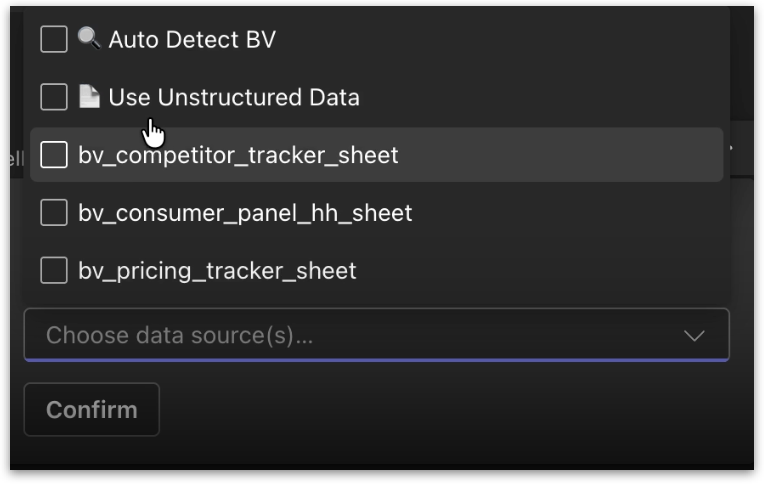
The card contains a multi-select checkbox list with two options at the top, followed by the list of Business Views you have access to. Once you've made your selection, click **Confirm**.
| Option | When to use it |
| ---------------------------- | ------------------------------------------------------------------------------------------------------------------------------------------------------------------------ |
| **🔍 Auto Detect BV** | Let Kaiya automatically select the most relevant Business View based on the wording of your question. This is the easiest option when you're not sure which BV to query. |
| **📄 Use Unstructured Data** | Search across uploaded documents (PDFs, text files, and so on) instead of running a structured query against a Business View. |
| **Specific Business Views** | Select one or more specific BVs from the list. Selecting multiple BVs at once enables Kaiya to query across them. |
{% hint style="info" %}
**Auto Detect BV and specific BVs are mutually exclusive.** You can either let Kaiya auto-detect a single BV, or you can manually pick one or more specific BVs, but not both at the same time. The Business Views shown in the picker are scoped to your user account, so you only see BVs you have permission to access.
{% endhint %}
#### Understanding the response format
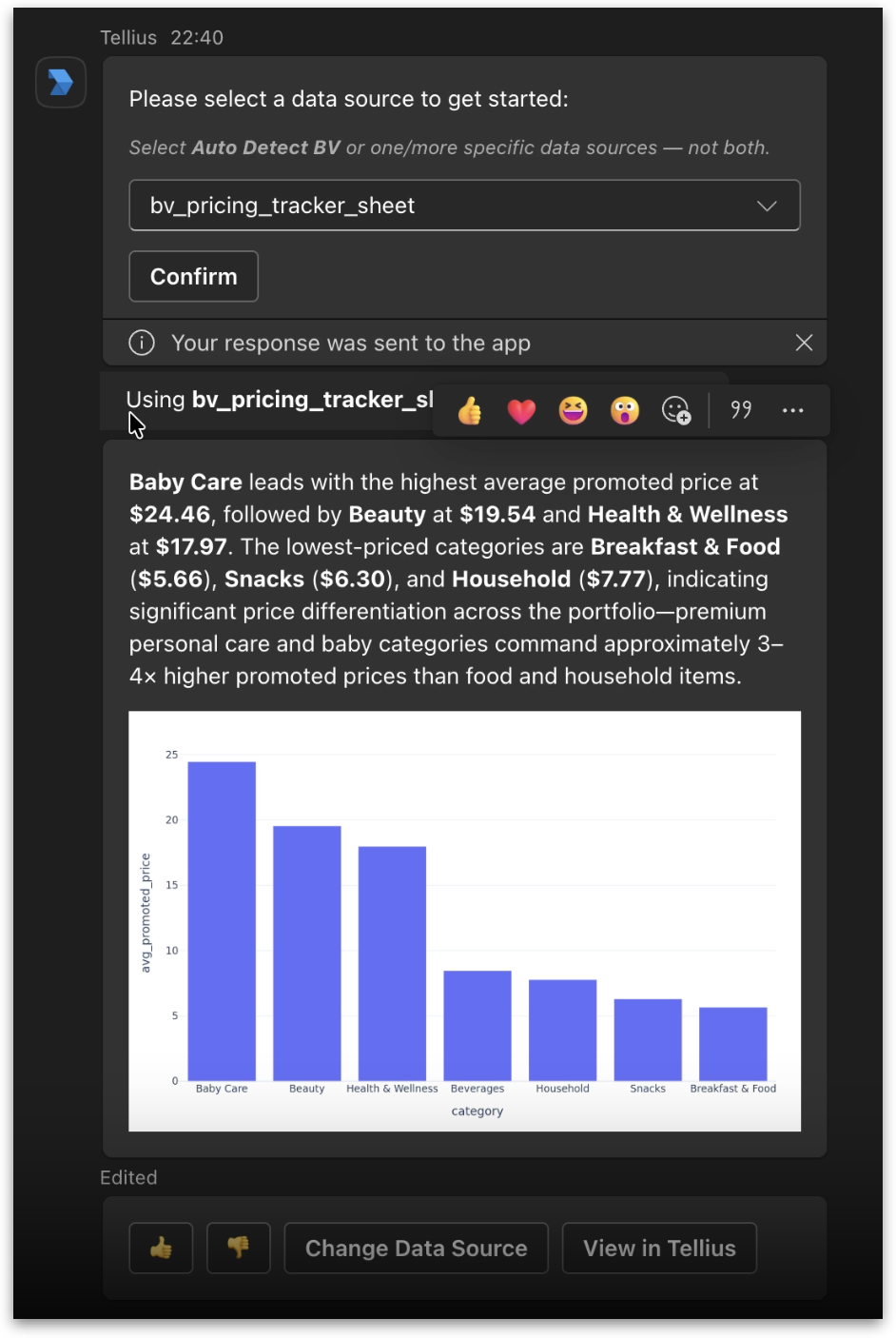
**For structured queries**, the card includes a text summary followed by a chart image. Tellius supports full markdown rendering in Teams, so tables, bold text, headers, lists, and other formatting all appear correctly (unlike Slack). If a response includes multiple charts, Teams supports the complete answer unrestricted.
**For unstructured queries**, the response is a text summary with citations to the source documents Tellius drew the answer from, with the same markdown support.
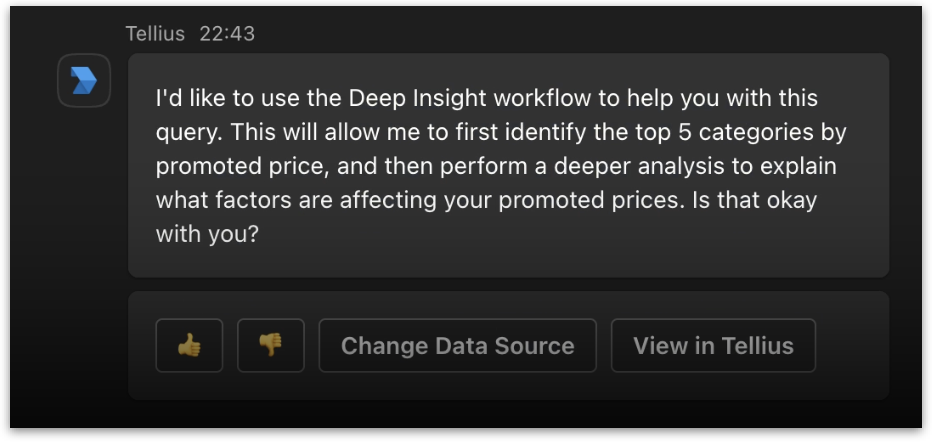
Below every response card, you'll see four action buttons: **👍**, **👎**, **Change Data Source**, **View in Tellius**.
Every response card includes a 👍 button and a 👎 button. Click either one to submit feedback on the response. **View in Tellius** button opens the same conversation in Tellius.
{% hint style="info" %}
When Tellius isn't sure exactly what you want, it asks a clarification question with a dropdown of predefined options. You can either select one of the offered options from the dropdown, or just reply with your own answer as a regular Teams message in the chat. Tellius will pick up your reply and continue the conversation.
{% endhint %}
#### Using Deep Insight for complex analytical questions
For certain analytical questions where a single SQL query isn't enough, Tellius offers to switch into a multi-step analytical workflow called **Deep Insight**. When this happens, Tellius posts a message:
To opt in, reply with **Yes** (in personal chat) or `@Tellius Yes` (in a channel or group chat). Tellius will then run a multi-step workflow with live progress updates as each step completes.
#### Switching data sources mid-conversation
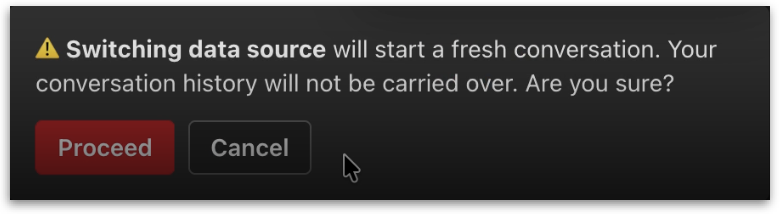
Because Microsoft Teams does not have the concept of threads, every response includes a **Change Data Source** button. This is how you switch from one Business View to another within an ongoing conversation in Teams.
When you switch the data source, Kaiya will start a fresh conversation. Your conversation history will not be carried over. To create a new internal conversation thread, choose a new BV to proceed.
---
# Agent Instructions
This documentation is published with GitBook. GitBook is the documentation platform designed so that both humans and AI agents can read, navigate, and reason over technical content effectively. Learn more at gitbook.com.
## Querying This Documentation
If you need additional information that is not directly available in this page, you can query the documentation by asking a question.
Perform an HTTP GET request on the following URL with the `ask` and `goal` query parameters:
```
GET https://help.tellius.com/settings/administration/teams-integration/using-kaiya-in-teams.md?ask=&goal=
```
`ask` is the immediate question: it should be specific, self-contained, and written in natural language.
`goal` is what the user is ultimately trying to achieve, the reason they need the answer. Sharing it helps GitBook give you a better, more relevant answer. A goal is most helpful when it describes the outcome the user wants rather than restating the question. For example, with `ask=how do I create an API token`, a goal like `automate deployments from our CI pipeline` lets GitBook tailor the answer to that use case.
The response will contain a direct answer to the question and relevant excerpts and sources from the documentation.
Use this mechanism when the answer is not explicitly present in the current page, you need clarification or additional context, or you want to retrieve related documentation sections.