> For the complete documentation index, see [llms.txt](https://help.tellius.com/llms.txt). Markdown versions of documentation pages are available by appending `.md` to page URLs; this page is available as [Markdown](https://help.tellius.com/settings/enabled-modules.md).
# Enabled Modules
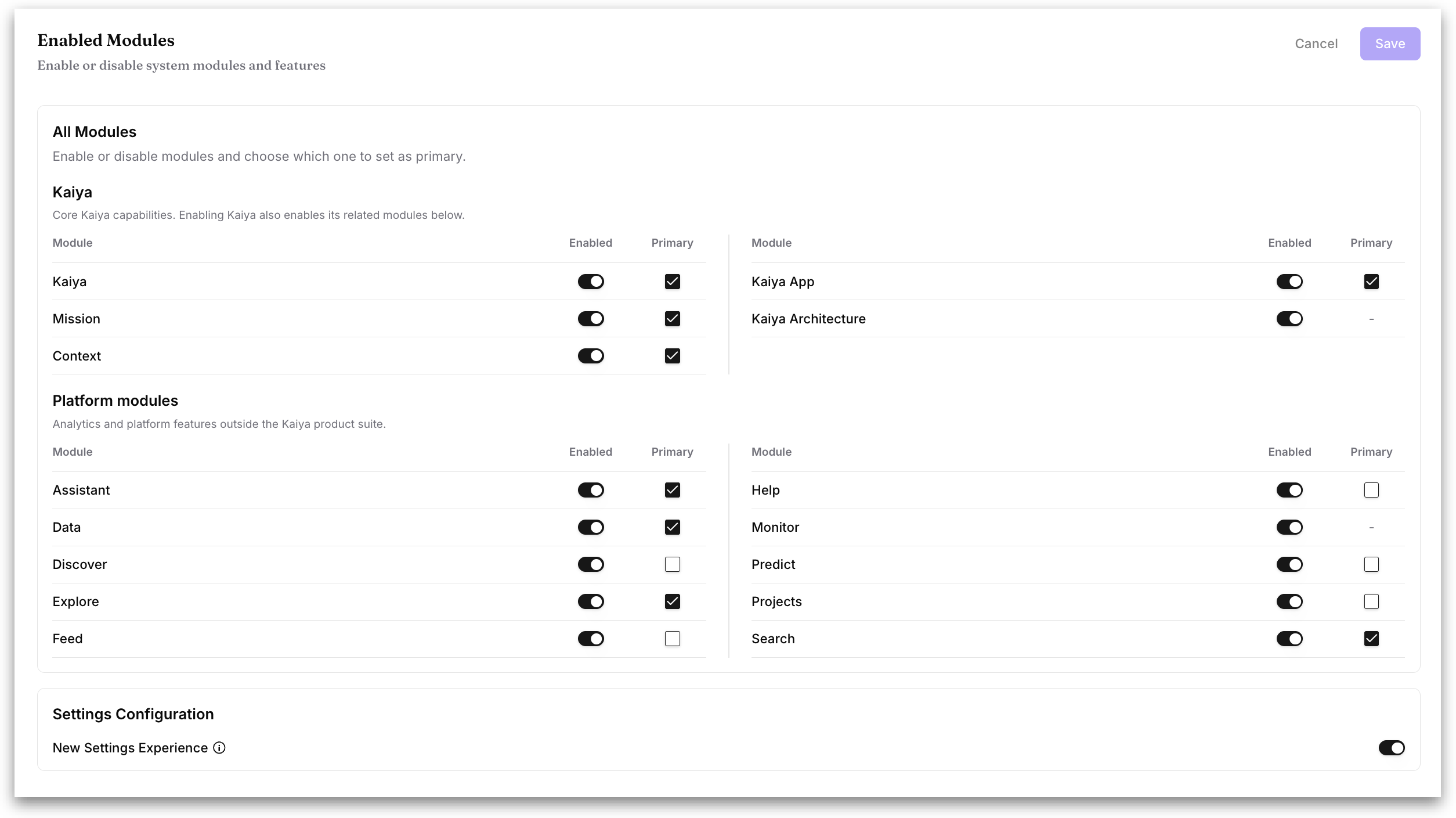
Under **Settings → Modules → Enabled Modules**, admins can control which parts of Tellius are available in your workspace and which of them users land on first.
Turning a module off does more than hide it. The module stops appearing in the sidebar and becomes inaccessible, and Tellius adjusts navigation around what remains. If **Search** is disabled, for example, **Home** redirects to **Kaiya** instead. Disabling does not delete any content the module holds.
Each module has two independent controls:
**Enabled:** a toggle deciding whether the module is available and visible in the workspace at all.
**Primary:** a checkbox that decides whether the module appears in the main sidebar. Primary modules sit at the top of the sidebar with their icons, visible as soon as it opens. Everything else is collapsed under the **More** dropdown at the bottom, and users click it to reach the rest. You can mark as many modules as primary as you like.
When a module's **Enabled** toggle is off, its **Primary** checkbox greys out and cannot be ticked, because a module that isn't available can't be an entry point.
{% hint style="warning" %}
Enabling Kaiya also enables its related modules listed in this group. Every module can be made primary except **Kaiya Architect** and **Monitor**. Neither is navigated to from the main module list, so they are always reached through the **More** dropdown.
{% endhint %}
{% hint style="info" %}
Turning **Context** off hides the Context module workspace-wide. This is a different control from **Kaiya Context Settings** under **Intelligence → Kaiya & AI**, which sets the minimum role required to see **Context** while it is enabled. Use this toggle to switch the module on or off entirely; use Kaiya Context Settings to limit who sees it.
{% endhint %}
### Kaiya group
Core Kaiya capabilities. Enabling Kaiya also enables the other modules in this group.
* **Kaiya:** the conversational AI assistant.
* **Mission:** scheduled analysis that runs on its own and delivers finished work.
* **Context:** the workspace where you set up the Learnings and Skills Kaiya draws on, including query Learnings and phrase Learnings.
* **Kaiya App:** AI-generated Apps built through Kaiya.
* **Kaiya Architect:** conversational data preparation and modeling for Business Views.
### Platform modules
Analytics and platform features outside the Kaiya product suite.
* **Assistant:** the Tellius Digital Assistant.
* **Data:** datasets, connections, and Business Views.
* **Discover:** automated Insights, where Tellius surfaces drivers, trends, and comparisons from your data.
* **Explore:** Vizpads and visual analysis.
* **Feed:** the observations feed that detects anomalies and sends alerts.
* **Help:** in-product help and documentation links.
* **Monitor:** system health and resource utilization.
* **Predict:** machine learning models, including segments, predictors, and paths
* **Projects:** grouped collections of artifacts.
* **Search:** natural language search.
**New Settings Experience:** Controls which version of the Settings interface users get. When **on**, the standard entry points open the redesigned Settings. When **off**, users are routed to the legacy Settings pages and classic navigation instead.
Click **Save** to apply your changes, or **Cancel** to discard them. Save stays inactive until something changes.
{% hint style="info" %}
Recheck the Primary modules once because a workspace with no reachable primary module leaves users with nowhere sensible to land.
{% endhint %}
---
# Agent Instructions
This documentation is published with GitBook. GitBook is the documentation platform designed so that both humans and AI agents can read, navigate, and reason over technical content effectively. Learn more at gitbook.com.
## Querying This Documentation
If you need additional information that is not directly available in this page, you can query the documentation by asking a question.
Perform an HTTP GET request on the following URL with the `ask` and `goal` query parameters:
```
GET https://help.tellius.com/settings/enabled-modules.md?ask=&goal=
```
`ask` is the immediate question: it should be specific, self-contained, and written in natural language.
`goal` is what the user is ultimately trying to achieve, the reason they need the answer. Sharing it helps GitBook give you a better, more relevant answer. A goal is most helpful when it describes the outcome the user wants rather than restating the question. For example, with `ask=how do I create an API token`, a goal like `automate deployments from our CI pipeline` lets GitBook tailor the answer to that use case.
The response will contain a direct answer to the question and relevant excerpts and sources from the documentation.
Use this mechanism when the answer is not explicitly present in the current page, you need clarification or additional context, or you want to retrieve related documentation sections.