> For the complete documentation index, see [llms.txt](https://help.tellius.com/llms.txt). Markdown versions of documentation pages are available by appending `.md` to page URLs; this page is available as [Markdown](https://help.tellius.com/settings/security/security-policies.md).
# Security Policies
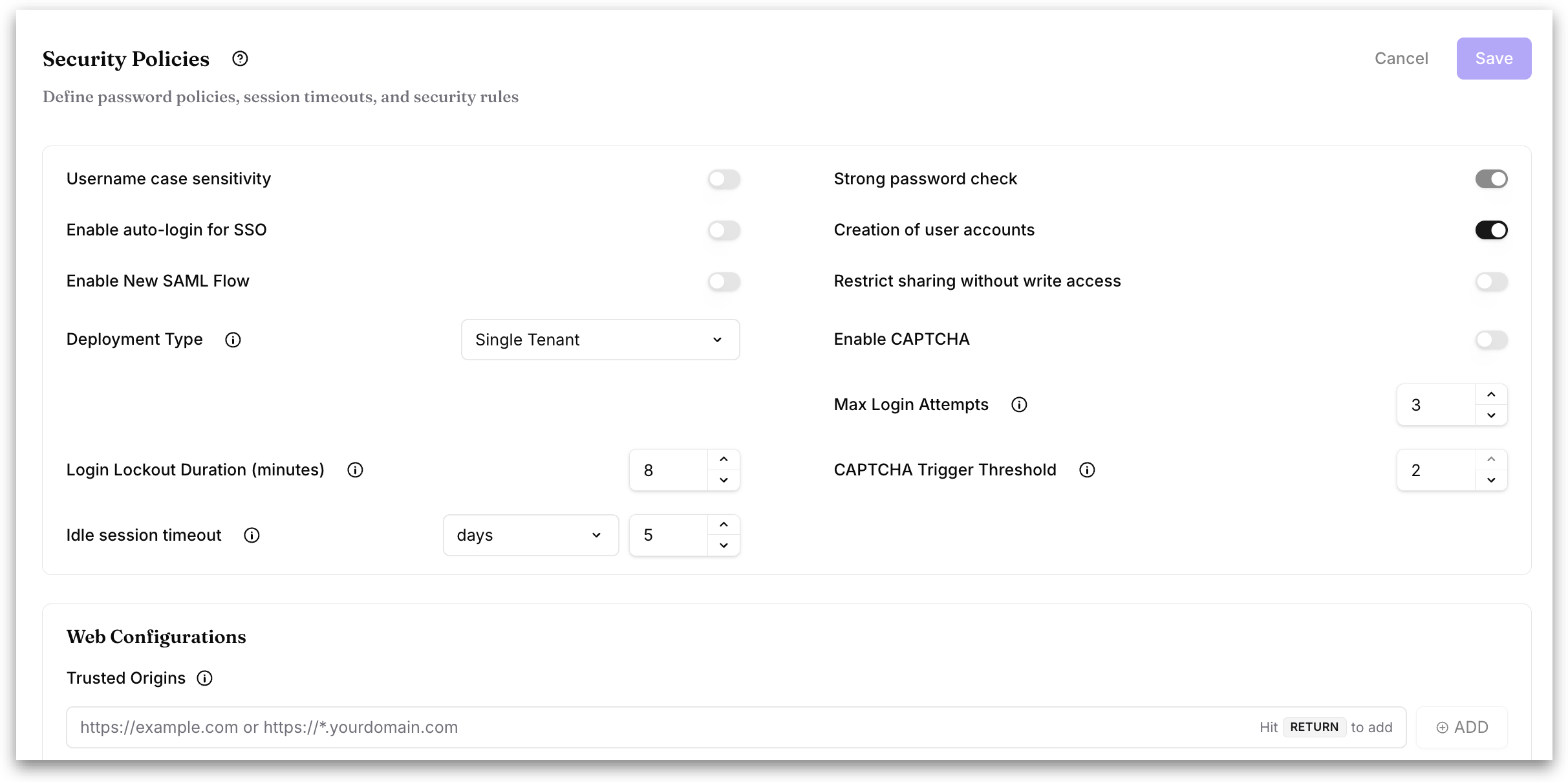
Under **Settings → Workspace → Security → Security Policies** page lets admins define password rules, session timeouts, login protection, and trusted sources for embedding content across the entire Tellius environment.
**Username case sensitivity:** Determines whether usernames are treated as case-sensitive. If enabled, `JohnDoe` and `johndoe` are treated as two different users.
**Strong password check:** Requires users to create secure passwords using rules such as a minimum length, special characters, upper- and lower-case letters, and numbers.
**Enable auto-login for SSO:** Automatically signs users in through their SSO provider for a smoother experience.
* If enabled, users are redirected and signed in through their SSO (for example, Okta or Azure AD) without clicking **"Login"**.
* If disabled, users must start the login manually even when SSO is configured.
**Creation of user accounts:** Controls whether new user accounts can be created in Tellius.
* If enabled, accounts can be auto-provisioned (for example, on first SSO login) or created manually by admins.
* If disabled, only existing accounts can log in, and no new user profiles are created.
**Enable New SAML Flow:** Turns on Tellius's newer SAML authentication flow. Leave this off unless your SAML setup requires it.
**Restrict sharing without write access:** Prevents users who lack write permissions from sharing content.
* If enabled, only users with write access can share Vizpads, Insights, and similar objects.
* If disabled, all users, including view-only users, can share content.
**Deployment Type:** Sets the tenancy mode for this environment. Two options are available: Single Tenant and Multi Tenant. Selecting Multi Tenant disables sharing completely and restricts the user list API so that only admins and super users can access it. Single Tenant is the standard mode without those restrictions.
* **Single Tenant:** choose this for a normal deployment where people collaborate. Users can share Vizpads, Insights, and other content with each other, and the user list is available as usual.
* **Multi Tenant:** choose this when users must be walled off from one another, for example an embedded/OEM setup where one Tellius instance serves multiple end customers who should never see each other's content or be able to enumerate other users through the API.
**Enable CAPTCHA:** When enabled, Tellius shows a CAPTCHA challenge during login to help block automated login attempts.
**Max Login Attempts:** The maximum number of consecutive failed login attempts allowed before the account is temporarily locked. Must be between 1 and 10.
**Login Lockout Duration (minutes):** The length of time, in minutes, a user is locked out after exceeding the maximum number of failed login attempts. The lockout resets after this period.
**CAPTCHA Trigger Threshold:** The number of failed login attempts after which a CAPTCHA challenge is presented. Must be less than or equal to **Max Login Attempts**. Applies when **Enable CAPTCHA** is turned on.
**Idle session timeout:** Automatically logs users out after a period of inactivity to protect sensitive data. Set both the value and the time unit (minutes, hours, or days). The minimum allowed is 15 minutes and the maximum is 7 days.
#### Web Configurations
**Trusted Origins:** A list of approved domains allowed to embed or interact with Tellius content, such as internal web apps, authorized cloud services, or localhost addresses. Only these domains can securely interact with Tellius through embedded Vizpads or APIs.
The URLs you add here are used to validate CORS and Frame Ancestor Origins.
* **CORS (Cross-Origin Resource Sharing)** controls whether one website is allowed to use resources from a different website (which external origins may call Tellius resources).
* **Frame Ancestor Origins** specify which sites are allowed to embed Tellius (for example, inside an iframe).
To add an origin, type a fully qualified domain (for example, `https://embed.tellius.com` or `https://*.yourdomain.com`) into the field, then press **Return** or click **ADD**. Each added origin appears as a chip below the field; click the **X** on a chip to remove that origin.
Click **Save** to apply all changes, or **Cancel** to discard them. Changes are applied immediately and may affect session behavior, user access, and embedding permissions across Tellius.
---
# Agent Instructions
This documentation is published with GitBook. GitBook is the documentation platform designed so that both humans and AI agents can read, navigate, and reason over technical content effectively. Learn more at gitbook.com.
## Querying This Documentation
If you need additional information that is not directly available in this page, you can query the documentation by asking a question.
Perform an HTTP GET request on the following URL with the `ask` and `goal` query parameters:
```
GET https://help.tellius.com/settings/security/security-policies.md?ask=&goal=
```
`ask` is the immediate question: it should be specific, self-contained, and written in natural language.
`goal` is what the user is ultimately trying to achieve, the reason they need the answer. Sharing it helps GitBook give you a better, more relevant answer. A goal is most helpful when it describes the outcome the user wants rather than restating the question. For example, with `ask=how do I create an API token`, a goal like `automate deployments from our CI pipeline` lets GitBook tailor the answer to that use case.
The response will contain a direct answer to the question and relevant excerpts and sources from the documentation.
Use this mechanism when the answer is not explicitly present in the current page, you need clarification or additional context, or you want to retrieve related documentation sections.