> For the complete documentation index, see [llms.txt](https://help.tellius.com/llms.txt). Markdown versions of documentation pages are available by appending `.md` to page URLs; this page is available as [Markdown](https://help.tellius.com/tellius-5.4/data/create-new-datasource/connecting-to-looker-sql-interface.md).
# Connecting to Looker SQL Interface
Setting up the Looker SQL interface on Tellius
## **Setting up and testing the connection**
This section guides you through the essential steps to set up and test your connection in the Looker SQL Interface, ensuring a smooth and successful integration.
### **Prerequisites**
* An active account in the Looker console.
* Ensure your Looker instance is running on version 23.6 or later.
* Activation of the SQL Interface feature on your Looker instance.
* Enable the **SQL Interface Labs** feature on your Looker instance.
* The SQL Interface currently supports only BigQuery connections.
* Users connecting to Looker should at least have **Explore** permission.
### **Limitations**
* Joins aren't supported.
* Timezones aren't supported presently.
* Certain data types, including Geography, JSON, and Time are not supported. Use Timestamp or Datetime for Time.
* Data definition, manipulation, and control are not available.
* Although majority of operators used in BigQuery are supported, some operators and functions available in BigQuery may not be supported identically in Looker.
### **Pre-connection checks**
Before diving into the connection setup, it's crucial to perform preliminary checks to ensure that your database connections are correctly configured and functioning as expected.
* Test the database connections independently of Looker.
* Use a database management tool or a simple script to ensure that the database is accessible and responding to queries.
### **Establishing the connection**
* Connect to the database by entering the necessary connection details such as host URL, port, database name, username, and password in [this link](https://tellius.cloud.looker.com/admin/next/connections).
* Once the connection is established, test the connection using the **"Test connection"** feature in Looker. Look out for confirmation messages or any error logs that might indicate issues.
### **Creating and configuring a Looker Project**
* From the Looker dashboard, create a new Looker Project.
* Connect to the database that was configured in the previous section.
* Save the connection and verify that it has been successfully added to your project.
## **Troubleshooting**
If you encounter issues during the testing phase, consider reviewing all entered connection details for accuracy and ensure that the Looker instance can reach the database server over the network.
### **Authenticating to the Looker SQL Interface**
In Tellius, connection to Looker is established through a JDBC driver rather than direct API calls. For this authentication, users are required to enter the host, client ID, and client secret details.
#### **API keys**
This method involves using API keys as direct credentials. It may only be available during the preview of the SQL Interface.
{% hint style="info" %}
API keys method may not be available beyond the Beta Testing phase.
{% endhint %}
### **Generating API keys for Looker user**
* In Looker, click on **Users** under **Users** in the left pane. The list of user accounts will be displayed.
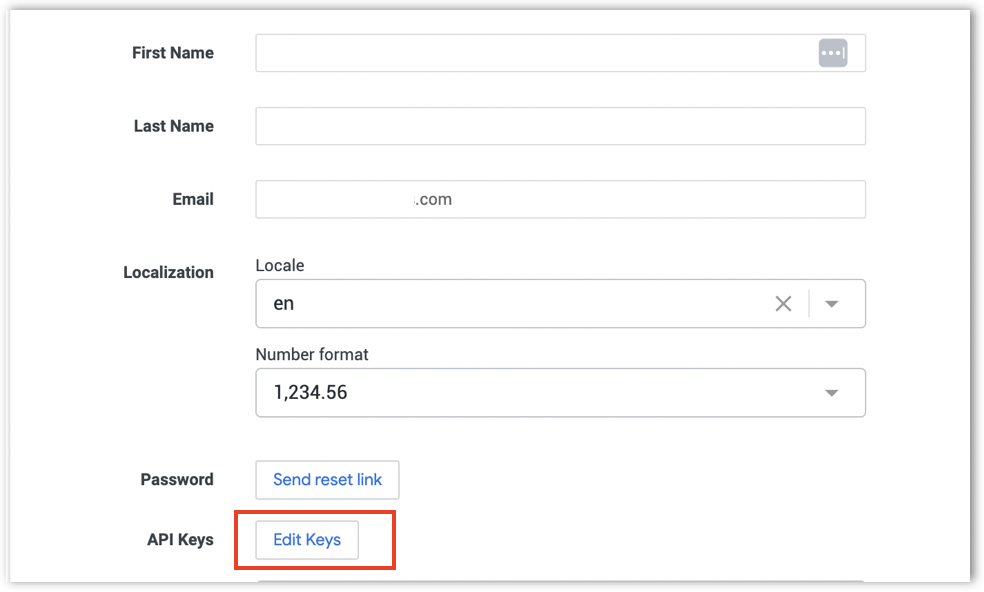
* Select the required Looker user and click on the **Edit Keys** button next to **API keys**.
Editing API keys
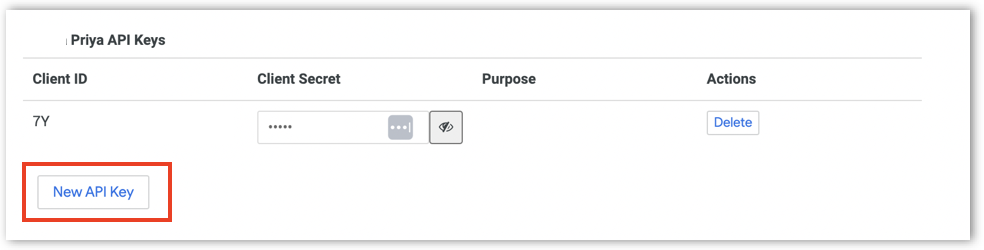
* If the keys are already generated, then the client ID and client secret will be displayed. If you want to generate a new pair of keys, click on "**New API key**".
New API Keys
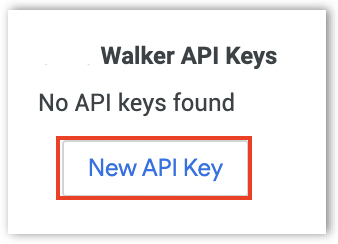
* If there are no existing keys, then "*No API keys found*" will be displayed. Click on "**New API key**" to create new keys.
Creating new API keys
* Copy the **Client ID** and **Client Secret** as they will be required while connecting from Tellius.
* Use the client ID as your username and the client secret as your password.
{% hint style="info" %}
It's recommended to use dedicated user accounts for API scripts for better security and control.
{% endhint %}
### **Getting the Host URL**
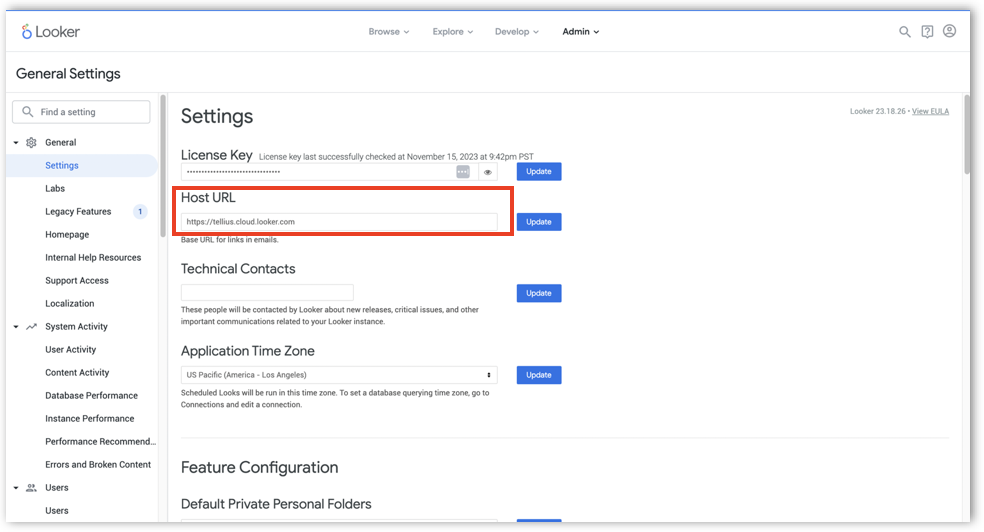
* Navigate to **General → Settings → Host URL** to obtain the host URL.
Getting the host URL
* Copy the **Host URL** as it will be required while connecting from Tellius.
## **Connecting to Looker from Tellius**
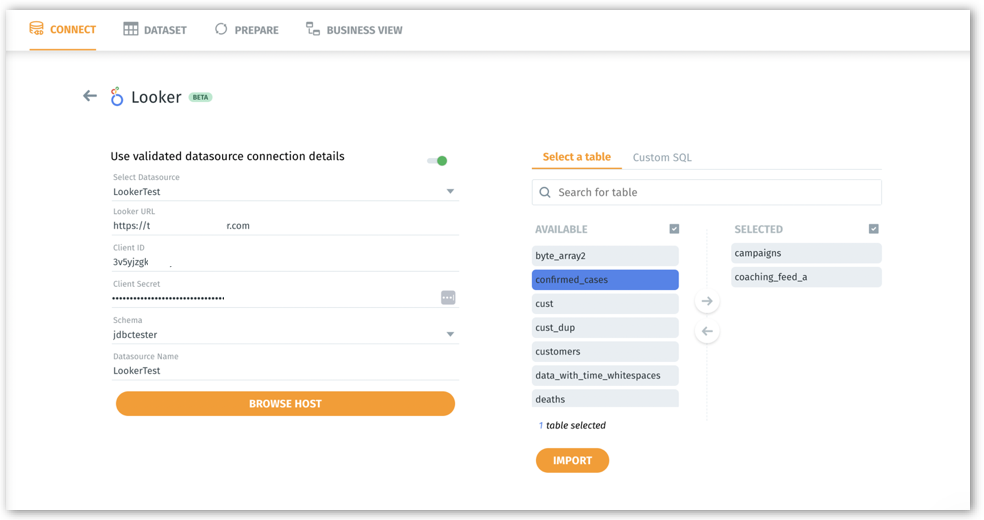
1. From Tellius interface, navigate to **Data → Connect → Create new** and select **Looker**.
2. Enable **Use validated datasource connection details** if you've already established a connection and want to reuse the same details.
3. Choose the required **Datasource** from the list of already established connections.
4. Click on **Save and Browse Host**.
5. If you're connecting for the first time,
1. Enter the **Looker URL, Client ID**, and **Client Secret** obtained from the Looker interface.
2. Provide the name of the **Datasource** which needs to be loaded.
3. Click on **Browse Host**.
6. The list of tables will be displayed under **Select a table** tab.
7. Select the required tables and click on the **→** button to move to the Selected box.
8. Using the search bar, you can easily search for table names. The number of selected tables will be displayed beneath the table list.
9. Click on **Import** to import the selected tables.
Configuring Looker on Tellius
---
# Agent Instructions
This documentation is published with GitBook. GitBook is the documentation platform designed so that both humans and AI agents can read, navigate, and reason over technical content effectively. Learn more at gitbook.com.
## Querying This Documentation
If you need additional information that is not directly available in this page, you can query the documentation by asking a question.
Perform an HTTP GET request on the following URL with the `ask` and `goal` query parameters:
```
GET https://help.tellius.com/tellius-5.4/data/create-new-datasource/connecting-to-looker-sql-interface.md?ask=&goal=
```
`ask` is the immediate question: it should be specific, self-contained, and written in natural language.
`goal` is what the user is ultimately trying to achieve, the reason they need the answer. Sharing it helps GitBook give you a better, more relevant answer. A goal is most helpful when it describes the outcome the user wants rather than restating the question. For example, with `ask=how do I create an API token`, a goal like `automate deployments from our CI pipeline` lets GitBook tailor the answer to that use case.
The response will contain a direct answer to the question and relevant excerpts and sources from the documentation.
Use this mechanism when the answer is not explicitly present in the current page, you need clarification or additional context, or you want to retrieve related documentation sections.