> For the complete documentation index, see [llms.txt](https://help.tellius.com/llms.txt). Markdown versions of documentation pages are available by appending `.md` to page URLs; this page is available as [Markdown](https://help.tellius.com/tellius-5.4/data/create-new-datasource/connecting-to-snowflake/integrating-snowflake-with-okta-via-oauth.md).
# Integrating Snowflake with Okta via OAuth
Integrate Snowflake with Okta via OAuth in Tellius—configure OIDC apps, scopes, claims, and security settings for secure, token-based authentication and data access.
This guide will walk you through the steps to integrate Okta with Tellius for Snowflake.
### **1. Navigating to the Okta Admin Page**
Start by navigating to your Okta Admin page.
### **2. Creating a New Application**
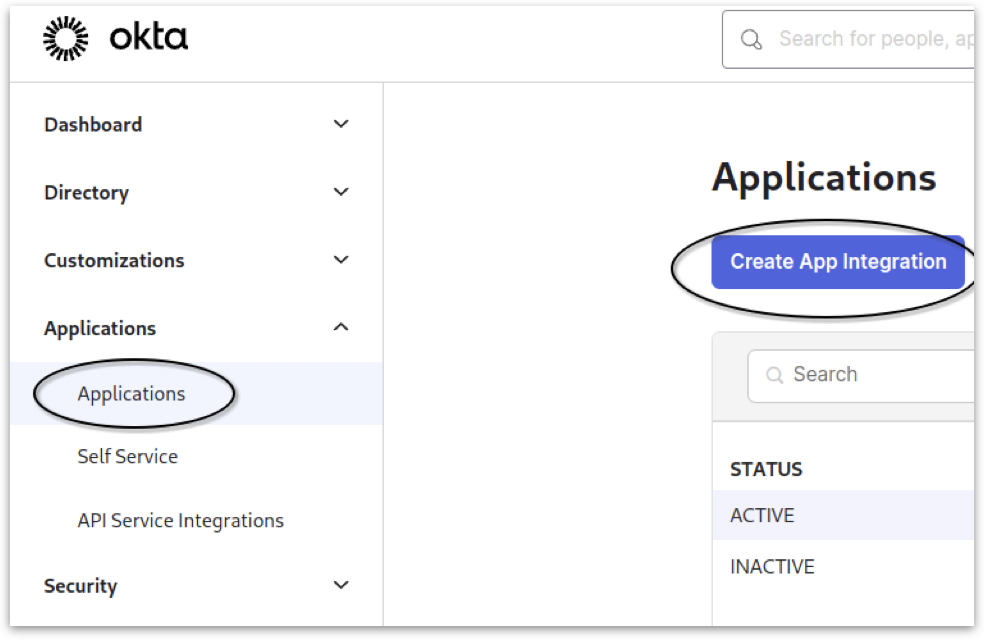
* Navigate to **Applications** from the main menu.
* Select **Applications** from the dropdown and click on **Create App Integration.**
Creating a new application
### **3. Configuring Application Settings**
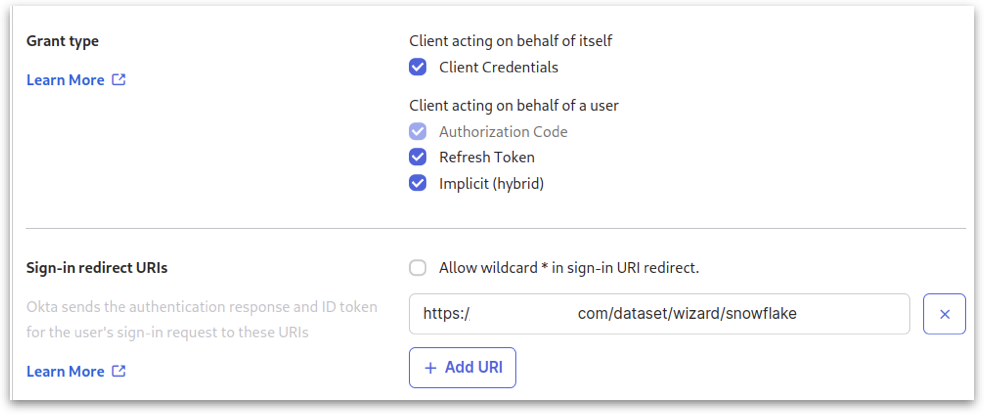
* From the available options, choose **OIDC - OpenID Connect -->** **Web Application**.
* In the **Grant type** options, click on all the available checkboxes and specify the necessary redirect URL(s). More than one URL can be specified.
Configuring application settings
### **4. Assignments and Saving**
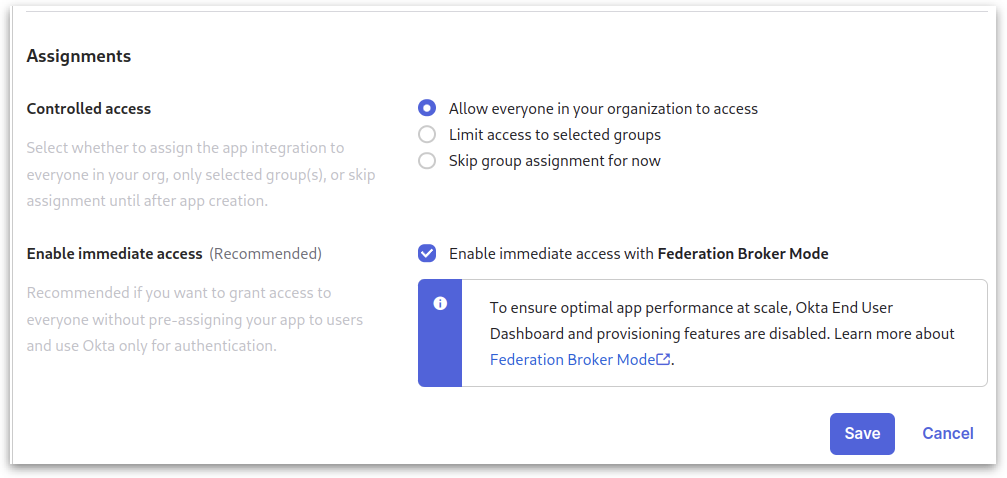
* Under **Assignments**, click on **Allow everyone in your organization to access** option.
* Click on **Save**.
Assignments
### **5. Getting Client ID and Secret**
* After saving, open the application you just created.
* Note down the **Client ID** and **Client Secret** for future reference.
### **6. Setting Up Security API**
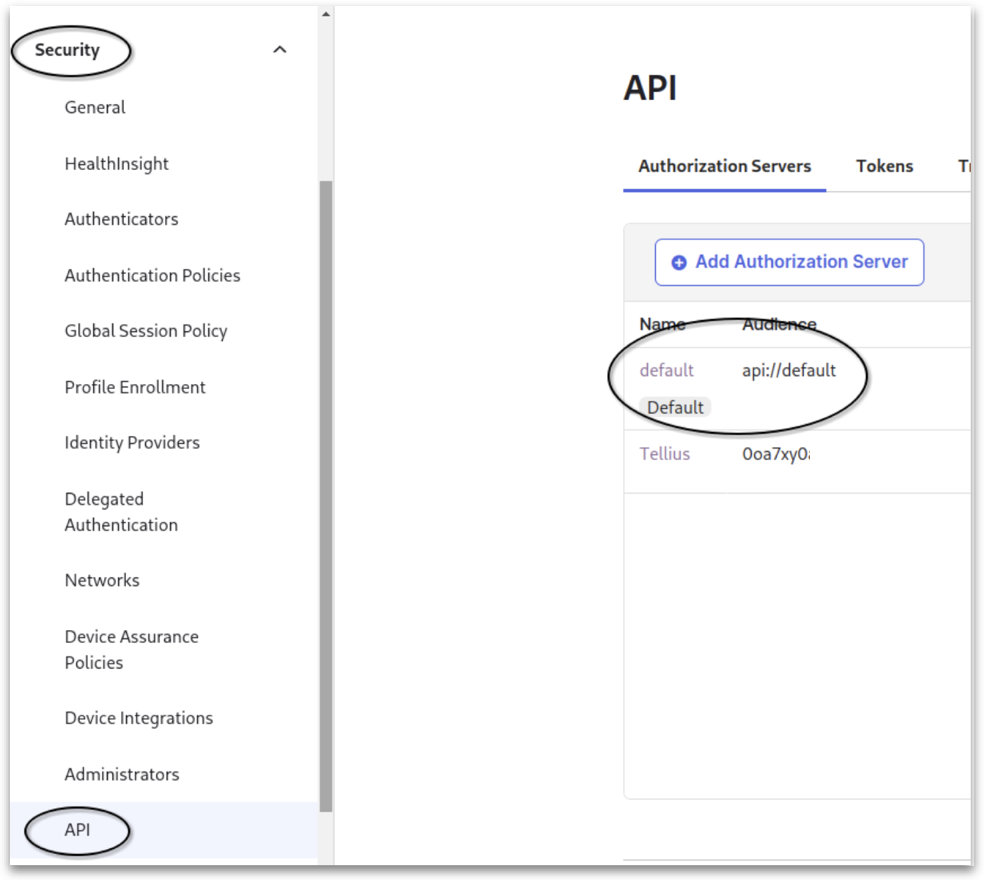
* Navigate to **Security** from the main menu.
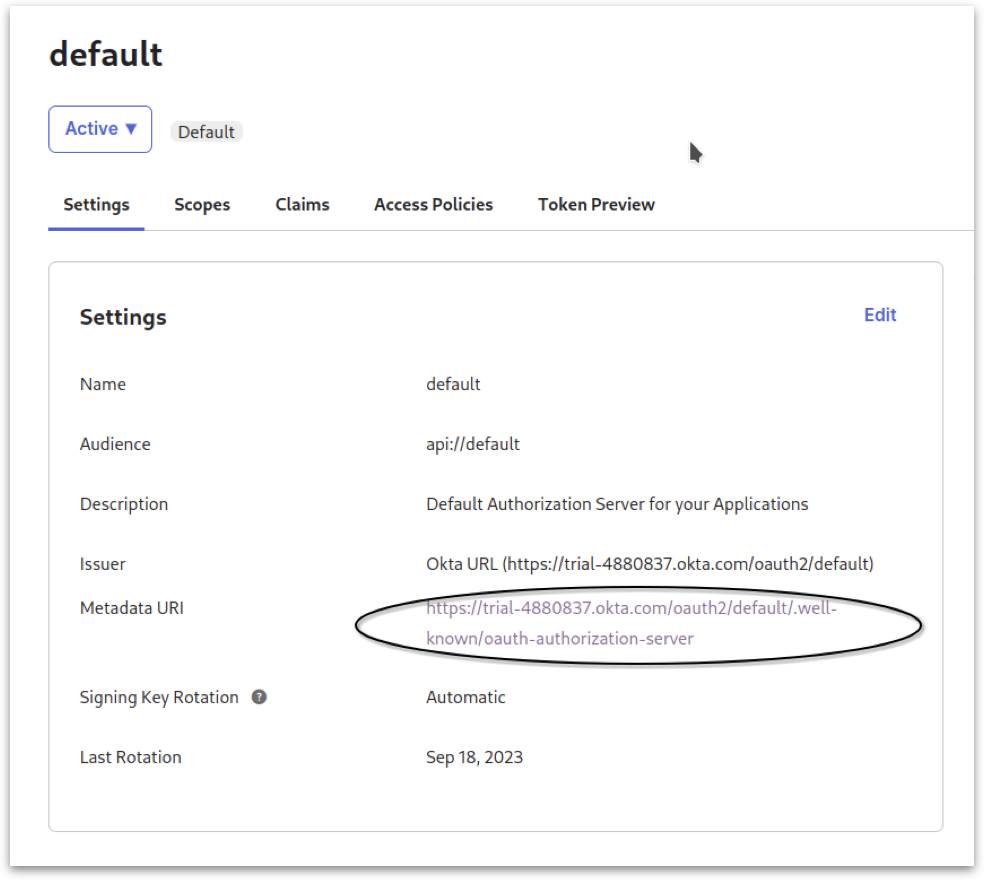
* Select **API -> default**.
Security API
* Click on **Metadata URI**. A new window will pop up.
Metadata URI
* Note down the following details from the output and close the window:
* issuer
* authorization\_endpoint
* token\_endpoint
* jwks\_uri
### **7. Configuring Scopes and Claims**
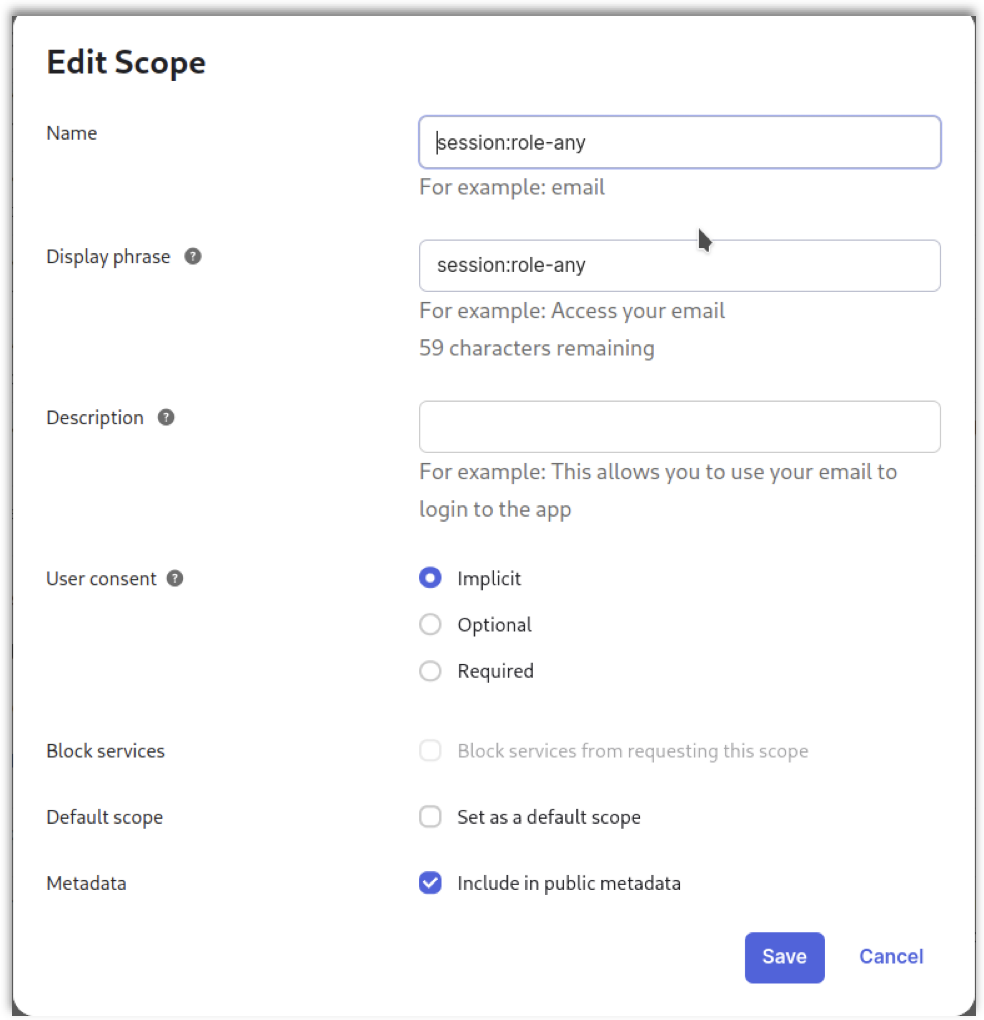
* Go to the **Scopes** tab and create a new scope named *session:role-any*.
* Click on **Implicit** for **User consent**.
* Under **Metadata**, click on the **Include in public metadata**
Editing scope
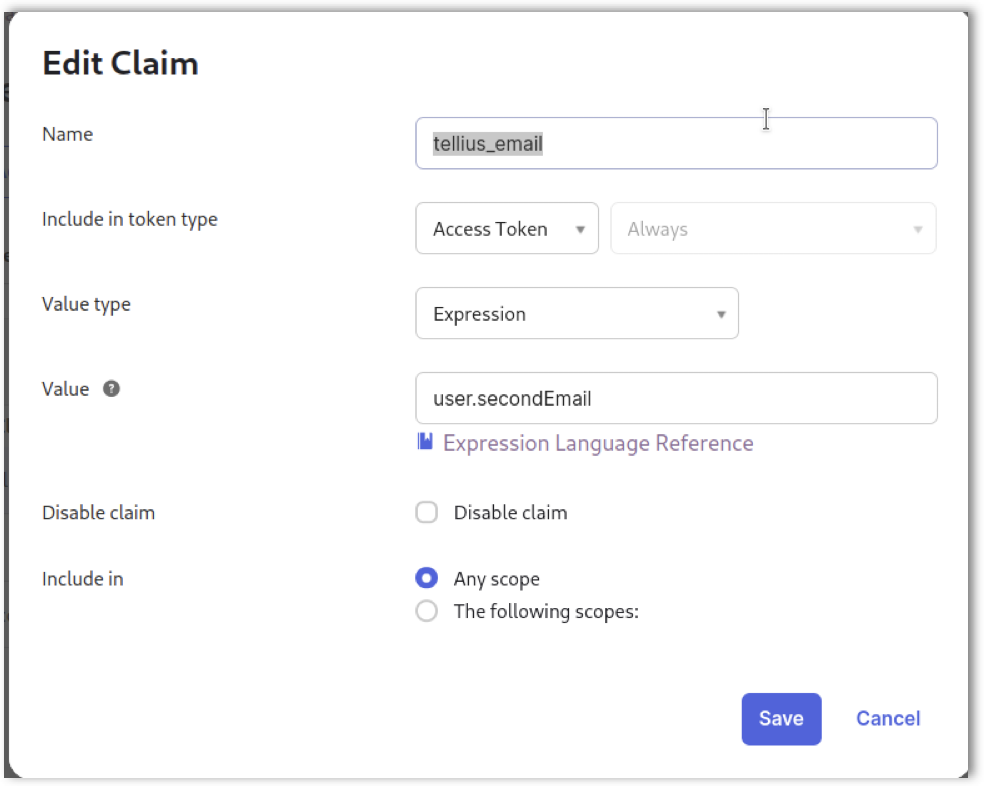
* Navigate to **Claims** and add a new claim called *tellius\_email*.
Editing claims
### **8. Updating User Settings**
* Open a new browser tab and access the **User Settings.**
* Update the secondary email to **.
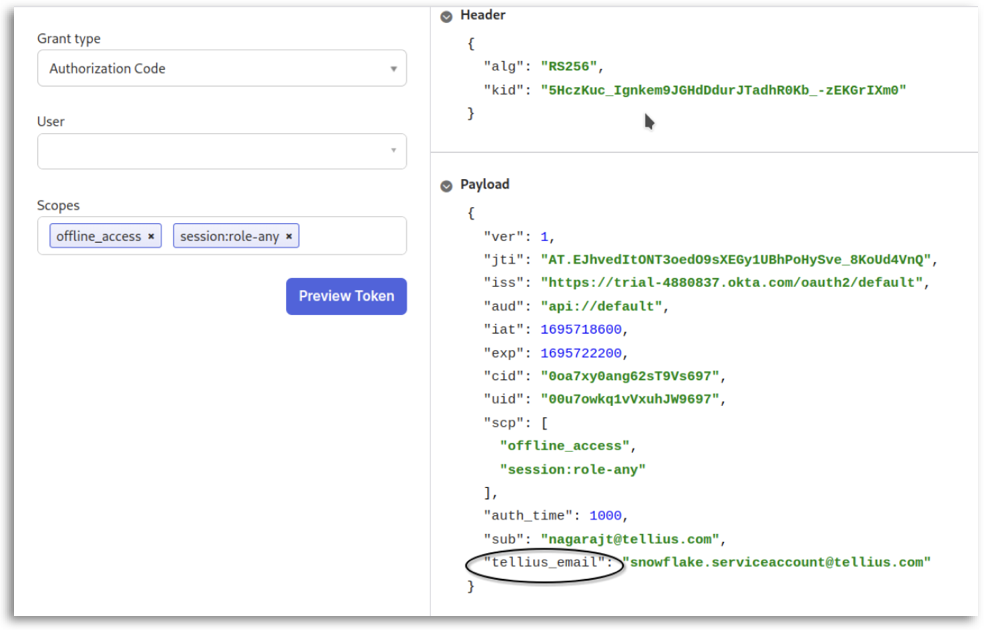
* Return to the previous browser tab and navigate to **Token Preview**. Validate the token to ensure it contains the *tellius\_email* value set as the secondary email.
Updating user settings
### **9. Configuring Snowflake Console**
Switch to your Snowflake console and execute the following commands:
```sql
create security integration external_oauth_okta
type = external_oauth
enabled = true
external_oauth_type = okta
external_oauth_any_role_mode = 'ENABLE'
external_oauth_issuer = ''
external_oauth_jws_keys_url = ''
external_oauth_audience_list = ('api://default')
external_oauth_token_user_mapping_claim = 'tellius_email'
external_oauth_snowflake_user_mapping_attribute = 'EMAIL_ADDRESS';
```
Replace *\* and *\* with the values you noted down earlier.
### **10. Connecting to Tellius**
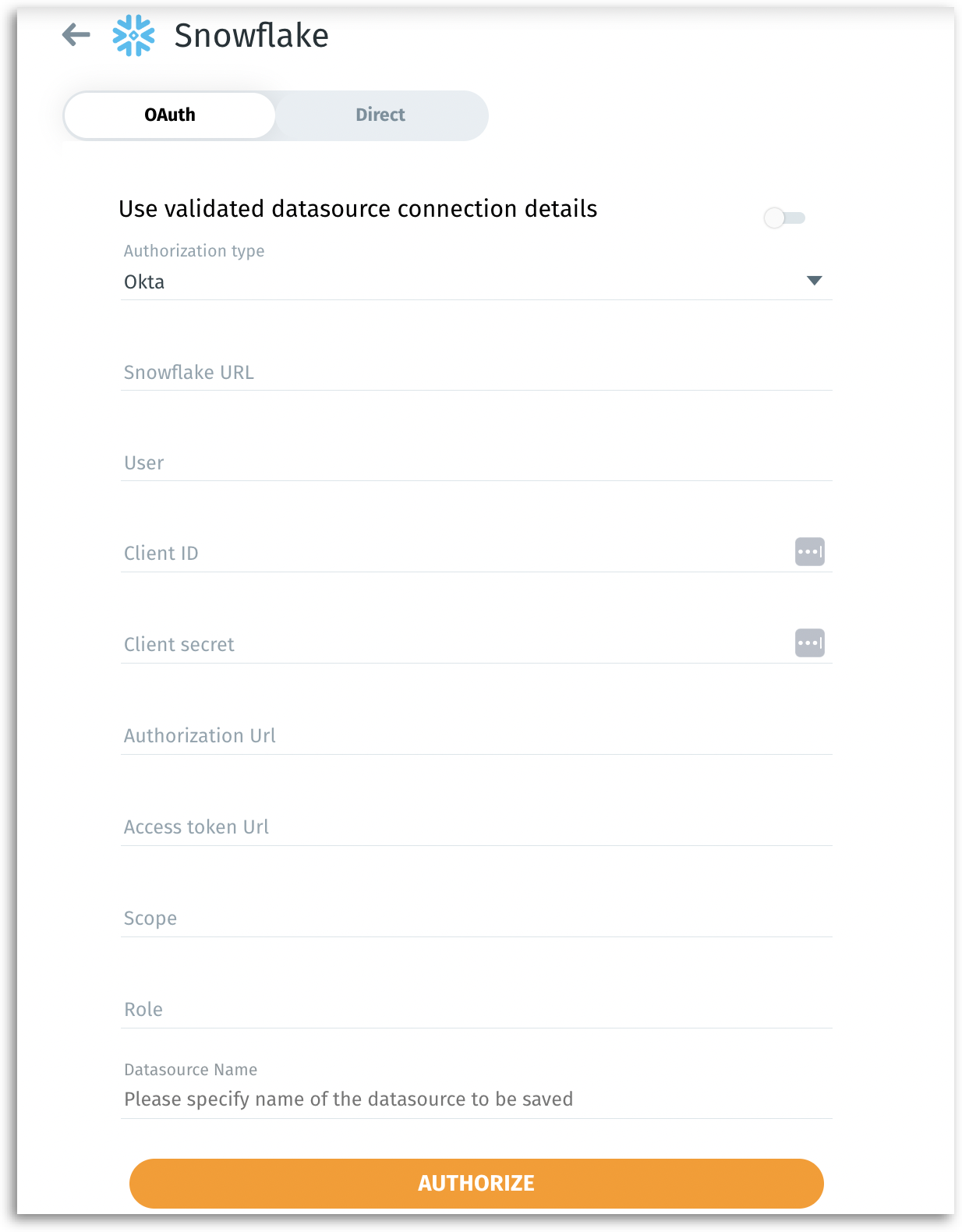
1. With the above configurations completed, you're all set to connect to Tellius.
2. In Tellius, navigate to **Data --> Connect --> Create new --> Snowflake --> OAuth**.
3. Select **Okta** as the **Authorization type** from the dropdown.
4. For the remaining fields, enter the details as follows:
Configuring Snowflake in Tellius
* **Snowflake URL:** telliuspartner.snowflakecomputing.com
* **User:** TELLIUS\_PROD\_TESTING
* **Client ID:** (Use the Client ID from [this section](https://help.tellius.com/tellius-5.4/data/create-new-datasource/connecting-to-snowflake/oauth-support-for-snowflake#setting-up-oauth-configuration-in-snowflake))
* **Client Secret:** (Use the Client Secret from [this section](https://help.tellius.com/tellius-5.4/data/create-new-datasource/connecting-to-snowflake/integrating-snowflake-with-okta-via-oauth#id-5.-getting-client-id-and-secret))
* **Authorization URL:** (Use the authorization\_endpoint from [this section](https://help.tellius.com/tellius-5.4/data/create-new-datasource/connecting-to-snowflake/oauth-support-for-snowflake#setting-up-oauth-configuration-in-snowflake))
* **Access Token URL:** (Use the token\_endpoint from [this section](https://help.tellius.com/tellius-5.4/data/create-new-datasource/connecting-to-snowflake/oauth-support-for-snowflake#getting-access-token))
* **Scope:** offline\_access session:role-any
---
# Agent Instructions
This documentation is published with GitBook. GitBook is the documentation platform designed so that both humans and AI agents can read, navigate, and reason over technical content effectively. Learn more at gitbook.com.
## Querying This Documentation
If you need additional information that is not directly available in this page, you can query the documentation by asking a question.
Perform an HTTP GET request on the following URL with the `ask` and `goal` query parameters:
```
GET https://help.tellius.com/tellius-5.4/data/create-new-datasource/connecting-to-snowflake/integrating-snowflake-with-okta-via-oauth.md?ask=&goal=
```
`ask` is the immediate question: it should be specific, self-contained, and written in natural language.
`goal` is what the user is ultimately trying to achieve, the reason they need the answer. Sharing it helps GitBook give you a better, more relevant answer. A goal is most helpful when it describes the outcome the user wants rather than restating the question. For example, with `ask=how do I create an API token`, a goal like `automate deployments from our CI pipeline` lets GitBook tailor the answer to that use case.
The response will contain a direct answer to the question and relevant excerpts and sources from the documentation.
Use this mechanism when the answer is not explicitly present in the current page, you need clarification or additional context, or you want to retrieve related documentation sections.