> For the complete documentation index, see [llms.txt](https://help.tellius.com/llms.txt). Markdown versions of documentation pages are available by appending `.md` to page URLs; this page is available as [Markdown](https://help.tellius.com/tellius-5.4/search/executing-a-search-query/selecting-a-business-view.md).
# Selecting a Business View
Your Search journey begins here
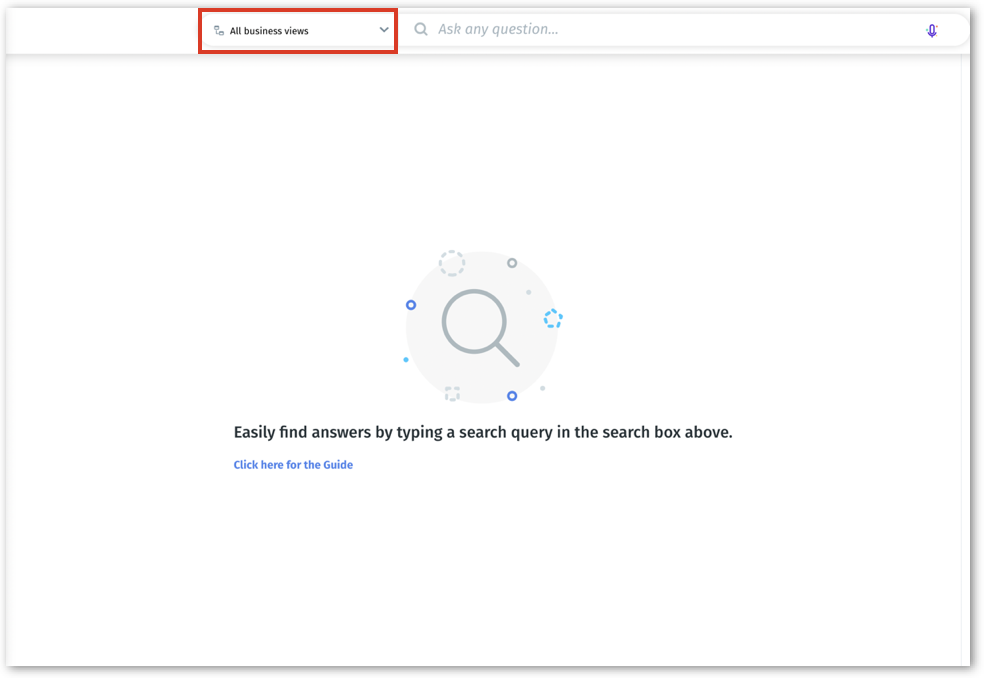
1. From **Search** tab, click on **All Business Views** dropdown to choose the required Business View.
Business View dropdown
2. The available Business Views for your account will be displayed in the dropdown. Select the required Business View.
3. When a Business View is selected, the columns present in the corresponding Business View will be displayed in the right pane, organized under *Group View* and *Table View*. It helps you to be informed of the columns in a Business View and create search queries accordingly.
Columns of the selected Business View
4. The columns could be searched using the **Search** bar below the Business View name.
5. The green-colored columns are **Measures,** whereas the black-colored ones are **Dimensions**. The date columns are represented in yellow color.
6. Once a query is successfully executed, the same details will be pinned next to the Search Inspector.
Pinned Business View panel
6. Click on the arrow next to the Business View name to hide the panel. Click on the Business View icon in the right pane to view the columns.
Show/hide Business View panel
{% hint style="info" %}
Tellius Search supports up to 10,000 unique filter values per column. To update the limits, please reach out to your Customer Success team.
{% endhint %}
### **Auto-selection of Business View (SmartView Search)**
From 4.3.1, users need not select the relevant Business View as a first step to execute a query. SmartView Search eliminates the need to select a Business View before querying. It intuitively identifies the best-fit Business View based on your query's context, streamlining the search process.
SmartView Search in Tellius revolutionizes the way you interact with data, offering a seamless and intuitive search experience. Here's an in-depth look at its features:
1. **Entity extraction:** It identifies crucial elements like column names and values in your query, ensuring focused and relevant search results.
2. **Intent classification:** Tellius determines whether you're looking for a chart or an insight, customizing the results to fit your query's purpose.
3. **Business View shortlisting:** SmartView Search scans all accessible Business Views to find the most relevant ones for your query, removing the need for manual selection.
4. **Intelligent scoring algorithm:** It evaluates every potential Business View and ranks them based on their relevance to your query, ensuring the most suitable Business View is used for your search.
5. **Auto correction:** Automatically corrects typos in your query, ensuring accuracy in the search results.
6. **Smart chart logic:** Recommends the most appropriate chart type based on your data.
7. **TQL generation:** Translates your query into Tellius Query Language for efficient processing.
8. **Chart rendering:** Visualizes your search results for easy interpretation.
---
# Agent Instructions
This documentation is published with GitBook. GitBook is the documentation platform designed so that both humans and AI agents can read, navigate, and reason over technical content effectively. Learn more at gitbook.com.
## Querying This Documentation
If you need additional information that is not directly available in this page, you can query the documentation by asking a question.
Perform an HTTP GET request on the following URL with the `ask` and `goal` query parameters:
```
GET https://help.tellius.com/tellius-5.4/search/executing-a-search-query/selecting-a-business-view.md?ask=&goal=
```
`ask` is the immediate question: it should be specific, self-contained, and written in natural language.
`goal` is what the user is ultimately trying to achieve, the reason they need the answer. Sharing it helps GitBook give you a better, more relevant answer. A goal is most helpful when it describes the outcome the user wants rather than restating the question. For example, with `ask=how do I create an API token`, a goal like `automate deployments from our CI pipeline` lets GitBook tailor the answer to that use case.
The response will contain a direct answer to the question and relevant excerpts and sources from the documentation.
Use this mechanism when the answer is not explicitly present in the current page, you need clarification or additional context, or you want to retrieve related documentation sections.