> For the complete documentation index, see [llms.txt](https://help.tellius.com/llms.txt). Markdown versions of documentation pages are available by appending `.md` to page URLs; this page is available as [Markdown](https://help.tellius.com/tellius-5.6/data/preparing-your-datasets/fusioning-your-datasets.md).
# Fusioning your datasets
Quick, simple merge of two datasets
**Data Fusion** is a point-and-click method to merge two datasets without writing SQL. It’s suited for:
* Non-technical users who want a quick way to join two tables.
* Simple merges where you pick matching columns and choose a join type (e.g., Left/Right/Inner) or a Union.
{% hint style="warning" %}
If you need more than two datasets, advanced transformations, or custom SQL (subqueries, aggregations, etc.), you’ll need to use **Scripting** instead.
{% endhint %}
### Why fusion your datasets?
1. Non-technical or first-time users can merge two datasets by simply choosing columns and join type—no SQL required.
2. Quick reference table merges (e.g., attaching a lookup table).
3. One-step union of two tables with identical schemas.
4. **Limitations:**
* You can’t fuse more than two datasets in a single operation.
* No subqueries, advanced aggregations, or multi-step transformations.
* Especially for **Union**, both datasets must align in column structure.
### How to fusion datasets
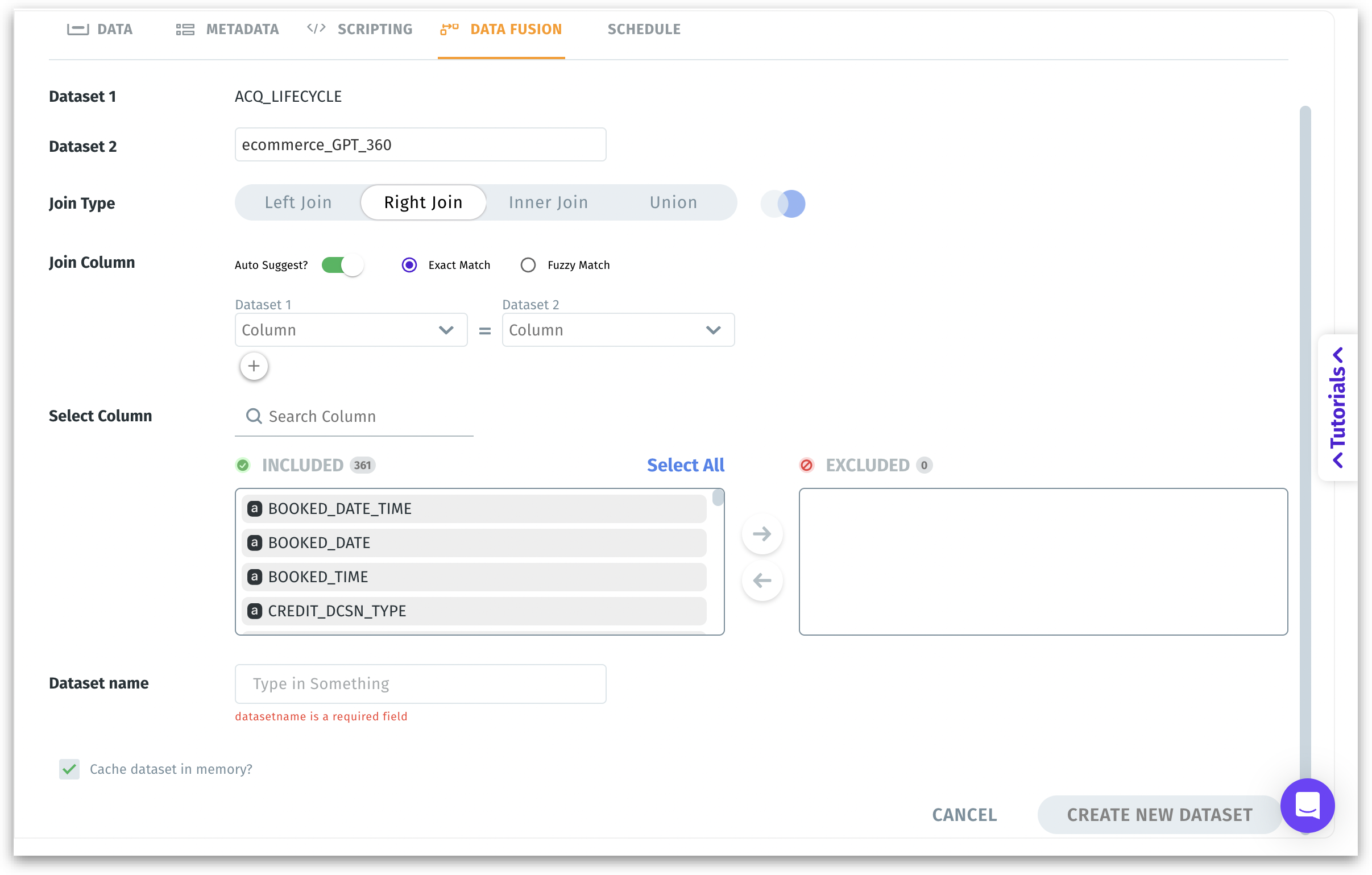
1. Under **Data → Prepare → Data Fusion**, you can find the following window.
Data → Prepare → Fusion
2. **Dataset 1:** Auto-selects the dataset you've already selected.
3. **Dataset 2:** Select the other dataset you want to merge from the dropdown.
4. **Join Type** (Left, Right, Inner, Union)
* **Left Join**: Returns all rows from *Dataset 1* plus matching rows from *Dataset 2*.
* **Right Join**: Returns all rows from *Dataset 2* plus matching rows from *Dataset 1*.
* **Inner Join**: Returns rows only where matches exist in *both* datasets.
* **Union**: Stacks the rows from both datasets on top of each other—requires matching column names and data types.
{% hint style="danger" %}
If column names or data types don’t align for **Union**, you’ll see an error like “Unable to perform data union because of dataset mismatch.”
{% endhint %}
5. **Join Column:** The columns for matching records between the two datasets. You specify *join columns* so the system knows *how* to line up rows from Dataset 1 with rows from Dataset 2. Including or excluding columns (check #6) just decides *which* fields appear in the final result—it doesn’t dictate *how* the two datasets match up in the first place.
{% hint style="info" %}
Auto Suggest analyzes the two datasets for column similarities—often by name or type—and then automatically proposes which columns might be a good match for joining. This saves time, especially when there are many columns, because you don’t have to manually identify and select the corresponding columns each time.
{% endhint %}
* **Auto Suggest**: Automatically guesses matching columns if they share names or certain patterns.
* **Exact Match**: Columns must match exactly (case-sensitive name match).
* **Fuzzy Match**: Looser matching; tries to align columns that are spelled similarly.
5. **Select Column (Included | Excluded):** Choose which columns from both datasets should appear in the final fused dataset. Use the arrows to move columns from *Included* to *Excluded*, or vice versa. Search for the required column or choose **"Select All"** to select all the columns listed.
{% hint style="info" %}
**Join Column vs Select Column**
Join Columns define the “key” or shared attribute that both datasets use to match their rows. For example, if one table has a column `customer_id` and the other has a column `cust_id`, you map these together so the system knows which customer in the first dataset corresponds to the same customer in the second dataset.
Select Columns decide which columns end up *visible* in the final merged dataset. Maybe you only need a few columns from each dataset for your analysis. This step doesn’t affect *how* the data is joined; it’s purely about *presentation* and *relevance* of columns in your resulting dataset.
{% endhint %}
7. **Dataset Name:** Provide a unique name for the new fused dataset you’re creating.
8. **Cache Dataset in Memory?**: If enabled, improves performance by loading the fused dataset into in-memory storage for frequently accessed or smaller datasets.
9. Click on **Create New Dataset** to finalize your Fusion setup and generate the new dataset. This new dataset appears in your dataset list, ready for use in dashboards, queries, or further transformations.
---
# Agent Instructions
This documentation is published with GitBook. GitBook is the documentation platform designed so that both humans and AI agents can read, navigate, and reason over technical content effectively. Learn more at gitbook.com.
## Querying This Documentation
If you need additional information that is not directly available in this page, you can query the documentation by asking a question.
Perform an HTTP GET request on the following URL with the `ask` and `goal` query parameters:
```
GET https://help.tellius.com/tellius-5.6/data/preparing-your-datasets/fusioning-your-datasets.md?ask=&goal=
```
`ask` is the immediate question: it should be specific, self-contained, and written in natural language.
`goal` is what the user is ultimately trying to achieve, the reason they need the answer. Sharing it helps GitBook give you a better, more relevant answer. A goal is most helpful when it describes the outcome the user wants rather than restating the question. For example, with `ask=how do I create an API token`, a goal like `automate deployments from our CI pipeline` lets GitBook tailor the answer to that use case.
The response will contain a direct answer to the question and relevant excerpts and sources from the documentation.
Use this mechanism when the answer is not explicitly present in the current page, you need clarification or additional context, or you want to retrieve related documentation sections.