> For the complete documentation index, see [llms.txt](https://help.tellius.com/llms.txt). Markdown versions of documentation pages are available by appending `.md` to page URLs; this page is available as [Markdown](https://help.tellius.com/tellius-5.6/data/preparing-your-datasets/list-of-icons-and-their-actions/python-transform.md).
# Python Transform
Create, edit, and apply Python code transformations to your dataset
Python (whether PySpark or Pandas) is more flexible for applying complex business rules, iterative or row-level manipulations, or advanced text processing. You get access to Python libraries for machine learning, data wrangling, or NLP. For instance, you might import sklearn for classification or re for regex-based text cleansing. Python is ideal For:
* Advanced data science, feature engineering, custom ML transformations, or unusual data-cleaning logic.
* If you need loops, complex conditionals, or string manipulations that are easier to write in Python than SQL.
* If you use PySpark, transformations can run in a distributed environment for very large datasets.
Tellius provides you to use Python option to:
* Cleanse your data of invalid, missing, or inaccurate values
* Modify your dataset according to your business goals and analysis
* Enhance your dataset as needed with data from other datasets
### Pick Python if:
* You need advanced logic that’s awkward in SQL—like heavy string manipulation, complex conditionals, or specialized data-science libraries.
* You’re comfortable coding in Python and want direct access to packages (e.g., Pandas, PySpark, NumPy).
* You have iterative or row-by-row transformations that don’t translate neatly into SQL statements.
Following are some of the examples to help you get started:
```python
def transform(dataframe):
# use 8 spaces for indentation
resultDataframe = dataframe.where(dataframe[‘Payment_Type’] == ‘Visa’)
return resultDataframe
```
```python
def transform(dataframe):
# use 8 spaces for indentation
resultDataframe = dataframe.where(dataframe[‘workclass’] == ‘Private’)
return resultDataframe
```
```python
def transform(dataframe):
# use 8 spaces for indentation
resultDataframe = dataframe.withColumn(‘Total’,dataframe.Qty_Sold)
return resultDataframe
```
### **Creating and applying Python code**
1. Navigate **Data → Prepare → Data.**
2. Select the required dataset and click on **Edit.**
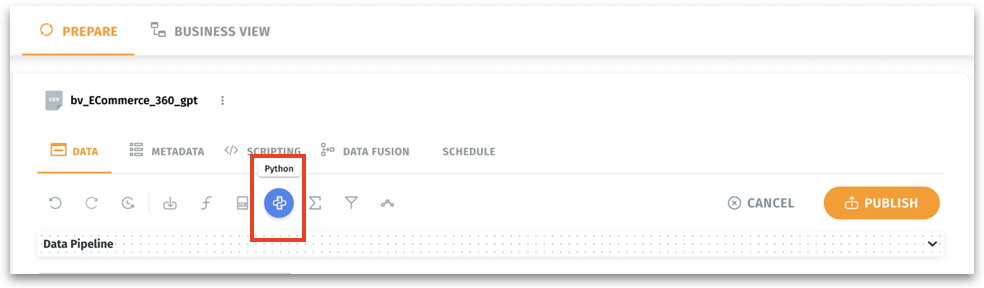
3. Above **Data Pipeline**, click on the **Python** option.
Data → Prepare → Data → Edit
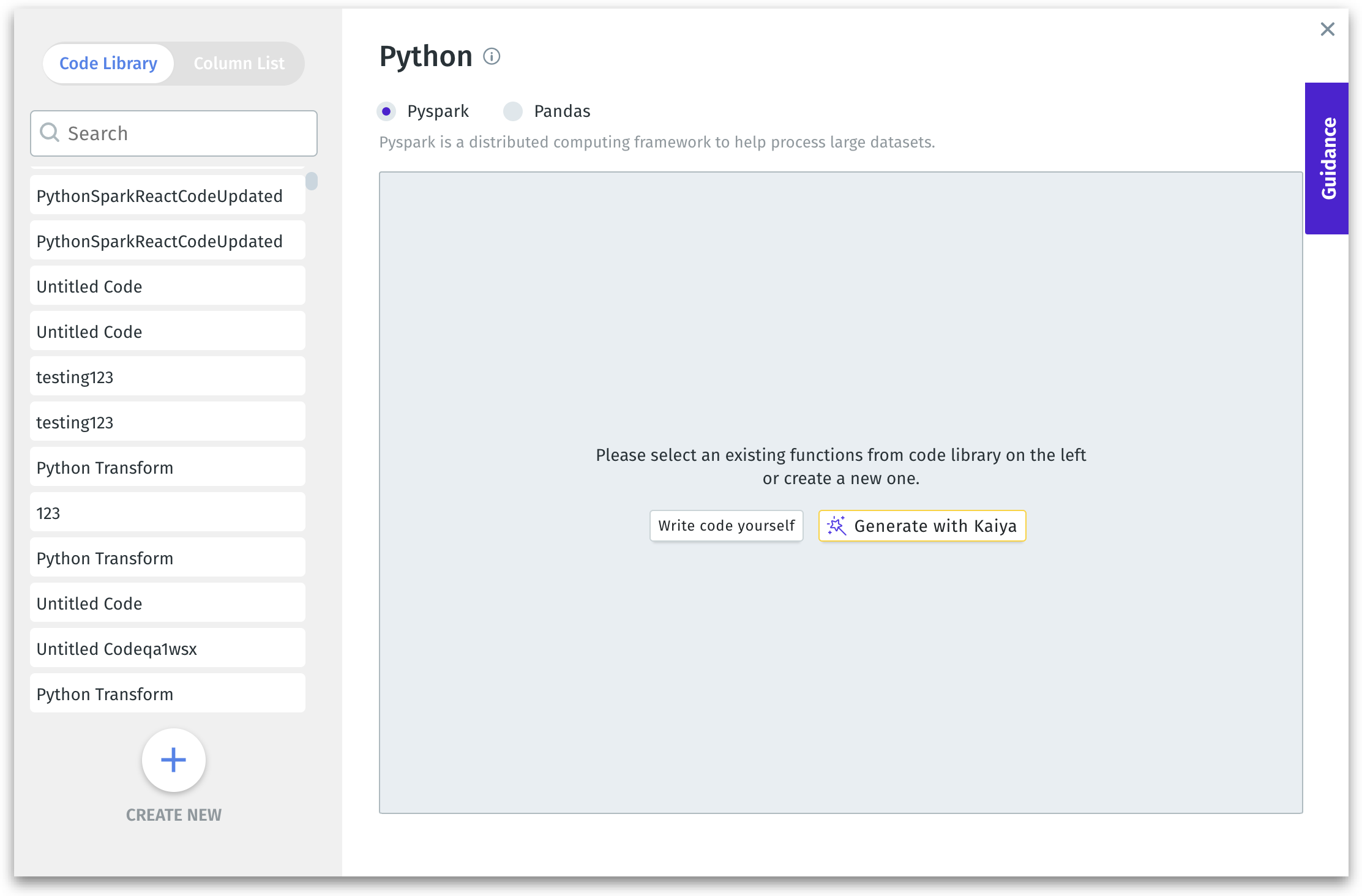
4. To view the list of columns available in the selected dataset, click on **Column List** tab.
Python window
5. Select the required Python framework: **Pyspark** or **Pandas**.
{% tabs %}
{% tab title="When to use PySpark" %}
* When working with datasets too large to fit into memory on a single machine.
* If your data processing needs to be parallelized across multiple nodes for performance.
* For processing cluster-based workloads stored in distributed environments (e.g., Hadoop, AWS S3, or large data warehouses).
* Ideal for operations on terabytes/petabytes of data.
{% endtab %}
{% tab title="When to use Pandas" %}
* For small to medium data. When your dataset fits into memory on a single machine.
* For quick, iterative data exploration and manipulation.
* Simpler syntax and user-friendly APIs for data cleaning, transformation, and visualization.
* Ideal for non-distributed workloads where performance isn’t a concern.
{% endtab %}
{% endtabs %}
6. To create new code, click on **Create New** or **Write code yourself** button.
7. Alternatively, click on **Generate with Kaiya** button to make Tellius Kaiya generate the required for you.
8. Once the code is ready, click on **Run Validation** to validate the code. When the validation is in process, the **Running Validation** message is displayed.
9. Tellius validates the entered query, and if any errors are found, they will be displayed in the bottom section of the window.
10. If the code is correct, the validation result is shown with a **Successfully Validated** message at the top.
11. After clearing the errors, click on **Apply** to apply the code to the dataset or click on **Save in Library** to save to the code library in the left pane. Or, click on **Cancel** to discard the code window.
{% hint style="danger" %}
From v4.2, users can apply the code to the dataset without saving it to the code library first.
{% endhint %}
### **Editing Python code**
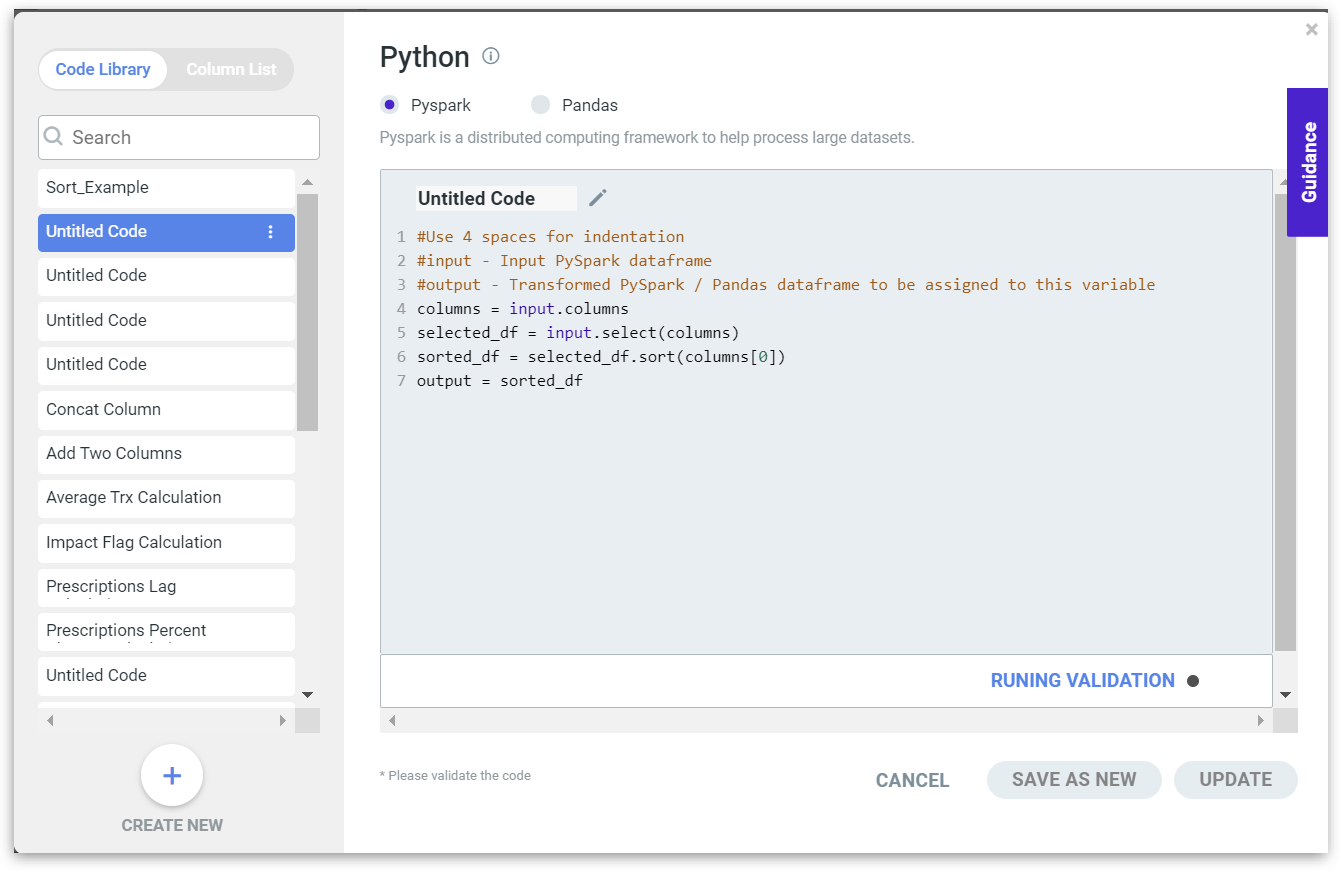
1. In the Python code window, search and select the required code from the already existing **Code Library**.
2. Click on **Edit** to modify and validate the code.
Editing already existing Python code
3. Click on **Run Validation** to validate the code. When the validation is in process, the **Running Validation** message is displayed.
4. Tellius validates the entered query, and if any errors are found, they will be displayed in the bottom section of the window.
5. If the code is correct, the validation result is shown with a **Successfully Validated** message at the top.
6. Click on **Apply** button to apply the Python query to the dataset.
7. Click on **Update** to update the code, and click on **Save as New.**
{% hint style="danger" %}
The following libraries have been removed and thus cannot be imported into Python during data preparation. If any of the following libraries are imported, it will result in a **Validation failed** error.\
\
\- shlex\
\- sh\
\- plumbum\
\- pexpect\
\- fabric\
\- envoy\
\- commands\
\- os\
\- subprocess\
\- requests
{% endhint %}
---
# Agent Instructions
This documentation is published with GitBook. GitBook is the documentation platform designed so that both humans and AI agents can read, navigate, and reason over technical content effectively. Learn more at gitbook.com.
## Querying This Documentation
If you need additional information that is not directly available in this page, you can query the documentation dynamically by asking a question.
Perform an HTTP GET request on the current page URL with the `ask` query parameter, and the optional `goal` query parameter:
```
GET https://help.tellius.com/tellius-5.6/data/preparing-your-datasets/list-of-icons-and-their-actions/python-transform.md?ask=&goal=
```
`ask` is the immediate question: it should be specific, self-contained, and written in natural language.
`goal` is optional and describes the broader end goal you are ultimately trying to accomplish on behalf of the user. GitBook uses it to tailor the answer towards what is most useful for that goal.
The response will contain a direct answer to the question and relevant excerpts and sources from the documentation.
Use this mechanism when the answer is not explicitly present in the current page, you need clarification or additional context, or you want to retrieve related documentation sections.