# Metadata view

The **Metadata view** gives you granular control and visibility over each column in your dataset—its purpose, data type, special handling, and how it is used in downstream analyses. Easily select multiple columns and perform bulk operations in just a few clicks. During data preparation, you can also sort the values in each column as required.

Properly configuring your metadata ensures that Tellius can accurately interpret and process your data, whether you’re performing self-service analytics, creating AI-driven insights, or building predictive models.

During data preparation, you can inspect and edit the properties of each column, such as:

* **Display Names** for user-friendly labeling
* **Data Types** (integer, string, timestamp, etc.)
* **Column Types** (dimension vs. measure)
* **Feature Types** (categorical vs. continuous)
* **Aggregations** (sum, average, etc.)
* **Special Types** (map coordinates or geographic boundaries)
* **Synonyms** for advanced natural language search
* **Rank** to prioritize columns in Live Insights
* **Indexing** to determine columns included/excluded in search
* **Descriptions** for contextual tooltips

In addition, Tellius **Kaiya** can auto-generate metadata such as synonyms, descriptions, or display names for you to review, accept, or refine. This significantly reduces manual effort and promotes standardized terminology across your organization.

1. Navigate **Data → Prepare** **→** **Metadata** and select the required business view from the **Datasets** pane.
2. The column names will be displayed along with the following metadata:

* Display name
* Data format
* Special type
* Data aggregation
* Synonyms
* Rank
* Indexing
* Column type
* Feature type
* Column description

3. In each column header, click on the **↓** to sort the values in ascending order or **↑** to sort the values in descending order.
4. Hover over any info icon next to the column header to view the contextual tooltips and get a quick idea of each metadata.
5. Click on the **Edit** button to edit the metadata of any column(s).
6. After performing the required changes, click on **Publish** to save the changes or **Cancel** to discard changes.

Here are the steps to be followed to edit each type of metadata:

### **Display name**

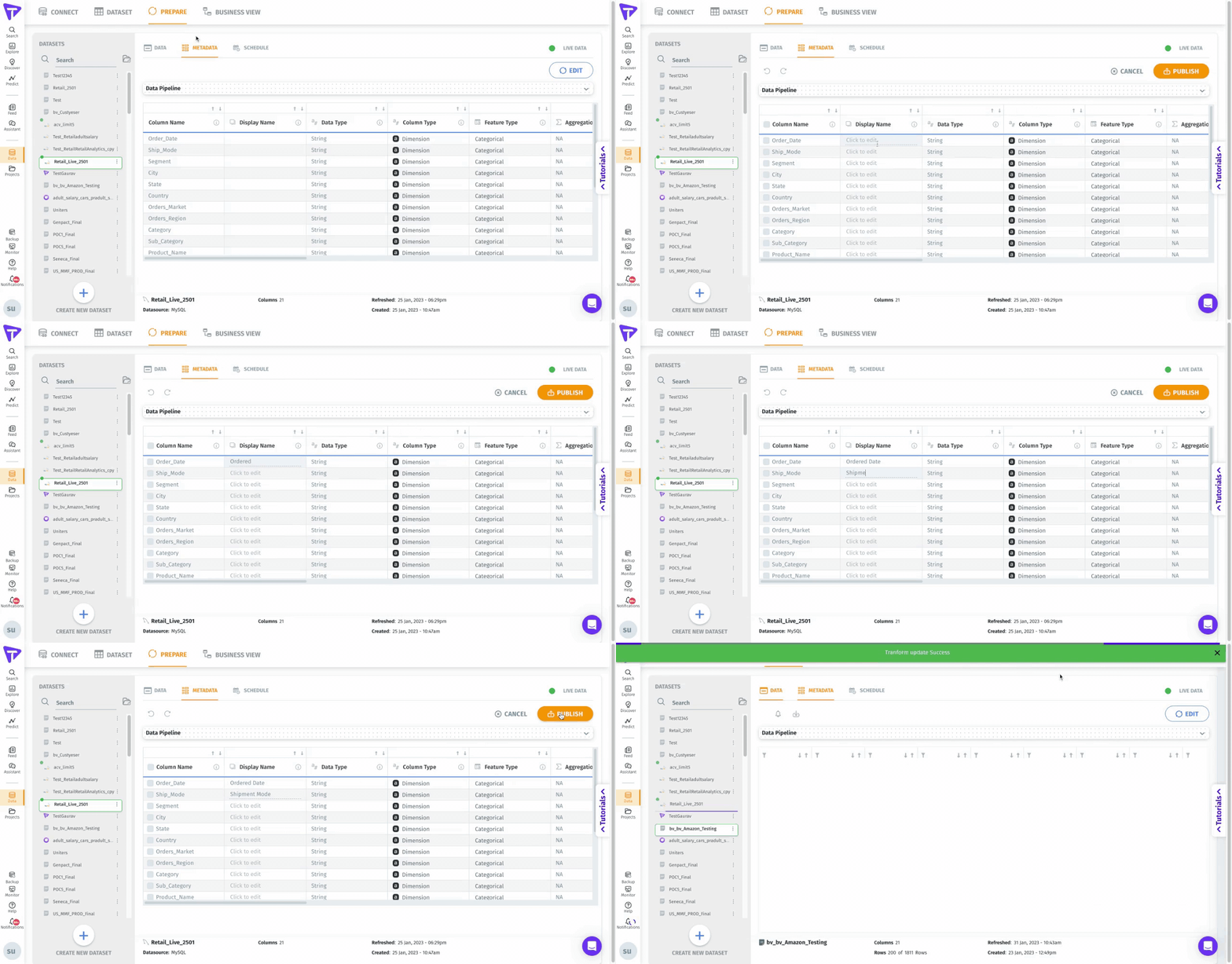
Display names are user-friendly names given to the columns in a dataset. Throughout Tellius, only display names would be used to refer to any column (not column names). To rename a column, you can change the display names (instead of changing column names), as it ensures no disruptions when data is refreshed.

From the metadata view,&#x20;

1. For a required column, click on *Click to edit* under **Display Name**.
2. Provide the desired display name.

<figure><img src="https://content.gitbook.com/content/VXyBWnsg0T2tHBl87viA/blobs/0dYIDlVX1kRPurRkQZGK/display-name-metadat.gif" alt=""><figcaption><p>Display name</p></figcaption></figure>

### **Data type**

A fundamental property indicating how your data is stored (integer, string, double, date, timestamp, etc.). The data type determines which operations and transformations are applicable to a column. For example, only numeric columns can be used in mathematical aggregations, while date/timestamp columns unlock time-series analytics.

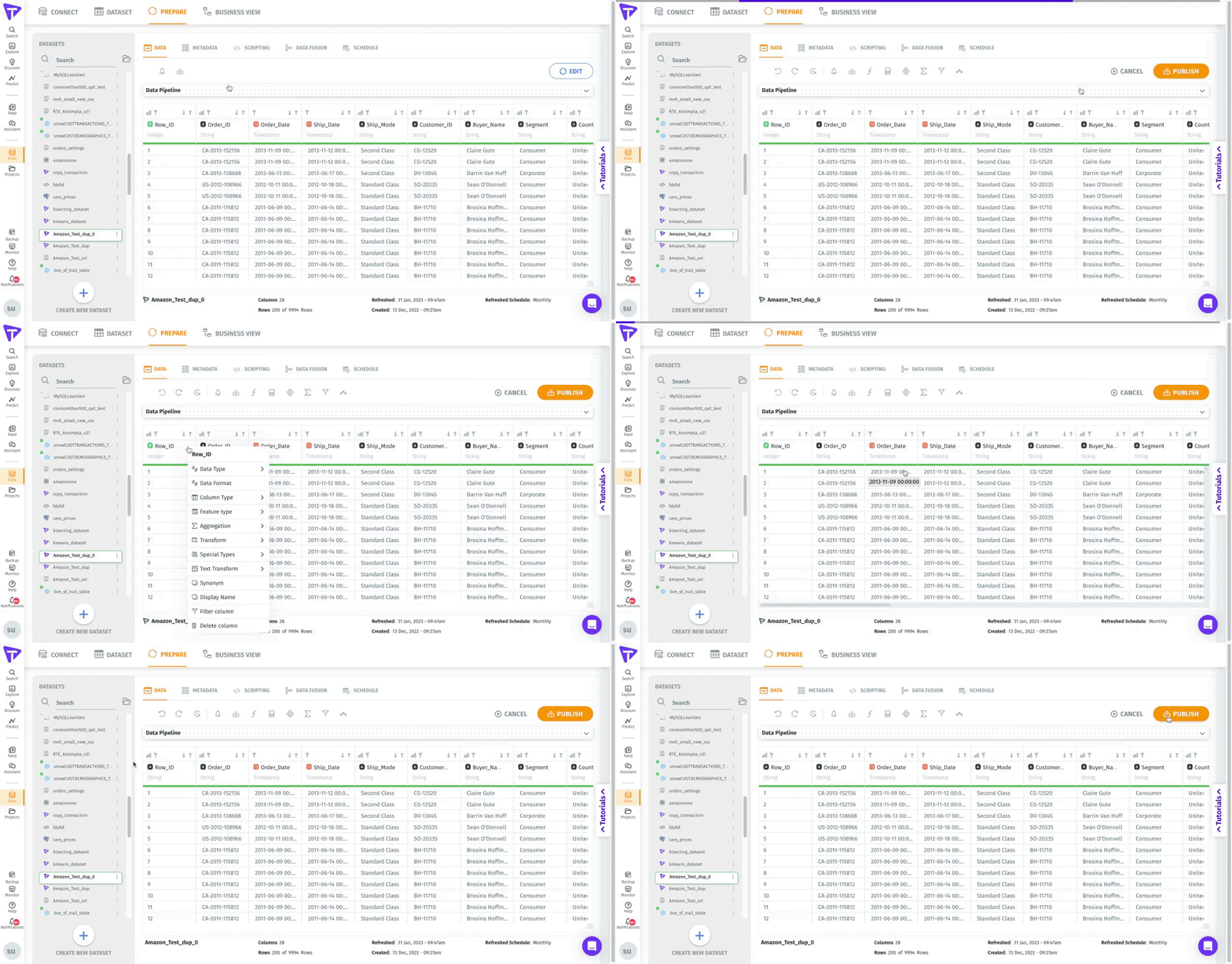
The data type of the values can be changed only under **Data** subtab.

To change the data type,

1. Navigate **Data → Prepare → Data**.
2. Click on the **Edit** button.
3. Click on the dropdown arrow next to any column name and choose **Data Type**.
4. Choose the required data type:

* **String:** For characters and text
* **Double:** For floating point numbers
* **Date:** For values containing dates
* **Integer:** For numerical values
* **Timestamp:** For values with both date and time

5. Click on **Submit** to save the changes, or **Cancel** to discard.

<figure><img src="https://content.gitbook.com/content/VXyBWnsg0T2tHBl87viA/blobs/nvYXrP6H6EnPh0hBSSRX/data-type.gif" alt=""><figcaption><p>Data type</p></figcaption></figure>

### **Column type**

A column type could be either one of the following:&#x20;

**Measure** - quantitative values (e.g., sales, profit, cost) which can be aggregated (e.g., sum, average, min, max)

**Dimension** - qualitative values (e.g., city, region, date) which cannot be aggregated and do not support mathematical operations like summing or averaging.

Choose the column type as “dimension” if the values can be used to categorize or segment the data (e.g., show sales by city, show profit by year).

{% hint style="info" %}

* The feature type, data format, and default aggregation of measures can be modified.
* The aggregation and data format of dimensions will be “N/A”.
* The feature type of dimensions can only be “Categorical”.
  {% endhint %}

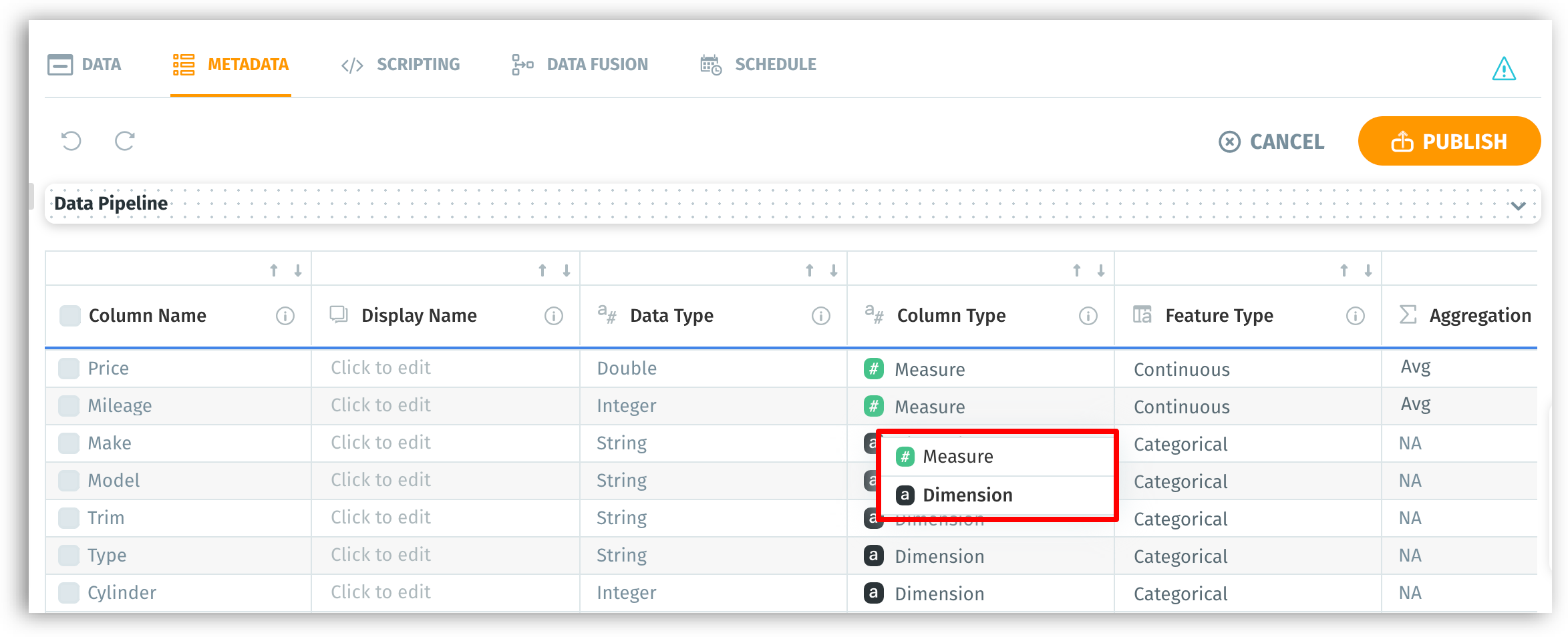
From the metadata view,

1. For any required column name, click on the dropdown under **Column type**.
2. Choose **Dimension** or **Measure** as required.

<figure><img src="https://content.gitbook.com/content/VXyBWnsg0T2tHBl87viA/blobs/xkpdqzaOKnt1bepoG6SK/image.png" alt="" width="563"><figcaption><p>Column type</p></figcaption></figure>

### **Feature type**

The feature type of a value can be either one of the following:

**Categorical** - discrete variables; a fixed number of possible values (e.g., the values for the column ‘Continent’ can be one of the 7 values)

**Continuous** - variables from a range of values between a theoretical minimum and maximum (e.g., columns that represent measurements, such as "height", "temperature", "weight".)

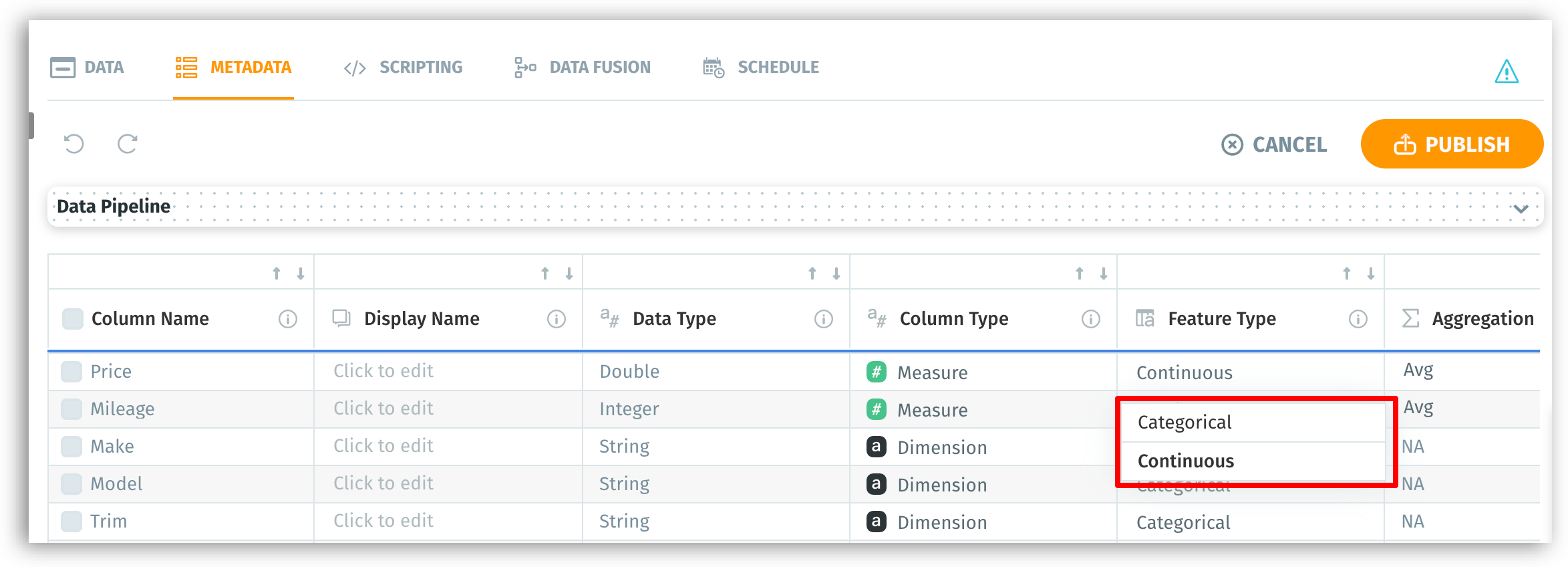
From the metadata view,

1. For any required column name, click on the dropdown under **Feature type**.
2. Choose **Categorical** or **Continuous** as required.

{% hint style="info" %}
Dimensions always have the feature type **Categorical**, while measures can be either continuous or discrete (though in most common use cases, numeric measures will be continuous).
{% endhint %}

<figure><img src="https://content.gitbook.com/content/VXyBWnsg0T2tHBl87viA/blobs/d7E4VAJoHxTpURvgeghM/image.png" alt=""><figcaption><p>Feature type</p></figcaption></figure>

### **Aggregation**

A collection of values can be aggregated to form a single value. The value set up will be used as the default aggregation for the associated measure across Tellius, and it can be changed when required. The default aggregation can be set in the following ways:

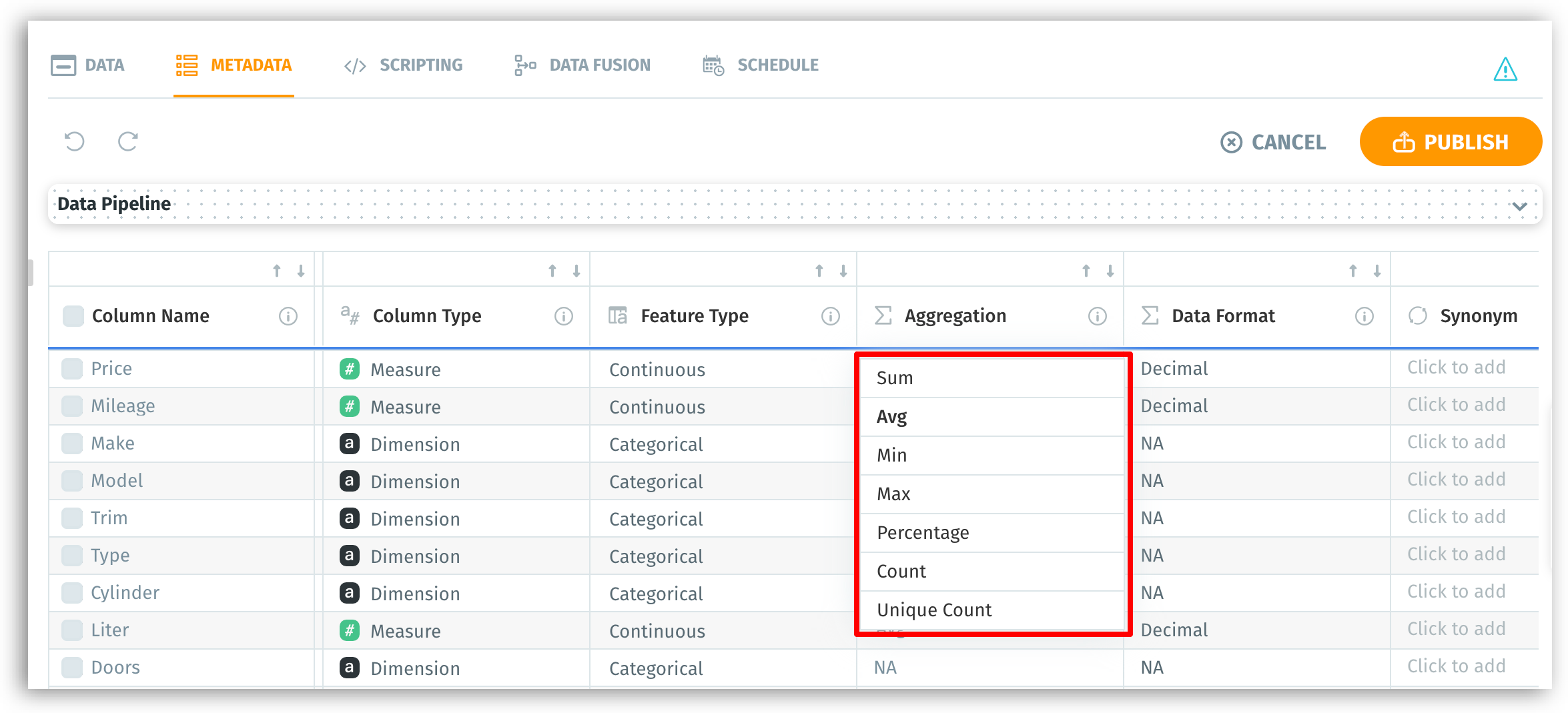
From the metadata view,

1. For the required column name, click on the dropdown under **Aggregation**.
2. Choose one from the following options:

* **Sum** - the total sum of the values
* **Avg** - average of the values
* **Min** - minimum of all the values
* **Max** - maximum of all the values
* **Count** - number of values in the column
* **Unique count** - number of distinct values in the column
* **Percentage** - the percentage of all the values in the column

{% hint style="info" %}
Aggregation affects how data is summarized in charts, insights, or pivot-style tables. For instance, sales data is commonly summed, while rating data may be averaged.

* Use **Sum** for additive measures like revenue or page views.
* Use **Average** for continuous measures where you need the mean (e.g., average session duration).
* Use **Count** or **Unique Count** for ID columns that are still treated as measures, but require counting rather than summation.
  {% endhint %}

{% hint style="danger" %}
Default aggregation can be set only for measures.&#x20;
{% endhint %}

<figure><img src="https://content.gitbook.com/content/VXyBWnsg0T2tHBl87viA/blobs/5hbb5MoctcbAhMMoFApW/image.png" alt=""><figcaption><p>Aggregation</p></figcaption></figure>

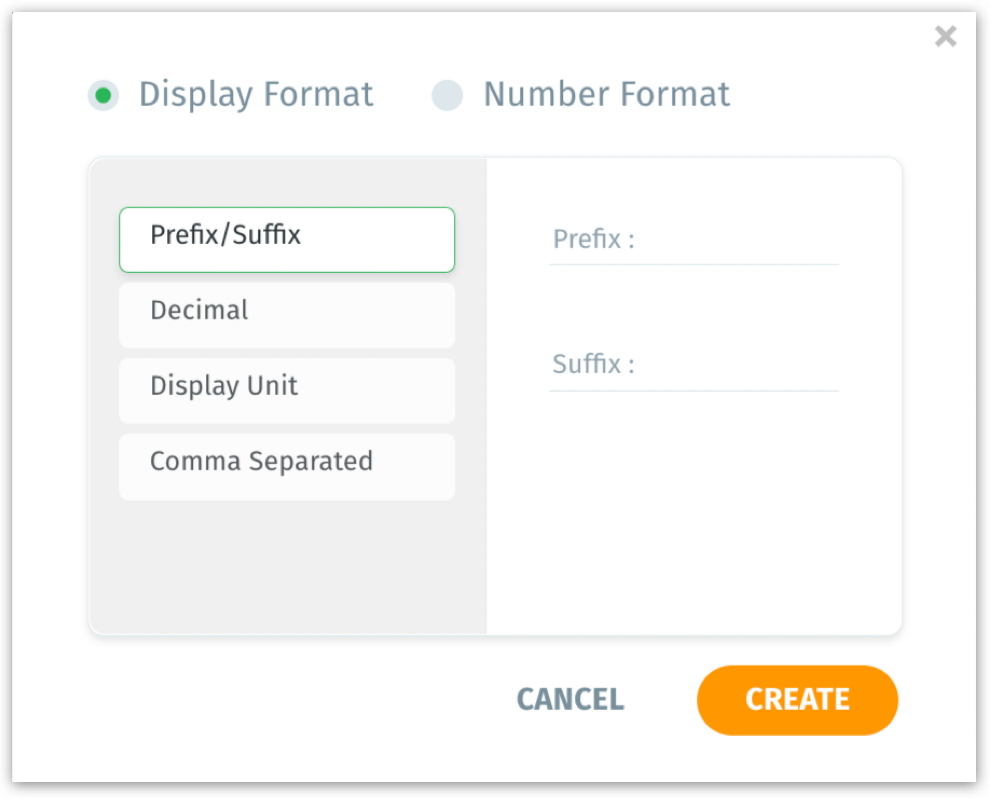
### **Data format**

Data format indicates the format (e.g., prefix/suffix, comma separation, decimal units) in which the data is represented in a dataset.

From the metadata view,

1. For any required column name, click on the dropdown under **Data format**.
2. Choose the required data format from the list.

{% hint style="danger" %}
The data format can be set only for measures.&#x20;
{% endhint %}

<figure><img src="https://content.gitbook.com/content/VXyBWnsg0T2tHBl87viA/blobs/I3LcRcx5DOUlTYVSyOOE/image.png" alt="" width="563"><figcaption><p>Data format</p></figcaption></figure>

### **Special type**

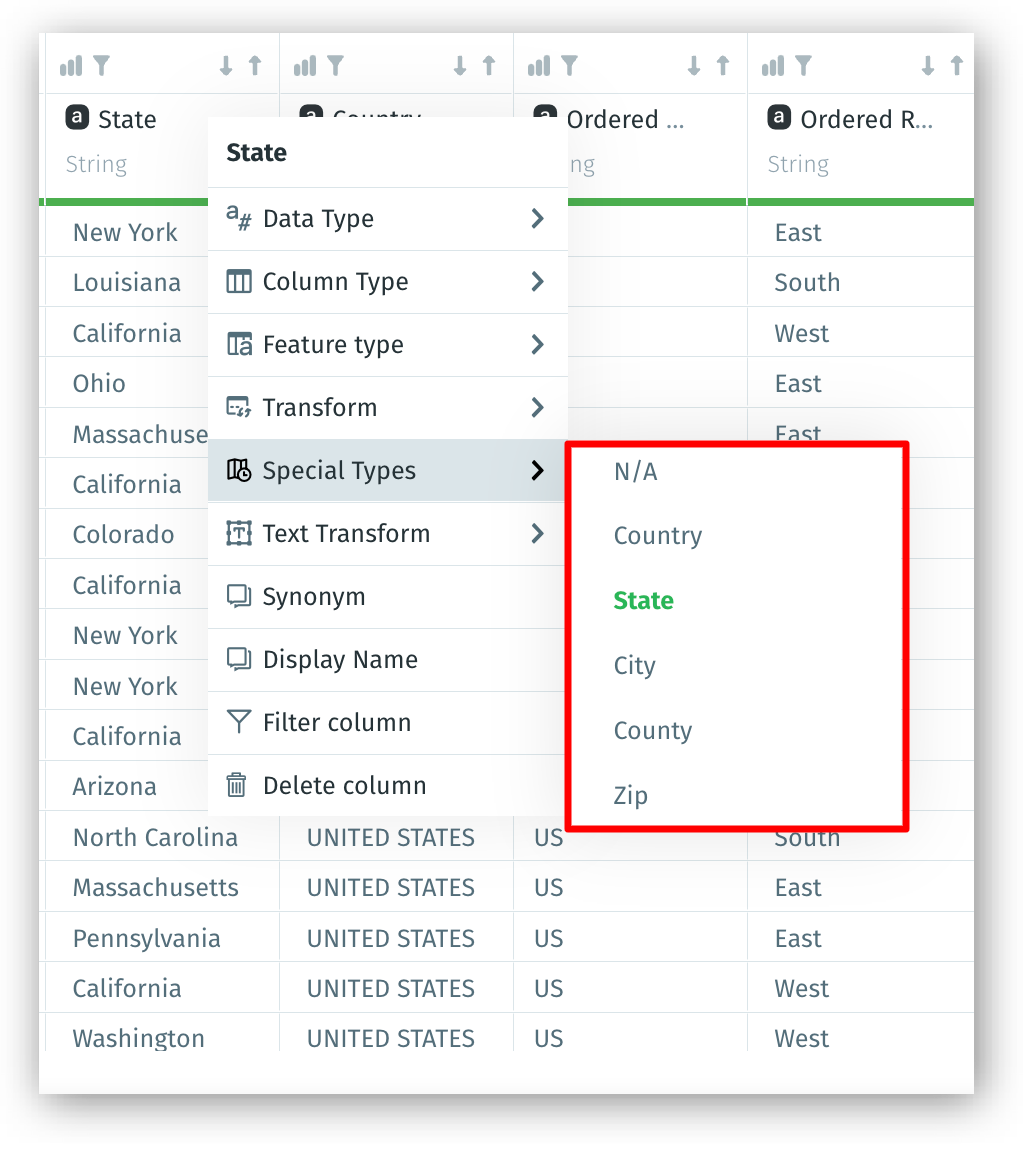
This helps you to flag columns used in geographical or time-based analyses. Based on the data type (integer, string, timestamp) of the column, a list of Special types will be displayed. If the column is used in a search query, the results will be displayed according to the selected Special type.

* If a Special type is assigned for integer, double, and string data types, search results will be displayed in Map charts instead of regular bar/line charts.
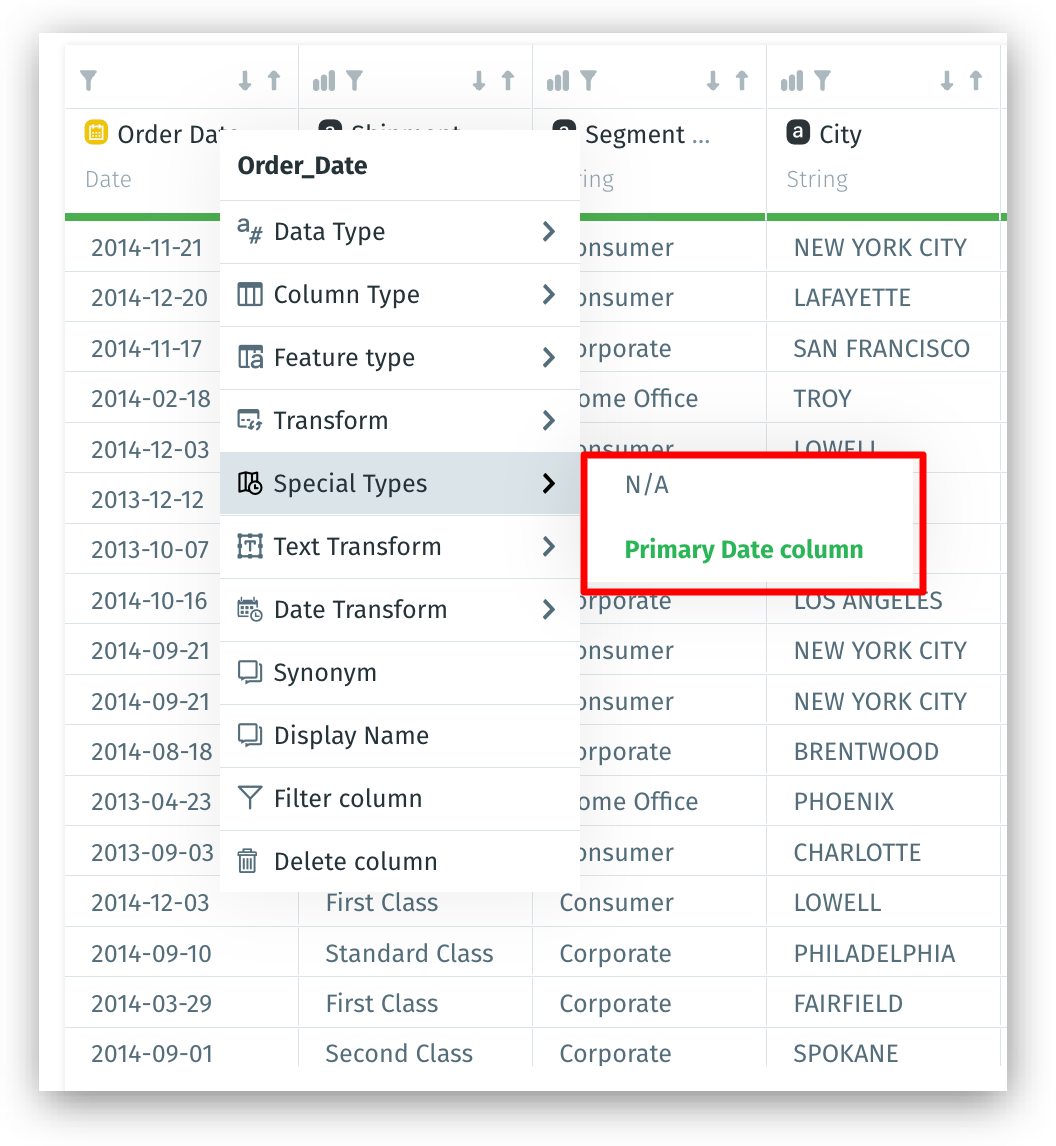
* If a Special type is assigned for timestamp data types, the column will be selected as the primary date column for time/date-related search queries.

{% hint style="info" %}
The Special type assigned for columns will be reflected on search result queries (**Search** tab) and while creating location maps and boundary maps in Vizpads (**Explore** tab).
{% endhint %}

#### **Integer and double data type**

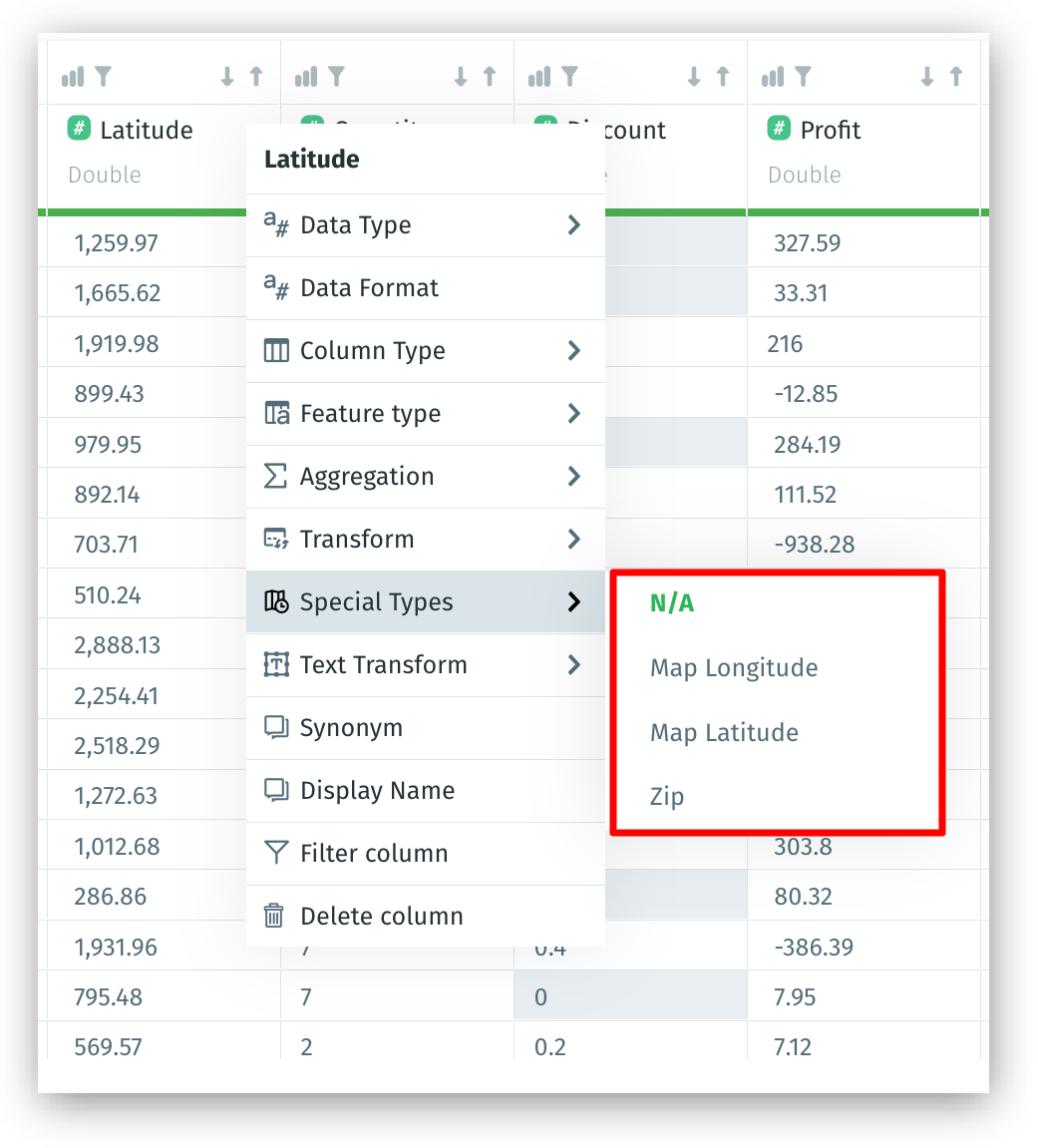
1. For any required column name, click on the dropdown under **Special type**.
2. Select the required **Special type** from the list of options displayed:

* Map Longitude
* Map Latitude
* Zip

<figure><img src="https://content.gitbook.com/content/VXyBWnsg0T2tHBl87viA/blobs/d9fRnqmSnyZ1LDMoh7zp/image.png" alt="" width="563"><figcaption><p>Integer and double data type</p></figcaption></figure>

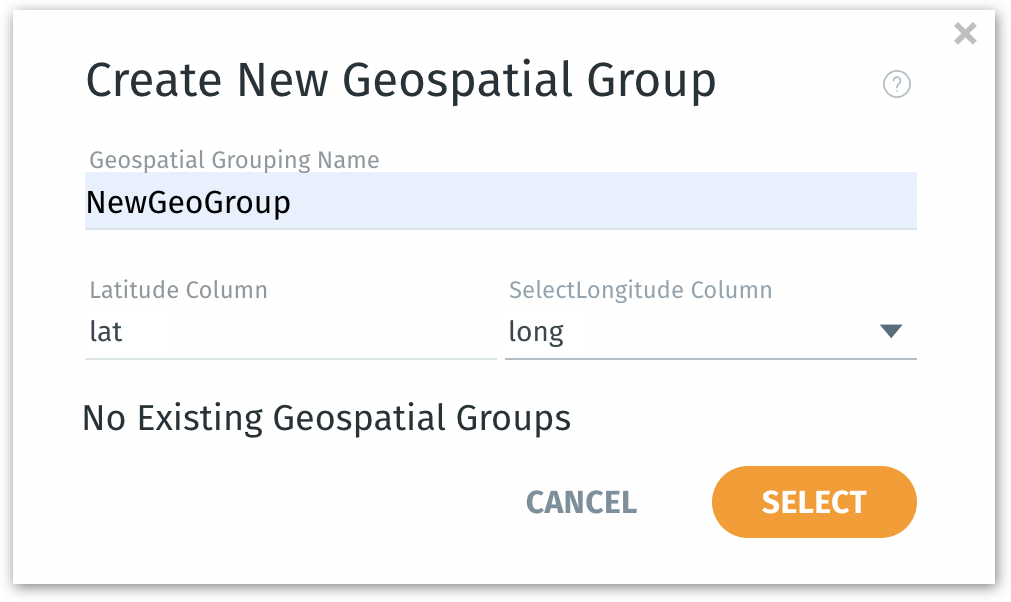
3. If **Map Latitude** is selected, the following window will appear for you to choose the column for **Map Longitude** (and vice versa).

<figure><img src="https://content.gitbook.com/content/VXyBWnsg0T2tHBl87viA/blobs/wrmhpk6AXxcM5TeLTkSu/image.png" alt="" width="563"><figcaption><p>Creating new geospatial group</p></figcaption></figure>

4. Provide a name in the **Geospatial Grouping Name** field.
5. Since the latitude column is already selected, choose the complementary longitude column from the dropdown under **Select Longitude Column**.
6. Click on **Select** to continue or click on **Cancel** to dismiss.

{% hint style="warning" %}
Without assigning these Special Types, your location-based or date/time-based queries may not auto-generate appropriate map or time-series visualizations.
{% endhint %}

7. Now, if the column is used in a search query (under **Search**), the results will be displayed in the Map chart. According to the Special type selected, the values will be plotted on the chart.
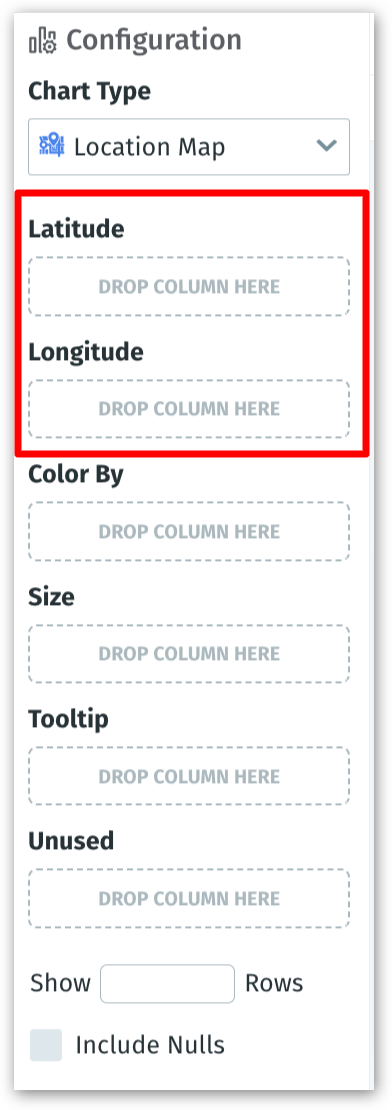
8. While creating **Location Maps** chart type in a Vizpad (**Explore**)

* Columns can be added to **Latitude** and **Longitude** fields only if their Special type is set to **Map Latitude/Map Longitude**.
* Instead of drag-and-drop, when you double click the columns whose Special type is set to **Map Latitude/Map Longitude** from the Business View pane, they will be automatically added to the corresponding **Latitude/Longitude** fields.

<figure><img src="https://content.gitbook.com/content/VXyBWnsg0T2tHBl87viA/blobs/lOhdgIYO56iMbOBA2qmk/image.png" alt="" width="294"><figcaption><p>Latitude and Longitude in Configuration pane</p></figcaption></figure>

{% hint style="warning" %}
To change the **Special type** of a column from **Map Latitude** to **Map Longitude** (or vice versa), first set the **Special type** as N/A and then change to latitude/longitude as desired.
{% endhint %}

#### **String data type**

1. For any required column name, click on the dropdown under **Special type**.
2. Select the required Special type from the list of options displayed:

* Country
* State
* City
* County
* Zip

<figure><img src="https://content.gitbook.com/content/VXyBWnsg0T2tHBl87viA/blobs/7TD6RJiXt0rbjisbUWbQ/image.png" alt="" width="563"><figcaption><p>String data type</p></figcaption></figure>

3. Now, if the column is used in a search query (under Search), then the results will be displayed in the Map chart. According to the Special type selected, the values will be plotted on the chart. For example, when you search `Show profit by country`, instead of a regular bar/line chart, the results will be displayed in a **Boundary Map** chart.

#### **Timestamp data type**

1. For any required column name, click on the dropdown under **Special type**.
2. The chosen column will be picked as the primary date column for any time/date-related search queries entered in Search.

<figure><img src="https://content.gitbook.com/content/VXyBWnsg0T2tHBl87viA/blobs/FAl95bRXHOuVVM1JrCVi/image.png" alt="" width="563"><figcaption><p>Timestamp data type</p></figcaption></figure>

### **Synonyms**

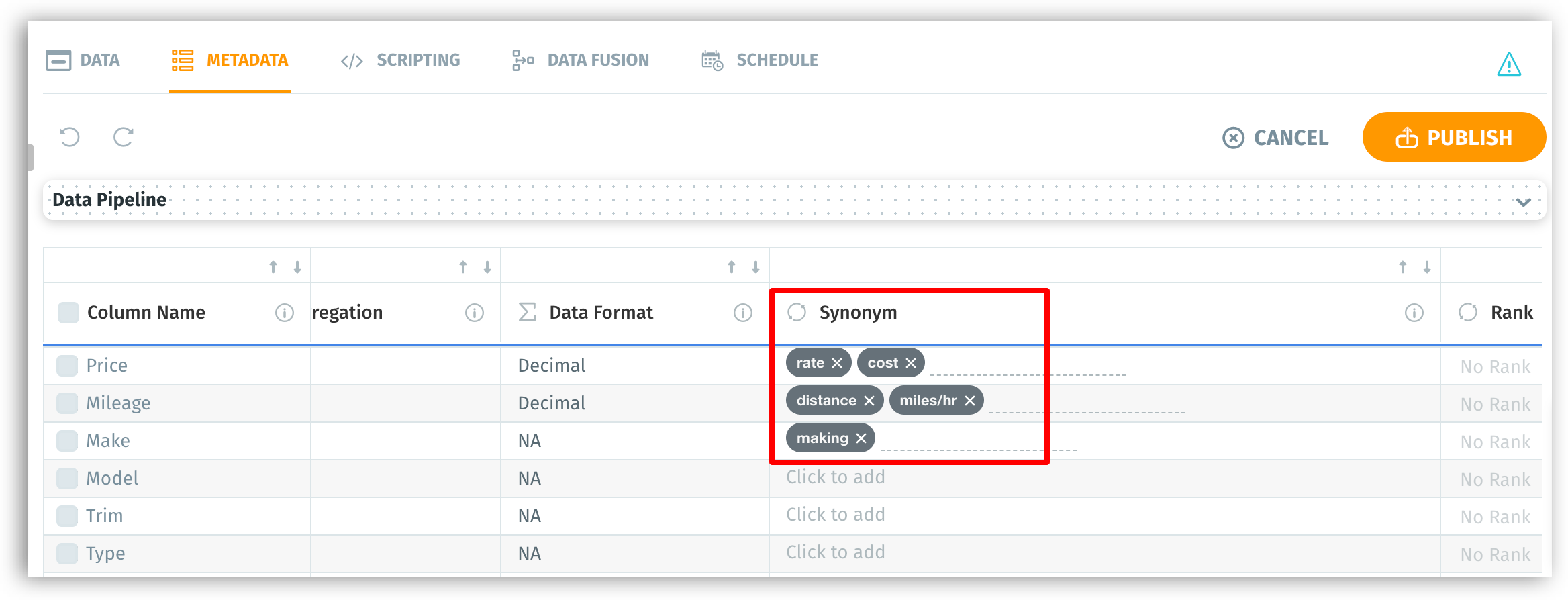
Sometimes, a category could be called using multiple names by different team members. Such additional names could be added under **Synonyms**. They are alternative names that you could provide for a column. Synonyms can be used instead of the actual column name or display name in search queries.

&#x20;From the metadata view,

1. For any required column name, click on the **Synonyms** cell.
2. Provide a synonym and press "Enter"/"Return". Include as many synonyms as required.

<figure><img src="https://content.gitbook.com/content/VXyBWnsg0T2tHBl87viA/blobs/bwymGgPiKwT7AusOLnnu/image.png" alt=""><figcaption><p>Synonyms</p></figcaption></figure>

### **Rank**

Tellius allows you to rank the columns (from 1 to 20) so that the prioritized columns would be used in **Live Insights** over the non-ranked columns. By default, there will be no ranking associated with any column in a live dataset. Each rank assigned to a column is unique, i.e., no two columns can have the same ranking.

{% hint style="info" %}
If required, a ranked column can still be excluded while creating Insights or Models.
{% endhint %}

{% hint style="danger" %}
The ability to rank is unavailable for non-live datasets.
{% endhint %}

From the metadata view,

1. For any required column name, click on the dropdown *No Rank* under **Rank**.
2. Choose the required ranking from 1 to 20.

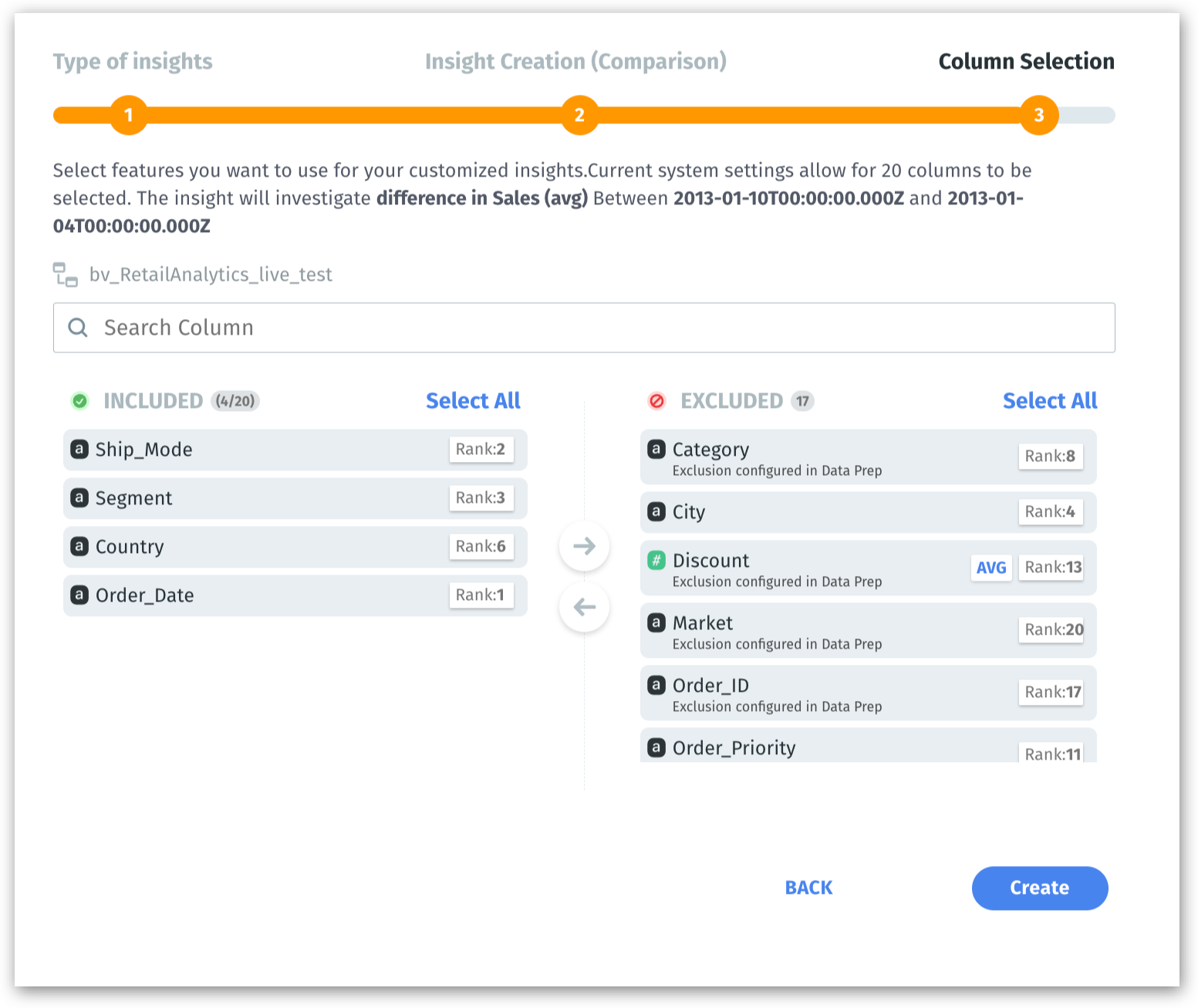
While creating Live Insights, the rank of every column will be displayed under **Column Selection**.&#x20;

<figure><img src="https://content.gitbook.com/content/VXyBWnsg0T2tHBl87viA/blobs/8GiZsOcfraQf0rkpBNvc/image.png" alt="" width="563"><figcaption><p>Column Selection</p></figcaption></figure>

{% hint style="danger" %}
Only 20 columns will be considered for Live Insights, and the remaining columns will be excluded with the reason **Excluded since Live Insights require 20 columns**.\
\
If ranks (from 1 to 20) are provided, then the ranked columns will be considered. If the columns are not ranked, then Tellius will auto-select 20 columns.
{% endhint %}

### **Include in Insights**

Select the columns that need to be considered for the creation of Insights under the **Discover** tab. The columns can also be included/excluded while creating Insights.

{% hint style="warning" %}
Excluding high-cardinality columns (like email addresses) or irrelevant fields (like logs or freeform text that doesn’t help your analysis) improves the performance of Insight generation and model training.
{% endhint %}

From the metadata view,

1. If you want to include a column for the creation of Insights, click on the toggle button under **Include in Insights**.
2. To exclude a column, switch the toggle to **“No”**.
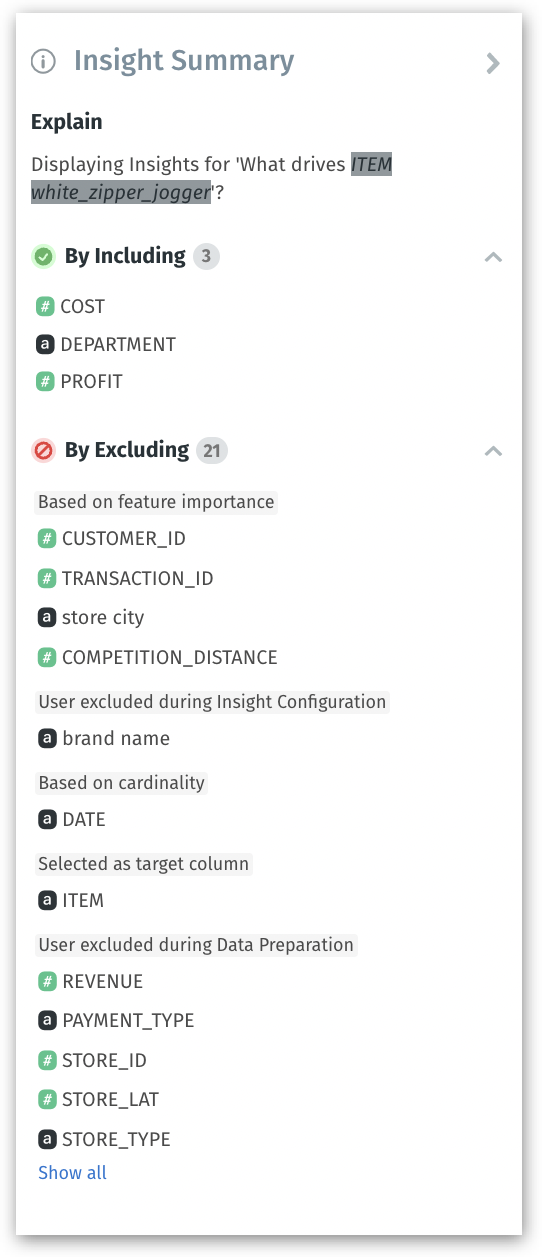
3. The excluded columns will be displayed in the **Insights summary** with the reason *“Excluded configured in Data Prep”*.

The columns included/excluded in this metadata view will be reflected when an Insight is created (Insight Configuration).

* Under **Included**, the columns selected in the metadata view will be displayed.
* The unselected columns will be displayed under **Excluded** columns, along with the reason for exclusion.&#x20;
* Users have the flexibility to drag and drop the required columns from **Included** to **Excluded** and vice versa.&#x20;
* The number of columns under **Included** and **Excluded** will also be displayed, along with the option to **Select/Deselect all** the columns.

{% hint style="info" %}
For Live Insights, the rank assigned to each column will be displayed.
{% endhint %}

{% hint style="danger" %}
By default, Tellius automatically excludes all date-related and high-cardinality columns (e.g., email ID, contact number) from Insights creation. While moving columns, date columns cannot be moved from **Excluded** to **Included**.
{% endhint %}

<figure><img src="https://content.gitbook.com/content/VXyBWnsg0T2tHBl87viA/blobs/k6BdKCUC49OcjBKtrkAK/includeexclude-columns-insights%20(1).gif" alt=""><figcaption><p>Include/Exclude Columns</p></figcaption></figure>

A column can be excluded for multiple reasons. Tellius follows the below order of priority to exclude a column:

1. Target column (excluded since the column is used as a target for insights)
2. Cohort column (excluded since the column is used to form a cohort for comparison)
3. Date column (excluded since the data type of a column is date or timestamp)
4. Cardinality (excluded since the column consists of unique values - e.g., email ID)
5. Data preparation (excluded since the user unselected it in the metadata view during data preparation)
6. User excluded (since it was excluded during the creation of Insights)
7. Personalization (Excluded by the user after the insight has been generated; from **Is the Insight helpful → Help Tellius learn → Exclude columns**)
8. Correlated (since the column is correlated with some other column)
9. Excluded in top features (only the top 6 key drivers are considered based on feature importance)

Once an Insight has been created, its corresponding details will be displayed in **Insight Summary**. It displays the included and excluded columns with the reason for exclusion.

<figure><img src="https://content.gitbook.com/content/VXyBWnsg0T2tHBl87viA/blobs/sN2BzzX5GkHtoaimkofL/image.png" alt="" width="407"><figcaption><p>Insight Summary</p></figcaption></figure>

### **Include in Predict**

Select the columns that need to be considered for the creation of Models under **Predict** tab.

From the metadata view,

1. If you want to include a column for Models, click on the toggle button under **Include in Predict**.
2. To exclude a column, switch the toggle to **“No”**.

{% hint style="info" %}
By default, the high cardinality columns (e.g., email ID, contact number) will be excluded when creating Models.
{% endhint %}

### **Index column**

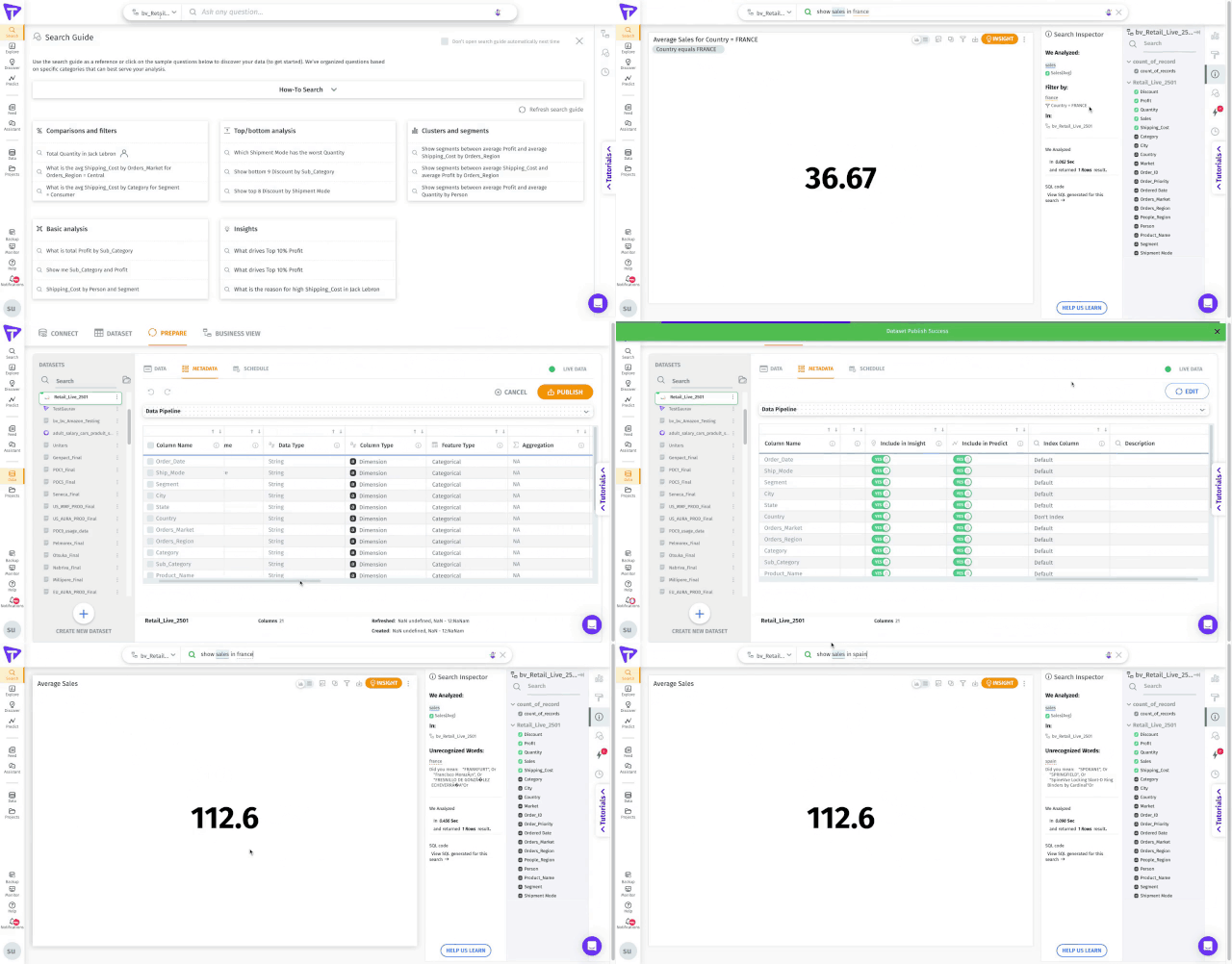
When a search query is executed, only the values of indexed columns are considered for processing the results of a query.&#x20;

* The columns set to **Default** will be considered for the search results.
* The values of the column set to **Don’t Index** will be excluded from the search results.

From the metadata view,

1. For the required column, click on the dropdown under **Index Column**.
2. Choose the value as **Default** to include the column, and **Don’t index** to exclude the column.

<figure><img src="https://content.gitbook.com/content/VXyBWnsg0T2tHBl87viA/blobs/TnJDkGNb5zwS556IyCSW/tellius-31-january-2023-online-v-1.gif" alt="" width="480"><figcaption><p>Index column</p></figcaption></figure>

### **Description**

Column description helps you understand the context of each column. When you hover over any column across Tellius, the corresponding data description will be displayed in the tooltip along with the column type (measure/dimension). By default, there will be no description associated with a column.

The following are the places where the description will be displayed when hovered:

**Search:**

1. When hovered over any column in Search guide, Search Inspector, search history, and the right panel where the list of columns in a Business View is displayed.
2. When hovered over any axis label/ legend label on a chart.

**Explore:**

1. When hovered over a column in the right panel where the list of columns in a Business View is displayed.
2. When hovered over a column in the filter list on a chart.

**To add description:**

From the metadata view,

1. For the required column, click on *Click to edit* under **Description**.
2. Provide the required description within 2000 characters.

<figure><img src="https://content.gitbook.com/content/VXyBWnsg0T2tHBl87viA/blobs/qASFOSpdsqAHNX0ZLXjw/description%20(1).gif" alt=""><figcaption><p>Description</p></figcaption></figure>

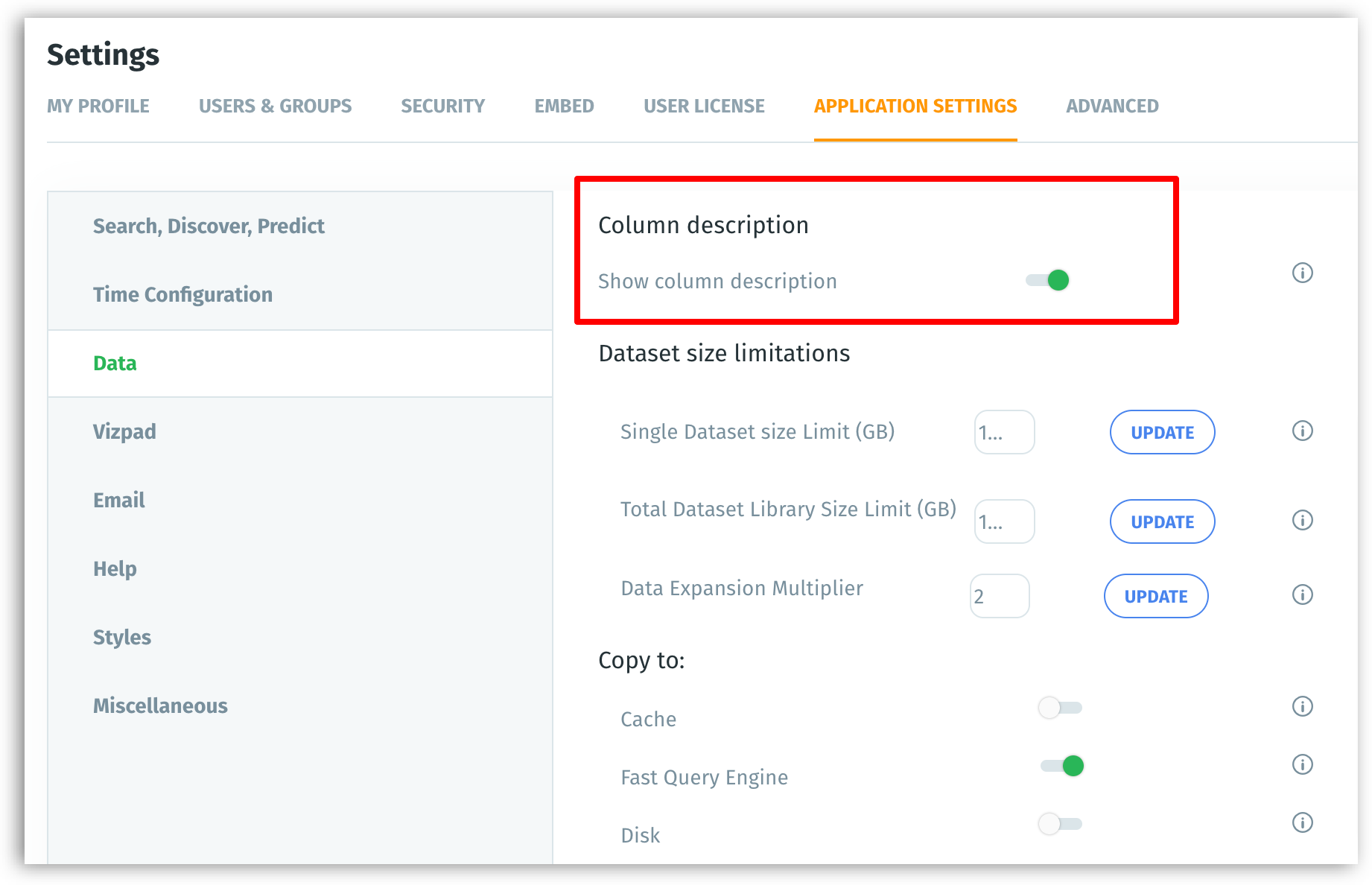
To hide the description tooltips, navigate **Settings → Application Settings → Data** and disable the **Show Column Description** toggle under **Column description**.

{% hint style="info" %}
The **Show Column Description** option will be enabled by default.
{% endhint %}

<figure><img src="https://content.gitbook.com/content/VXyBWnsg0T2tHBl87viA/blobs/Fyq0MyVtVJyxZpOvhEJY/image.png" alt=""><figcaption><p>Enabling column description</p></figcaption></figure>

### **Bulk operation**

From the metadata view, Tellius offers the flexibility to select multiple columns and apply changes to them as required. Bulk editing is a time-saver, especially when you have a large dataset with multiple columns needing the same property changes (e.g., converting a batch of numeric fields from Dimensions to Measures). To perform bulk operations,

1. Select the required columns by clicking on the checkbox near the **Column name**.
2. The following metadata can be modified in bulk:

* Column type
* Feature type
* Aggregation
* Data format
* Include in Discovery
* Include in Insight
* Include in Predict

<figure><img src="https://content.gitbook.com/content/VXyBWnsg0T2tHBl87viA/blobs/smxm2n02BoopvBFc0Y5Z/bulk-operation-1-online-video-cu%20(1).gif" alt=""><figcaption><p>Bulk operation</p></figcaption></figure>