> For the complete documentation index, see [llms.txt](https://help.tellius.com/llms.txt). Markdown versions of documentation pages are available by appending `.md` to page URLs; this page is available as [Markdown](https://help.tellius.com/tellius-5.6/insights-discover/how-to-create-new-insights/creating-key-driver-insights.md).
# Creating Key Driver Insights
Step-by-step guide to create a new Key Driver/Segment Driver Insights
1. Navigate to the **Discover** tab and click on the plus button.
2. A list of all available Business Views will be displayed.
3. Sort or search the list and choose the required Business View.
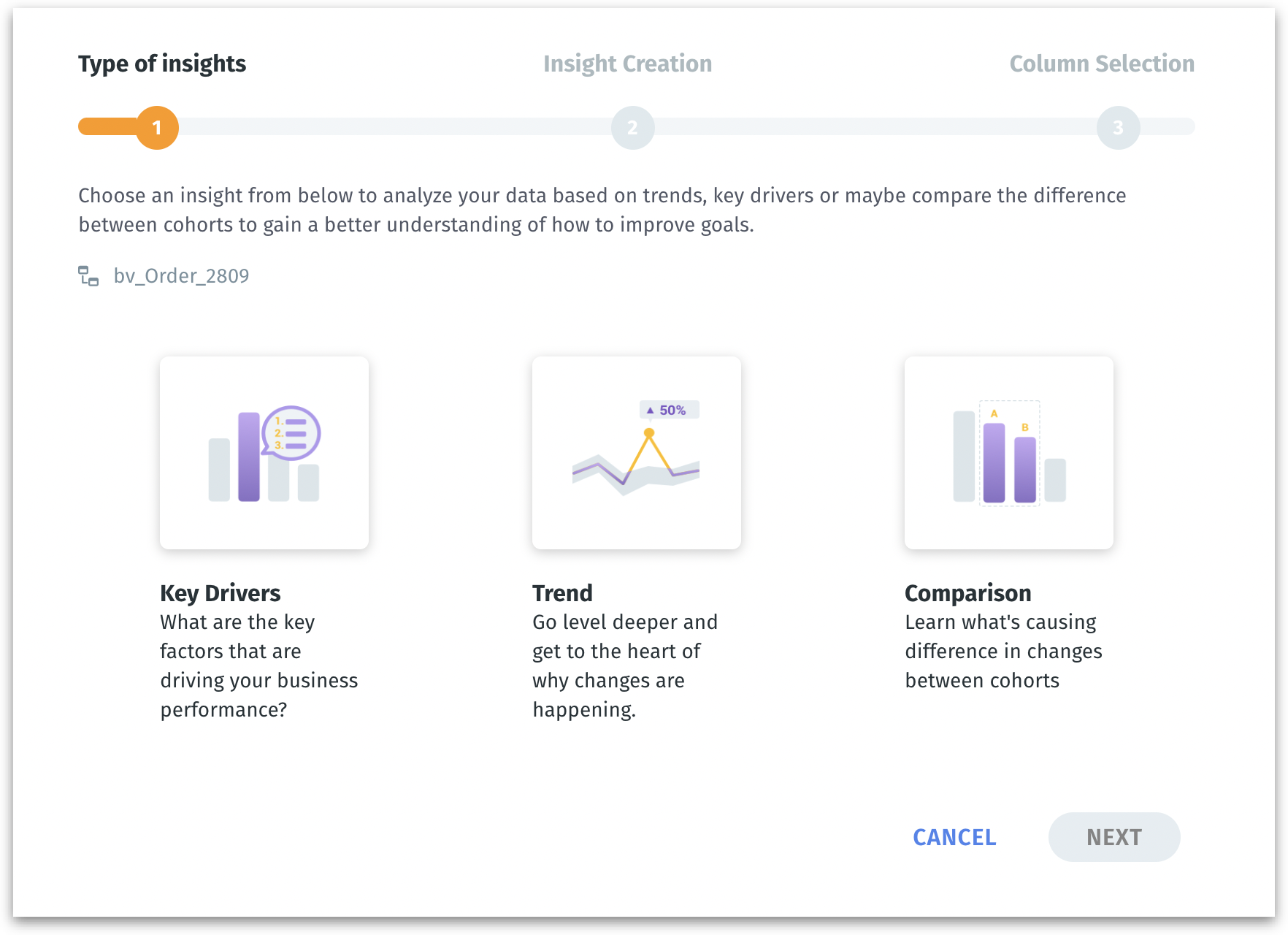
4. As a first step, you need to choose the type of Insight you want to create. There are three types of Insights: **Key Drivers, Trend, and Comparison**.
Choosing the type of Insight
{% hint style="info" %}
To know more about the differences between the three types of Insights and to choose the best Insight type as per your needs, check out [this page](/tellius-5.6/insights-discover/understanding-the-types-of-insights.md).
{% endhint %}
### **Creating Key Driver Insight**
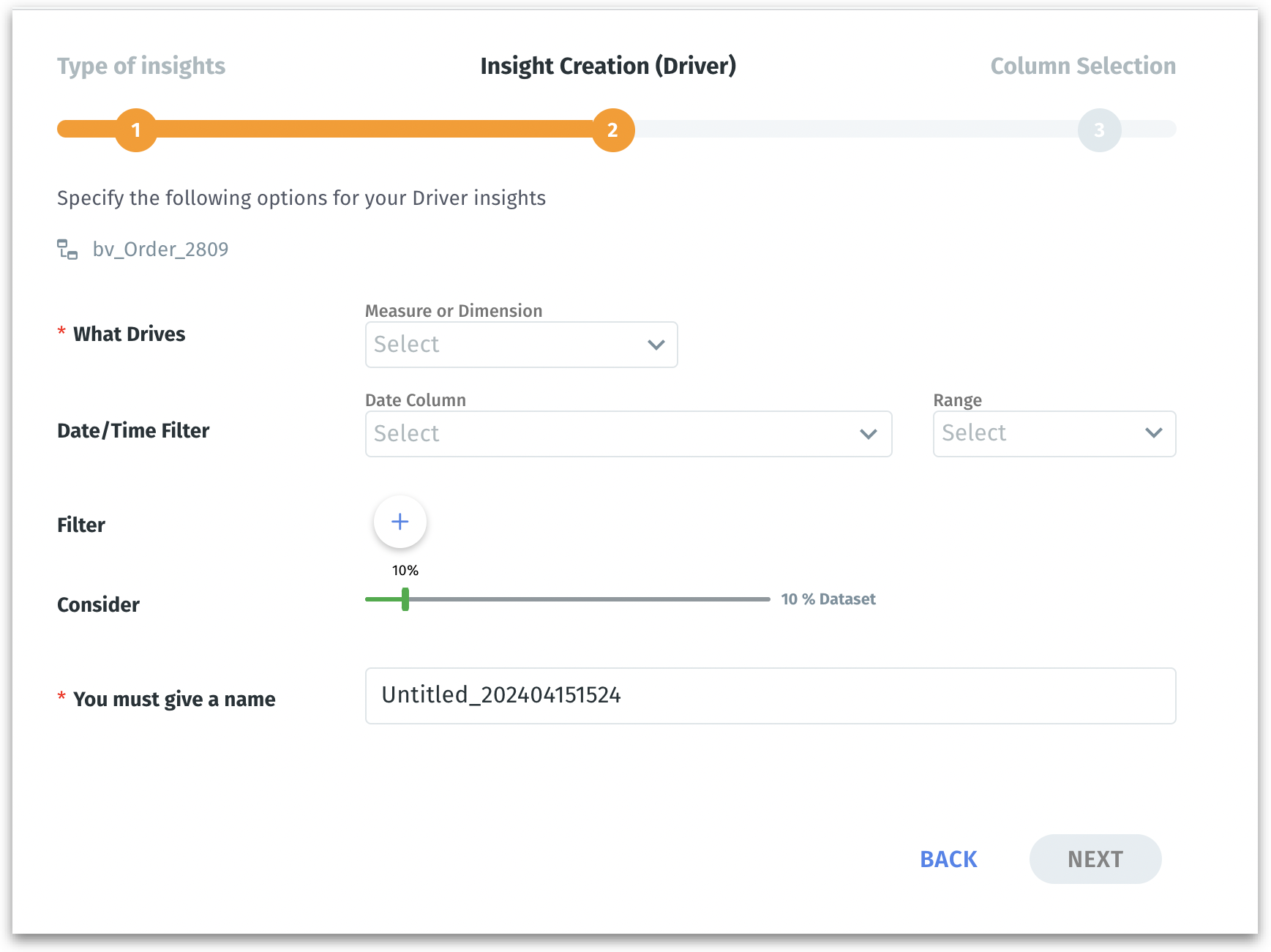
If you choose Key Driver Insight, then the next step will be displayed as follows:
Configuring Key Driver Insight
#### 1. What Drives (Measure or Dimension)
* Choose the influencing factors you want to examine as a potential driver of business performance. Select from a list of measures (quantitative data) and dimensions (qualitative data) from the selected Business View.
* For example, choose "*Revenue*" as the measure because you're interested in understanding what factors drive the most sales.
#### 2. Date/Time Filter
* Specify the time frame for the analysis. It helps in narrowing down the data to a specific period to identify trends within a given context.
* For example, you can set the filter to include only data from the last fiscal quarter.
* Select the required **Date Columns** from the dropdown list. Click on **Range** to specify the range of dates.
#### 3. Filter
* By adding filters, you can include or exclude certain data points based on predefined criteria. This fine-tunes the analysis by focusing on the most relevant data for your inquiry, such as a particular product line or customer segment.
* For example, if you want to focus on transactions over $500 to identify what drives these high-value sales, you can set the filter condition: *Transaction Value > $500*.
* Click on the **"+"** sign to view the filter condition fields. Select the required column, operator, and value. To apply more filters, click on the **"+"** sign again. Click on the **"x"** sign to remove the filter.
Applying filters
#### 4. Consider (Range Selector)
* Defines the data scope of your analysis. Adjust the range selector to select the portion of the dataset that Insight should consider.
* For example, if you set the "**Consider**" field to "**50%**", half of your entire dataset will be selected for the analysis. This can be particularly useful for analyzing a sample of your data when the full dataset is too large to analyze efficiently.
#### 5. Name
Give a meaningful name to your Insight and click on **Next**.
{% hint style="info" %}
To know more about the next step, where you want to include/exclude columns, please check out [this section](/tellius-5.6/insights-discover/the-art-of-selecting-columns-for-insights.md).
{% endhint %}
---
# Agent Instructions
This documentation is published with GitBook. GitBook is the documentation platform designed so that both humans and AI agents can read, navigate, and reason over technical content effectively. Learn more at gitbook.com.
## Querying This Documentation
If you need additional information that is not directly available in this page, you can query the documentation by asking a question.
Perform an HTTP GET request on the following URL with the `ask` and `goal` query parameters:
```
GET https://help.tellius.com/tellius-5.6/insights-discover/how-to-create-new-insights/creating-key-driver-insights.md?ask=&goal=
```
`ask` is the immediate question: it should be specific, self-contained, and written in natural language.
`goal` is what the user is ultimately trying to achieve, the reason they need the answer. Sharing it helps GitBook give you a better, more relevant answer. A goal is most helpful when it describes the outcome the user wants rather than restating the question. For example, with `ask=how do I create an API token`, a goal like `automate deployments from our CI pipeline` lets GitBook tailor the answer to that use case.
The response will contain a direct answer to the question and relevant excerpts and sources from the documentation.
Use this mechanism when the answer is not explicitly present in the current page, you need clarification or additional context, or you want to retrieve related documentation sections.