> For the complete documentation index, see [llms.txt](https://help.tellius.com/llms.txt). Markdown versions of documentation pages are available by appending `.md` to page URLs; this page is available as [Markdown](https://help.tellius.com/tellius-5.6/settings/application-settings/time-configuration.md).
# Time Configuration
Configure how Tellius handles time-based data with flexible options for weekend dates, dynamic time slices, current period inclusion, and custom calendars
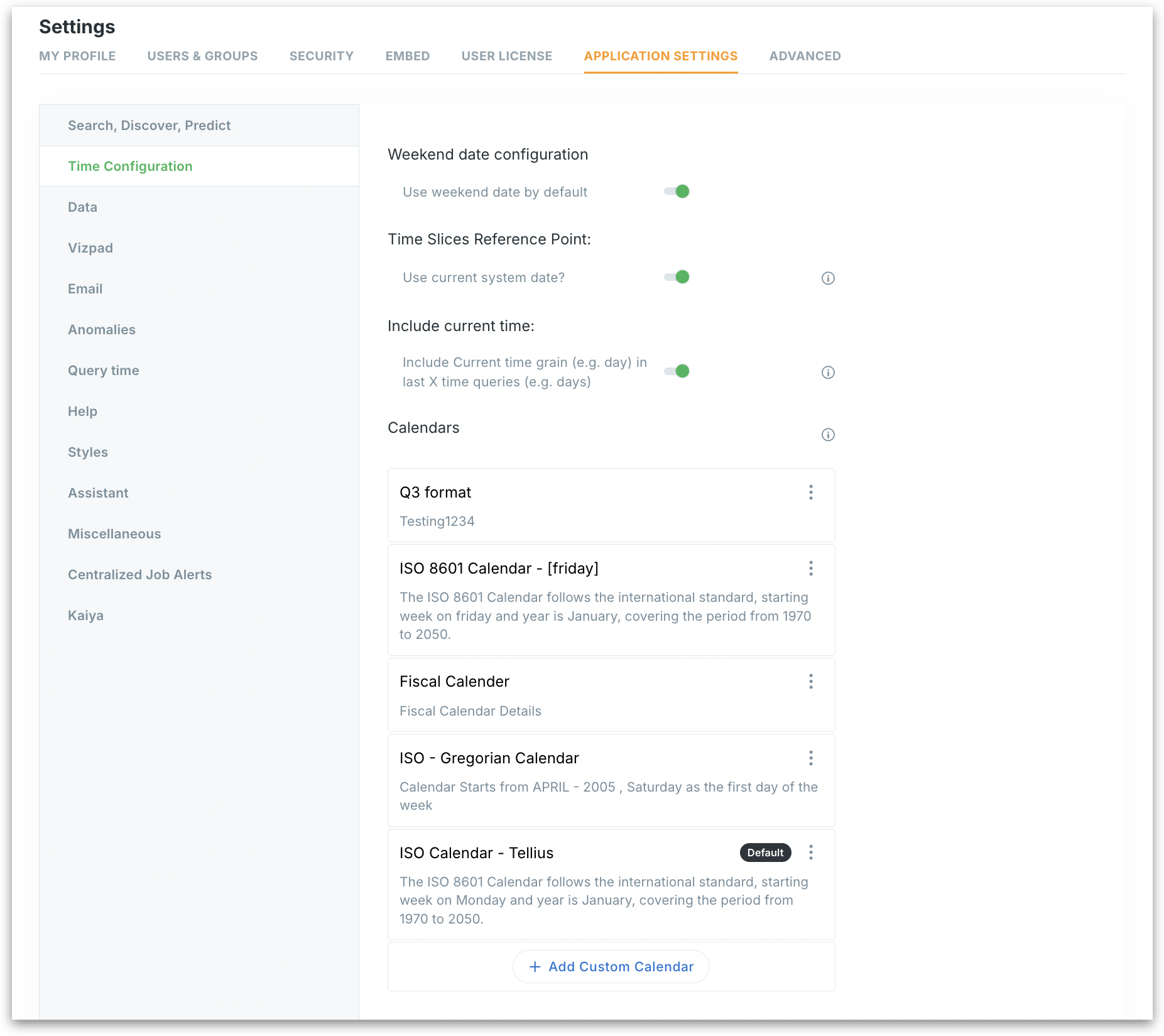
Under **Settings → Application Settings → Time Configuration,** admins can control how Tellius interprets and interacts with time-based data across queries, insights, and calendars (especially when dealing with non-standard or fiscal calendars).
Time Configuration
### Weekend Date Configuration
**Use weekend date by default**
If enabled, Tellius will use the weekend date as the reference point for time-based calculations (e.g., weekly comparisons, trending by weekends). This is helpful for businesses whose data processing or reporting aligns with weekend cycles.
### Time Slices Reference Point
**Use current system date?**
Tellius typically uses the maximum date in your dataset as the default reference point when calculating dynamic time slices (e.g., “last 7 days” or “previous month”).\
If enabled, Tellius will use the **current system date** instead.
{% hint style="info" %}
Enabling this may lead to unexpected results if your dataset is not updated daily—such as showing empty results for recent periods.
{% endhint %}
### Include Current Time
**Include current time grain (e.g., day) in last X time queries**
This setting controls whether queries for "last X time" (like last 7 days) should include the current day/hour/week, depending on the selected time grain.
* If enabled, today is included in calculations.
* If disabled, queries will exclude the in-progress current period.
### Calendars
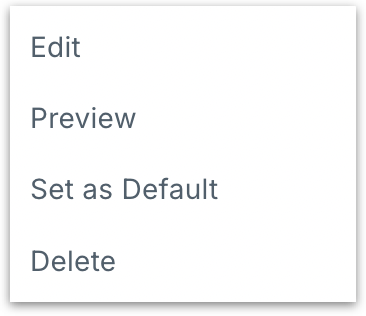
Tellius supports custom calendar management, helping users create fiscal calendars. The list of all available calendars will be displayed here. Click on the three-dot menu to manage each calendar. For more details, check out [this](/tellius-5.6/data/preparing-your-business-views/setting-up-custom-calendars.md#how-to-set-up-custom-calendars) page.
Calendar management
The calendar marked as the default one will be indicated as **"Default"**. Click on **Add custom calendar** to create a new calendar. For more details, check out [this](/tellius-5.6/data/preparing-your-business-views/setting-up-custom-calendars.md#how-to-set-up-custom-calendars) page.
---
# Agent Instructions
This documentation is published with GitBook. GitBook is the documentation platform designed so that both humans and AI agents can read, navigate, and reason over technical content effectively. Learn more at gitbook.com.
## Querying This Documentation
If you need additional information that is not directly available in this page, you can query the documentation by asking a question.
Perform an HTTP GET request on the following URL with the `ask` and `goal` query parameters:
```
GET https://help.tellius.com/tellius-5.6/settings/application-settings/time-configuration.md?ask=&goal=
```
`ask` is the immediate question: it should be specific, self-contained, and written in natural language.
`goal` is what the user is ultimately trying to achieve, the reason they need the answer. Sharing it helps GitBook give you a better, more relevant answer. A goal is most helpful when it describes the outcome the user wants rather than restating the question. For example, with `ask=how do I create an API token`, a goal like `automate deployments from our CI pipeline` lets GitBook tailor the answer to that use case.
The response will contain a direct answer to the question and relevant excerpts and sources from the documentation.
Use this mechanism when the answer is not explicitly present in the current page, you need clarification or additional context, or you want to retrieve related documentation sections.