> For the complete documentation index, see [llms.txt](https://help.tellius.com/llms.txt). Markdown versions of documentation pages are available by appending `.md` to page URLs; this page is available as [Markdown](https://help.tellius.com/tellius-5.6/settings/users-and-groups/synchronization/idp-connection-setup.md).
# IdP Connection Setup
Under **Synchronization** tab, click on **Edit** button to configure the IdP connection.
### Azure AD IdP Connection
Use the **Azure AD IdP Connection** to link Tellius with Azure AD for SSO and centralized user/group management.
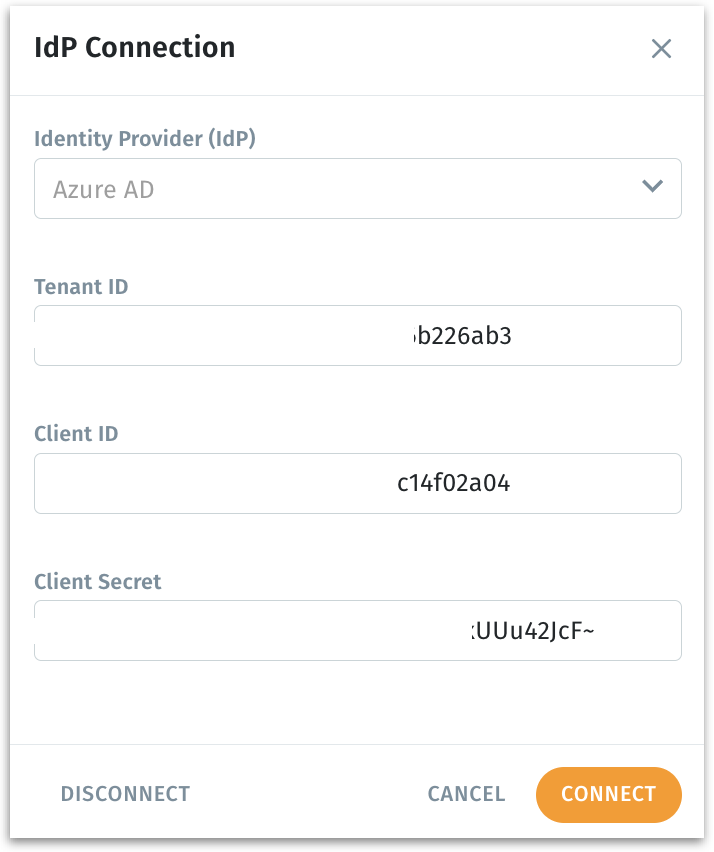
IdP connection panel
* **Identity Provide (IdP):** Provide the IdP in the dropdown. For now, only **Azure AD** is supported.
* **Tenant ID:** Unique identifier for your Azure tenant.
* **Client ID:** Application ID registered in Azure.
* **Client Secret:** Secure key generated from Azure to authorize API access.
* Click on **Connect** to establish connection between Tellius and Azure AD.
* Click on **Disconnect** to break the connection and re-enables manual group management.
* Click on **Cancel** to dismiss without saving changes.
{% hint style="info" %}
Once connected, all user and group sync logic is managed via Azure AD. Manual group edits in Tellius are disabled to preserve IdP as the source of truth.
{% endhint %}
### **LDAP IdP Connection**
Use the **LDAP IdP Connection** to integrate Tellius with your enterprise directory (e.g., OpenLDAP/AD-LDS) for centralized auth and provisioning. Tellius binds to your LDAP server, securely queries users and groups (optionally via SSL/TLS), and maps LDAP attributes to user profiles.
Once connected, LDAP becomes the **source of truth**—Tellius syncs users/group memberships and disables manual edits to preserve consistency.
**Identity Provider (IdP)**\
Select **LDAP** from the dropdown. This enables LDAP-based user and group sync and sign-in.
**Connection Settings**
* **Host:** The LDAP server’s hostname or IP address that Tellius will connect to.
* **Port:** Network port on the LDAP server. *Typical:* `389` for LDAP; if your server is configured for LDAPS, it’s commonly `636`. Use what your directory admin specifies.
* **Enable SSL/TLS:** Turn this on to encrypt the LDAP connection. Use it if your server requires or supports secure LDAP. Ensure the server certificate is trusted by your environment.
* **Search Base Node:** The **base DN** where Tellius will start searching for users and groups. This should be the common root that contains your directory entries.
* **Bind User:** The **full DN** of the service account Tellius uses to bind (authenticate) and run searches. This account needs read access to user and group objects.
* **Bind Password:** Password for the Bind User above. Stored securely and used for directory queries.
**User Mapping**
These fields tell Tellius which users to sync and how to map LDAP attributes into Tellius user profiles.
* **LDAP User Filter:** LDAP search filter to select which entries are considered users. Use a stricter filter if needed (e.g., add location/org OU constraints).
* **Username Attribute:** LDAP attribute to use as the Tellius username (the login name). Pick an attribute that is unique and stable across your directory.
* **First Name Attribute:** LDAP attribute mapped to the user’s first name in Tellius.
* **Last Name Attribute:** LDAP attribute mapped to the user’s last name in Tellius.
* **Email Attribute:** LDAP attribute mapped to the user’s email in Tellius.\
(If your directory uses a different attribute, provide that exact attribute name here.)
**Group Mapping**
These settings control which groups to sync and how Tellius reads membership.
* **LDAP Group Filter:** LDAP search filter to find group entries that Tellius should sync. *Example:* `(& (objectClass=groupOfUniqueNames) (ou={group_name}))` . Replace `{group_name}` at runtime with the actual group name you want Tellius to match. Adjust the filter to your directory’s group objectClass and OU structure.
* **Group Member Attribute:** The attribute on group objects that lists member DNs. Common alternatives in some directories are `member` or `memberUid`; use the one your groups actually use.
* **Group Attribute:** The attribute Tellius reads as the group’s name/identifier for mapping. Use the attribute that contains the readable group name you want to appear in Tellius.
Click on **Connect** to validate and establish the LDAP connection. On success, Tellius begins syncing users and groups using the mappings above. Click on **Disconnect** to remove the LDAP connection and re-enables manual group management inside Tellius (IdP will no longer be the source of truth).
---
# Agent Instructions
This documentation is published with GitBook. GitBook is the documentation platform designed so that both humans and AI agents can read, navigate, and reason over technical content effectively. Learn more at gitbook.com.
## Querying This Documentation
If you need additional information that is not directly available in this page, you can query the documentation by asking a question.
Perform an HTTP GET request on the following URL with the `ask` and `goal` query parameters:
```
GET https://help.tellius.com/tellius-5.6/settings/users-and-groups/synchronization/idp-connection-setup.md?ask=&goal=
```
`ask` is the immediate question: it should be specific, self-contained, and written in natural language.
`goal` is what the user is ultimately trying to achieve, the reason they need the answer. Sharing it helps GitBook give you a better, more relevant answer. A goal is most helpful when it describes the outcome the user wants rather than restating the question. For example, with `ask=how do I create an API token`, a goal like `automate deployments from our CI pipeline` lets GitBook tailor the answer to that use case.
The response will contain a direct answer to the question and relevant excerpts and sources from the documentation.
Use this mechanism when the answer is not explicitly present in the current page, you need clarification or additional context, or you want to retrieve related documentation sections.