# Guided tours for quick onboarding

It’s only normal to get overwhelmed with the features and modules once you step into any new platform. To break the ice and get you familiar with the functionalities, Tellius has introduced a guided walkthrough right from the home page. The guide can be revisited when required, and the progress will be maintained.

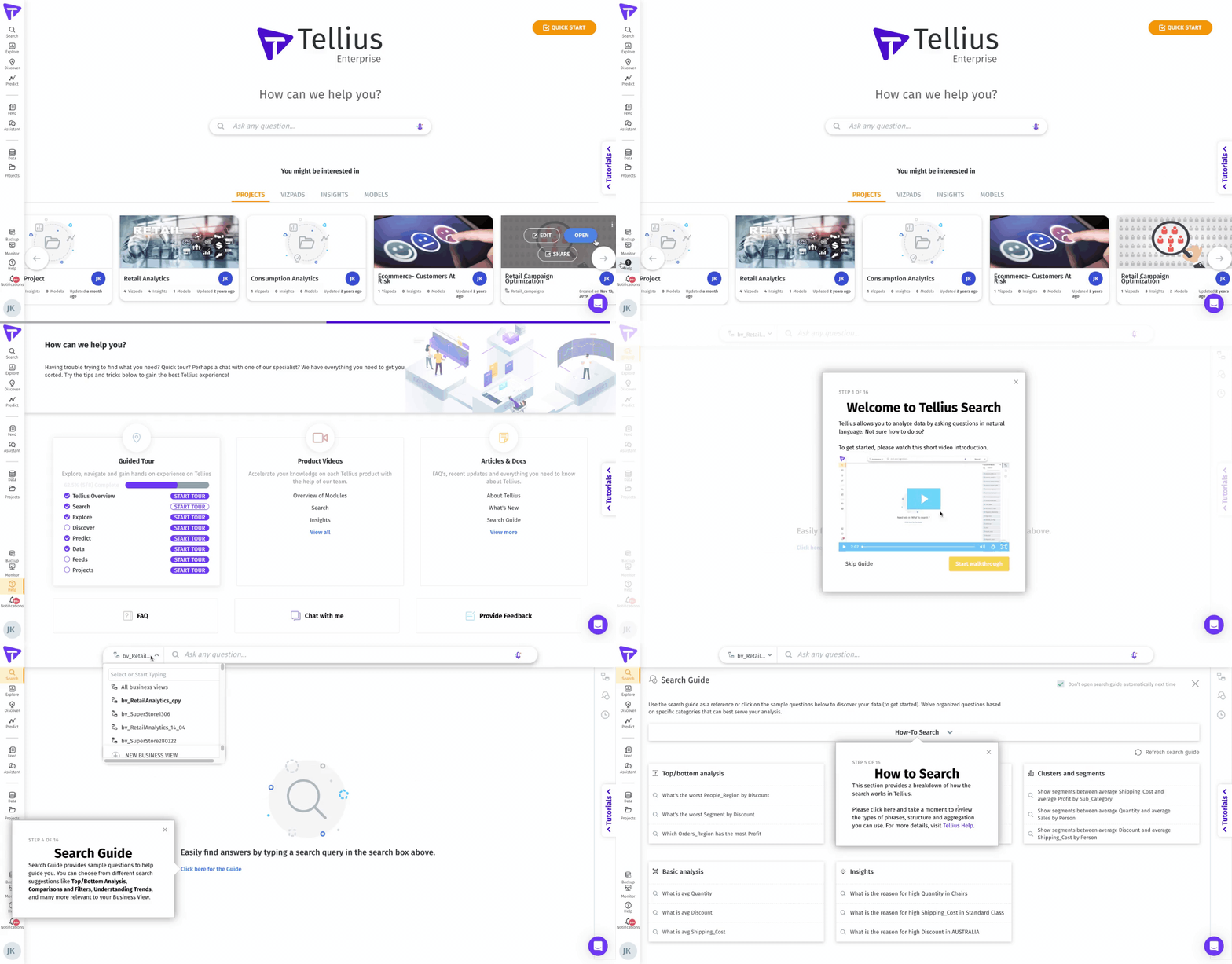
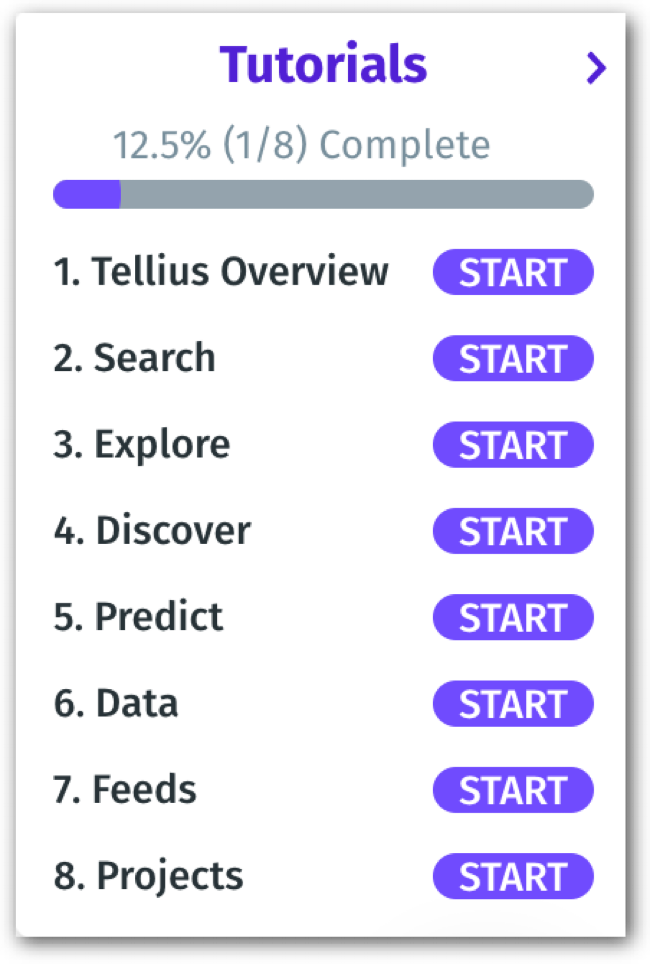
1. From the homepage, click on the **Tutorials** tab on the right pane to expand. Alternatively, you can click on the **Help** tab in the left pane.

<figure><img src="https://files.helpdocs.io/6dnnwn52e3/articles/0yurl70u7q/1667505841430/tellius-4-november-2022.gif" alt="In-app product tutorial for quick onboarding"><figcaption><p>Guided walkthroughs</p></figcaption></figure>

2. A list of modules appears as shown, and you can click on the **Start** button of Tellius Overview to get started. Also, you can click on the **Start** button of any module to learn further.
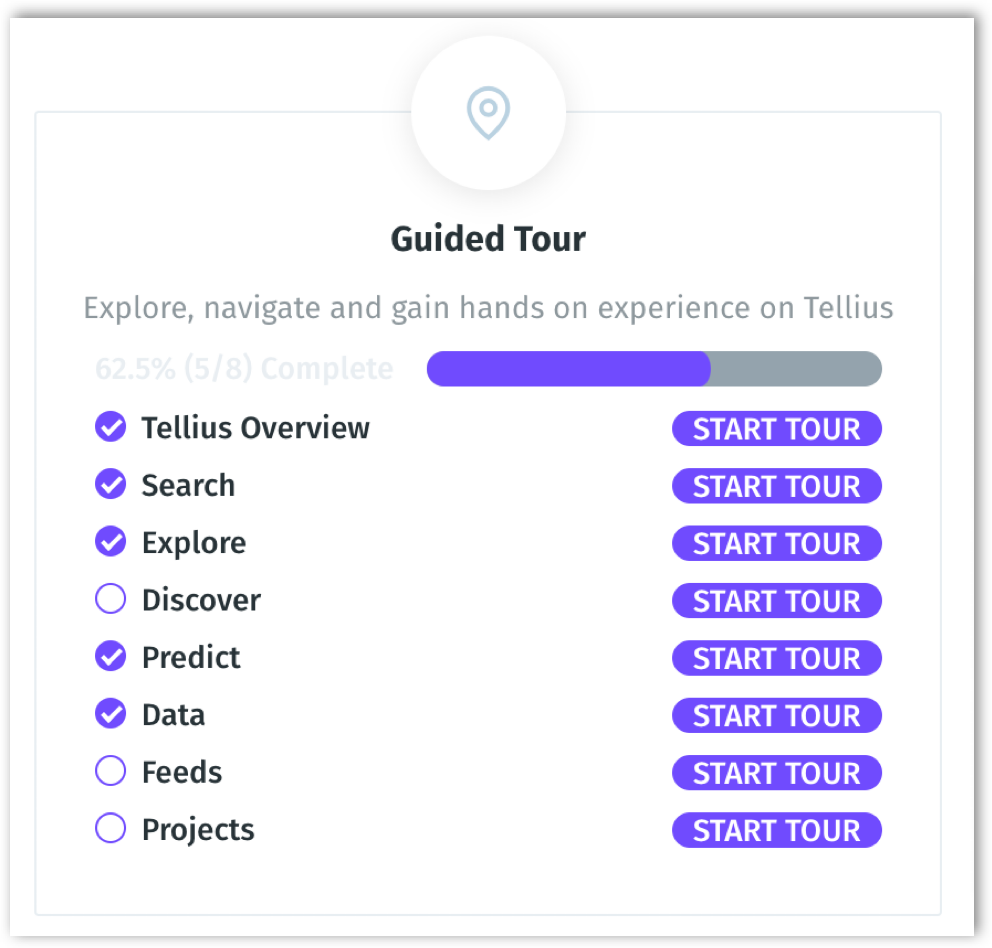
3. The progress bar displays the number of modules completed. Once you complete a module, you can find a checkmark near the module name.

<figure><img src="https://files.helpdocs.io/6dnnwn52e3/articles/0yurl70u7q/1666350130150/image.png" alt="Guided tutorials for each module" width="188"><figcaption><p>Tutorials menu from the sidebar</p></figcaption></figure>

<figure><img src="https://files.helpdocs.io/6dnnwn52e3/articles/0yurl70u7q/1666347597949/image.png" alt="Progress bar displays the modules completed" width="375"><figcaption><p>Progress bars for each module</p></figcaption></figure>

4. The following window appears, and you can click on **Let’s Go** to take a tour across Tellius.

<figure><img src="https://files.helpdocs.io/6dnnwn52e3/articles/0yurl70u7q/1665409794483/bx-9-x-nywvoe-zdl-ds-auzdjz-luj-meooywwz-cu-qfmo-6-z-2-um-5-ujc-pjx-hmh-z-1-wgf-rzy-wml-uqq-wss-ep-1-qndbge-2-dbv-gtkvu-8-p-p-9-re-a-3-j-s-3-pwuz-hcc-yvw-ao-q-u-5-w-9-lp-1-l-2-zl-6-a-48-y-qai-d-g-gn-7-jfe-vu-uvt-tska-oarw-gehs-8-z-ff-4-as-0-nik-y-3-ku-dw-4-he-a" alt="Beginning of the guided tour" width="375"><figcaption><p>The first widget</p></figcaption></figure>

5. Every widget will be presented with a video that gives you an overview of the module and a link to the corresponding Help Guide.
<figure><img src="https://files.helpdocs.io/6dnnwn52e3/articles/0yurl70u7q/1665409833351/vjd-owyw-3-bxa-f-9-u-up-05-vt-3-wcym-43-ohc-ldy-46-maombcflk-kmix-ot-4-maq-e-3-zq-l-pib-kx-cce-1-zh-dm-bu-1-g-7-wpazb-ppb-ug-7-lz-2-gmim-7-zy-v-b-egphoodli-ihrq-6-n-0-s-5-x-aq-nl-0-dt-05-shv-vk-5-l-ja-mjajo-p-919522-nwj-amj-wx-poudmu-feyjavhq-77-sy-jcu-v-3-q" alt="Quick navigation to video and help guide" width="375"><figcaption><p>Overview video for every module</p></figcaption></figure>

<br>