> For the complete documentation index, see [llms.txt](https://help.tellius.com/llms.txt). Markdown versions of documentation pages are available by appending `.md` to page URLs; this page is available as [Markdown](https://help.tellius.com/tellius-6.3/data/preparing-your-business-views/mapping-measures-to-date-columns.md).
# Mapping measures to date columns
Use Date Mapping in Tellius to align measures with their correct date columns, ensuring accurate time filters and consistent timelines across Vizpads.
**Date Mapping** lets you bind each metric to the correct date column so relative date filters (e.g., Today, Last 30 days, MTD, QTD, “this month”) are evaluated against the right timestamp for that metric. Example: signup metrics use `reg_date`; sales metrics use `order_date`. If sales is only current through January but calls are current through February, filtering “this month” on a sales metric correctly lands on January instead of showing blanks.
* Filters reflect each metric’s real-world time context (e.g., signups on `reg_date`, deliveries on `delivery_date`)
* Timelines stay “in-bounds”: signup lines/bars honor `reg_date`; order lines/bars honor `order_date`—on the same Vizpad—under the same “Last 30 days” or “This month” filter.
### Setting up Date Mapping
1. Under **Data → Business View → Date Mapping**, click on **Create New Mapping** to align measures to date columns.
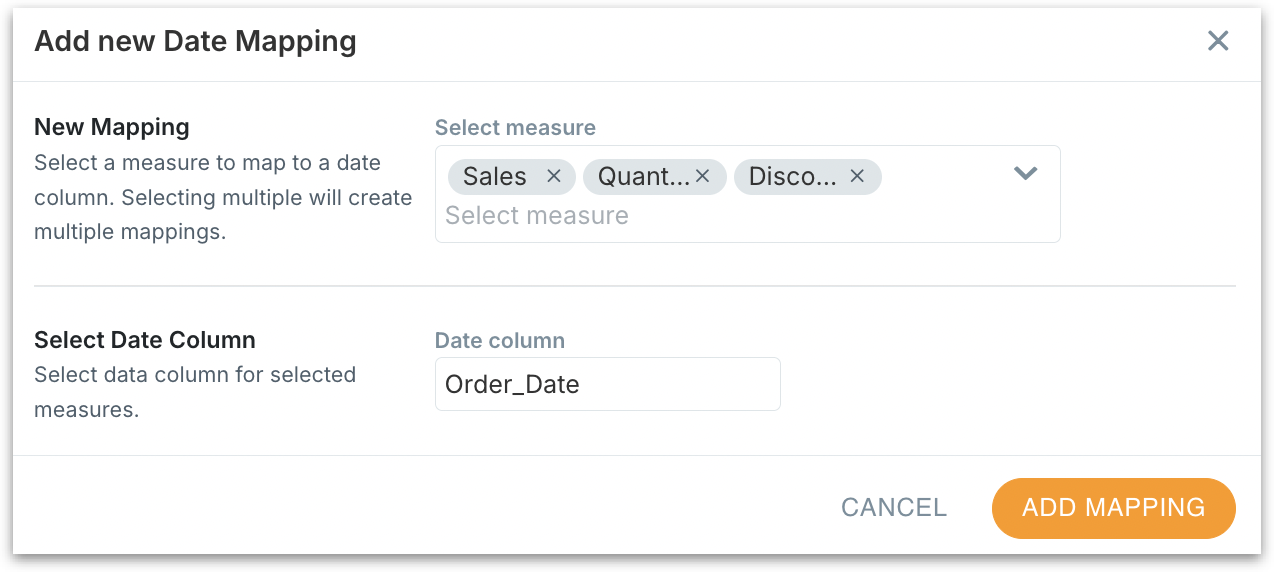
2. The following window will be displayed. Under **Select measure**, select as many measures as you want. Under **Date column**, select the date field for which you want to map the measures.
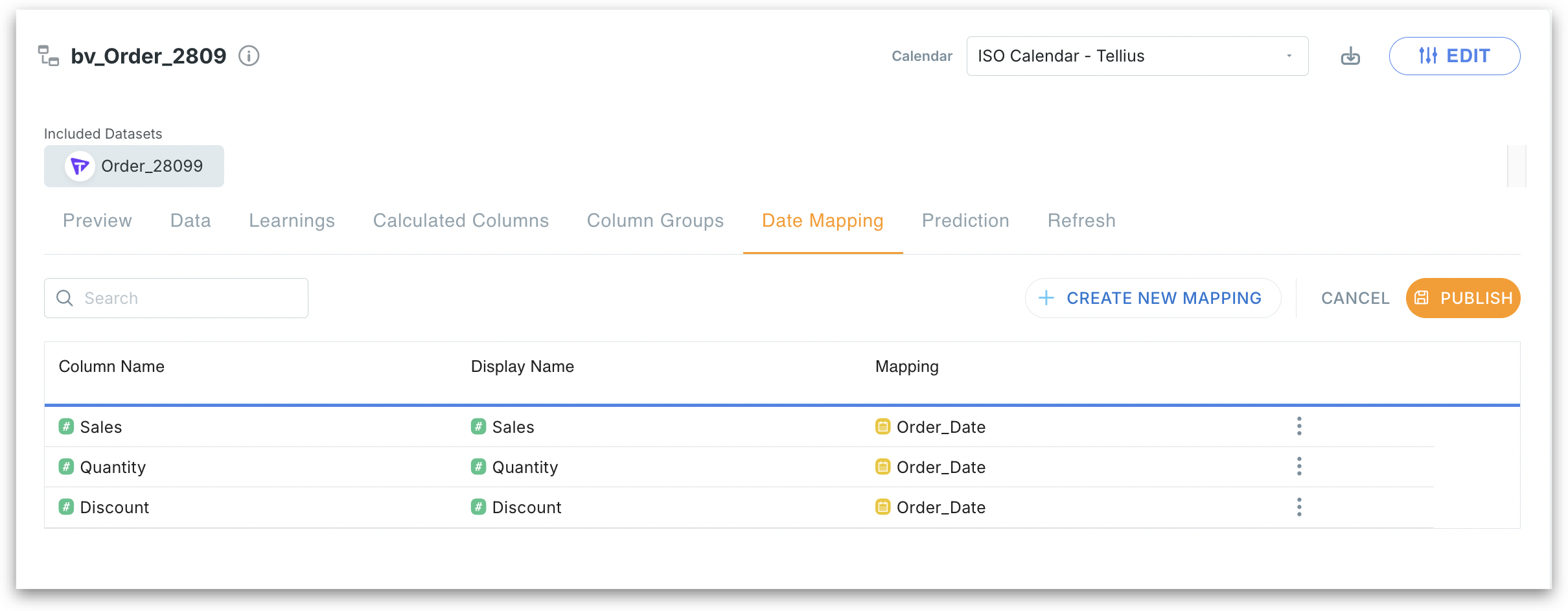
3. Click on **Add Mapping** and the newly created mappings will be added to the table as follows. Each *"Measure → Date"* mapping will be added as a new row.
4. To edit or delete a mapping, click on the three-dot menu of each mapping. Click on **Publish**. The mapping will be saved.
5. Navigate to Kaiya, Search or Vizpads. Here, for example, let's navigate to Vizpads and create a chart using the same Business View where the measure → date mappings have been applied.
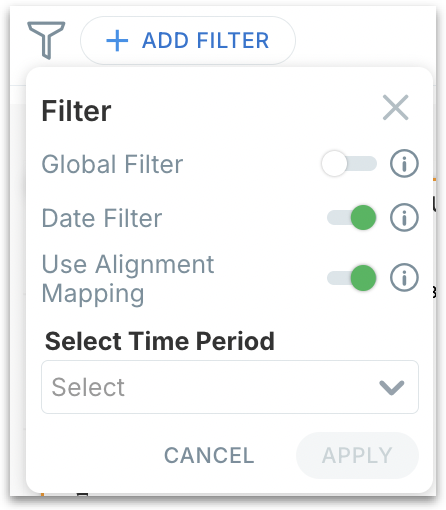
6. Click on **Add filter** and the following window will be displayed. Enable the toggles for **Date filter** and **Use Alignment Mapping**.
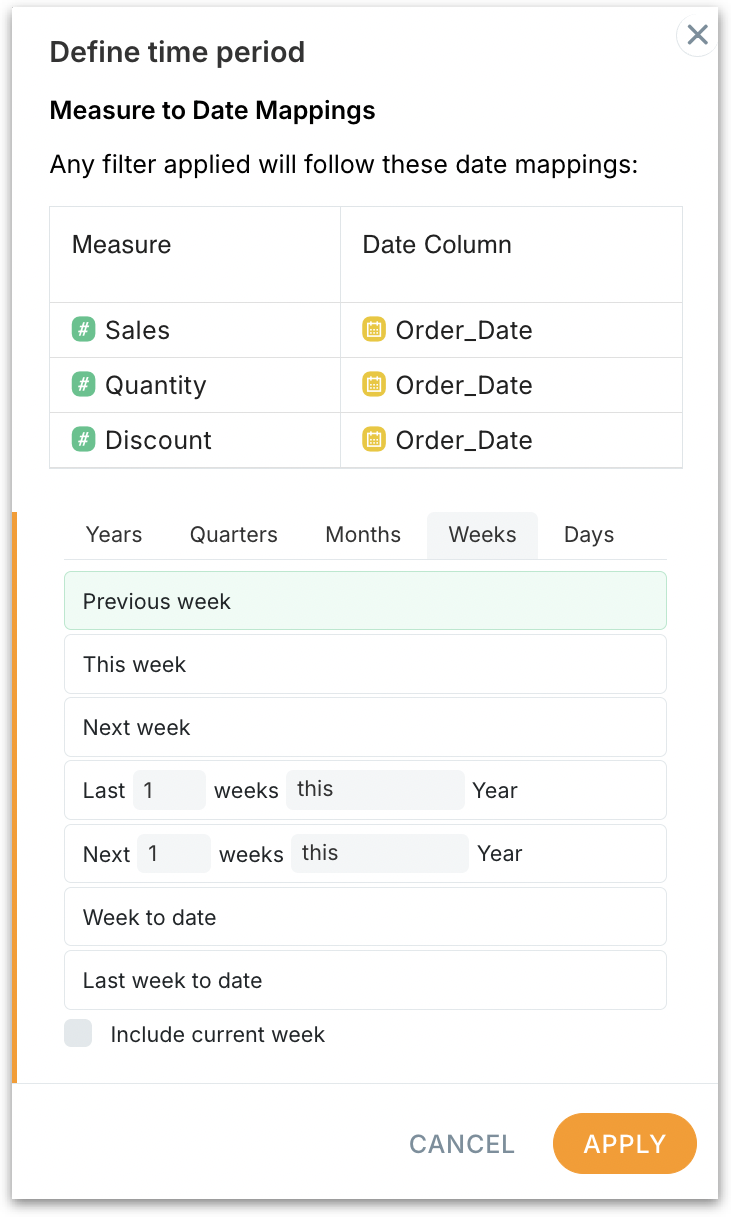
7. Click on the **Select Time Period** dropdown and choose the required date range. Click on **Apply**.
8. The date range will be applied to the selected chart/table/tab.
---
# Agent Instructions
This documentation is published with GitBook. GitBook is the documentation platform designed so that both humans and AI agents can read, navigate, and reason over technical content effectively. Learn more at gitbook.com.
## Querying This Documentation
If you need additional information that is not directly available in this page, you can query the documentation by asking a question.
Perform an HTTP GET request on the following URL with the `ask` and `goal` query parameters:
```
GET https://help.tellius.com/tellius-6.3/data/preparing-your-business-views/mapping-measures-to-date-columns.md?ask=&goal=
```
`ask` is the immediate question: it should be specific, self-contained, and written in natural language.
`goal` is what the user is ultimately trying to achieve, the reason they need the answer. Sharing it helps GitBook give you a better, more relevant answer. A goal is most helpful when it describes the outcome the user wants rather than restating the question. For example, with `ask=how do I create an API token`, a goal like `automate deployments from our CI pipeline` lets GitBook tailor the answer to that use case.
The response will contain a direct answer to the question and relevant excerpts and sources from the documentation.
Use this mechanism when the answer is not explicitly present in the current page, you need clarification or additional context, or you want to retrieve related documentation sections.