> For the complete documentation index, see [llms.txt](https://help.tellius.com/llms.txt). Markdown versions of documentation pages are available by appending `.md` to page URLs; this page is available as [Markdown](https://help.tellius.com/tellius-6.3/data/preparing-your-datasets.md).
# Preparing your datasets
Prepare datasets in Tellius by transforming, cleansing, and organizing data—use metadata, scripting, and scheduling to make data analytics-ready and scalable.
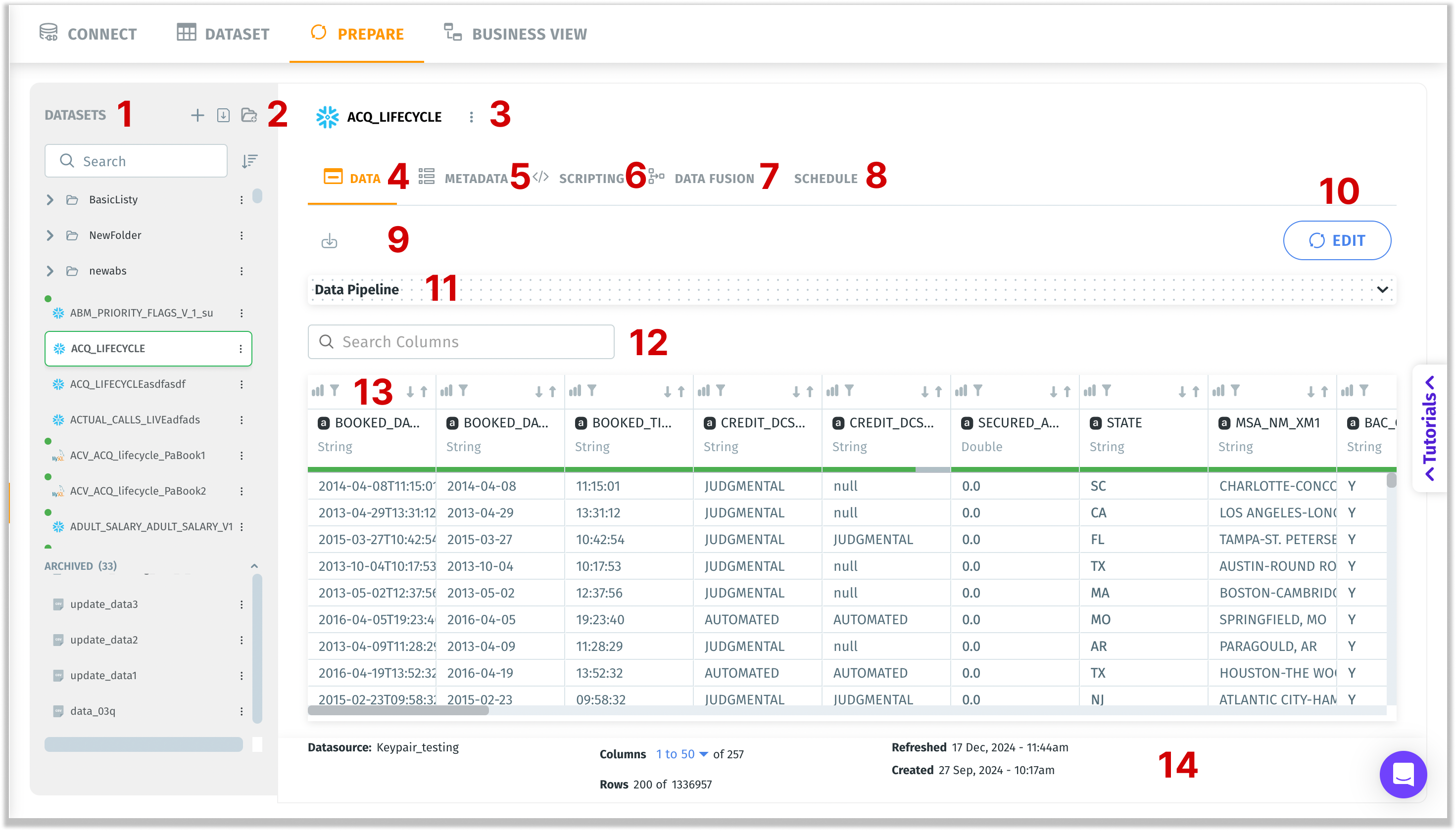
Once you’ve created or imported a dataset (through **Connect**), you can refine, transform, and organize it under the **Prepare** module. The left-hand panel lists available datasets and folders, while the central workspace offers specialized tabs: **Data**, **Metadata**, **Scripting**, **Data Fusion**, and **Schedule**. Each tab serves a unique purpose in preparing your data for analytics.
Understanding the Prepare page
1. **Datasets**: A list of datasets created. This left pane allows you to quickly search and sort datasets or folders by name.
* Datasets can be organized into folders.
* The icon of each dataset indicates the datasource type (e.g., Snowflake vs. CSV). Live datasets are indicated with a green dot.
* The archived folder at the end contains older or deprecated datasets. You can still access them but they’re separated for clarity.
* Click a folder to expand or collapse its contents.
* Select a dataset to open it in the central **Prepare** workspace.
* **Select dataset author(s):** Superusers can filter data assets by who created them using the **Author** filter. This filter is available across the **Dataset**, **Prepare**, and **Business View** tabs within the **Data** module. When you click the **Author** dropdown, it displays a list of all users who have created assets in that tab. Select one or more authors to filter the list to only show assets created by those users. Click **Reset** to clear the filter and return to the full list.

2. Displays the following options:
* **Create a new dataset:** On clicking this button, you will be redirected to **Data → Connect.** For more details, please check out [this](/tellius-6.3/data/create-new-datasource.md) section.
* **Import dataset:** Click on this button to import the required dataset. (Only .zip files are allowed to import)
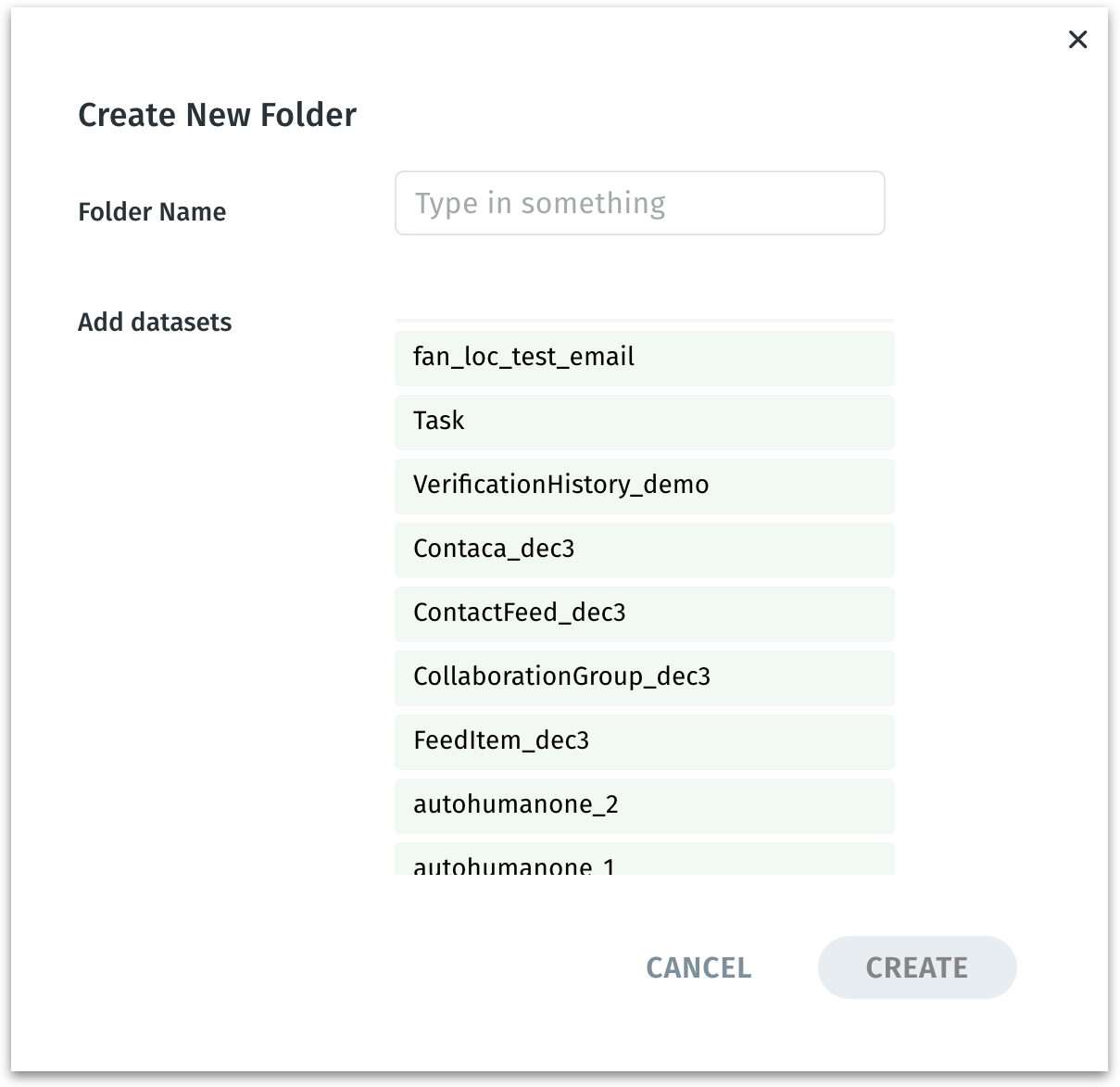
* **Create a new folder:** Creates a new folder to categorize the datasets. Provide a relevant name and add the required datasets from the available list.
New folder creation for datasets
3. **Actions performed on a dataset:** Click on the three-dot kebab menu and the following menu will be displayed. For more details, please check out [this](https://app.gitbook.com/o/S3VKMrzMgXbC36NqGRj8/s/JHwf1QFuv1BRPzfSnL2Z/~/changes/154/data/actions-that-can-be-done-on-a-dataset) page.
4. **Data tab:** Displays all the datasets, allowing you to add or modify transformation nodes (SQL, Python, type changes) and perform data preparation actions.
5. **Metadata tab:** Here, you can
* Add user-friendly display names (e.g., “Booking Date” instead of `BOOKED_DATE`), synonyms, and descriptions to columns.
{% hint style="success" %}
If you use Kaiya feature (where enabled), you can auto-generate synonyms, display names, and desciptions for large sets of columns.
{% endhint %}
* Choose relevant data types (string, numeric, date/time) to ensure proper aggregations. For example, if `BOOKED_DATE` is incorrectly typed as string, you can’t do date-based filtering or time-series analysis properly.
* Assign measures (numeric fields), dimensions (for grouping or filtering), and date columns. For more details about the distinction, check out [this](/tellius-6.3/vizpads-explore/measures-dimensions-date-columns.md) page.
6. **Scripting tab:** After verifying metadata, you might need advanced transformations that exceed basic pipeline nodes. For example, you want to:
* Add custom columns with SQL or Python.
* Join multiple datasets (often more than two) based on business rules.
* Aggregate or filter big data beyond what’s feasible in a single pipeline step.
7. **Data Fusion tab:** Data fusion is intended for simpler merges, typically merging exactly two datasets in a point-and-click fashion, without writing SQL.
8. **Schedule:** Use the **Schedule** option to refresh and keep your data in sync with the most up-to-date information available. A user can choose from a set of refresh modes and have flexibility in setting the refresh schedule.
9. **Export (Writeback):** Think of this as “saving” the cleaned or transformed dataset outside of Tellius. Depending on which connector you pick, you’ll either generate a local file (e.g., CSV) or publish it to an external system (e.g., HDFS, Snowflake etc.). For more details, check out [this](https://app.gitbook.com/o/S3VKMrzMgXbC36NqGRj8/s/JHwf1QFuv1BRPzfSnL2Z/~/changes/155/data/preparing-your-datasets/writeback-window) page.
10. **Edit:** Transforms the page into **Edit** mode where you can edit and apply transformations to the selected dataset. For more details, check out [this](https://app.gitbook.com/o/S3VKMrzMgXbC36NqGRj8/s/JHwf1QFuv1BRPzfSnL2Z/~/changes/155/data/editing-prepare-data) page.
11. **Pipeline:** Visual representation of transformations or nodes that have been applied to the dataset.
If you click **Edit**, this area will show your pipeline steps (e.g., an SQL node, Python node, or partitioning settings).
12. **Search Columns:** Quickly filters the displayed columns by typing part of the name or label.
13. **Column headers:** Displays each column in the selected dataset where you can sort the columns or apply filters on the fly. For more details on editing the dataset, check out [this](https://app.gitbook.com/o/S3VKMrzMgXbC36NqGRj8/s/JHwf1QFuv1BRPzfSnL2Z/~/changes/155/data/editing-prepare-data) page.
14. **Footer:** Displays the datasource name, preview of the dataset rows and columns. Also, it displays the timestamps indicating the last dataset refresh and the dataset creation.
---
# Agent Instructions
This documentation is published with GitBook. GitBook is the documentation platform designed so that both humans and AI agents can read, navigate, and reason over technical content effectively. Learn more at gitbook.com.
## Querying This Documentation
If you need additional information that is not directly available in this page, you can query the documentation by asking a question.
Perform an HTTP GET request on the following URL with the `ask` and `goal` query parameters:
```
GET https://help.tellius.com/tellius-6.3/data/preparing-your-datasets.md?ask=&goal=
```
`ask` is the immediate question: it should be specific, self-contained, and written in natural language.
`goal` is what the user is ultimately trying to achieve, the reason they need the answer. Sharing it helps GitBook give you a better, more relevant answer. A goal is most helpful when it describes the outcome the user wants rather than restating the question. For example, with `ask=how do I create an API token`, a goal like `automate deployments from our CI pipeline` lets GitBook tailor the answer to that use case.
The response will contain a direct answer to the question and relevant excerpts and sources from the documentation.
Use this mechanism when the answer is not explicitly present in the current page, you need clarification or additional context, or you want to retrieve related documentation sections.