> For the complete documentation index, see [llms.txt](https://help.tellius.com/llms.txt). Markdown versions of documentation pages are available by appending `.md` to page URLs; this page is available as [Markdown](https://help.tellius.com/tellius-6.3/data/preparing-your-datasets/list-of-icons-and-their-actions/creating-hierarchies.md).
# Creating Hierarchies
Create clear multi-level data hierarchies for intuitive drill-down analysis, enabling smooth navigation from summary metrics to detailed insights for smarter decisions.
Hierarchies allow you to structure your data in a multi-level format, enabling you to drill down into details in a step-by-step manner. For example, a hierarchy such as *`Country → State → City`* provides an intuitive way to analyze data across geographical levels. By using hierarchies, you can:
* Quickly navigate from summary-level data to granular details.
* Organize dimensions in logical sequences for better insights.
* Explore summary-level metrics (e.g., total sales by country) and drill down into details (e.g., sales by city).
### **How to create hierarchies**
1. Under **Data → Prepare → Data,** select the required dataset and click on **Edit.**
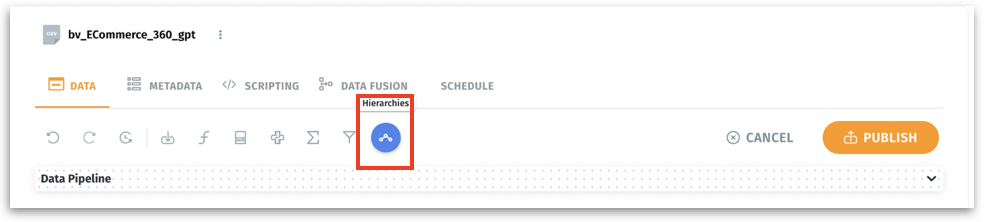
2. Above **Data Pipeline**, click on the **Hierarchies** option.
Data → Prepare → Edit
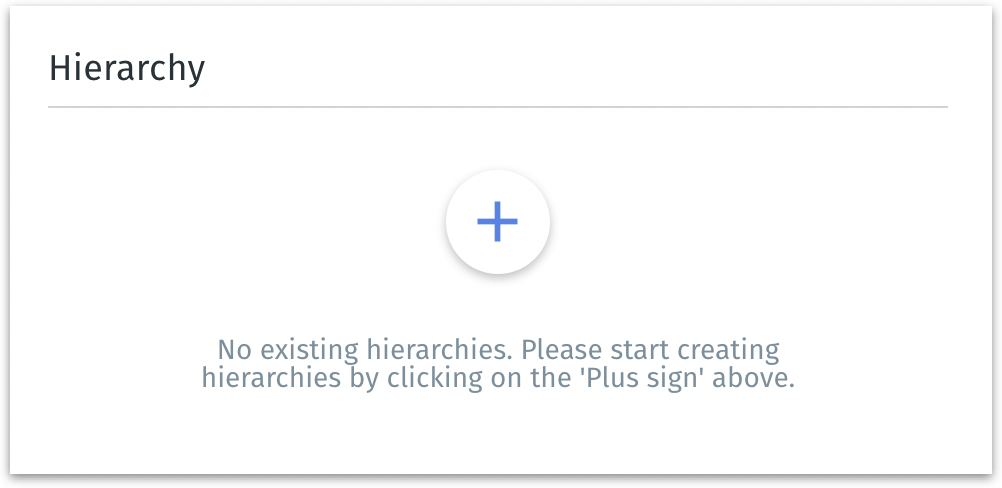
2. The following window will be displayed if there are no exisiting hierarchies.
When no hierarchies are present
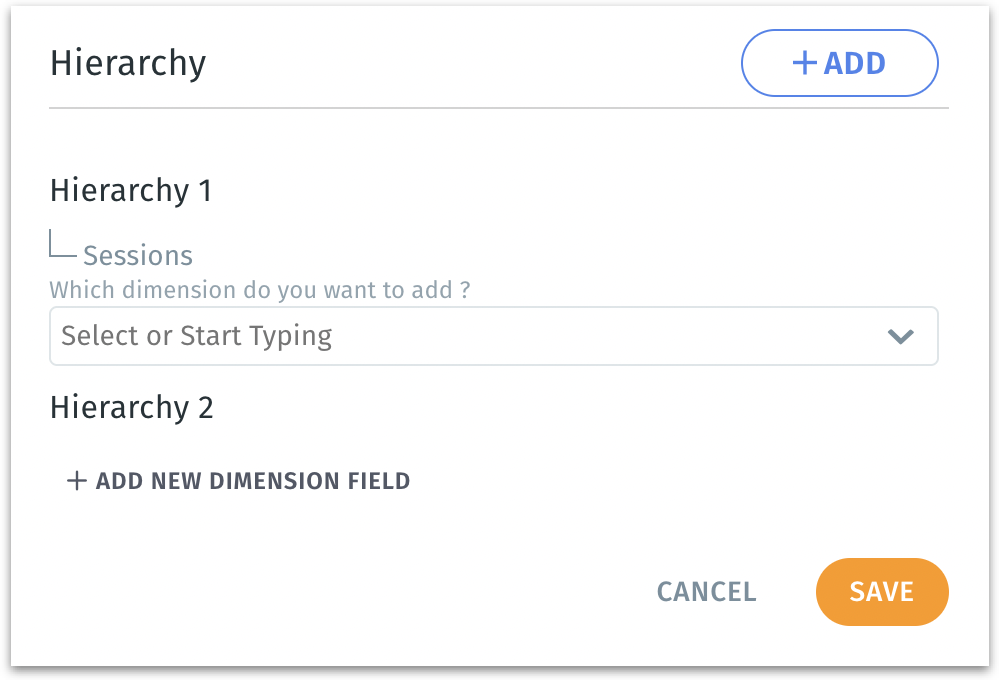
2. Click on the **Plus (+)** icon. This action initializes a blank hierarchy structure with no predefined fields.
Creating a new hierarchy
3. Click on the **“Add New Dimension Field”** button. This opens a dropdown where you can select the field to include in your hierarchy. Example: Start with *"Country"* as your first dimension.
4. Repeat the process to add more fields. Each field added to the hierarchy represents a level in the drill-down structure. For example, add "*State"* as the second level, followed by *"City"* as the third.
5. To create additional hierarchies, click on the **+ Add** button.
6. Click on the **Hierarchy 1** field at the top to rename the hierarchy.
7. After completing the setup, click **Save** or click on **Cancel** to dismiss. The hierarchy is now embedded in your data pipeline.
---
# Agent Instructions
This documentation is published with GitBook. GitBook is the documentation platform designed so that both humans and AI agents can read, navigate, and reason over technical content effectively. Learn more at gitbook.com.
## Querying This Documentation
If you need additional information that is not directly available in this page, you can query the documentation by asking a question.
Perform an HTTP GET request on the following URL with the `ask` and `goal` query parameters:
```
GET https://help.tellius.com/tellius-6.3/data/preparing-your-datasets/list-of-icons-and-their-actions/creating-hierarchies.md?ask=&goal=
```
`ask` is the immediate question: it should be specific, self-contained, and written in natural language.
`goal` is what the user is ultimately trying to achieve, the reason they need the answer. Sharing it helps GitBook give you a better, more relevant answer. A goal is most helpful when it describes the outcome the user wants rather than restating the question. For example, with `ask=how do I create an API token`, a goal like `automate deployments from our CI pipeline` lets GitBook tailor the answer to that use case.
The response will contain a direct answer to the question and relevant excerpts and sources from the documentation.
Use this mechanism when the answer is not explicitly present in the current page, you need clarification or additional context, or you want to retrieve related documentation sections.