> For the complete documentation index, see [llms.txt](https://help.tellius.com/llms.txt). Markdown versions of documentation pages are available by appending `.md` to page URLs; this page is available as [Markdown](https://help.tellius.com/tellius-6.3/kaiya/ask-across-your-documents-unstructured/how-to-connect-to-unstructured-data.md).
# How to connect to unstructured data?
Learn how Tellius connects to unstructured data sources for AI-powered search, document analysis, and conversational insights across enterprise content.
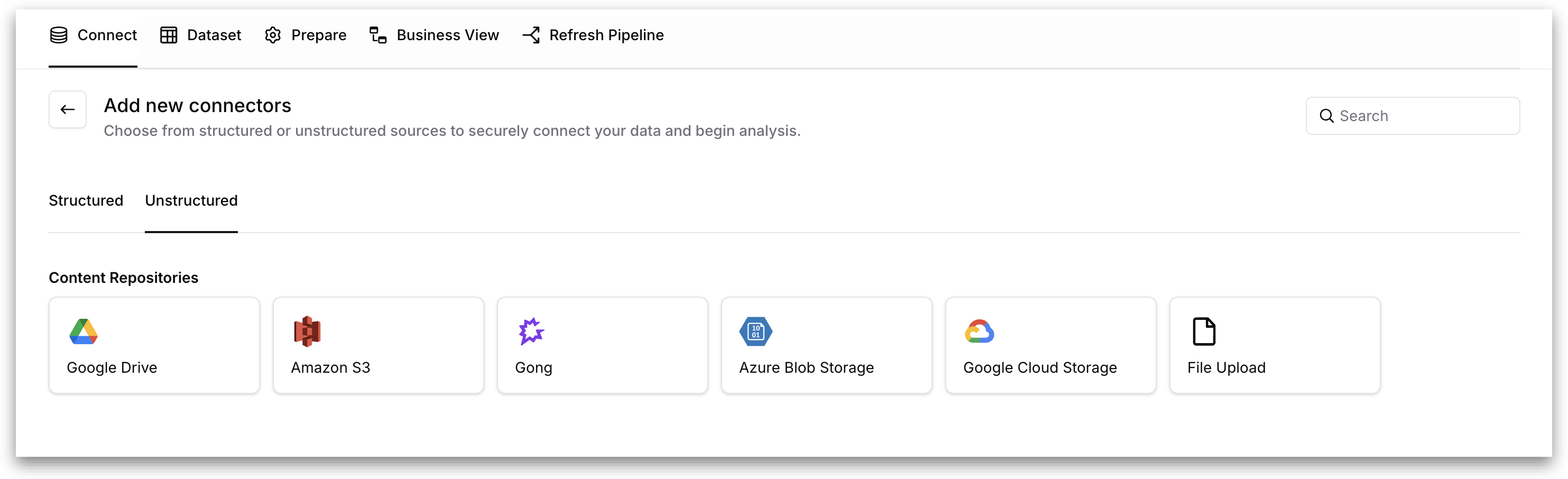
To add a new unstructured data source, click the **"Create new connection"** button on the **Unstructured** tab of the **Data → Connect** page. This takes you to the **Add new connectors** page.
A **Search** bar in the top-right corner lets you filter the available connector types by name if needed.
### Available Content Repositories
Under the **Content Repositories** section, the following six unstructured connector types are available. Clicking on any connector type opens the **"Add a connection"** dialog with fields specific to that connector.
**Google Drive:** Connects to files and folders stored in Google Drive.
**Amazon S3:** Connects to objects stored in Amazon S3 buckets.
**Gong:** Connects to call recordings and transcripts stored in Gong.
**Azure Blob Storage:** Connects to blobs stored in Azure Blob Storage containers.
**Google Cloud Storage:** Connects to objects stored in Google Cloud Storage buckets.
**File Upload:** Allows you to upload PDF files directly from your local.
Once your unstructured sources are connected and indexed, the documents and folders within them become available to scope individual Kaiya questions using @ mentions in the conversation input, so you can target a specific report or library instead of searching the full workspace every time.
## Add @ mentions in conversations
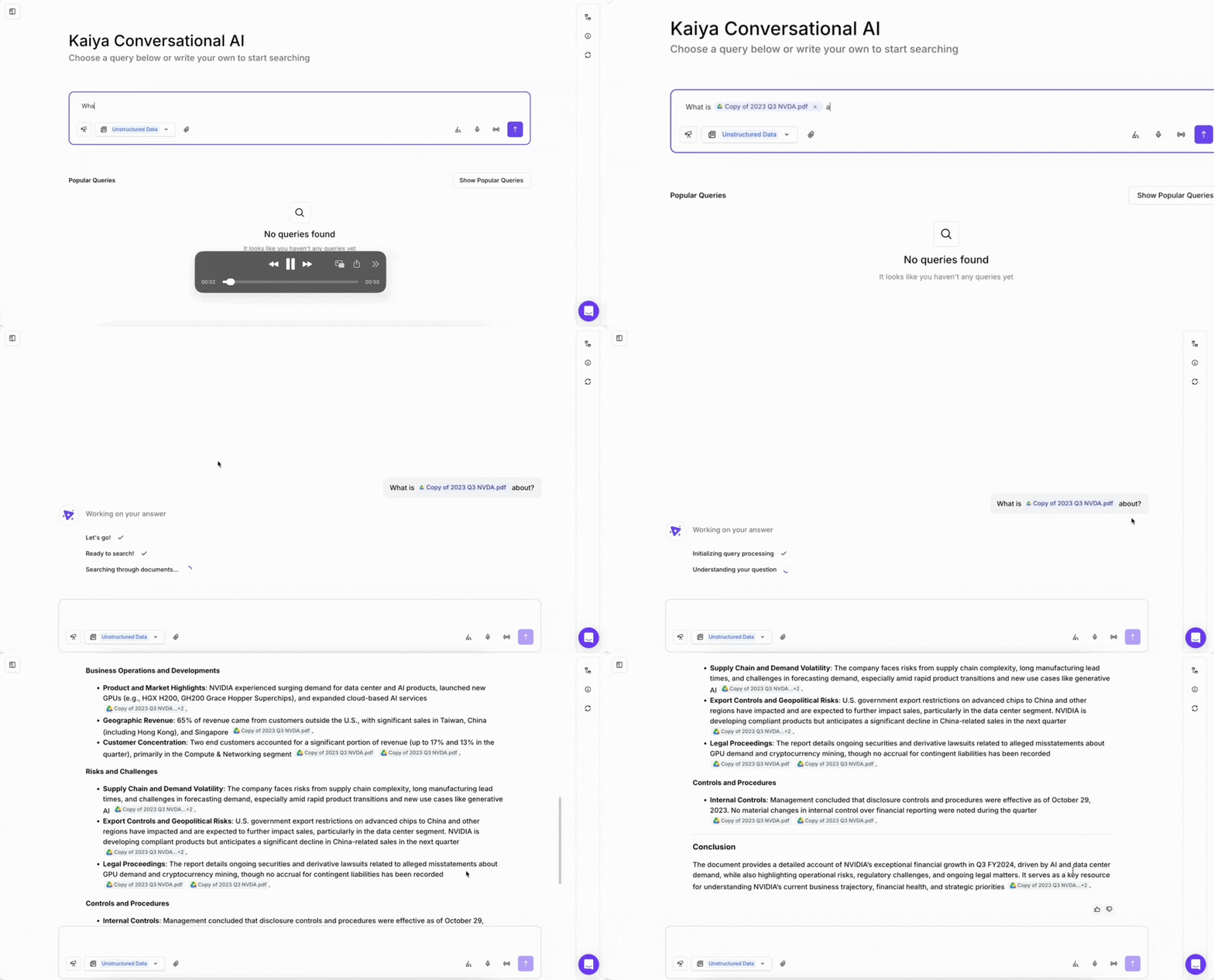
Scope a Kaiya question to specific documents or folders by typing `@` directly in the chat input. Kaiya then searches only the sources you select, returning answers grounded in exactly those files instead of your full workspace.
### Why use @ mentions
In unstructured mode, when you ask Kaiya a question without an @ mention, it searches the full workspace corpus. This works well when you want broad coverage. It works less well when you already know the answer lives in a specific quarterly report, a single payer policy, or one folder of summaries. Without scope, the relevant document competes with hundreds of others for retrieval attention, and your answer can come back diluted.
@ mentions solve this by letting you state the scope inline, while you type. You do not open a separate filter panel. You do not navigate to a document picker. You do not restate which files you mean across follow-up questions. The mention pills sit in the message itself, and your chat history preserves them so you (and anyone the chat is shared with) can see what was scoped at every turn.
The result: precise answers from exactly the sources you care about, without leaving the chat input.esult: precise answers from exactly the sources you care about, without leaving the chat input.
#### How to use @ mentions
**1.** Type `@` anywhere in your message. A dropdown opens, listing:
* Recent documents in your workspace
* Folders derived from your document paths
**2.** Use the arrow keys to move through the list, then press **Enter** to select.
**3.** Each selection appears as an inline pill in your message, showing with an **×** button to remove that mention
{% hint style="info" %}
You can add more mentions to the same message. The total cap is 10 selections per message (documents and folders combined).
{% endhint %}
**4.** Finish typing the rest of your question and send. Kaiya searches only within the sources you selected.
**Example:**
*@Q3 Financial Report.pdf What were the key revenue drivers?*
#### What you can mention
You can mention:
* **Documents** you have access to in the current workspace.
* **Folders** derived from your document locations.
When you mention a folder, the scope expands to every document inside that folder path. This is useful when you want Kaiya to search a whole library, for example all payer policies in a `/policies/payers/` folder, without selecting each file one by one.
#### How scope is enforced
Two behaviors define how Kaiya handles the scope you set:
* **Explicit scope is respected.** Kaiya informs if you @ mention sources that do not contain information relevant to your question. It does not silently widen the search to other documents in your workspace. Your selection is the authoritative scope.
* **Mentions are preserved.** Your chat history shows the mention pills exactly as you sent them. Anyone with the chat shared can see which sources each answer was based on.
This matters for trust and auditability. When someone asks "where did this number come from," the chat itself shows the scoped sources alongside the citations in the response.
#### Access and visibility
@ mentions follow the permissions you already have in Tellius:
* Admins see all workspace documents in the autocomplete.
* You only see documents and folders you have permission to access. Items you do not have access to never appear in the dropdown.
---
# Agent Instructions
This documentation is published with GitBook. GitBook is the documentation platform designed so that both humans and AI agents can read, navigate, and reason over technical content effectively. Learn more at gitbook.com.
## Querying This Documentation
If you need additional information that is not directly available in this page, you can query the documentation by asking a question.
Perform an HTTP GET request on the following URL with the `ask` and `goal` query parameters:
```
GET https://help.tellius.com/tellius-6.3/kaiya/ask-across-your-documents-unstructured/how-to-connect-to-unstructured-data.md?ask=&goal=
```
`ask` is the immediate question: it should be specific, self-contained, and written in natural language.
`goal` is what the user is ultimately trying to achieve, the reason they need the answer. Sharing it helps GitBook give you a better, more relevant answer. A goal is most helpful when it describes the outcome the user wants rather than restating the question. For example, with `ask=how do I create an API token`, a goal like `automate deployments from our CI pipeline` lets GitBook tailor the answer to that use case.
The response will contain a direct answer to the question and relevant excerpts and sources from the documentation.
Use this mechanism when the answer is not explicitly present in the current page, you need clarification or additional context, or you want to retrieve related documentation sections.