> For the complete documentation index, see [llms.txt](https://help.tellius.com/llms.txt). Markdown versions of documentation pages are available by appending `.md` to page URLs; this page is available as [Markdown](https://help.tellius.com/tellius-6.3/kaiya/kaiya-voice-mode.md).
# Kaiya Voice Mode
Use Kaiya Voice Mode in Tellius to ask questions with natural speech, get real-time voice responses, and explore data through hands-free, conversational analytics.
Kaiya supports a voice-first conversational experience that lets you ask your questions naturally instead of typing them. Voice Mode goes beyond basic dictation: it handles natural speech patterns including pauses, mid-sentence corrections, filler words, and changes in direction, and it supports multi-turn voice conversations where you can ask follow-up questions without restarting.
Kaiya will respond back in voice, making it a true two-way conversation.
### **How to use Voice Mode**
1. Under **Settings**, Voice Mode can be enabled in your environment (check out [this](/tellius-6.3/settings/advanced/kaiya.md#voice-assistant) page) by your admins.
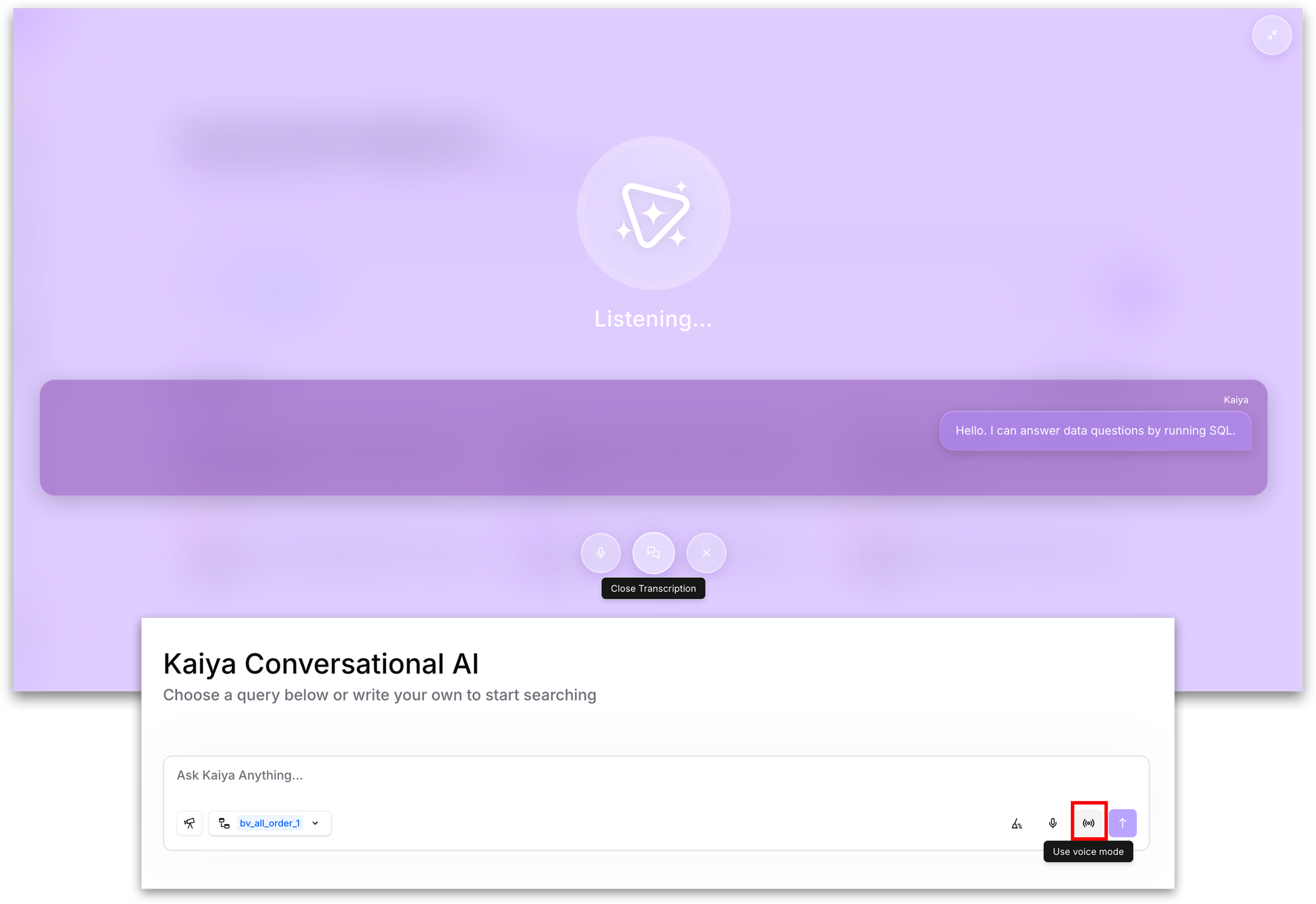
2. Once done, you will see a voice input option in the Kaiya interface.
3. Click or tap the voice button and speak your question naturally. You do not need to use precise, structured language; Kaiya is designed to interpret conversational speech and extract the analytical intent.
You can change direction mid-question, and Kaiya will follow. For example, you might say *"How is TRx trending in the Northeast?"*, then follow with *"Actually ignore that... Show the top districts this month"*, and Kaiya will discard the first question and process the second without requiring you to start a new conversation.
### **Actions in Voice Mode**
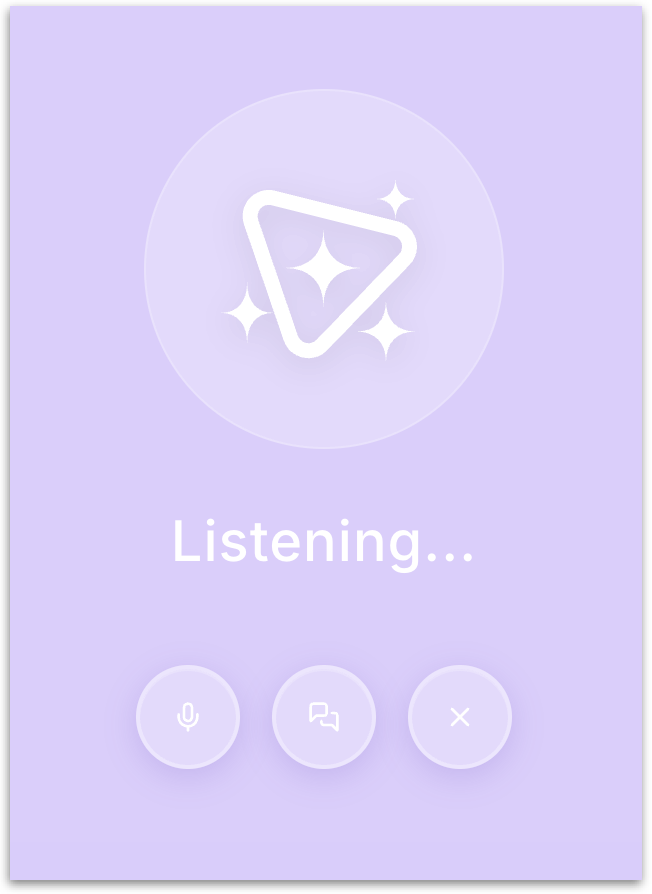
When conversing with Kaiya in voice mode, a purple overlay window appears over the Kaiya interface. The window displays the Kaiya logo with a "Listening..." indicator that confirms Kaiya is actively listening for your voice input. At the bottom of this window, three control buttons are available, along with an additional option to minimize the window.
**Mute:** The microphone button on the left lets you mute and unmute your microphone during the voice conversation. Your conversation context is preserved while muted.
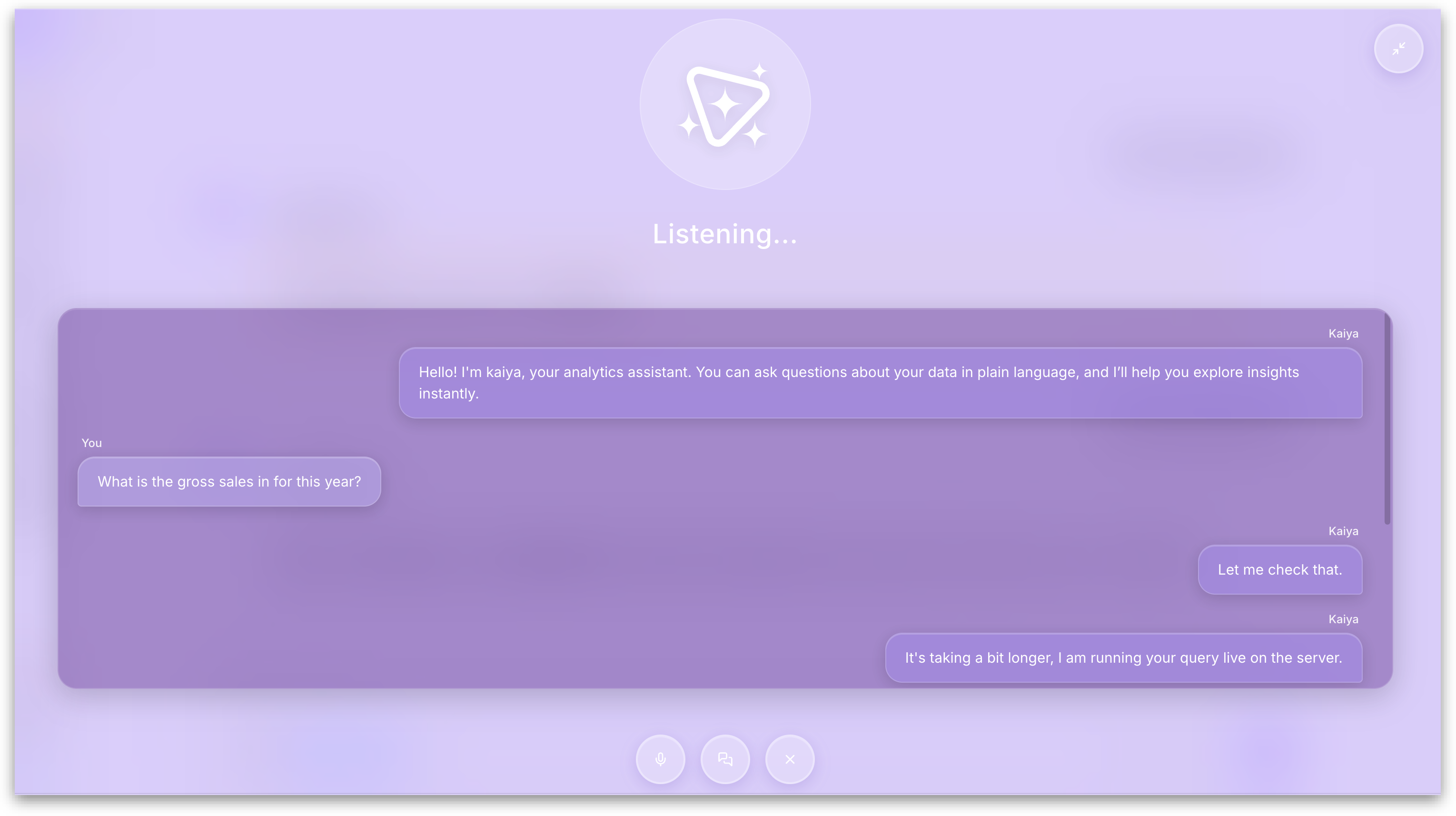
**Open Transcription:** The chat bubble button in the center opens the live transcription view within the voice mode window. When activated, the window expands to display a running transcript of the entire voice conversation, showing both your spoken questions and Kaiya's spoken responses as text bubbles. The transcript updates in real time as the conversation progresses.
**Exit Voice Mode:** The X button on the right ends the voice mode session and closes the voice overlay window entirely. You are returned to the default Kaiya text-based interface. Your conversation history from the voice session remain visible in the conversation thread.
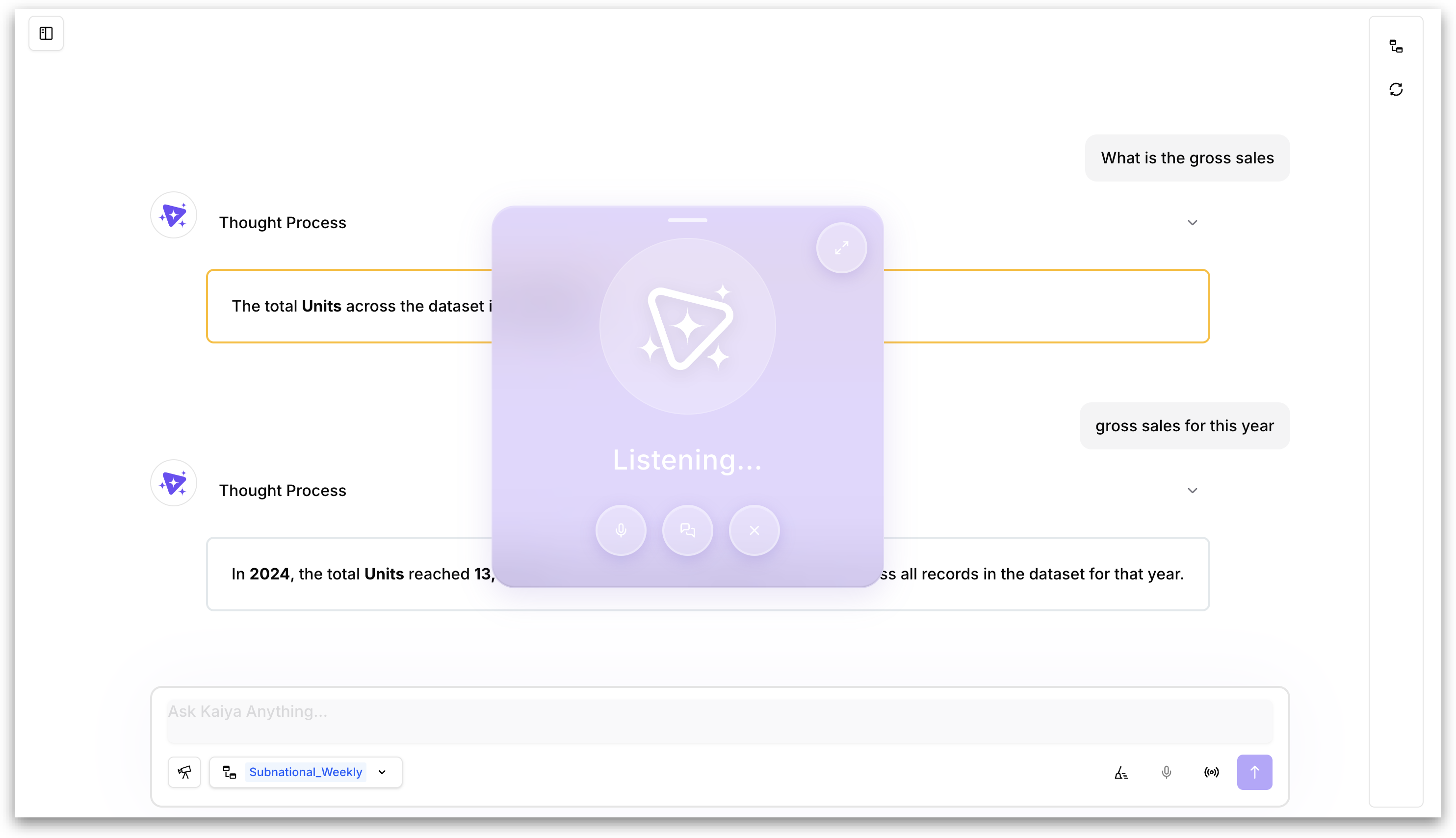
**Minimize:** The minimize button (located in the top-right corner of the voice mode window) collapses the voice overlay into a smaller floating element so that you can continue exploring. Voice mode continues to run in the background; Kaiya is still listening and responding to your voice input even while minimized. Click the button again to restore the full voice mode window.
### **Supported Voice Providers**
Kaiya supports two voice processing options:
* **GPT Realtime** is the preferred voice option, providing real-time voice-to-voice interaction.
* **Deepgram** is an alternate option that supports multiple voice profiles. When Deepgram is configured, admins can define domain-specific key terms (such as drug names or product names) in the Deepgram Configuration to improve transcription accuracy for industry-specific vocabulary.
{% hint style="warning" %}
The voice provider will be configured by your admins.
{% endhint %}
### **When you should use Voice Mode**
Anytime! Voice Mode reduces friction for on-the-go workflows where typing is inconvenient. It is particularly valuable for:
* Field teams who need quick answers before a meeting
* Mobile users who are reviewing data while multitasking
* Faster "brain dump" style exploration where you want to rapidly ask multiple related questions without pausing to type.
---
# Agent Instructions
This documentation is published with GitBook. GitBook is the documentation platform designed so that both humans and AI agents can read, navigate, and reason over technical content effectively. Learn more at gitbook.com.
## Querying This Documentation
If you need additional information that is not directly available in this page, you can query the documentation by asking a question.
Perform an HTTP GET request on the following URL with the `ask` and `goal` query parameters:
```
GET https://help.tellius.com/tellius-6.3/kaiya/kaiya-voice-mode.md?ask=&goal=
```
`ask` is the immediate question: it should be specific, self-contained, and written in natural language.
`goal` is what the user is ultimately trying to achieve, the reason they need the answer. Sharing it helps GitBook give you a better, more relevant answer. A goal is most helpful when it describes the outcome the user wants rather than restating the question. For example, with `ask=how do I create an API token`, a goal like `automate deployments from our CI pipeline` lets GitBook tailor the answer to that use case.
The response will contain a direct answer to the question and relevant excerpts and sources from the documentation.
Use this mechanism when the answer is not explicitly present in the current page, you need clarification or additional context, or you want to retrieve related documentation sections.