> For the complete documentation index, see [llms.txt](https://help.tellius.com/llms.txt). Markdown versions of documentation pages are available by appending `.md` to page URLs; this page is available as [Markdown](https://help.tellius.com/tellius-6.3/kaiya/understanding-ai-agents-and-agentic-flows/kaiya-missions/composer.md).
# Composer
Composer lets you build, test, and publish custom agentic Missions in Kaiya: defining steps, triggers, and data sources to automate governed analytical tasks.
To create a custom Mission, click on the **"Compose"** button at the top right under **Kaiya → Missions**. Fill up the following details to set up the Mission.
### **Basic Information**
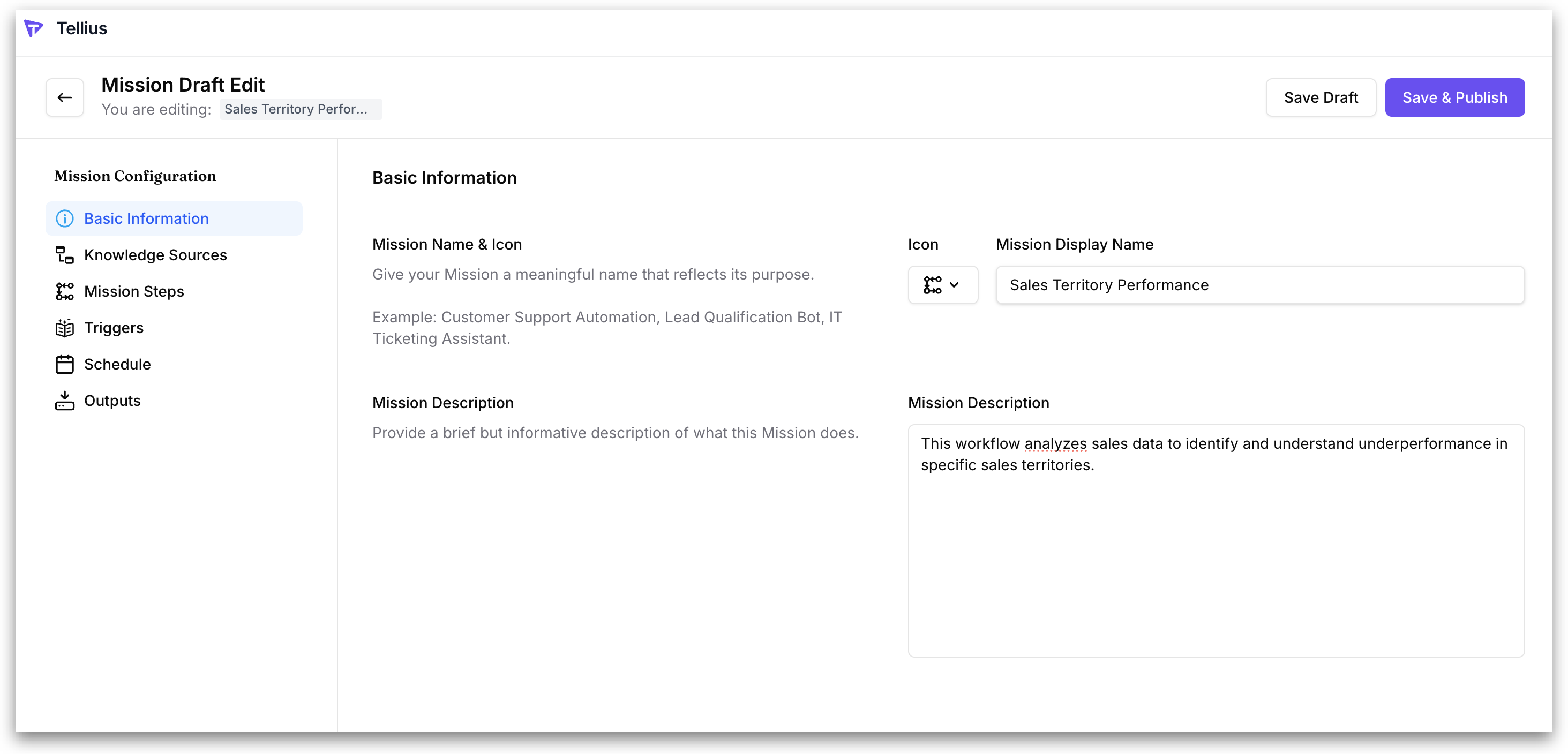
Set up the foundational identity of your Mission: its name, icon, and a short description of what it does.
**Mission Name & Icon:** Enter a clear, meaningful name in the **Mission Display Name** field and choose a static icon for the Mission.
**Mission Description:** Briefly explain what this Mission is designed to do.
### **Knowledge Sources**
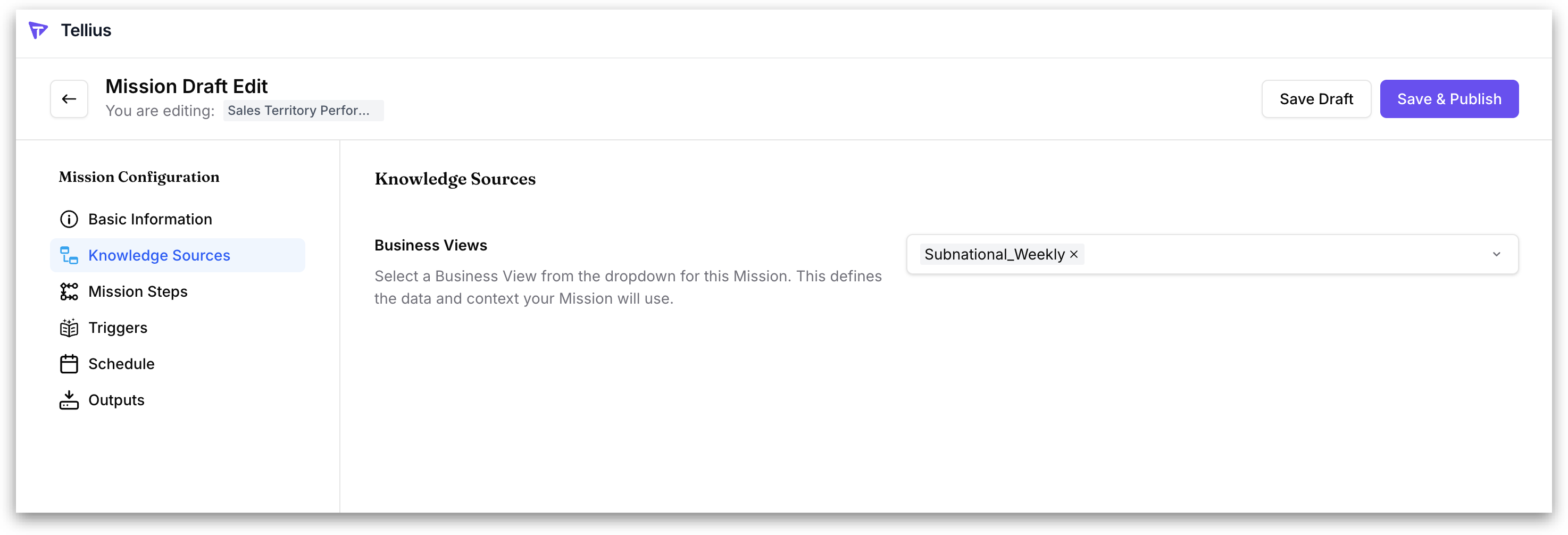
Select the data source for your Mission. Use the dropdown or search bar to select an existing Business View. This becomes the primary input for all agents in the Mission.
{% hint style="warning" %}
At least one Business View should be selected to save the Mission.
{% endhint %}
### **Mission Steps**
Define the logic of your Mission as a sequence of steps. In the **Configuration** tab, the Mission Steps section shows the current step plan; clicking **Edit** opens a conversational builder where you refine the steps by describing what you want to Kaiya.
When you open **Mission Steps**, the current steps are displayed read-only inside a card titled **Analysis Steps (N)**, where N is the step count. A **copy icon** at the top right of the card copies the full step list.
Each step shows three things: its **step number**, a **type badge**, and a **plain-language description**.
The type badge tells you which kind of engine logic the step runs:
| Badge | What the step does |
| ----------- | -------------------------------------------------------------------------------------------------------------------------------------- |
| **Input** | Collects a runtime input the Mission needs before it can run (a date range, territory, metric choice, etc.). |
| **SQL** | Pulls and aggregates governed data from the selected Business View. |
| **Python** | Enriches or transforms the data with logic SQL can't easily do: rankings, shares, cumulative calculations, performance classification. |
| **Summary** | Turns the results into a narrative with charts and recommendations. |
Above the card is the **Edit** button (pencil icon). Click it to open the conversational builder and change the steps.
#### **Expanding a step**
Click the chevron on any step to expand it into a **"What this step does"** breakdown. This is a plain-language explanation of the step's logic, structured into labeled sections so a reader can understand exactly what the step will do without reading code. Each expanded step has its own **copy icon** to copy the breakdown.
{% hint style="info" %}
Within the builder, click the **pencil icon** on any step to edit it inline and click on **Save**. Change a metric, add a filter, refine the calculation without rebuilding the whole Mission.
{% endhint %}
The sections shown depend on the step type:
* **Goal:** what the step is trying to understand.
* **What data is gathered:** the rows or records pulled.
* **Filters applied:** any filters filters
* **How it's processed:** the specific aggregations and calculations, with the key measures called out.
* **Output:** a description of the resulting dataset.
* **Sql instructions:** a collapsible block (with its own copy icon) containing the underlying SQL detail. At the bottom, the step's named output variable is shown.
* **Analysis applied:** the transformations performed.
#### **Editing steps conversationally**
Clicking **Edit** opens a two-pane workspace. The breadcrumb at the top left reads **Mission Library / \[Mission name]** (for example, *Mission Library / state wise profit*). This is where you build and refine the step plan by talking to Kaiya.
In the left side conversation pane, you describe what you want and refine the plan.
* Enter what the **Mission** should do. Kaiya responds with a confirmation and builds the steps in the right pane.
* Continue the conversation to refine. When you ask for something that doesn't match the current plan, Kaiya explains what the current steps actually do and asks a clarifying question instead of guessing.
* The conversation persists in the thread, so the full history of how the plan evolved stays visible.
* **Business View selector:** a chip at the bottom left showing the selected Business View(s) with a dropdown to change it. This is the data source the steps run against, carried over from **Knowledge Sources**.
* **Voice input:** the microphone icon lets you dictate instead of typing.
* **Clear context:** clears the context that has been built up so far and starts afresh
* **Chat collapse:** the toggle icon in the Chat pane header collapses the pane.
The right pane consists of the **Mission steps** and the **summary** generated**.**
* **Mission Steps:** the generated step sequence, shown in the same **Analysis Steps** card with the copy icon. In edit mode, each step also shows a **pencil icon** on the right for inline editing of that individual step.
* **Summary:** After the Mission runs, switch to the **Summary** tab in the right pane to see the **Generated summary.** The full rendered output of the run. It presents the analysis as a structured business report: an **Executive Overview** in narrative form, followed by **Key Findings** with ranked data tables, performance tiers, and bulleted takeaways. Figures throughout carry **inline citation markers** that trace each number back to its source step. Use the Chat pane to run the Mission; when Kaiya completes the execution, the output appears here.
* **Approve & Run:** Approves the current step plan and runs the Mission.
* **Save:** saves the current state so you can return later.
### **Triggers**
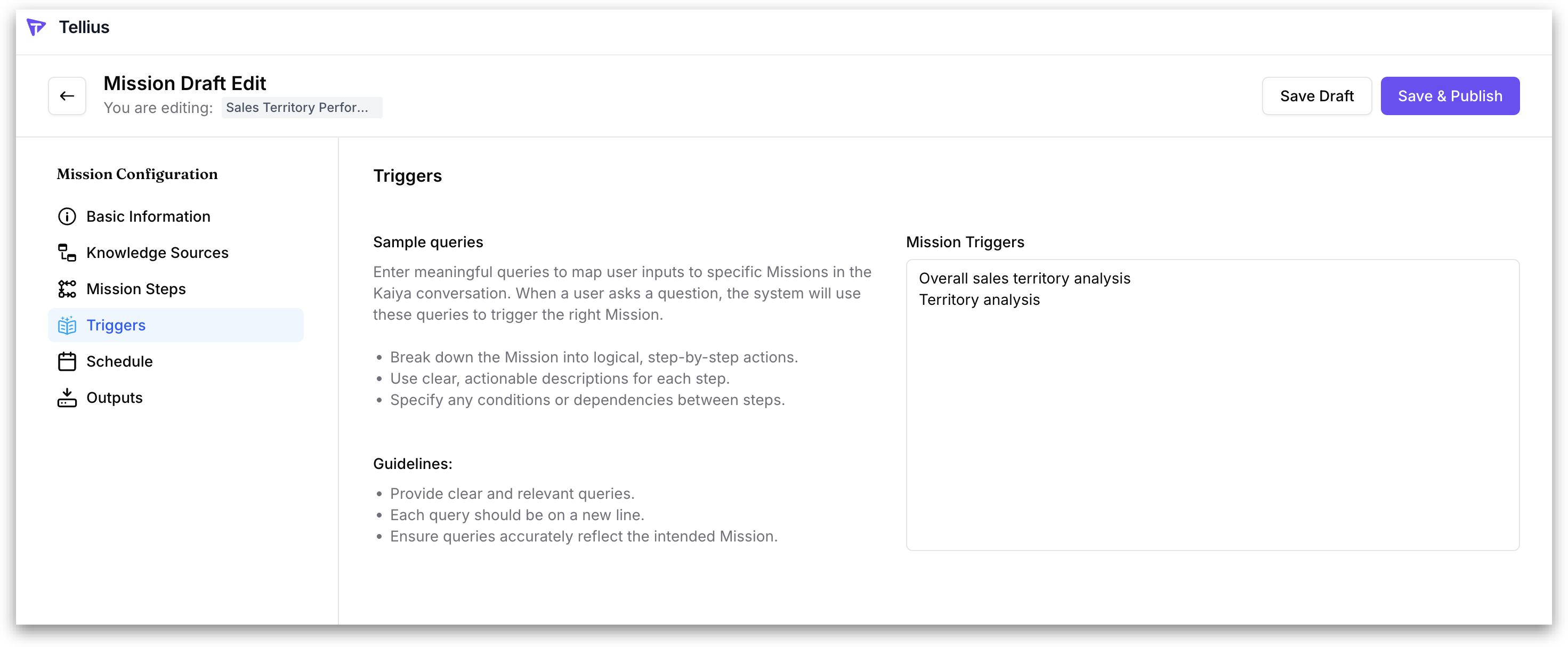
Define the natural language triggers that you might enter in Kaiya Conversational AI to invoke this Mission. Triggers should accurately reflect the goal of the Mission.
* Each trigger should be a standalone phrase or question on a new line.
* Include variations of phrasing to capture different user intents.
For example, for revenue drop, you can say:
* What's causing the revenue drop?
* Explain the decline in revenue
* Why did our revenue decrease?
* Identify reasons for revenue dip
* Breakdown revenue loss
{% hint style="info" %}
You can enter as many variations as you like. This increases the chances your Mission is selected by Kaiya when users input related queries.
{% endhint %}
### **Schedule**
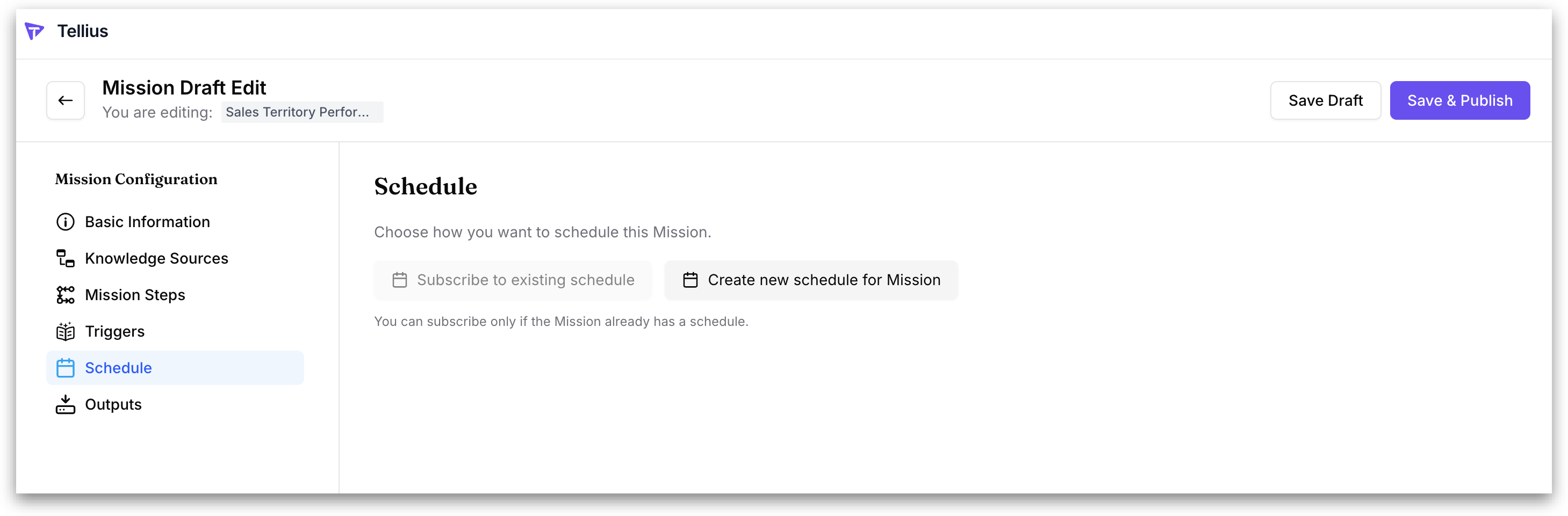
Choose how you want this Mission to run on a recurring basis. Scheduling lets the Mission execute automatically at a defined cadence and deliver its output to a recipient list by email, without anyone having to trigger it conversationally.
You have two options:
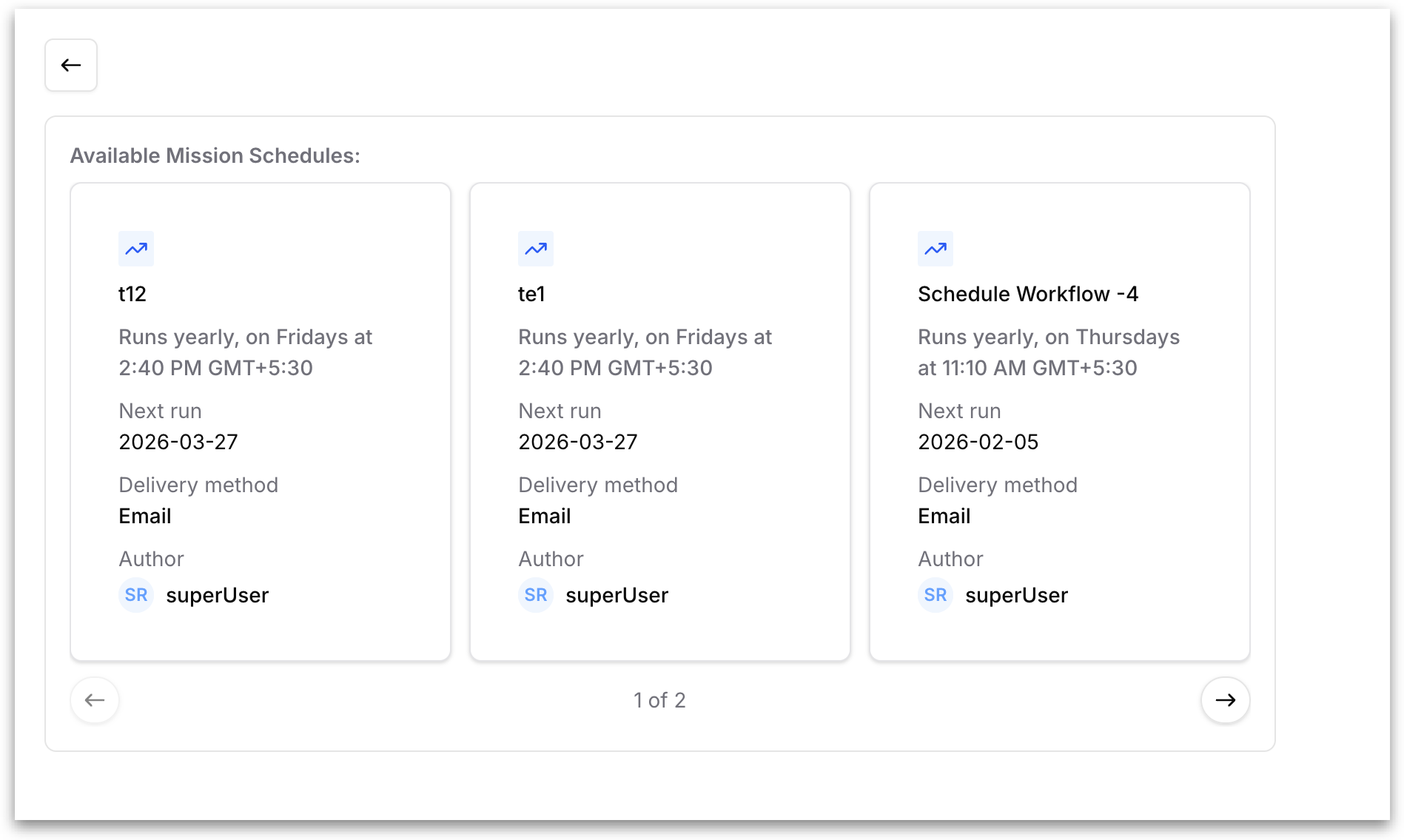
* **Subscribe to existing schedule:** Pick from a list of schedules that have already been created in your workspace. Useful when several Missions should share the same cadence.
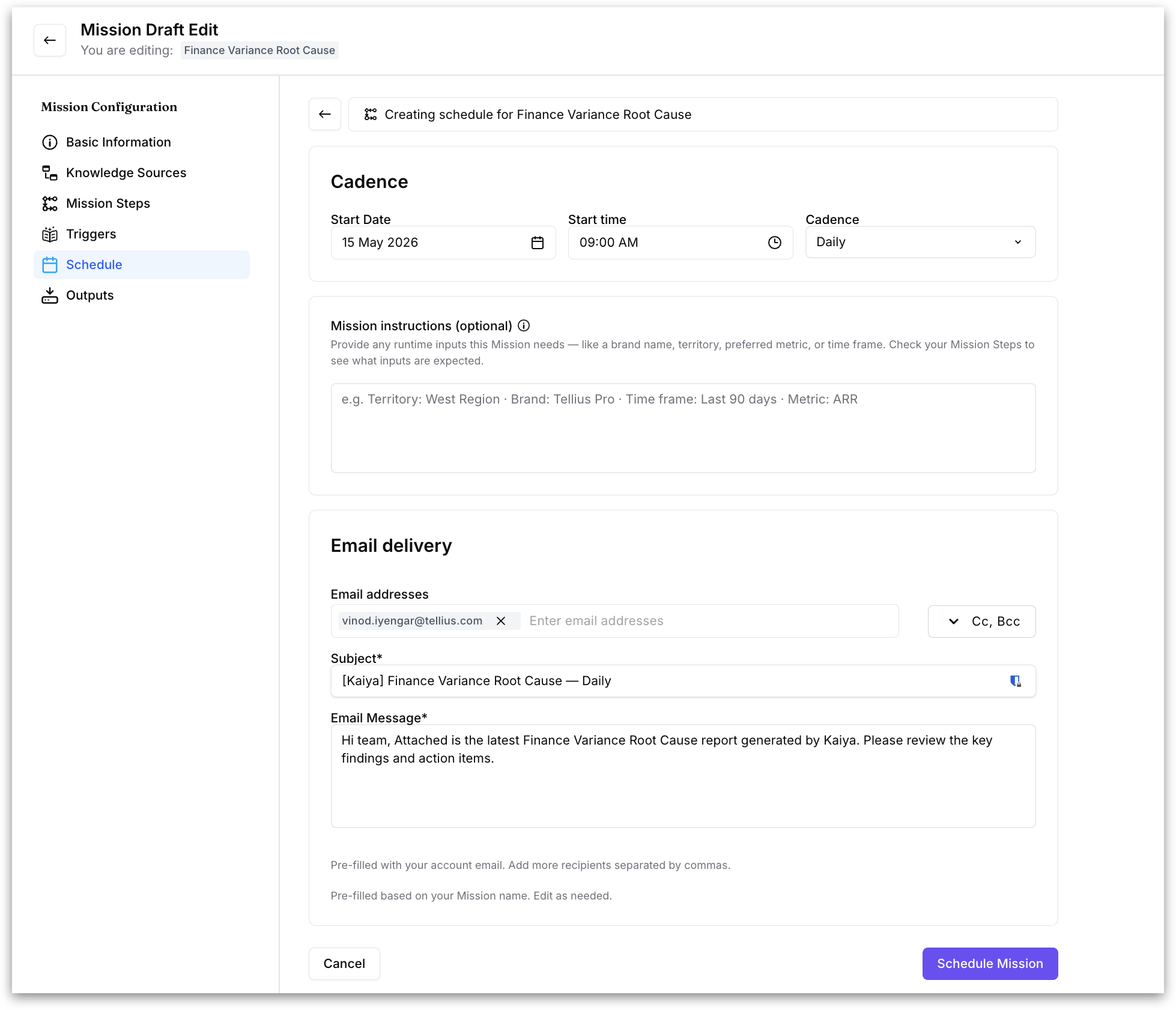
* **Create new schedule for Mission:** Set up a fresh schedule just for this Mission.
#### **Subscribe to existing schedule**
Clicking this option opens the **Available Mission Schedules** view. Each card shows the schedule name, its recurrence pattern, the next scheduled run date, the delivery method, and the author who created the schedule. Use the arrow controls at the bottom to page through schedules if there are more than fit on one screen. Click a card to subscribe the current Mission to that schedule.
#### **Create new schedule for Mission**
Clicking this option opens a single-page form titled **"Creating schedule for \[Mission Name]"**. You'll configure three things:
**Cadence**
* **Start Date:** the date the first run should happen.
* **Start time:** the time of day the run should happen.
* **Cadence:** how often the Mission should run (for example, Daily).
**Mission instructions (optional)**
Provide any runtime inputs this Mission needs — like a brand name, territory, preferred metric, or time frame. Check your Mission Steps to see what inputs are expected.
**Email delivery**
* **Email addresses:** pre-filled with your account email. Add more recipients separated by commas. Use the **Cc, Bcc** dropdown to add carbon-copy and blind carbon-copy recipients.
* **Subject:** pre-filled based on your Mission name and cadence. Edit as needed.
* **Email Message:** pre-filled with a default body. Edit as needed.
Once everything is set, click **Schedule Mission** to activate the schedule.
### **Outputs**
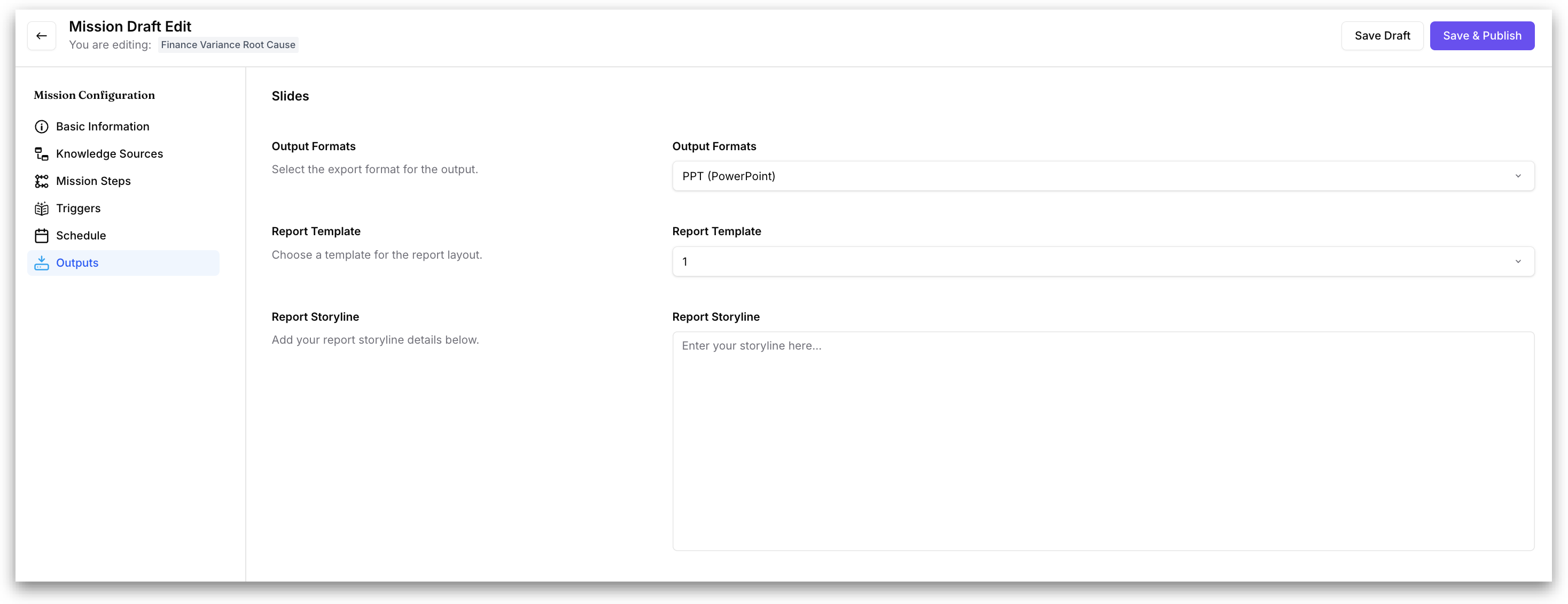
Configure the format in which the Mission delivers its final result. Whatever you set up here is what gets attached to the email on every scheduled run, and what you receive when the Mission is triggered on-demand.
* **Output Formats:** pick the export format from the dropdown (PPT or PDF).
* **Report Template:** choose a template for the report layout from the dropdown.
* **Report Storyline:** describe the narrative structure of the report in plain language. This is what guides Kaiya on how to organize the slides — section order, what each slide should cover, and the closing recommendation.
### **Save the Mission**
When you've filled in the configuration, click **Save & Publish** at the top right to move the Mission to the **Published Missions** section of the **Mission Library**. Alternatively, click **Save Draft** to save it under **Draft Missions** and finish later.
---
# Agent Instructions
This documentation is published with GitBook. GitBook is the documentation platform designed so that both humans and AI agents can read, navigate, and reason over technical content effectively. Learn more at gitbook.com.
## Querying This Documentation
If you need additional information that is not directly available in this page, you can query the documentation by asking a question.
Perform an HTTP GET request on the following URL with the `ask` and `goal` query parameters:
```
GET https://help.tellius.com/tellius-6.3/kaiya/understanding-ai-agents-and-agentic-flows/kaiya-missions/composer.md?ask=&goal=
```
`ask` is the immediate question: it should be specific, self-contained, and written in natural language.
`goal` is what the user is ultimately trying to achieve, the reason they need the answer. Sharing it helps GitBook give you a better, more relevant answer. A goal is most helpful when it describes the outcome the user wants rather than restating the question. For example, with `ask=how do I create an API token`, a goal like `automate deployments from our CI pipeline` lets GitBook tailor the answer to that use case.
The response will contain a direct answer to the question and relevant excerpts and sources from the documentation.
Use this mechanism when the answer is not explicitly present in the current page, you need clarification or additional context, or you want to retrieve related documentation sections.