> For the complete documentation index, see [llms.txt](https://help.tellius.com/llms.txt). Markdown versions of documentation pages are available by appending `.md` to page URLs; this page is available as [Markdown](https://help.tellius.com/tellius-6.3/kaiya/understanding-ai-agents-and-agentic-flows/kaiya-missions/scheduling-missions.md).
# Scheduling Missions
Learn how Kaiya Missions automate recurring analytics workflows, proactive monitoring, and AI-driven business actions inside Tellius.
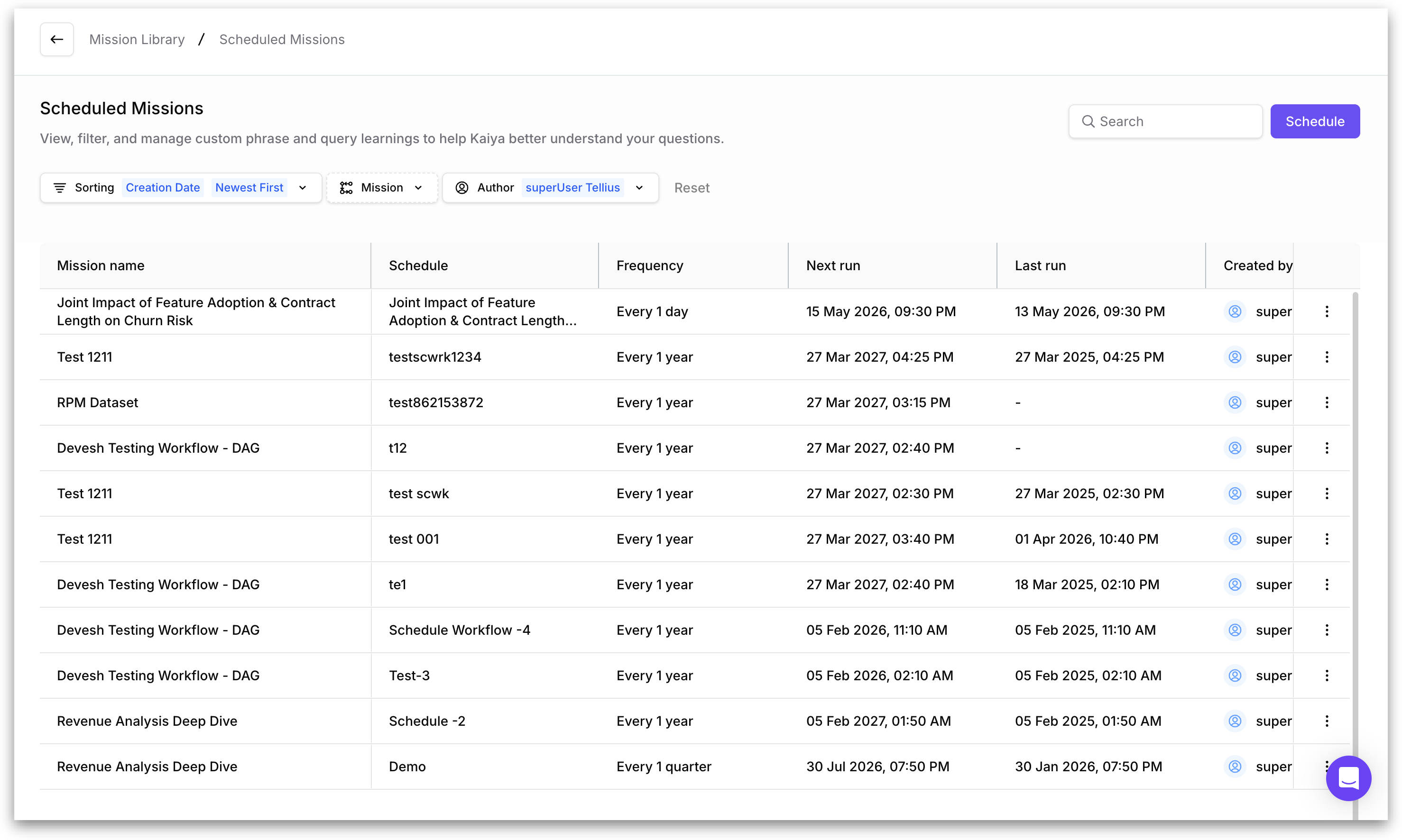
The **Scheduled Missions** page is where you view, filter, and manage every Mission that runs on a recurring schedule. From here you can see when each scheduled Mission last ran, when it's running next, who created it, and at what frequency.
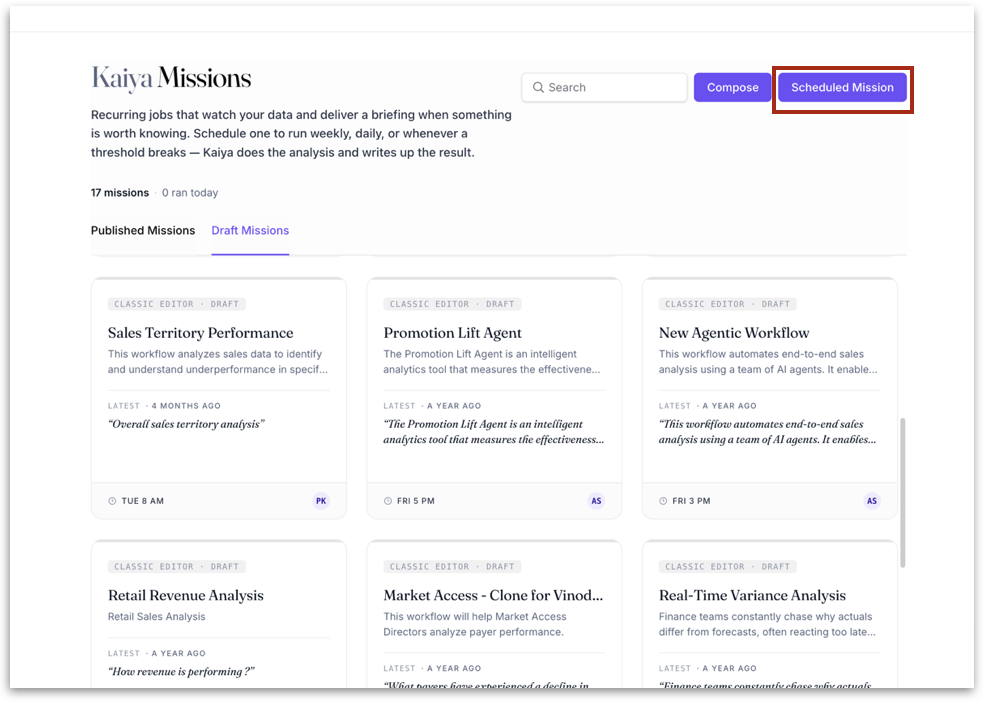
To open it, go to **Kaiya → Missions → Mission Library** and click the **Scheduled Mission** button at the top right.
**What you'll see on the page**
Each row in the table represents one scheduled Mission, with the following columns:
* **Mission name:** the name of the Mission this schedule belongs to.
* **Schedule:** the name of the schedule itself (a single Mission can have more than one schedule attached to it).
* **Frequency:** how often the Mission runs.
* **Next run:** the date and time of the next scheduled execution.
* **Last run:** when the Mission was last executed. Displays "—" if it hasn't run yet.
* **Created by:** the user who created the schedule.
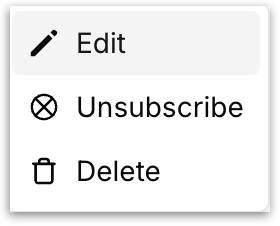
A three-dot menu at the end of each row lets you take actions on that schedule.
**Filtering and sorting**
Three controls at the top of the table help narrow the view:
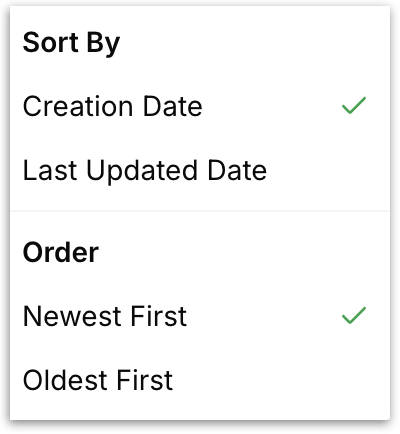
* **Sorting:** sort by date and recency
* **Mission:** filter to schedules belonging to a specific Mission.
* **Author:** filter to schedules created by a specific user.
Click **Reset** to clear all filters. Use the **Search** bar in the top right to find a schedule by name.
### **How to create a new schedule**
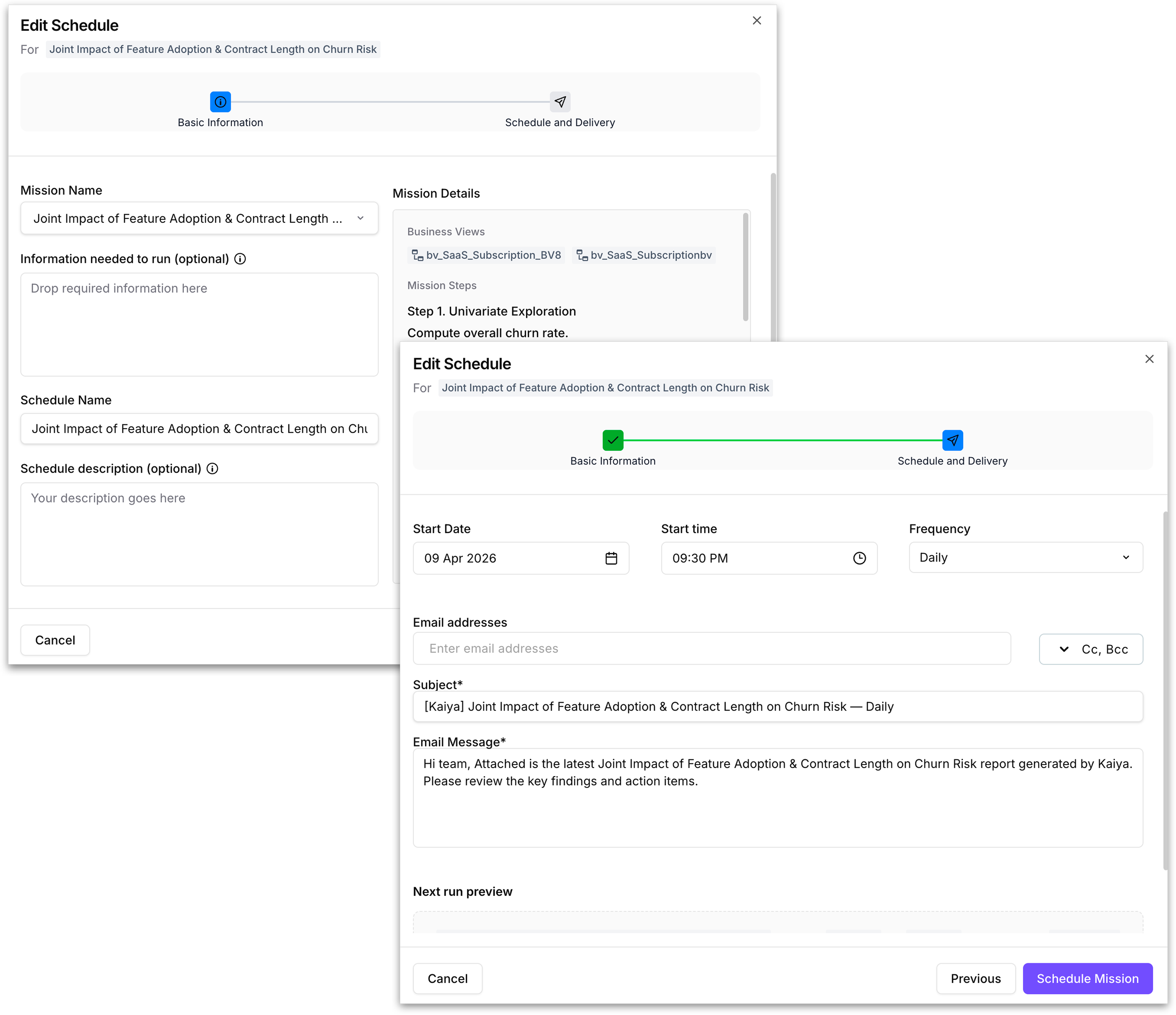
Click the **Schedule** button at the top right to open the **Create new schedule** wizard. This is a two-step flow.
#### **Step 1: Basic Information**
Configure what the schedule is for:
* **Mission Name:** pick the Mission this schedule should run. Once you select one, its details appear in the **Mission Details** panel on the right.
* **Information needed to run (optional):** provide any runtime inputs the Mission needs (brand, territory, time frame, etc.).
* **Schedule Name:** give the schedule a name. This is what shows up in the **Schedule** column on the table and in the Available Mission Schedules card grid.
* **Schedule description (optional):** a short note describing what the schedule is for.
Click **Next** to move to Step 2.
#### **Step 2: Schedule and Delivery**
Configure the cadence and how results are delivered:
* **Start Date:** the date the first run should happen.
* **Start time:** the time of day the run should happen.
* **Frequency:** how often the Mission should run.
* **Email addresses:** recipients of the output email. Use the **Cc, Bcc** dropdown to add carbon-copy and blind carbon-copy recipients.
* **Subject:** a subject line for the notification email (required).
* **Email Message:** the message body included in the email (required).
Click **Schedule Mission** to activate the schedule. The new schedule will appear in the table on the Scheduled Missions page and will also become available in the **Available Mission Schedules** card grid that other Missions can subscribe to.
For large outputs, export generation runs as a background job with pagination support, so the artifact is processed without blocking. Progress is tracked in the background, and the recipient is notified when the artifact is ready.
The scheduled run uses the output format configured in the Mission's **Outputs** tab (PowerPoint, PDF, or DOCX) and attaches it to the delivery email on every run.
{% hint style="info" %}
A single schedule can be reused across multiple Missions. If you've already created a schedule that fits a new Mission's cadence, subscribe to it from within that Mission's **Schedule** tab instead of creating a duplicate.
{% endhint %}
To inspect how a scheduled Mission has performed over time, open the Mission and go to the **History** tab in the **Mission Draft Editor**. For scheduled Missions, it shows **Total Runs**, **Success Rate**, and **Average Duration** as headline metrics, with a per-run log listing each execution's job name, status, start and end time, duration, output summary, and timestamp.
---
# Agent Instructions
This documentation is published with GitBook. GitBook is the documentation platform designed so that both humans and AI agents can read, navigate, and reason over technical content effectively. Learn more at gitbook.com.
## Querying This Documentation
If you need additional information that is not directly available in this page, you can query the documentation by asking a question.
Perform an HTTP GET request on the following URL with the `ask` and `goal` query parameters:
```
GET https://help.tellius.com/tellius-6.3/kaiya/understanding-ai-agents-and-agentic-flows/kaiya-missions/scheduling-missions.md?ask=&goal=
```
`ask` is the immediate question: it should be specific, self-contained, and written in natural language.
`goal` is what the user is ultimately trying to achieve, the reason they need the answer. Sharing it helps GitBook give you a better, more relevant answer. A goal is most helpful when it describes the outcome the user wants rather than restating the question. For example, with `ask=how do I create an API token`, a goal like `automate deployments from our CI pipeline` lets GitBook tailor the answer to that use case.
The response will contain a direct answer to the question and relevant excerpts and sources from the documentation.
Use this mechanism when the answer is not explicitly present in the current page, you need clarification or additional context, or you want to retrieve related documentation sections.