# Interacting with the resulting chart

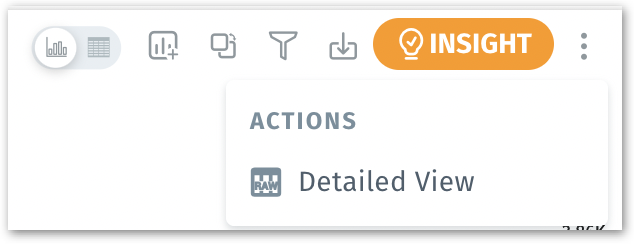
A suite of icons located at the top right corner of every chart helps you dive deeper into the chart and interact with the results. Users can directly build Vizpads or Insights from the charts with the help of these actionable icons.

<figure><img src="/files/Jnuohu6Lfi1d3406GZkj" alt="" width="317"><figcaption><p>Icons in the top right corner of every chart</p></figcaption></figure>

### **View Chart/View Data**

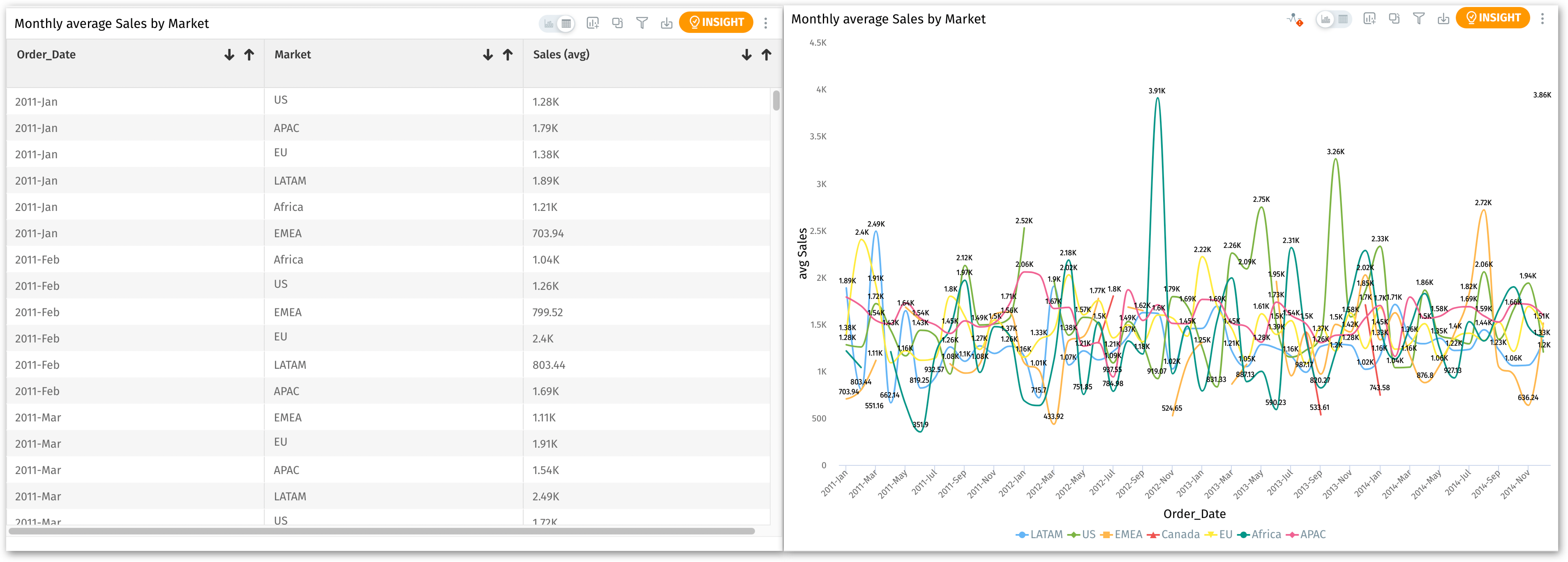
* Click on this icon to switch between the visual chart representation and its underlying table data.
* Alternatively, click on the three-dot menu and select **"Detailed View"**. This will present the chart data in a tabular format.

<figure><img src="/files/1gp24IyOjL59bJqTiRsg" alt="" width="375"><figcaption><p>Data table view and the chart view of a line chart</p></figcaption></figure>

### **Add to Vizpad**

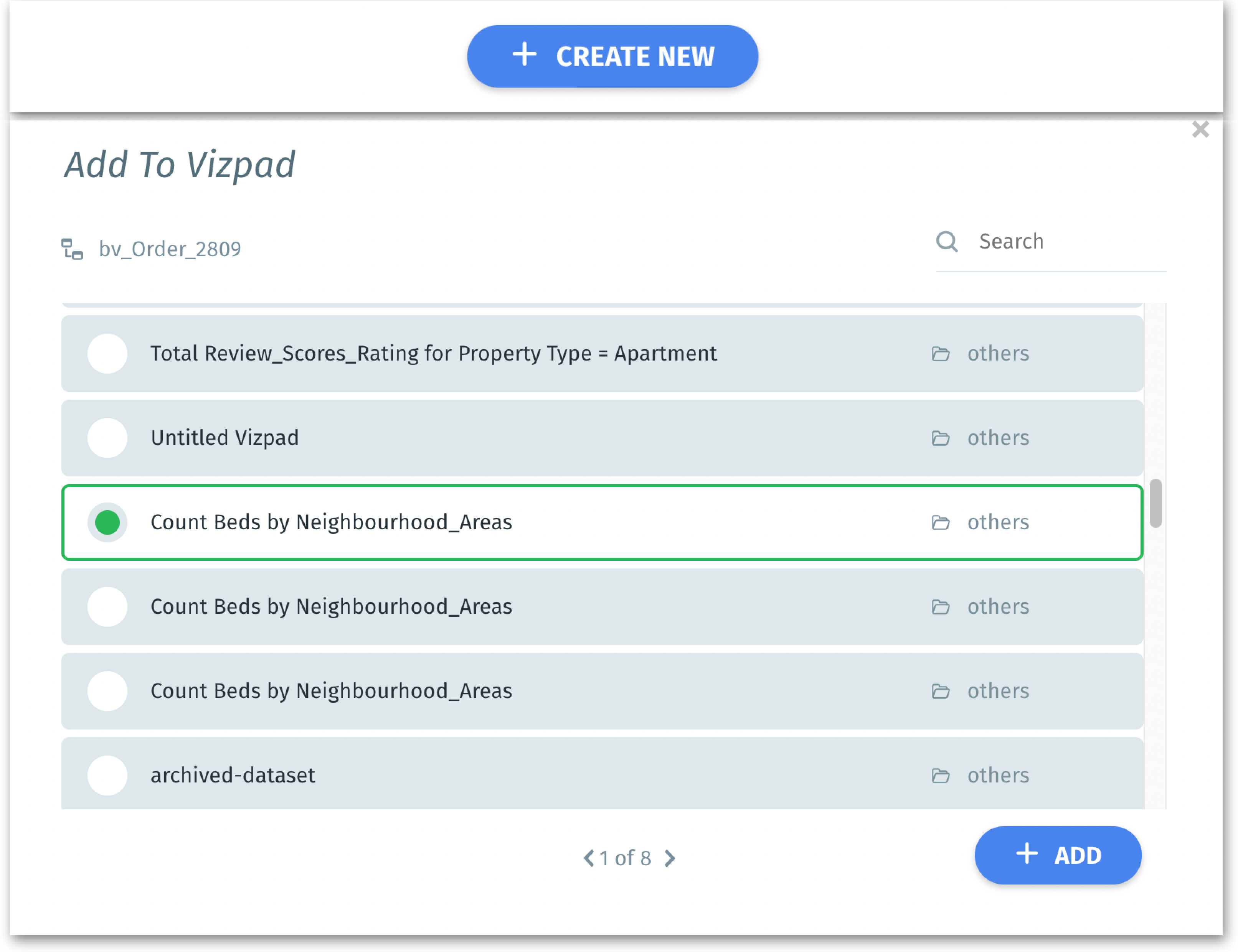
* The resulting chart can be incorporated into a Vizpad.
* You can either select an existing Vizpad or opt to create a new one.

<figure><img src="/files/Xm8PHh1OlWHpsdo6l6CI" alt="" width="375"><figcaption><p>Adding the chart to an existing Vizpad or to a new Vizpad</p></figcaption></figure>

* Once a new Vizpad is created and the chart is added, a prompt window will be displayed asking if you want to go to the new Vizpad. Choose **"Yes"** to proceed immediately, or **"No"** if you wish to stay on the current page.

<figure><img src="/files/aIEjLD3exhlumuTJLXx4" alt="" width="375"><figcaption><p>Go to the newly created Vizpad</p></figcaption></figure>

### **Switch Chart**

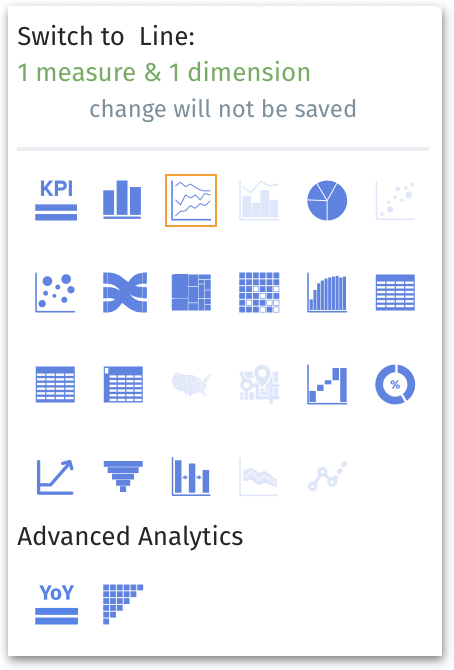
* Click on this icon and the available chart types will be displayed. The charts that are incompatible will be greyed out automatically.

<figure><img src="/files/kPJWXPMpI70oM3tQSclJ" alt="" width="227"><figcaption><p>Switching to other charts</p></figcaption></figure>

* The existing chart will be converted to the selected chart type, where all current values and filters will remain applied.

{% hint style="info" %}
Please note that any changes made to a chart type will remain temporary unless they are saved.
{% endhint %}

### **Filter**

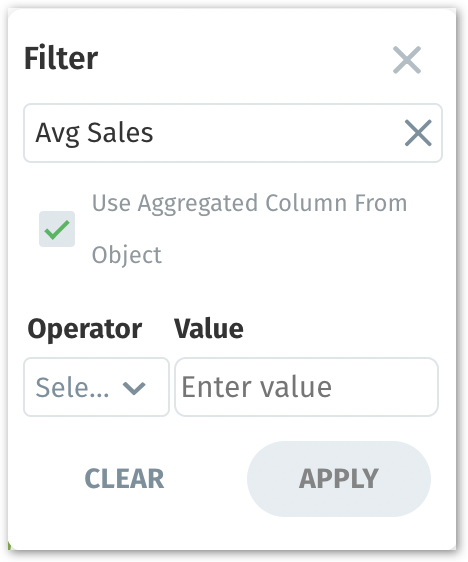
* To apply filters, click on the **funnel icon**. For more details on applying filters, check out [this section](/tellius-6.3/search/know-your-charts-in-tellius/adding-columns-to-fields-in-configuration-pane.md#filter).
* The option "**Use aggregated column from object**" allows you to filter using data aggregated at a higher level. This is beneficial when analyzing broader trends or patterns.

<figure><img src="/files/uMhYpps4xL0F1Vz6YKlE" alt="" width="234"><figcaption><p>Applying filter to a chart</p></figcaption></figure>

### **Download**

* Click on the **download icon** to download the current chart.
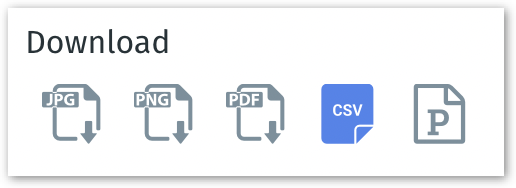
* Select the preferred format (JPG, PNG, PDF, CSV or PPT) in which the chart needs to be downloaded.<br>

<figure><img src="/files/8jactdoym4L3yVu9zz68" alt="" width="258"><figcaption><p>Different formats to download</p></figcaption></figure>

### **Insight**

* Click on **Insight** to generate Insights directly from the chart.
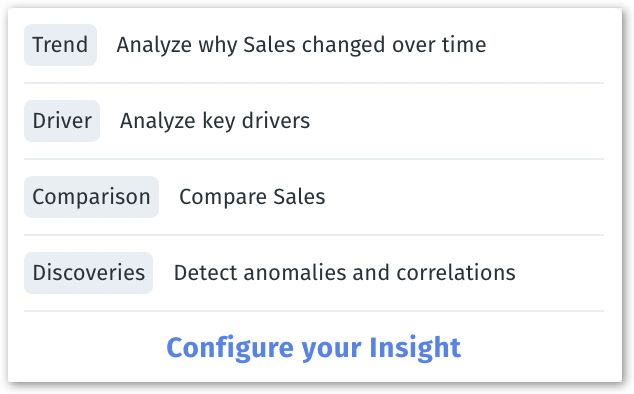
* Various Insight types (Trend, Driver, Comparison, Discovery) with a relevant example for each will be displayed.
* Select a sample Insight to get started or choose **"Configure your Insight"** to start a new one.
* In the Insight configuration window, follow the prompts to tailor your Insight as needed.

<figure><img src="/files/sB9Tl7O411NmLKFe80Ya" alt="" width="317"><figcaption><p>Insight types with sample Insight</p></figcaption></figure>


---

# Agent Instructions: Querying This Documentation

If you need additional information that is not directly available in this page, you can query the documentation dynamically by asking a question.

Perform an HTTP GET request on the current page URL with the `ask` query parameter:

```
GET https://help.tellius.com/tellius-6.3/search/analyzing-search-results/interacting-with-the-resulting-chart.md?ask=<question>
```

The question should be specific, self-contained, and written in natural language.
The response will contain a direct answer to the question and relevant excerpts and sources from the documentation.

Use this mechanism when the answer is not explicitly present in the current page, you need clarification or additional context, or you want to retrieve related documentation sections.