> For the complete documentation index, see [llms.txt](https://help.tellius.com/llms.txt). Markdown versions of documentation pages are available by appending `.md` to page URLs; this page is available as [Markdown](https://help.tellius.com/tellius-6.3/search/know-your-charts-in-tellius/building-charts-from-configuration-pane.md).
# Building charts from Configuration pane
Customize charts in Tellius using measures, dimensions, sorting, color, tooltips, and advanced options to build clear, interactive, and insightful visualizations.
The chart configuration in Tellius is designed to be intuitive and flexible, allowing you to easily customize data visualizations to fit your specific needs.
## Fields and their usage
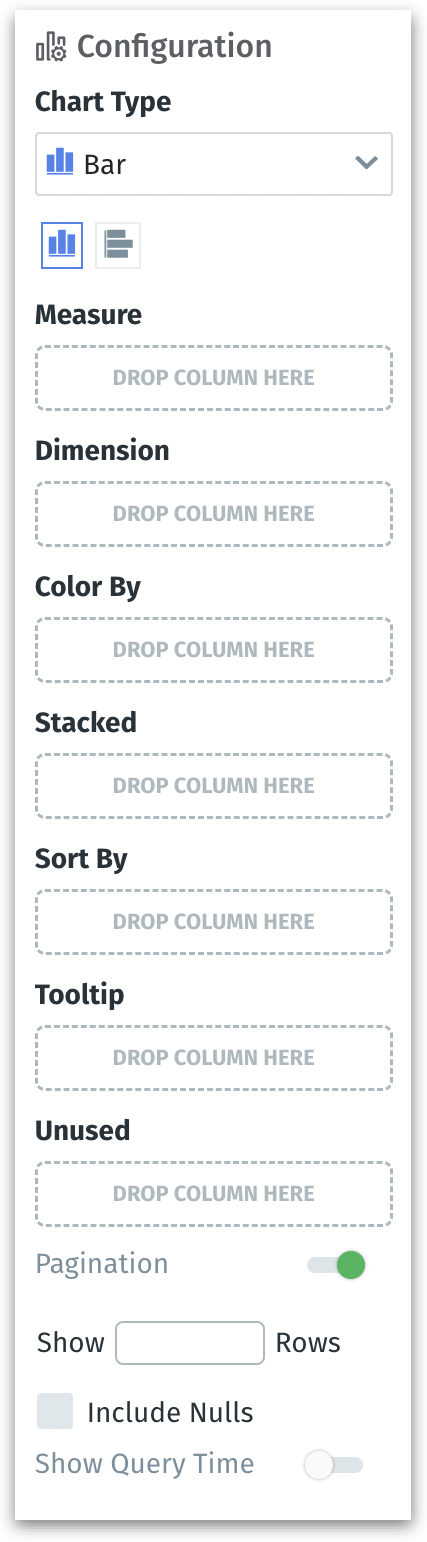
Here's a brief description of prominent fields found in the **Configuration** pane:
Configuration pane for bar chart
* **Measure**: This field is for the numerical data you want to analyze, like sales or revenue. It defines the basis of your chart's quantitative analysis.\
Example: *Profit, Revenue, Quantity*
* **Dimension**: Dimensions are the categories you're measuring by, such as time periods, regions, or product categories. They provide context for the measures.\
Example: *Category, Market, Country*
* *Dimension (Date): This field accepts only date-based columns.*\
➤ Set a **time grain** (e.g., `YEARLY`, `MONTHLY`, `DAILY`) to define the sparkline cadence.
{% hint style="info" %}
To know more about the difference between measures, dimensions, and date columns, check out [this page](/tellius-6.3/vizpads-explore/measures-dimensions-date-columns.md).
{% endhint %}
* **Color By**: Assign colors to different segments of your data, such as regions or products, to visually distinguish and analyze patterns and trends.\
Example: *If you select the column "Region" for Color By field, then the chart uses different colors to represent sales data from different geographical areas.*
* **Sort By**: Determines the order of data presentation in your chart, which can be ascending or descending, helping to prioritize or sequence data points.\
Example: *If you select the column "Sales" (descending order) for Sort By field, then the chart prioritizes higher-selling items.*
* **Tooltip**: When hovering over elements of the chart, tooltips provide additional information like exact figures or related data, enhancing the detail available on demand.\
Example: *If you select the column "Units sold" for Tooltip field, then the chart shows the exact number of units sold in tooltip when hovering over it.*
* **Unused**: Here, you can store columns that are currently not in use but might be needed for future reference or analysis because the chart type or other chart configurations changed.
* **Pagination (Enable/Disable Toggle)**: This controls whether your chart breaks data into pages or shows all data at once, useful for managing large data sets.
* **Show Rows (Number Field)**: Decide the number of rows to be considered for preparing the chart, focusing on a specified amount of data entries.
* **Include Nulls (Checkbox)**: This option includes or excludes null values from your data, allowing you to decide whether to consider or ignore incomplete data points.\
Example: *In a product performance analysis, include nulls to see all products, even those without any sales.*
* **Dual Axis (Checkbox)**: Enables you to plot two measures on the same chart with separate Y-axes, useful for comparing different types of data.\
Example: *Display website traffic (first axis) alongside conversion rate (second axis) for a digital marketing analysis.*
* **Show Query Time (Enable/Disable Toggle)**: Displays the time taken by Tellius and other external engines to execute the query.
{% hint style="info" %}
Please note that each type of chart will have a unique configuration. Not all charts will have all the above-mentioned fields. For example, KPI charts will have only ***Measure***, ***Tooltip***, and ***Unused*** fields for simple yet effective visualization, whereas bar charts offer a wider range of fields to provide more detailed and complex visualizations.
{% endhint %}
To know more about the additional fields that are not listed here, check out [this page](/tellius-6.3/search/know-your-charts-in-tellius/list-of-chart-specific-fields.md).
---
# Agent Instructions
This documentation is published with GitBook. GitBook is the documentation platform designed so that both humans and AI agents can read, navigate, and reason over technical content effectively. Learn more at gitbook.com.
## Querying This Documentation
If you need additional information that is not directly available in this page, you can query the documentation by asking a question.
Perform an HTTP GET request on the following URL with the `ask` and `goal` query parameters:
```
GET https://help.tellius.com/tellius-6.3/search/know-your-charts-in-tellius/building-charts-from-configuration-pane.md?ask=&goal=
```
`ask` is the immediate question: it should be specific, self-contained, and written in natural language.
`goal` is what the user is ultimately trying to achieve, the reason they need the answer. Sharing it helps GitBook give you a better, more relevant answer. A goal is most helpful when it describes the outcome the user wants rather than restating the question. For example, with `ask=how do I create an API token`, a goal like `automate deployments from our CI pipeline` lets GitBook tailor the answer to that use case.
The response will contain a direct answer to the question and relevant excerpts and sources from the documentation.
Use this mechanism when the answer is not explicitly present in the current page, you need clarification or additional context, or you want to retrieve related documentation sections.