> For the complete documentation index, see [llms.txt](https://help.tellius.com/llms.txt). Markdown versions of documentation pages are available by appending `.md` to page URLs; this page is available as [Markdown](https://help.tellius.com/tellius-6.3/settings/application-settings/vizpads.md).
# Vizpads
Configure Vizpad settings to optimize performance, manage filters, and customize chart summaries for efficient visualization of large datasets.
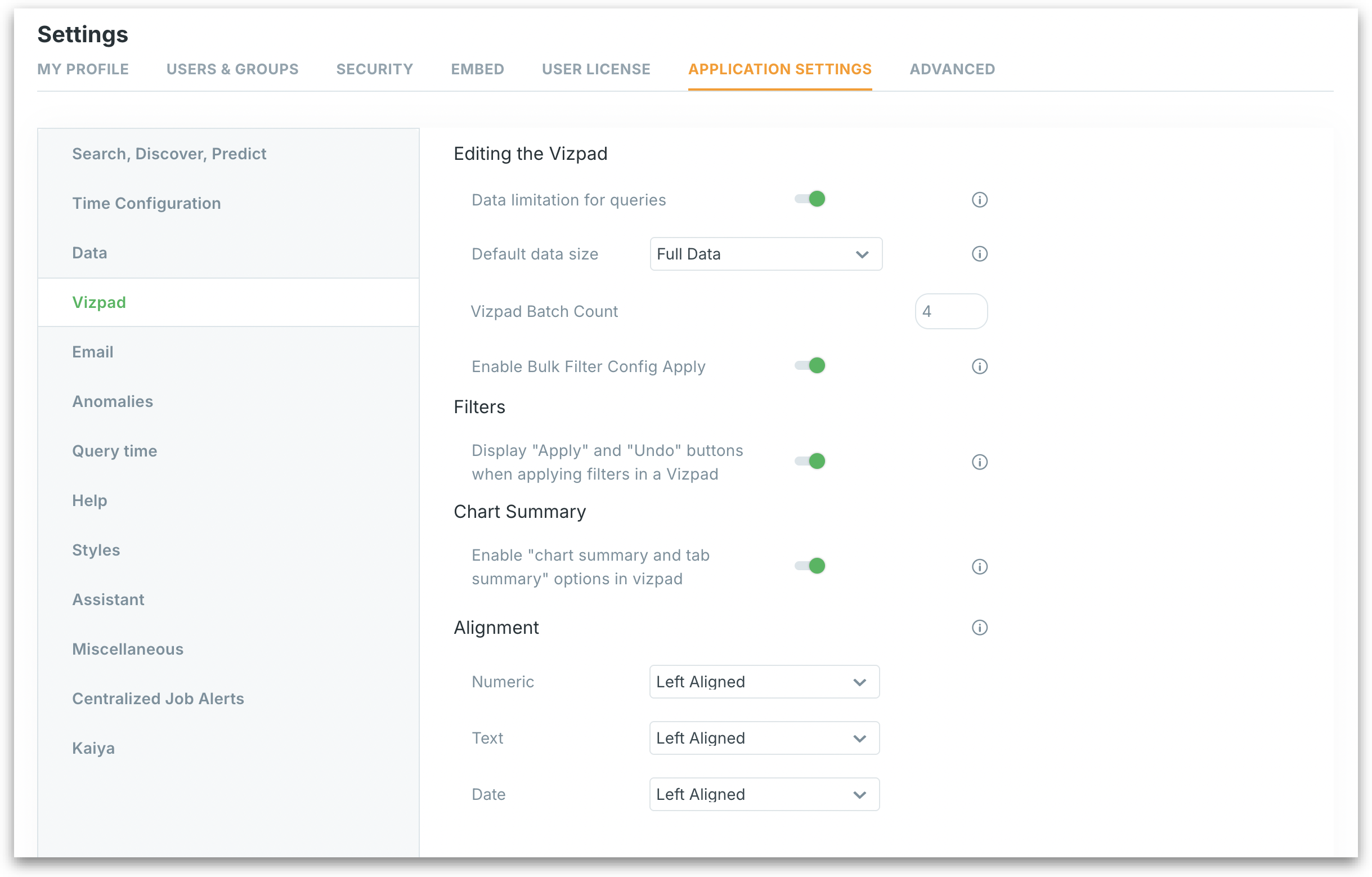
Under **Settings → Application Settings → Vizpad,** admins can fine-tune how users interact with visualizations and filters, especially when working with large datasets or live data connections. Below is a breakdown of each configurable option:
Vizpad settings
### **Editing the Vizpad**
* **Data limitation for queries**\
Limits the number of records fetched per query to improve performance and reduce latency. This helps avoid performance issues when querying large datasets.
* **Default data size**\
Controls the default mode to load data in Vizpad **Edit** mode.\
When enabled, a dropdown appears allowing users to toggle between:
* **Sample Data**: Queries only a subset of the dataset for faster performance. Ideal for large or live-connected datasets.
* **Full Data**: Queries the entire dataset for more accurate results.
By default, **"Sample Data"** is selected.
* **Vizpad batch count**\
Defines how many charts or widgets get rendered in one batch when loading a Vizpad. A lower number optimizes load time and reduces resource strain on large dashboards.
* **Enable bulk filter config apply**\
Enables a staging mode for applying filters in the **Configuration** pane. Useful for large or live dataset—by reducing the number of backend calls. Instead of updating the chart after every single filter adjustment, users can:
* Apply all filter changes at once.
* Undo recent changes before applying.
### **Filters**
**Display "Apply" and "Undo" Buttons**\
When enabled, this option adds **Apply** and **Undo** buttons under **"Apply Filters"** in the Vizpad.
* Users can select multiple filter values before applying them, preventing intermediate queries from triggering each time a value is changed.
* Especially helpful for live connections or datasets with performance sensitivity.
When disabled, filters are applied immediately after each selection, which works well for small or cached datasets.
### **Chart Summary**
**Enable "Chart Summary and Tab Summary"**\
If enabled, users can choose to generate customizable summaries for charts (summarizes individual charts) and tabs (summarizes tabs consisting of multiple charts) of Vizpads.
### **Alignment**
Sets the default text alignment (left, center, or right) for different data types in Vizpad tables:
* **Numeric**: Align numerical values.
* **Text**: Choose default alignment for text fields.
* **Date**: Control alignment of date values for clearer time-based visualization.
---
# Agent Instructions
This documentation is published with GitBook. GitBook is the documentation platform designed so that both humans and AI agents can read, navigate, and reason over technical content effectively. Learn more at gitbook.com.
## Querying This Documentation
If you need additional information that is not directly available in this page, you can query the documentation by asking a question.
Perform an HTTP GET request on the following URL with the `ask` and `goal` query parameters:
```
GET https://help.tellius.com/tellius-6.3/settings/application-settings/vizpads.md?ask=&goal=
```
`ask` is the immediate question: it should be specific, self-contained, and written in natural language.
`goal` is what the user is ultimately trying to achieve, the reason they need the answer. Sharing it helps GitBook give you a better, more relevant answer. A goal is most helpful when it describes the outcome the user wants rather than restating the question. For example, with `ask=how do I create an API token`, a goal like `automate deployments from our CI pipeline` lets GitBook tailor the answer to that use case.
The response will contain a direct answer to the question and relevant excerpts and sources from the documentation.
Use this mechanism when the answer is not explicitly present in the current page, you need clarification or additional context, or you want to retrieve related documentation sections.