> For the complete documentation index, see [llms.txt](https://help.tellius.com/llms.txt). Markdown versions of documentation pages are available by appending `.md` to page URLs; this page is available as [Markdown](https://help.tellius.com/tellius-6.3/vizpads-explore/actions-in-view-mode/filters.md).
# Filters
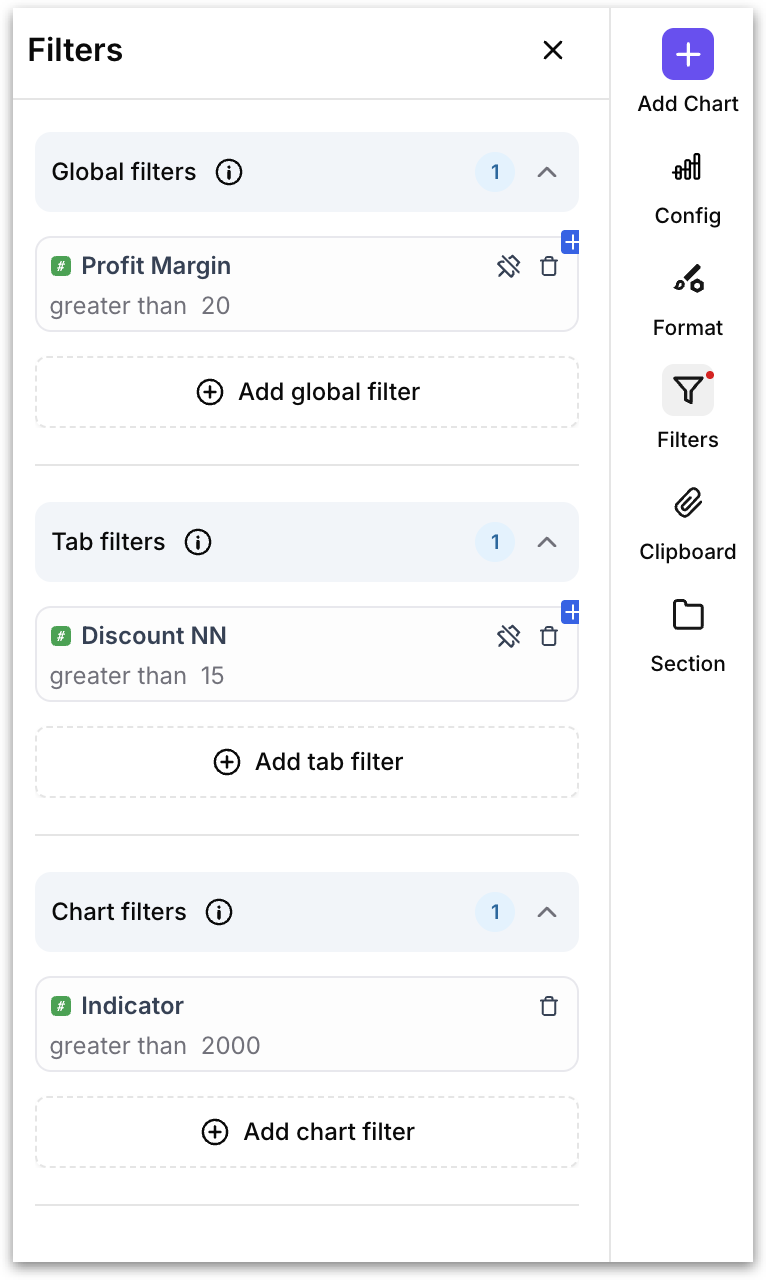
Select Filters in the right rail to open the **Filters** panel. Filters are organized into a clear hierarchy, and all global, tab, section and local filters live in this single panel.
The hierarchy, from broadest to narrowest, is:
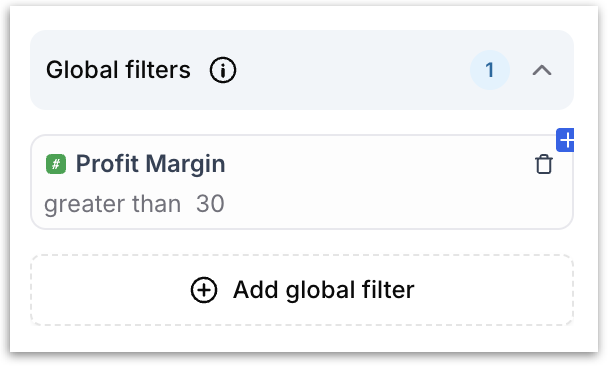
1. **Global filters:** Apply to every chart in every tab of the Vizpad. Use these for filters that should always be in scope, like a date range or a region.
2. **Tab filters:** Apply to all the charts on the currently selected tab. Use these when one tab covers a different slice of the business than another.
3. **Section filters:** Apply only to the charts inside a specific section.
{% hint style="warning" icon="line-columns" %}
Section filters appear in the panel only if the Vizpad has charts organized into sections (sections are created in edit mode). They're useful when a Vizpad groups several related charts together and you want to apply filters to just that group.
{% endhint %}
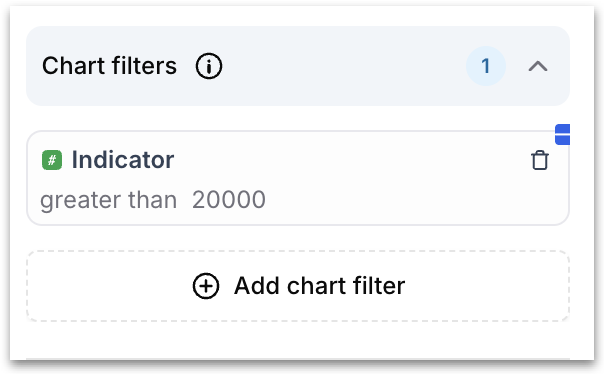
4. **Chart filters:** Apply only to the single selected chart.
Each collapsible tier in the Filters panel (Global filters, Tab filters, Section filters, Chart filters) displays a **count badge** next to its name showing how many filters are currently active under that tier.
Each tier has an **Add filter** button. Click it to open the filter builder, which guides you through:
* Business View: The Business View the column comes from. Pre-selected if the Vizpad is built on a single Business View.
* Column: The column to filter on.
* Operator: How you want to compare (In, Not In, Equals, Greater than, Between, etc.). Available operators depend on the column's data type.
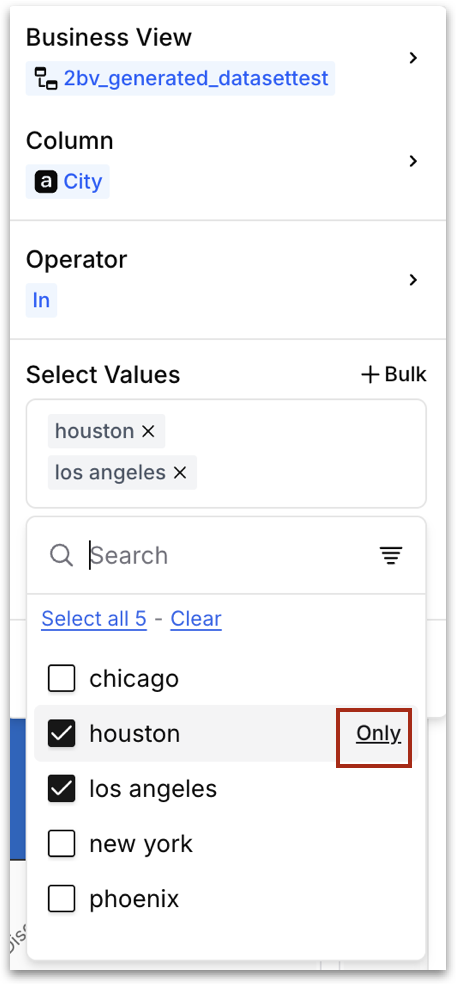
* Select Values: The values to include or exclude. Use the **+ Bulk** option to paste a long list of values at once. Tellius supports up to 5000 selected values within a single filter.
{% hint style="success" icon="money-check" %}
When you hover over any value in the filter's value list, an **Only** label appears to the right of that value. Clicking it deselects every other value and keeps only that one selected. It's a shortcut: instead of unchecking other values and checking one, you click **Only** once. You also have **Select all** (checks everything) and **Clear** (unchecks everything) at the top of the list for bulk operations.
{% endhint %}
Click **Apply** to commit the filter. The filter immediately takes effect across the appropriate scope, and the panel shows it as an active chip you can edit or remove.
### **Aggregated column filters**
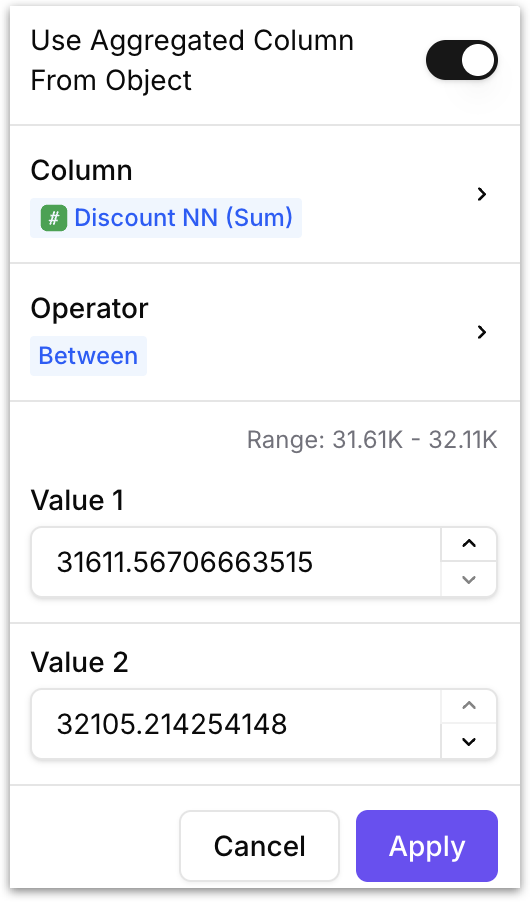
When adding a chart (local) filter, you'll see an additional toggle: **Use Aggregated Column From Object.**
When enabled, the filter operates on the column's aggregated value (for example, sum of Sales > 10000) rather than on the raw row-level value. This is useful when you want to filter a chart down to, say, only the customers whose total purchases exceed a threshold, rather than only individual rows above that threshold. The **Column** and **Operator** selectors update to reflect the aggregated context.
### For applying bulk values
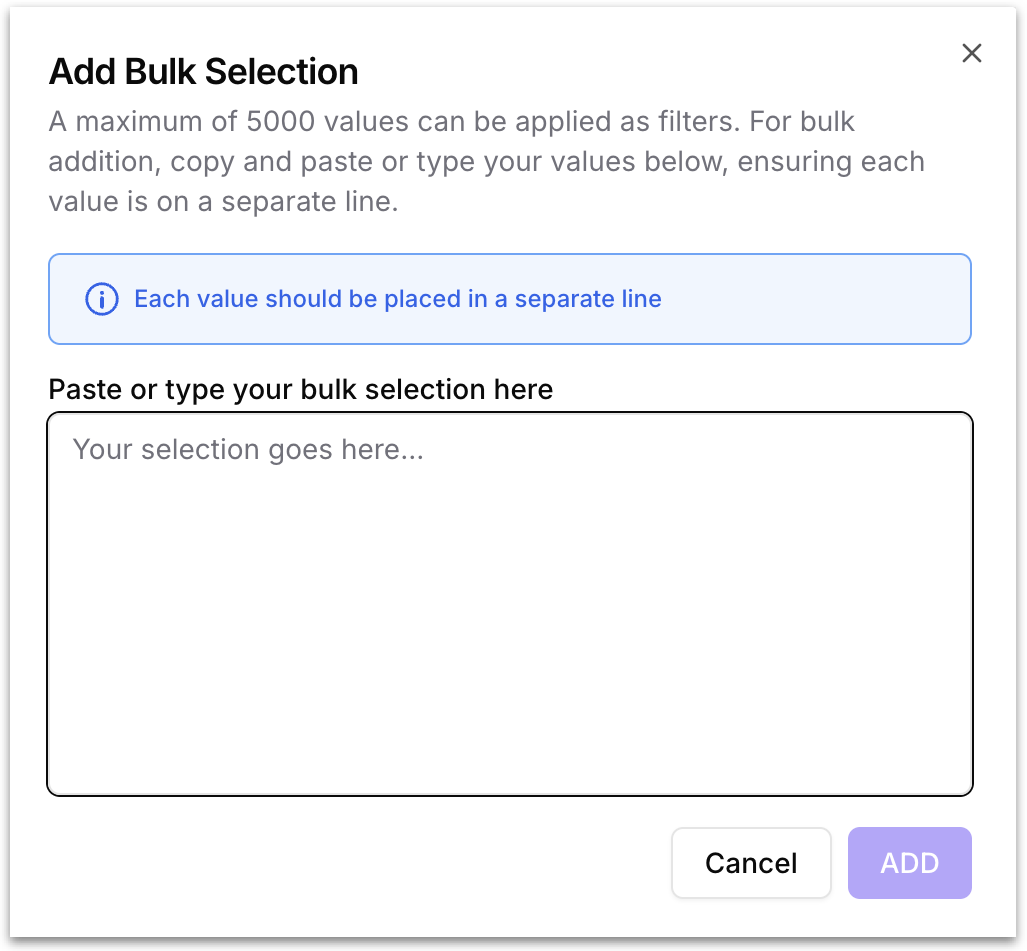
For filters on dimension columns with many possible values, click **+ Bulk** next to the **Select Values** heading to open the bulk input area. Type or paste your values into the text box, with each value on a separate line.
Tellius supports up to **5,000 values** in a single bulk addition. This is useful when you have a list of account IDs, product codes, or region names from a spreadsheet that you want to apply as a filter.
### Pending filter change indicators
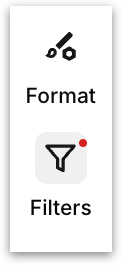
* When any filter has been added, modified, or removed during your session, a **red dot** appears on the **Filters** icon in the right pane. This tell you that the Vizpad's current state differs from the last saved or applied state.
* Filters that have been added but not yet applied to the Vizpad are marked with a small **blue plus icon** in the top-right corner of the filter chip.
* Similarly, filters that have been marked for deletion but not yet committed show a **blue minus icon**. These icons make it easy to see which changes are still in the pipeline and haven't taken effect on the charts yet. Especially useful when you're stacking multiple filter changes before applying them in bulk.
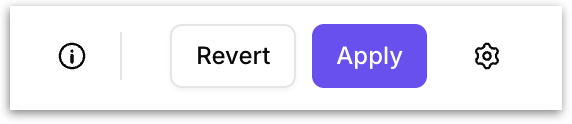
* When you add, edit, or delete a filter, the top bar updates to show an **Apply** button and a **Revert** button.
* The charts on the canvas do not re-render until you click **Apply**. This is the bulk application behavior described under [Vizpad Settings > Performance](/tellius-6.3/vizpads-explore/actions-in-view-mode.md#query-time). You can stack as many changes as you need and push everything to the Vizpad in a single action by clicking **Apply**. Click **Revert** to discard all pending changes and return the Vizpad to the state it was in before you started editing.
{% hint style="info" %}
This bulk workflow eliminates the wait time that would otherwise occur if every individual filter triggered a full re-query of every affected chart. On a Vizpad with many charts, the difference is substantial.
{% endhint %}
{% hint style="danger" %}
Filter changes you make in **View** mode are session-scoped by default. If you want them to persist, save them as part of a **Custom View**.
{% endhint %}
### Saving a Custom View
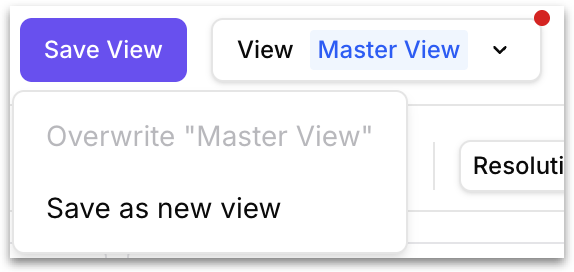
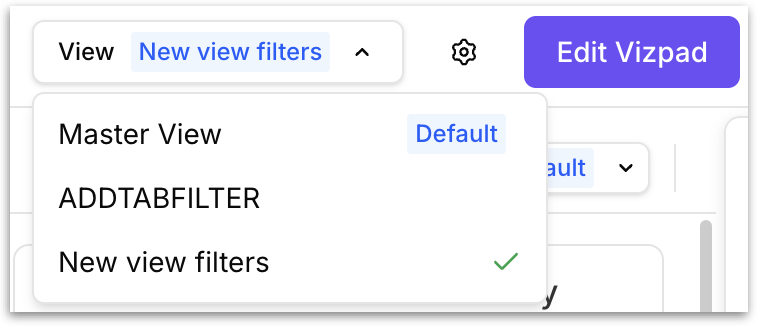
Once you apply changes, a **red dot** also appears on the **View** dropdown in the top bar (next to *Master View* or whichever view is active). This dot signals that the current state of the Vizpad has diverged from the saved view: filters you've applied are live on the canvas but haven't been persisted yet. If you navigate away without saving, those changes will be lost.
To persist your changes, click **Save View**. The dropdown offers two options:
* **Overwrite "\[current view name]":** Replaces the current view's saved state with your changes. If you're on the Master View and have edit permission, this updates the default for everyone.
* **Save as new view:** Creates a new **Custom View** with a name you specify. The original view stays untouched, and your filters and formatting are saved under the new view. This is the safer option when you want to preserve the original while keeping a personalized filtered version for yourself.
After saving, the red dot disappears and the View dropdown updates to show your new or updated view name.
### Displaying the applied filters
Filters applied at different tiers are displayed differently on the Vizpad canvas:
* **Global filters and Tab filters** are managed exclusively in the **Filters** panel on the right side. They do not appear as visual pills on individual charts.
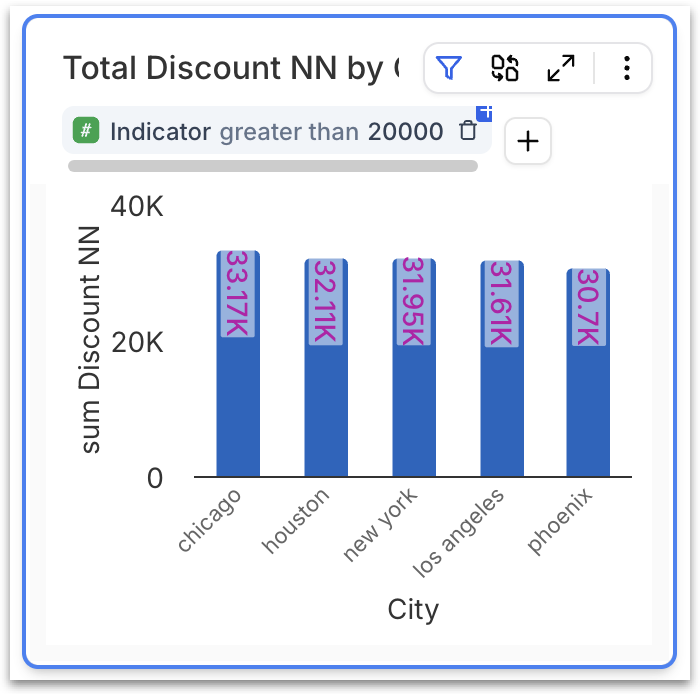
* **Chart filters** appear both in the **Filters** panel (under the Chart filters tier) and as **filter pills directly on the chart** they apply to. Each pill shows the column name, operator, and value along with a delete icon and a **+** button to add another filter. This dual display means you can manage chart filters from whichever location is more convenient.
To delete a chart filter from the pill on the chart, click the delete icon on the pill. To delete any filter from the Filters panel, click the delete icon next to the filter chip. In both cases, the deletion is staged as a pending change (marked with the blue minus icon) and takes effect only when you click **Apply** in the top bar.
### The state of control filters
In the redesigned Vizpads (post v6.2), control filters (multi-select list, single-select list, range slider, and dropdown, that were placed directly on the Vizpad canvas) have been retired. The unified **Filters panel** in the right pane (Global → Tab → Section → Chart) replaces everything control filters used to do:
* **Multi-select list** → Any filter in the Filters panel supports multi-select by default. Check as many values as you need from the value list.
* **Single-select list** → Hover over any value in a filter's value list and click **Only** to isolate that single value. This deselects everything else in one click.
* **Range slider** → When filtering on a numeric (measure) column, use the *Between*, *Greater than*, or *Less than* operators to define a range.
* **Dropdown list** → The column and value selectors in the Filters panel work as searchable dropdowns, giving you the same selection.
Because filters are no longer placed on the canvas as separate objects, there are no synchronization rules to manage. Every filter lives in one panel, applies to a clearly defined scope (global, tab, section, or chart), and can be added or removed independently.
{% hint style="danger" %}
If you open a Vizpad that was created in a previous version and contained control filters, those filters will be migrated to the corresponding tier in the **Filters** panel automatically.
{% endhint %}
---
# Agent Instructions
This documentation is published with GitBook. GitBook is the documentation platform designed so that both humans and AI agents can read, navigate, and reason over technical content effectively. Learn more at gitbook.com.
## Querying This Documentation
If you need additional information that is not directly available in this page, you can query the documentation by asking a question.
Perform an HTTP GET request on the following URL with the `ask` and `goal` query parameters:
```
GET https://help.tellius.com/tellius-6.3/vizpads-explore/actions-in-view-mode/filters.md?ask=&goal=
```
`ask` is the immediate question: it should be specific, self-contained, and written in natural language.
`goal` is what the user is ultimately trying to achieve, the reason they need the answer. Sharing it helps GitBook give you a better, more relevant answer. A goal is most helpful when it describes the outcome the user wants rather than restating the question. For example, with `ask=how do I create an API token`, a goal like `automate deployments from our CI pipeline` lets GitBook tailor the answer to that use case.
The response will contain a direct answer to the question and relevant excerpts and sources from the documentation.
Use this mechanism when the answer is not explicitly present in the current page, you need clarification or additional context, or you want to retrieve related documentation sections.