> For the complete documentation index, see [llms.txt](https://help.tellius.com/llms.txt). Markdown versions of documentation pages are available by appending `.md` to page URLs; this page is available as [Markdown](https://help.tellius.com/tellius-6.3/vizpads-explore/get-familiar-with-our-vizpads.md).
# Get familiar with our Vizpads
Learn how to navigate the Vizpads workspace. Find existing Vizpads quickly, sort and filter your library, create or import new ones, and manage every Vizpad with the actions menu.
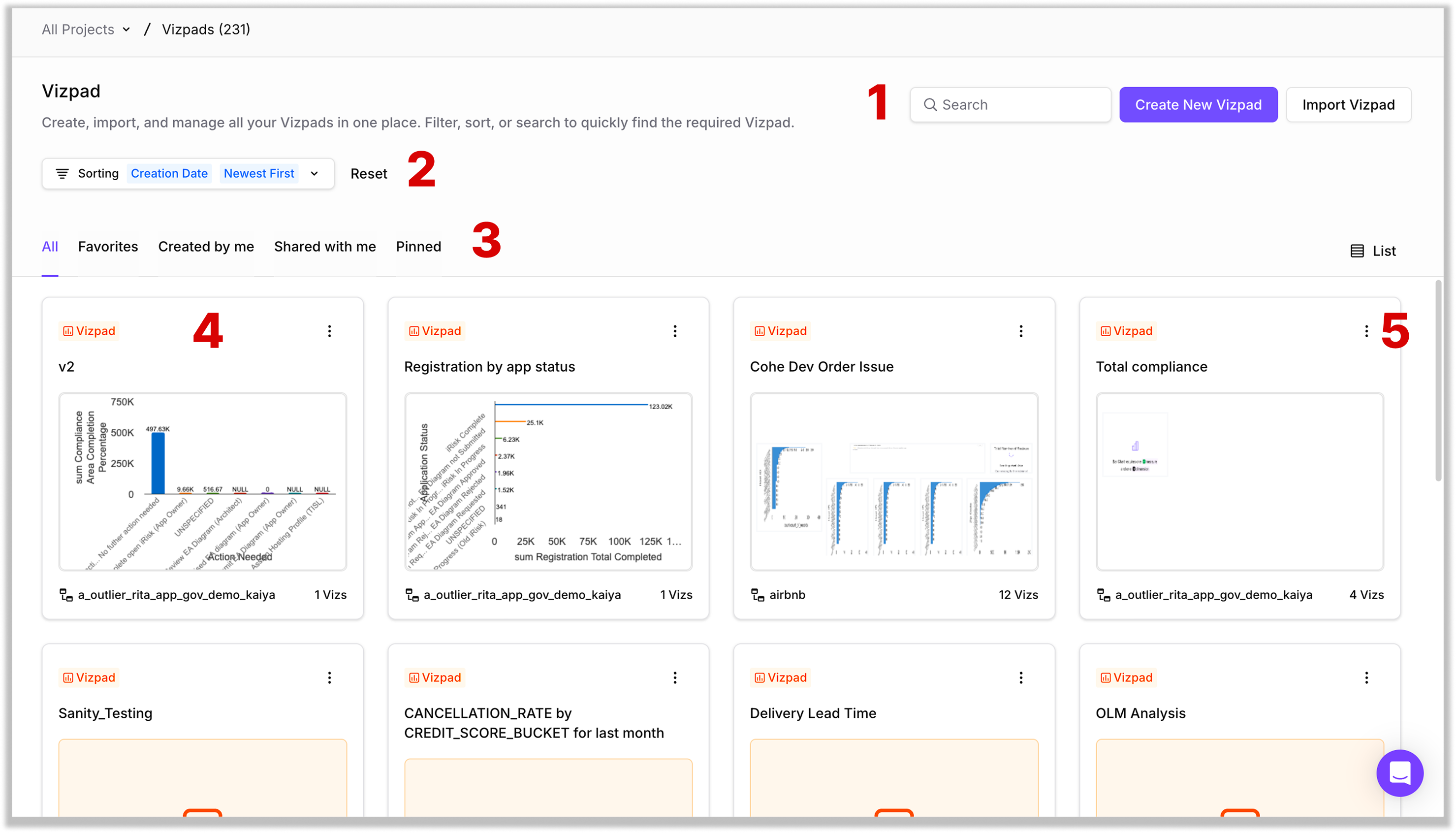
In Tellius, Vizpads are accessed by clicking the **Explore** tab in the left navigation pane. The landing screen lists every Vizpad you’ve created, every Vizpad shared with you, and every Vizpad you’ve marked as a favorite or pinned. The page header shows the total count next to **Vizpads (n)** so you always know how large your library is.
Let’s break down the components of the Vizpads listing screen.
### 1. Page header
#### Search
Use the search bar at the top right to find any Vizpad by its name. Results filter as you type.
#### Create New Vizpad
Click the purple **Create New Vizpad** button to start a new Vizpad from scratch. You’ll be taken to a blank canvas where you can pick a dataset and begin adding charts. Check out this page for more details.
#### Import Vizpad
Click **Import Vizpad** to bring in a Vizpad that was exported from another Tellius environment (for example, when migrating between development and production). Tellius will prompt you to select the exported .zip file and confirm the destination project.
### 2. Sorting
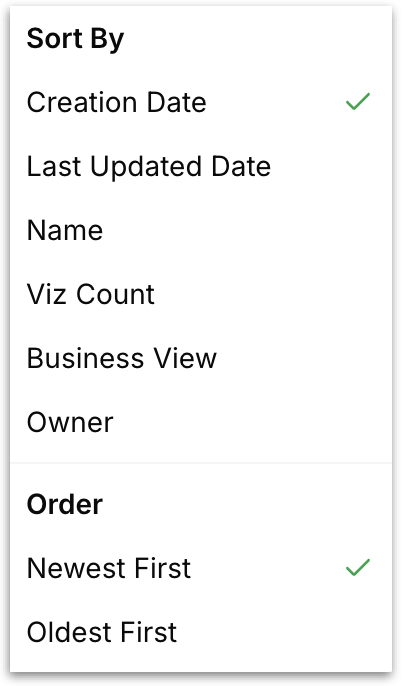
Click the dropdown to change either the sort field or the sort direction. Click **Reset** next to the control to return to the default order.
* **Creation Date:** Orders Vizpads by when they were first created.
* **Last Updated Date:** Orders Vizpads by their most recent edit, useful when you want to pick up where you left off.
* **Name:** Sorts alphabetically by Vizpad name.
* **Viz Count:** Sorts by the number of charts each Vizpad contains.
* **Business View:** Groups Vizpads by the Business View they’re built on.
* **Owner:** Sorts by the name of the user who created the Vizpad.
Each field can be applied in descending (*Newest First) or* ascending (*Oldest First)* order.
### 3. Library tabs
A row of tabs sits directly above the Vizpad cards. Each tab is a saved view of your library.
* **All:** Every Vizpad you have access to, including ones you created and ones shared with you.
* **Favorites:** Only the Vizpads you’ve marked with the favorite icon.
* **Created by me:** Only the Vizpads where you are the owner.
* **Shared with me:** Vizpads owned by another user that have been shared with your account or with a user group you belong to.
* **Pinned:** Vizpads you’ve pinned to the top of your library.
{% hint style="info" %}
Pinning is separate from favorites. Use favorites to bookmark, and use pins for the handful of Vizpads you open every day.
{% endhint %}
#### View toggle
To the far right of the tab row, the **List** / **Grid** toggle switches the layout of the cards.
* **Grid view** displays each Vizpad as a tile with a thumbnail preview of one of its charts.
* **List view** displays Vizpads as compact rows, which is useful when scanning a long library.
### 4. Vizpad cards
In the grid view, each Vizpad is rendered as a card. The card shows:
* The Vizpad **name**.
* A **thumbnail preview** of one of the charts inside.
* The name of the underlying **dataset or Business View** the Vizpad is built on.
* The total **Viz count** (the number of charts the Vizpad contains).
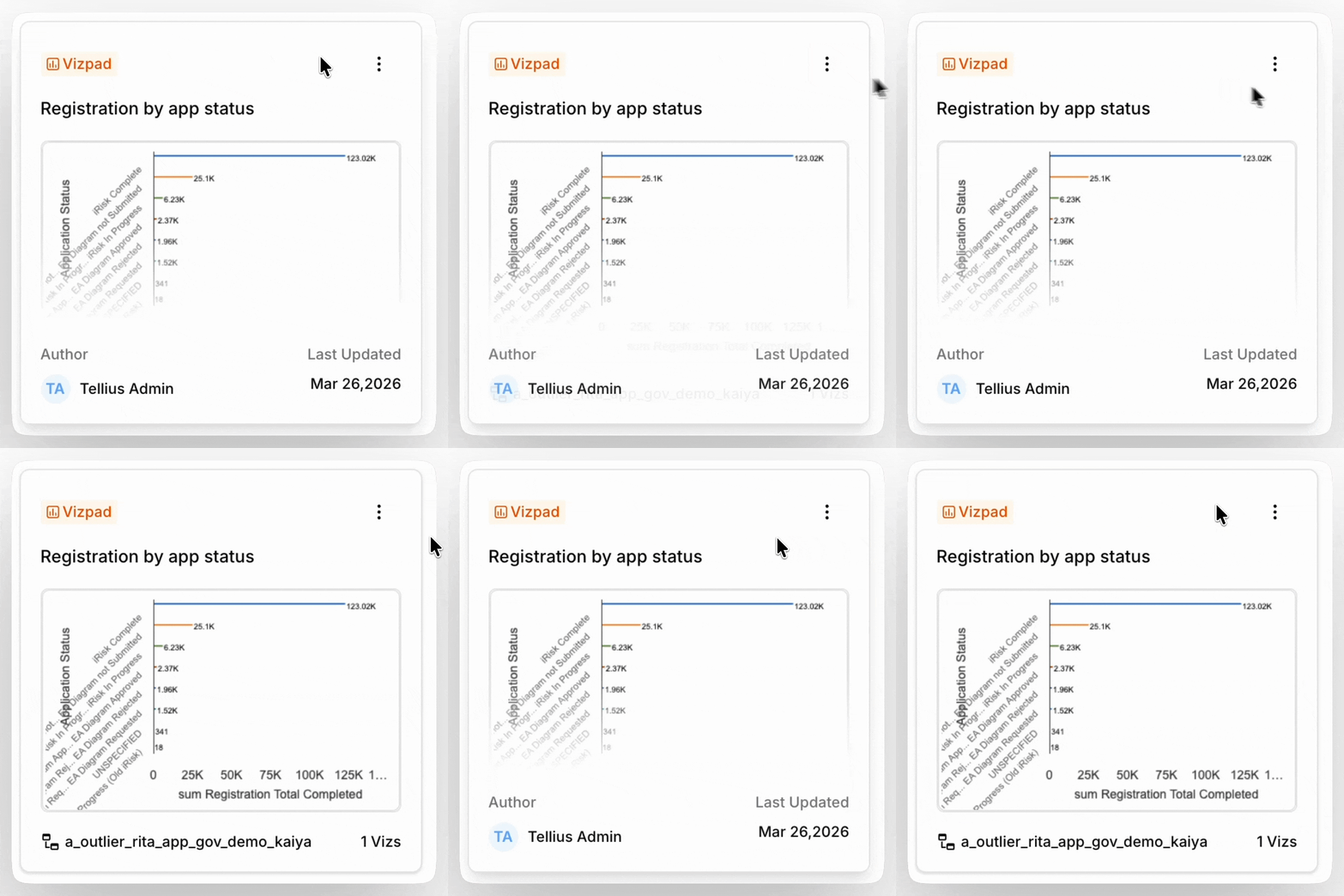
Hovering over a card reveals the author of the Vizpad and the date on which the Vizpad was last updated.
### The actions menu (three-dot menu)
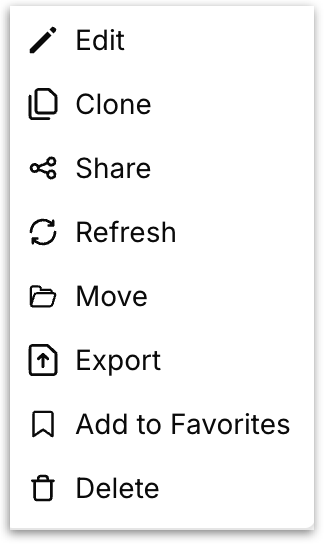
Every Vizpad card has a three-dot menu in its top-right corner. Opening it exposes the full set of actions you can take on that Vizpad without having to open it first.
* **Edit:** Opens the edit mode of the Vizpad. This option is available only if you have edit access.
* **Clone:** Creates a duplicate of the Vizpad. The clone is owned by you and can be edited independently of the original.
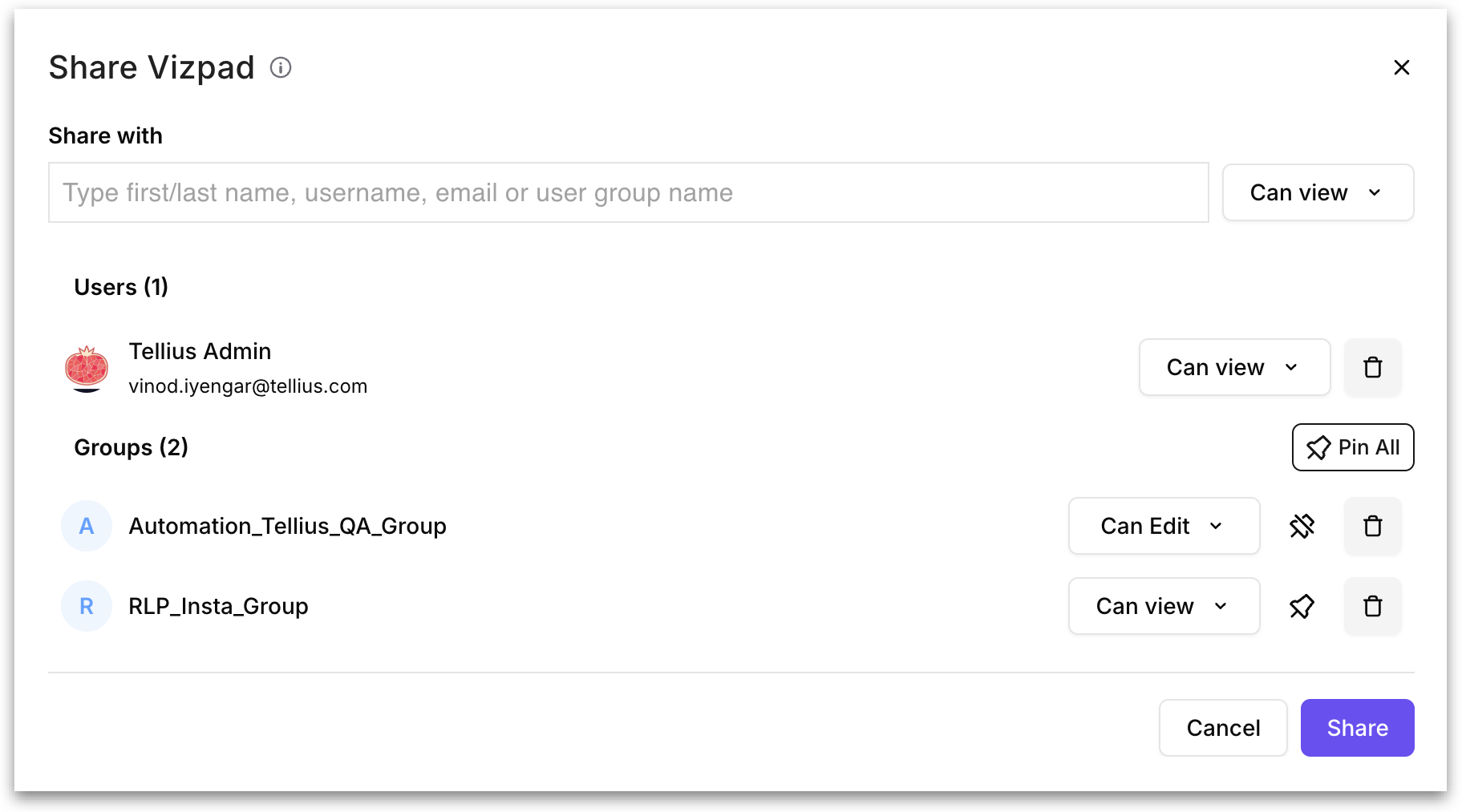
* **Share:** Use the **Share with** field at the top to search for a user by first name, last name, username, or email or to search for a user group by name. Once you select a recipient, choose either **Can view** or **Can edit** from the permission dropdown next to the field, then click **Share**.
**Pinning a Vizpad for a group**
When you share a Vizpad with a **user group** as an admin or super user, an additional **pin** icon appears next to that group's row. Enabling the pin pushes the Vizpad into the **Pinned** tab of every user who belongs to that group, so the moment they open **Explore**, the Vizpad is waiting for them at the top of their library.
{% hint style="info" icon="thumbtack-angle" %}
The pin control is only available when sharing with groups, and only for users with admin or super user privileges.
{% endhint %}
If you've shared the Vizpad with multiple groups and want to pin it for all of them at once, click **Pin All** in the top-right of the **Groups** section. Click the pin icon again to unpin, and the Vizpad will drop out of those users' **Pinned** tab.
* **Refresh:** Triggers a fresh query against the underlying data so the Vizpad reflects the latest values.
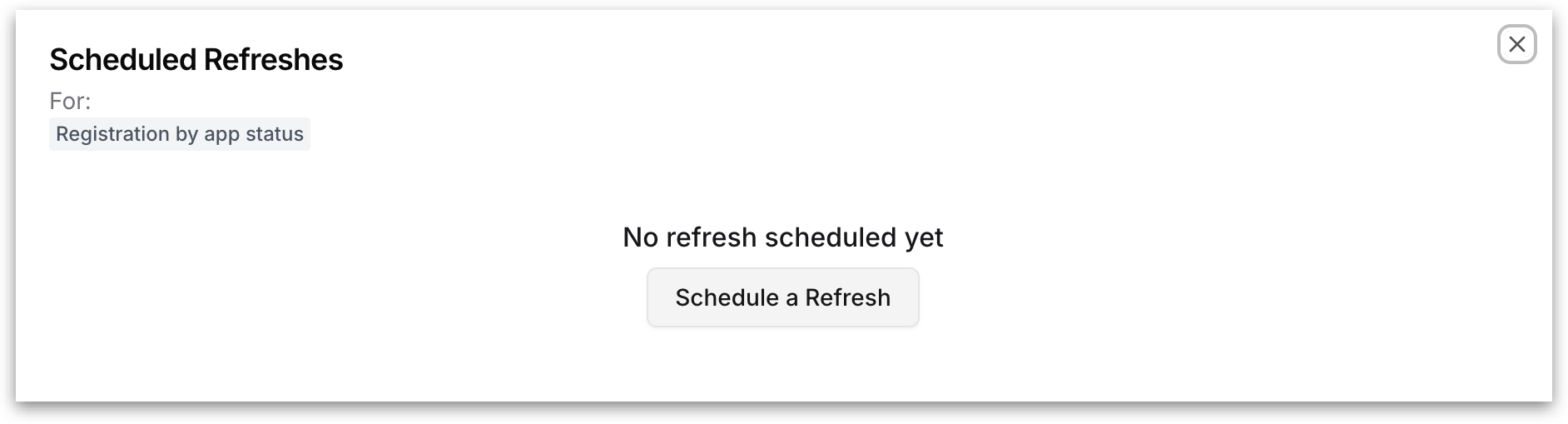
This window displays the list of refreshes already scheduled for the selected Vizpad. If no refreshes have been created yet, the screen shows an empty state with a **Schedule a Refresh** button. Use this page to review existing schedules for the Vizpad and start creating a new scheduled refresh.
**Schedule a Refresh**
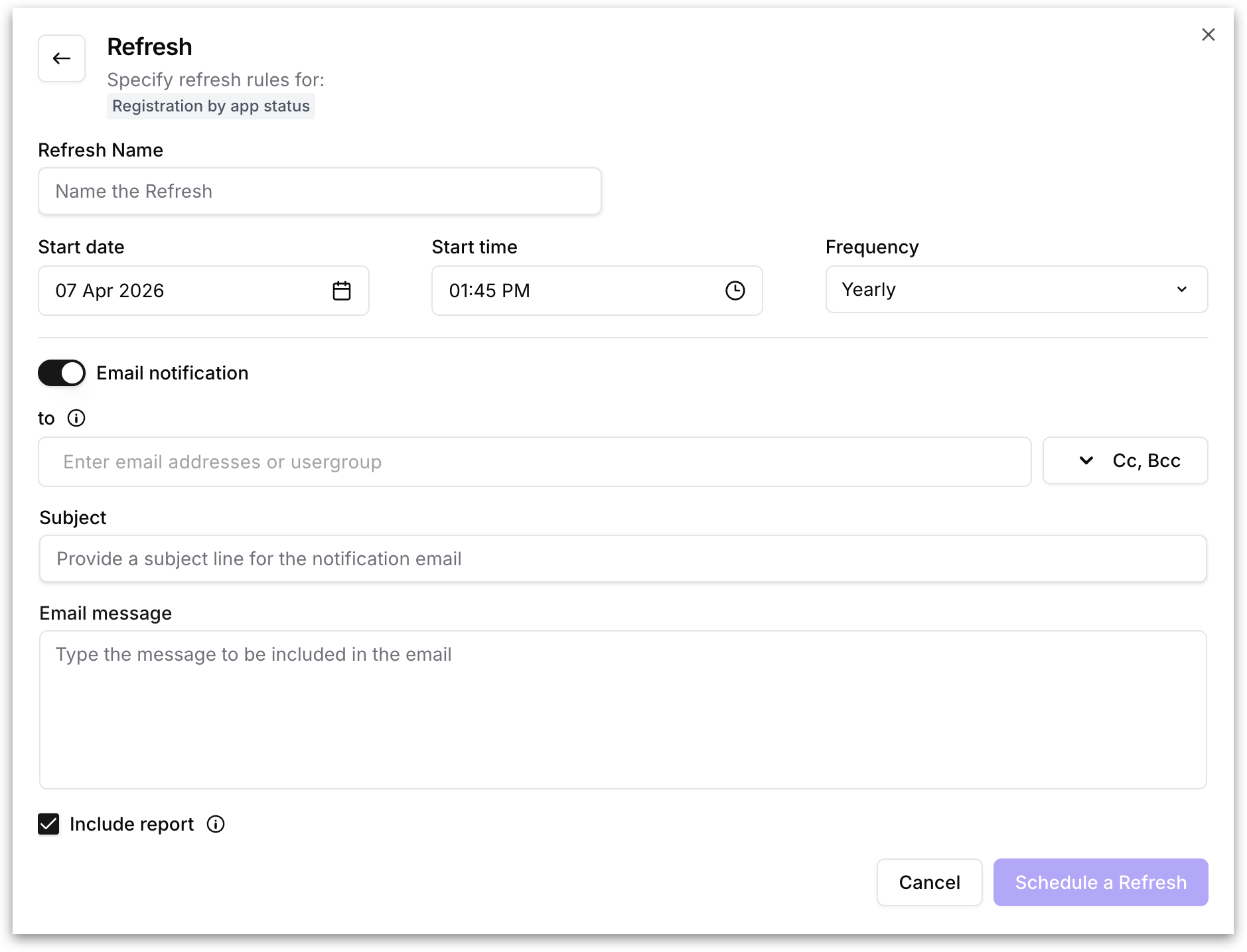
Create a new refresh schedule for the selected Vizpad. Provide a refresh name, start date, start time, and frequency, then optionally enable email notification to send the refresh output to specific recipients. If email notification is enabled, enter the recipient list, subject, and message, and choose whether to include the report in the email before clicking **Schedule a Refresh**.
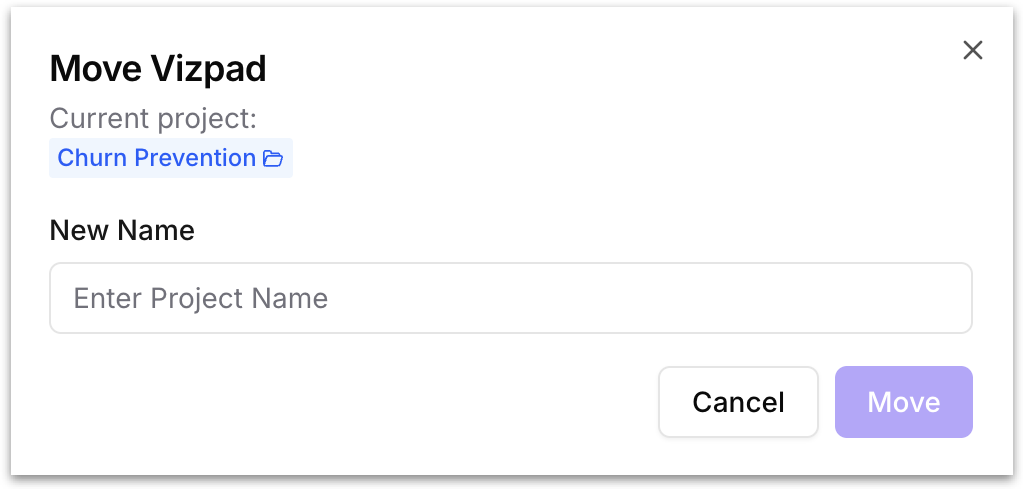
* **Move:** Move the Vizpad into a different **Project** folder. A picker appears so you can choose the destination **Project**.
* **Export:** Exports the entire Vizpad as a .zip file.
* **Favorite:** Mark or unmark the Vizpad as a favorite. Favorited Vizpads appear under the **Favorites** tab and can be sorted to the top via the *Favorite* sort field.
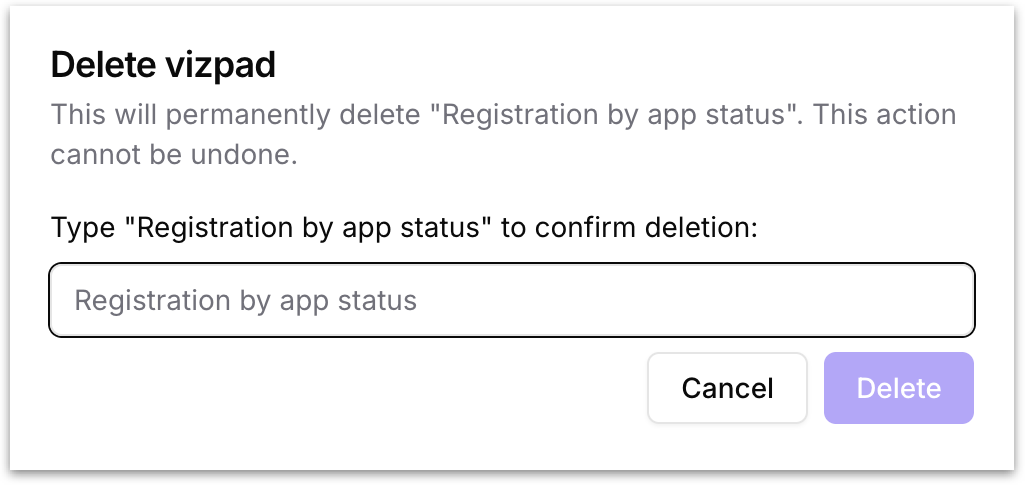
* **Delete:** A confirmation window is displayed when you choose to delete a Vizpad.
To prevent accidental deletion, Tellius requires you to type the exact Vizpad name shown in the prompt before the **Delete** button becomes available. Deleting a Vizpad is permanent and cannot be undone.
{% hint style="warning" icon="bars" %}
The actions you see in this menu depend on your role and on how the Vizpad was shared with you. If a Vizpad was shared with **View** permission only, certain actions (Edit, Move, Delete, Share with others) may be hidden or disabled.
{% endhint %}
---
# Agent Instructions
This documentation is published with GitBook. GitBook is the documentation platform designed so that both humans and AI agents can read, navigate, and reason over technical content effectively. Learn more at gitbook.com.
## Querying This Documentation
If you need additional information that is not directly available in this page, you can query the documentation by asking a question.
Perform an HTTP GET request on the following URL with the `ask` and `goal` query parameters:
```
GET https://help.tellius.com/tellius-6.3/vizpads-explore/get-familiar-with-our-vizpads.md?ask=&goal=
```
`ask` is the immediate question: it should be specific, self-contained, and written in natural language.
`goal` is what the user is ultimately trying to achieve, the reason they need the answer. Sharing it helps GitBook give you a better, more relevant answer. A goal is most helpful when it describes the outcome the user wants rather than restating the question. For example, with `ask=how do I create an API token`, a goal like `automate deployments from our CI pipeline` lets GitBook tailor the answer to that use case.
The response will contain a direct answer to the question and relevant excerpts and sources from the documentation.
Use this mechanism when the answer is not explicitly present in the current page, you need clarification or additional context, or you want to retrieve related documentation sections.