> For the complete documentation index, see [llms.txt](https://help.tellius.com/llms.txt). Markdown versions of documentation pages are available by appending `.md` to page URLs; this page is available as [Markdown](https://help.tellius.com/tellius-6.4/data/connect.md).
# Connect
Connect: Navigate, manage, and sort all your datasources in Tellius. Easily refresh, share, filter, and create new connections for seamless data access.
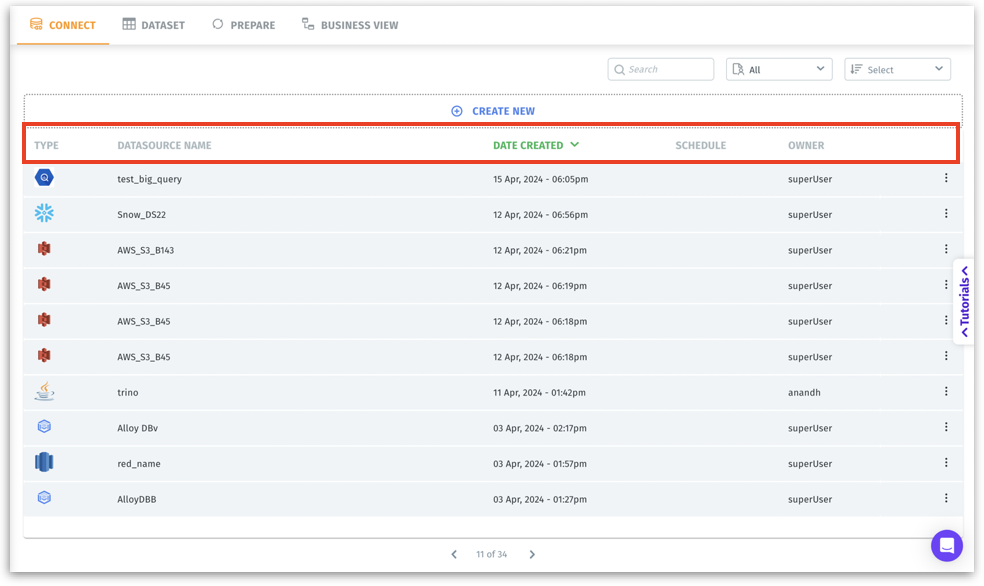
Under **Data → Connect**, you can find every data connection you have access to. Two tabs at the top split the list:
* **Structured:** databases, warehouses, lakehouses, object stores and files that you load as datasets.
* **Unstructured:** document sources that Kaiya searches, such as an S3 bucket of files. See [How to connect to unstructured data?](/tellius-6.4/kaiya/ask-across-your-documents-unstructured/how-to-connect-to-unstructured-data.md)
List of established connections
In Tellius 6.4, the **Structured** list has these columns:
* **Name:** The name you gave the connection when you created it.
* **Type:** The kind of data source, such as Snowflake, Redshift or Oracle, with its icon.
* **Schedule:** The refresh schedule, if one is set. A dash means the connection has no schedule.
* **Creation Date:** When the connection was created.
* **Created By:** The user who created the connection.
The **Unstructured** list adds **Connection Status** and **Data Sync Status**, so you can see at a glance whether each document source is connected and whether its documents are in sync. It has the tabs **All** and **Created by me**, and a **Workspace configuration** button. See [Workspace Configuration](/tellius-6.4/kaiya/ask-across-your-documents-unstructured/workspace-configuration.md).
* **Create new connection:** Opens **Add new connectors**, where you pick a connector for your data source. For more details, check out [Create new datasource](/tellius-6.4/data/create-new-datasource.md).
{% hint style="info" %}
In releases before Tellius 6.4, the list columns were **Type**, **Datasource Name**, **Date Created**, **Schedule** and **Owner**, and the button was **Create New**.
{% endhint %}
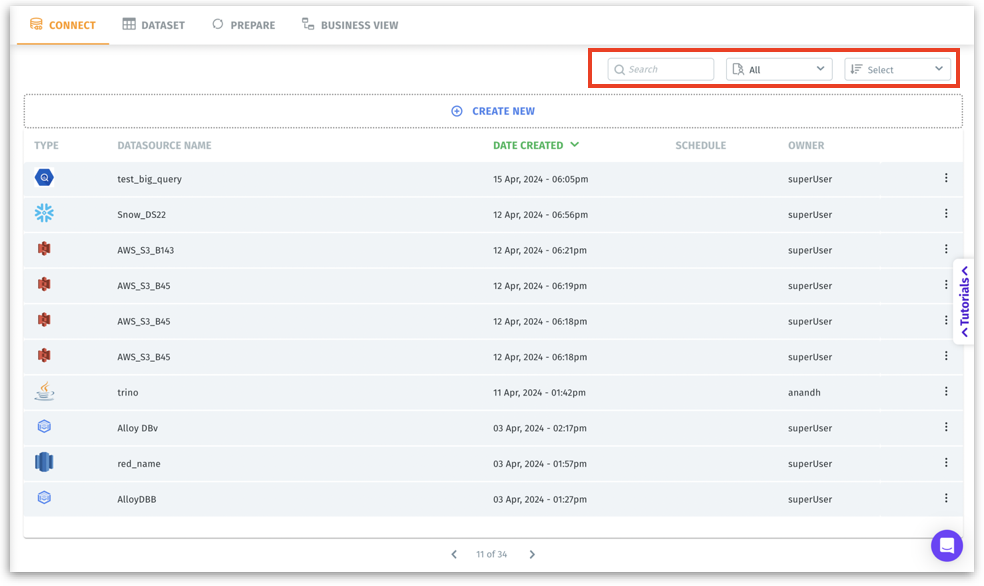
Use sorting and searching options together for efficient navigation in environments with dozens or hundreds of connections.
Sorting and searching datasources
* **Search bar:** Allows you to type a keyword (e.g., part of a datasource name) to quickly filter the displayed connections. For instance, typing “sales” could instantly show “Salesforce\_CRM\_2024” or “Sales\_data\_extract.”
* **Sorting:** Under **Sort By**, choose **Creation Date** (the default) or **Name**. Under **Order**, choose **Newest First** (the default) or **Oldest First**.
* **User:** Filters the list by user. Search for a user, choose **All Users**, or select **Clear Filter** to remove the filter.
* **Reset:** Puts the sorting and the user filter back to their defaults.
* **All**, **Created by me** and **Shared with me:** Show every connection you can see, only the ones you created, or only the ones others shared with you.
{% hint style="info" %}
In releases before Tellius 6.4, a **Filter dropdown** chose between all connections, yours and the ones shared with you, and a **Sort menu** sorted by title, type or recently created.
{% endhint %}
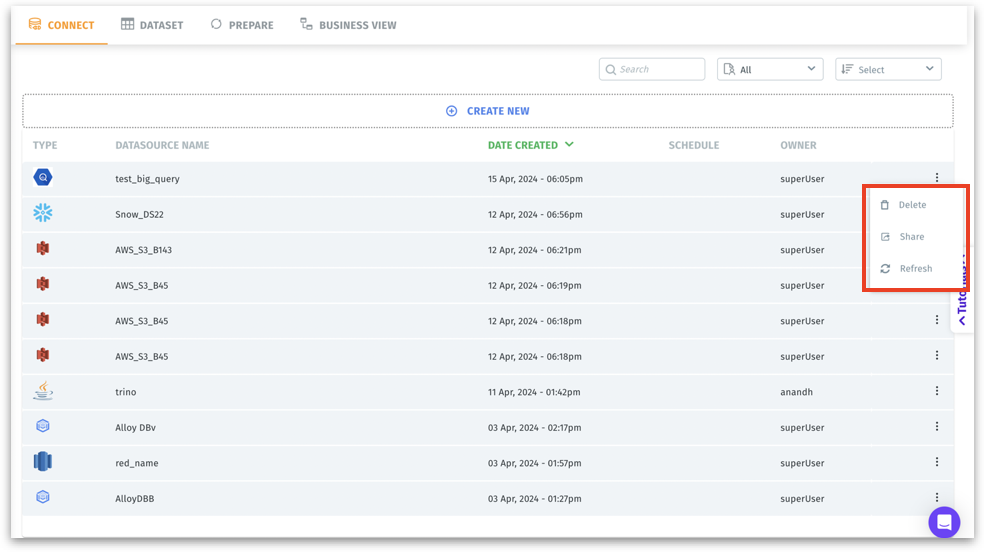
To the far right of each connection row is a three-dot kebab menu.
Refresh, share, or delete a datasource
In Tellius 6.4, the menu holds **Edit**, **Refresh**, **Share**, **Identify Similar Datasources** and **Delete**.
* **Edit:** Opens the connection so you can update its details.
* **Refresh:** For triggering or scheduling a data refresh operation. For more details, please check out [Refreshing a datasource](/tellius-6.4/data/refreshing-a-datasource.md).
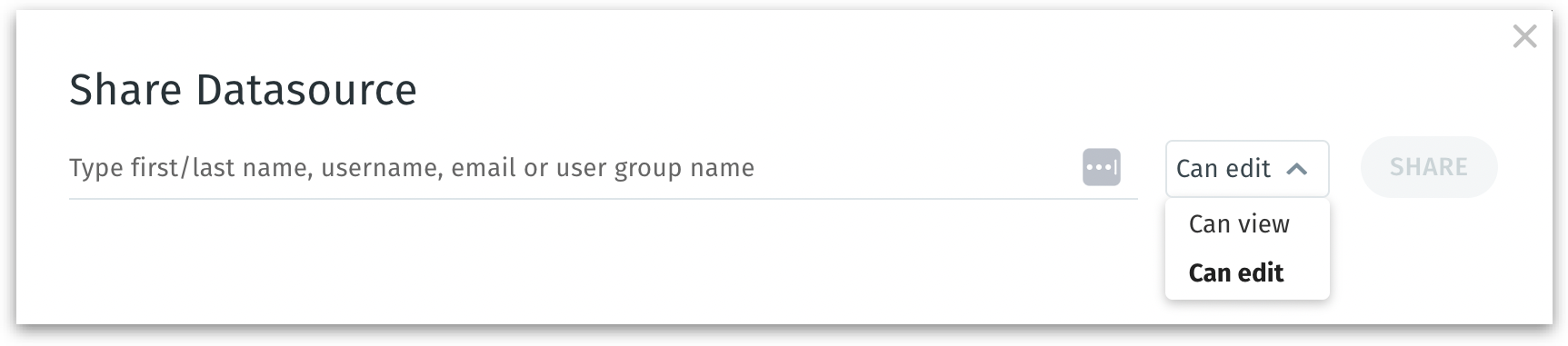
* **Share:** Share the datasource to your team members. The following window will be displayed where you can specify the person’s username, name or email ID and mention the permission (view or edit).
Share a datasource with permissions
* **Identify Similar Datasources:** Finds other connections with an identical configuration, so you can merge them into one. If there are any, pick the primary datasource to keep; the others are merged into it. Before you select **Confirm**, the dialog shows how many datasources will be merged and how many dependent objects will be updated. Refresh schedules on the duplicates are removed, so set up a new schedule on the primary datasource afterwards. If none are found, the dialog says so.
{% hint style="info" %}
**When to use it:** when several people connected to the same database separately, merging the copies leaves one connection to maintain, share and refresh.
{% endhint %}
* **Delete:** Permanently removes the connection from Tellius. This action is irreversible and should be performed carefully. Only delete if you are certain no dependent datasets or business views rely on this connection.
***
---
# Agent Instructions
This documentation is published with GitBook. GitBook is the documentation platform designed so that both humans and AI agents can read, navigate, and reason over technical content effectively. Learn more at gitbook.com.
## Querying This Documentation
If you need additional information that is not directly available in this page, you can query the documentation by asking a question.
Perform an HTTP GET request on the following URL with the `ask` and `goal` query parameters:
```
GET https://help.tellius.com/tellius-6.4/data/connect.md?ask=&goal=
```
`ask` is the immediate question: it should be specific, self-contained, and written in natural language.
`goal` is what the user is ultimately trying to achieve, the reason they need the answer. Sharing it helps GitBook give you a better, more relevant answer. A goal is most helpful when it describes the outcome the user wants rather than restating the question. For example, with `ask=how do I create an API token`, a goal like `automate deployments from our CI pipeline` lets GitBook tailor the answer to that use case.
The response will contain a direct answer to the question and relevant excerpts and sources from the documentation.
Use this mechanism when the answer is not explicitly present in the current page, you need clarification or additional context, or you want to retrieve related documentation sections.